



Connect Claude to your Fortnox.
First, Claude Connector needs to be activated on your Fortnox account via the marketplace, by you or your administrator. After that, you add it to Claude, count on about five minutes.
Already know how it works? Add the address as a custom connector.
https://fortnox-claude.sidcom.ai/mcp// step by step
Add the connector in Claude and connect Fortnox
Done
Fortnox is added. Next, connect it to your Fortnox company.
Step 1 of 9
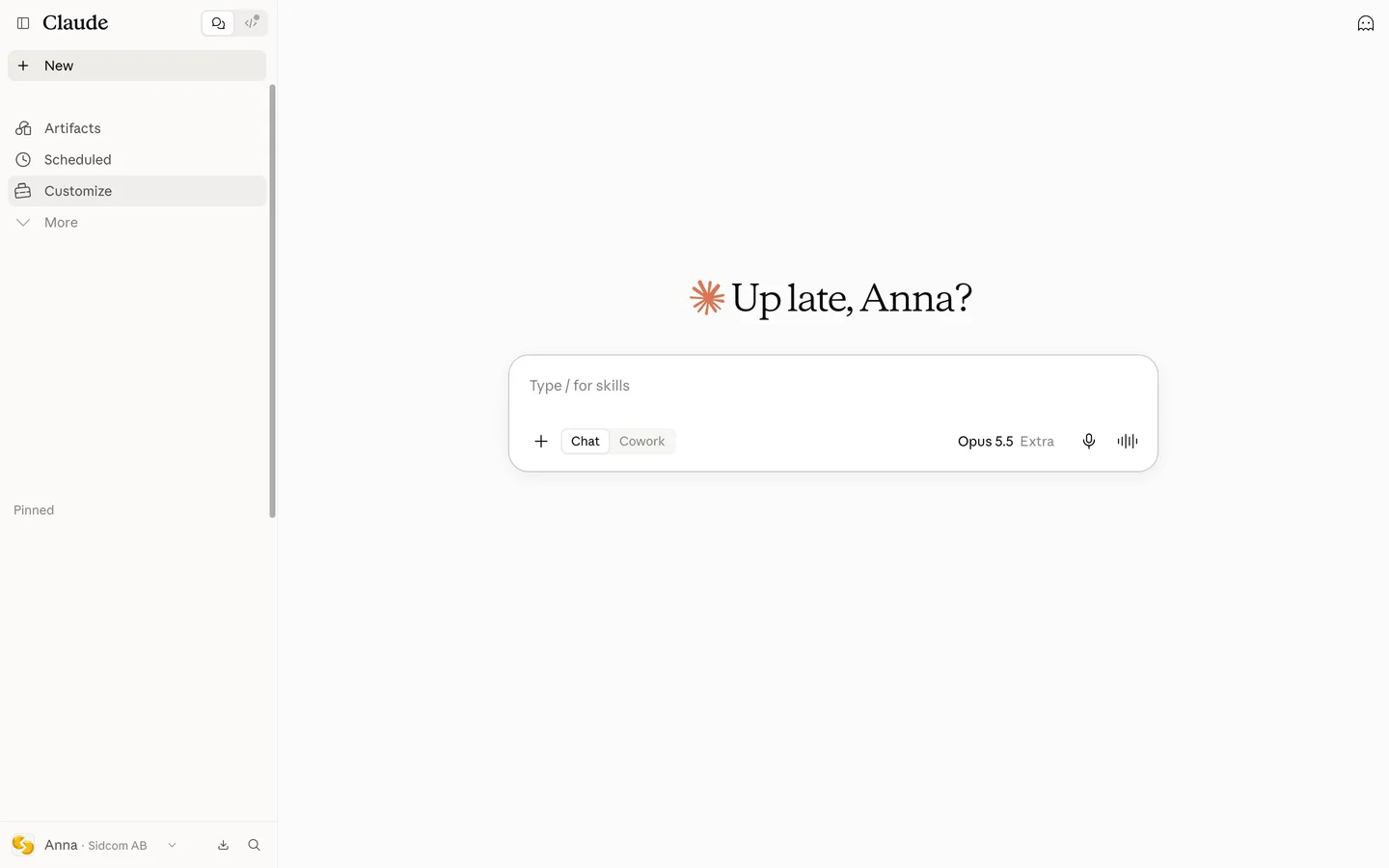
Open Customize
Customize is in the menu on the left.
ClickCustomize
Open Connectors in Claudeclaude.ai(opens in a new tab)Stuck on this step?
Contact support about this step →Looks different on your screen?
Still stuck? Tell us which step and we will help you through it.
Step 2 of 9
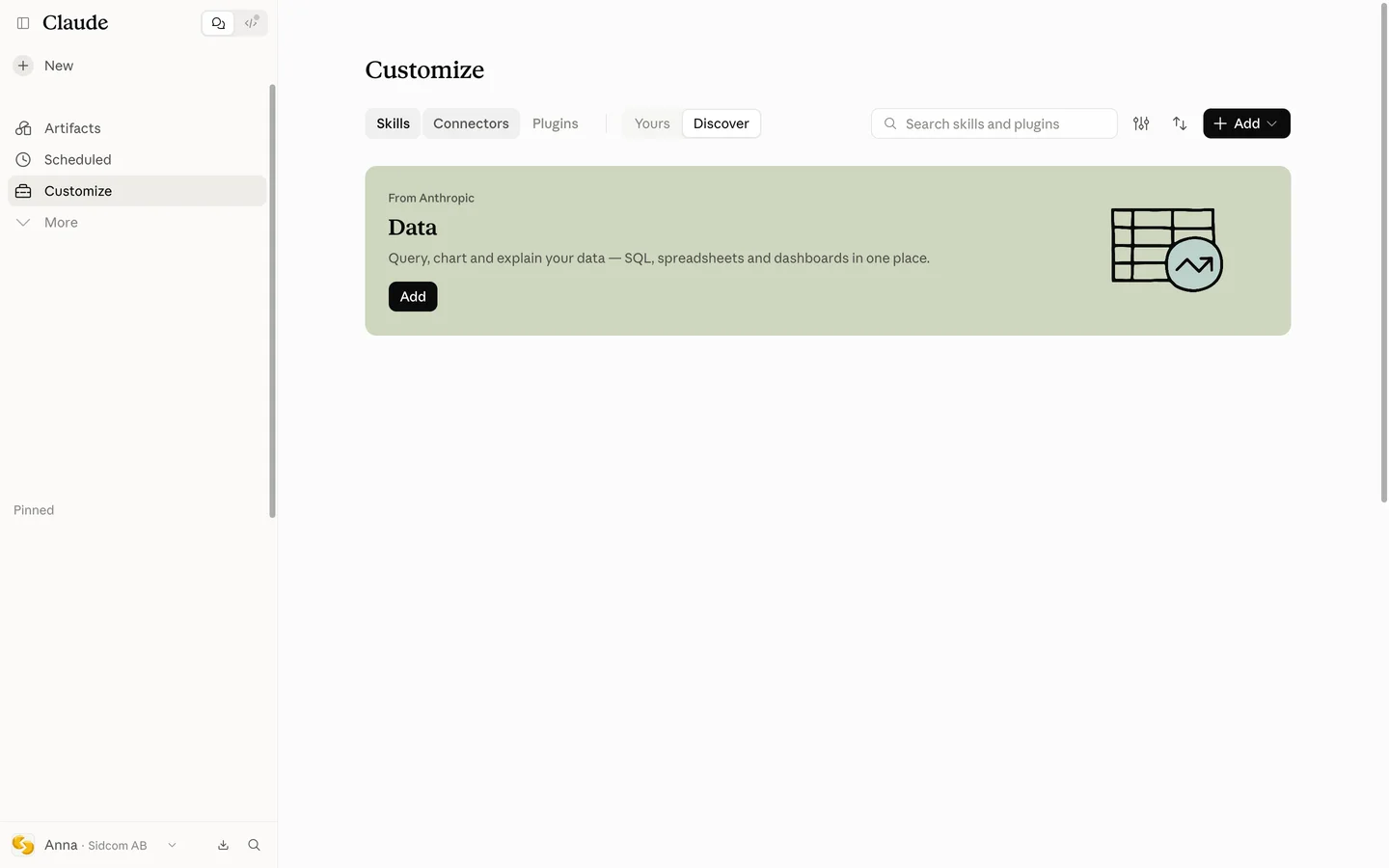
Choose the Connectors tab
At the top of the page, next to Skills.
ClickConnectors
Stuck on this step?
Contact support about this step →Looks different on your screen?
Still stuck? Tell us which step and we will help you through it.
Step 3 of 9
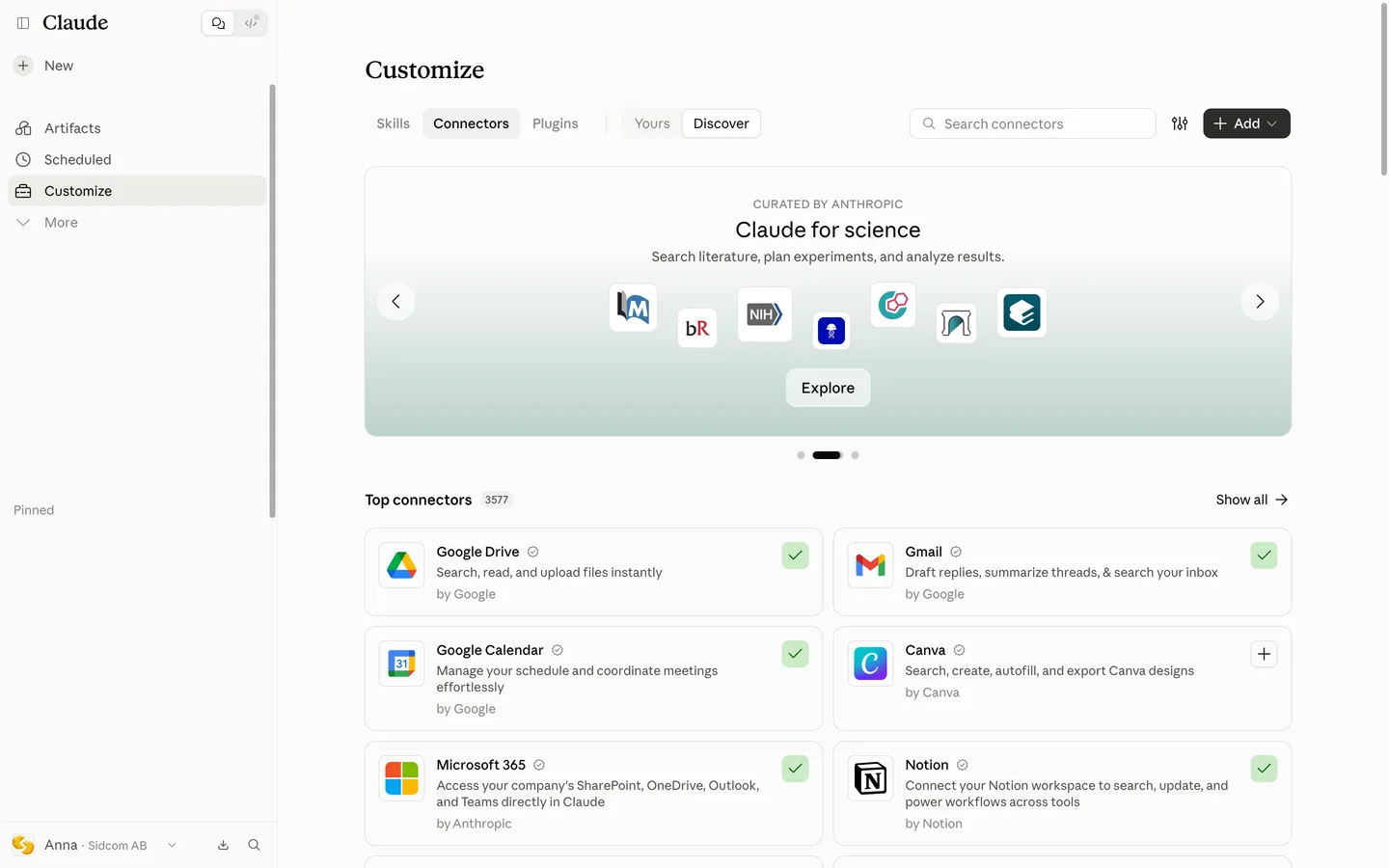
Click Add
Top right.
ClickAdd
Stuck on this step?
Contact support about this step →Looks different on your screen?
Still stuck? Tell us which step and we will help you through it.
Step 4 of 9
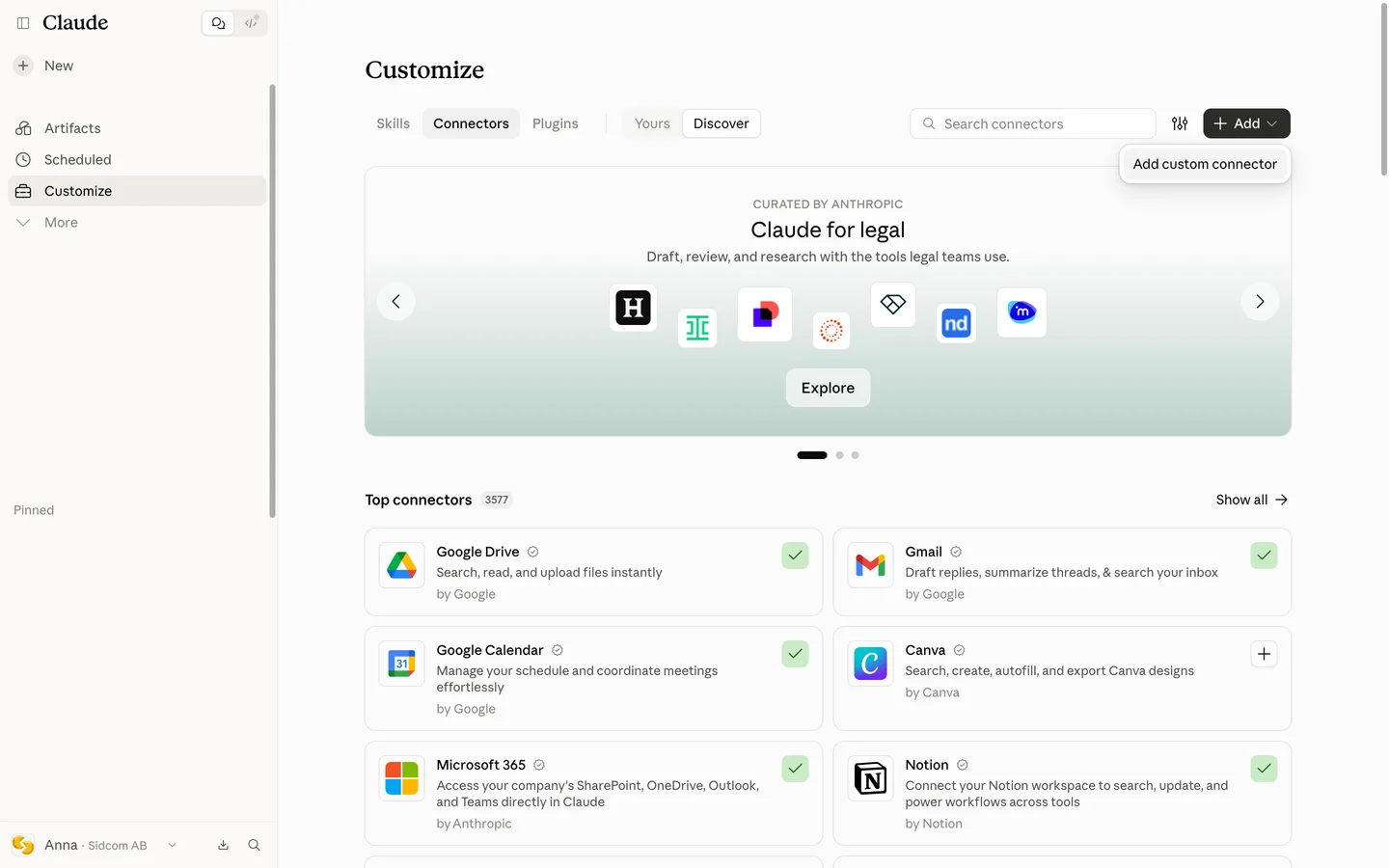
Choose Add custom connector
You add the Fortnox Connector as a custom connector with the address below.
ClickAdd custom connector
Stuck on this step?
I do not see an Add button
On Team and Enterprise, by default only an administrator can add connectors. Ask your administrator to add Fortnox for the organisation, then find it under Yours and click Connect.
Contact support about this step →Looks different on your screen?
Still stuck? Tell us which step and we will help you through it.
Step 5 of 9
Name it
The name shows in your list of connectors. Fortnox works well.
Type inName
Fortnox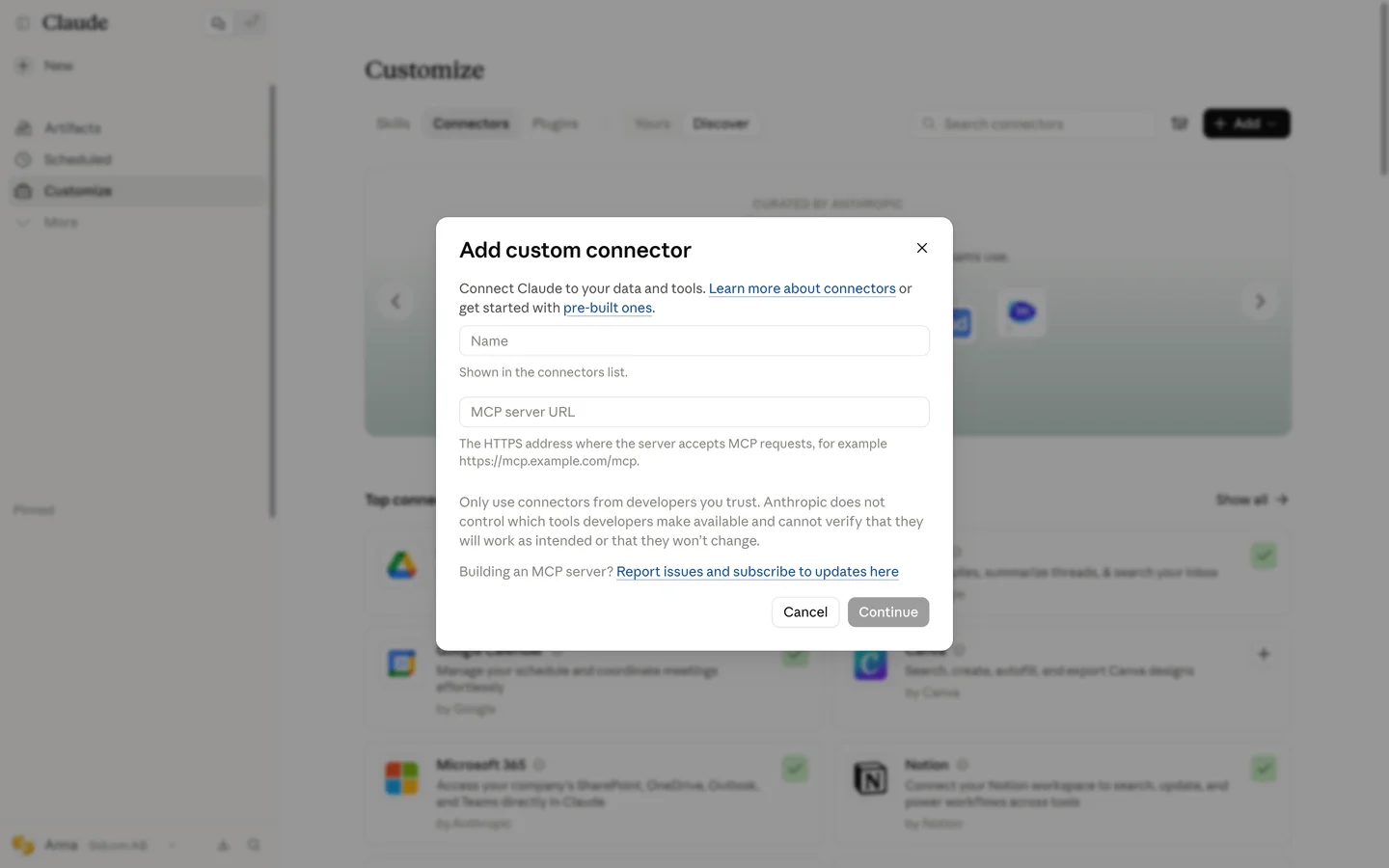
Stuck on this step?
Contact support about this step →Looks different on your screen?
Still stuck? Tell us which step and we will help you through it.
Step 6 of 9
Paste the server address
Type inMCP server URL
MCP server addresshttps://fortnox-claude.sidcom.ai/mcp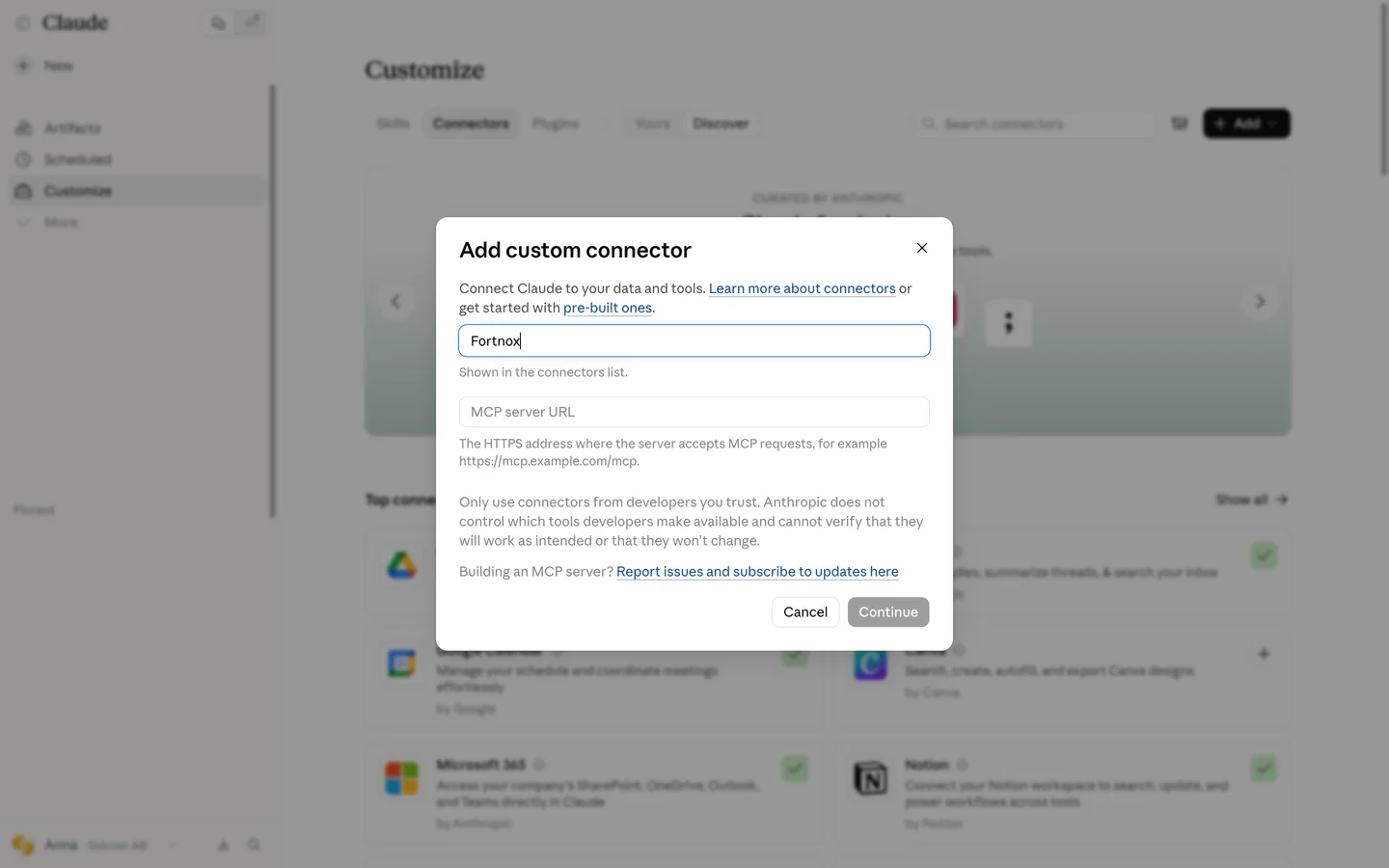
Stuck on this step?
It says a connector with this URL already exists
Someone in your organisation has already added Fortnox. Close the window, choose Yours on the Connectors page and click Connect on the existing one to connect your own Fortnox.
Contact support about this step →Looks different on your screen?
Still stuck? Tell us which step and we will help you through it.
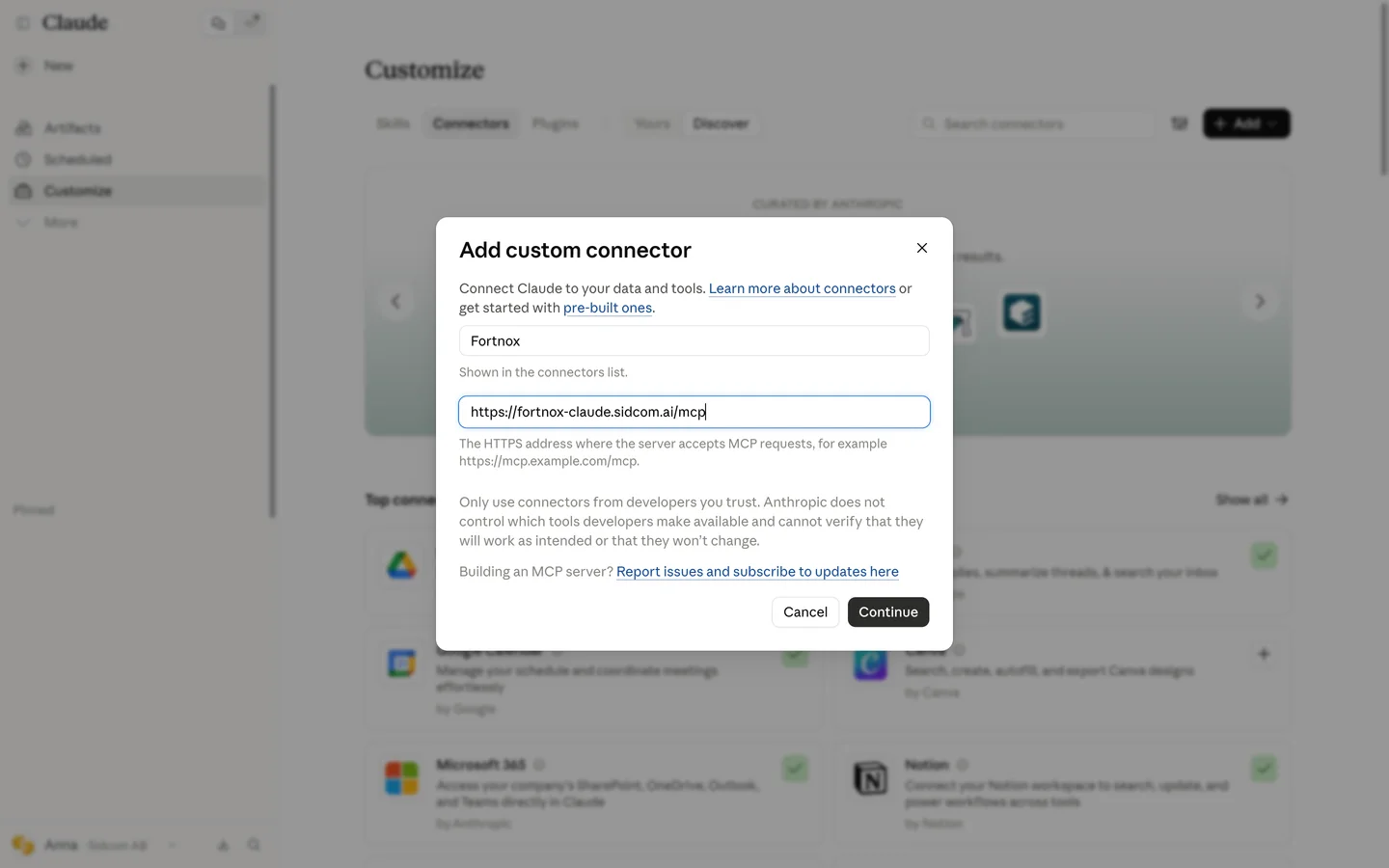
Step 7 of 9
Click Continue
ClickContinue
Stuck on this step?
Contact support about this step →Looks different on your screen?
Still stuck? Tell us which step and we will help you through it.
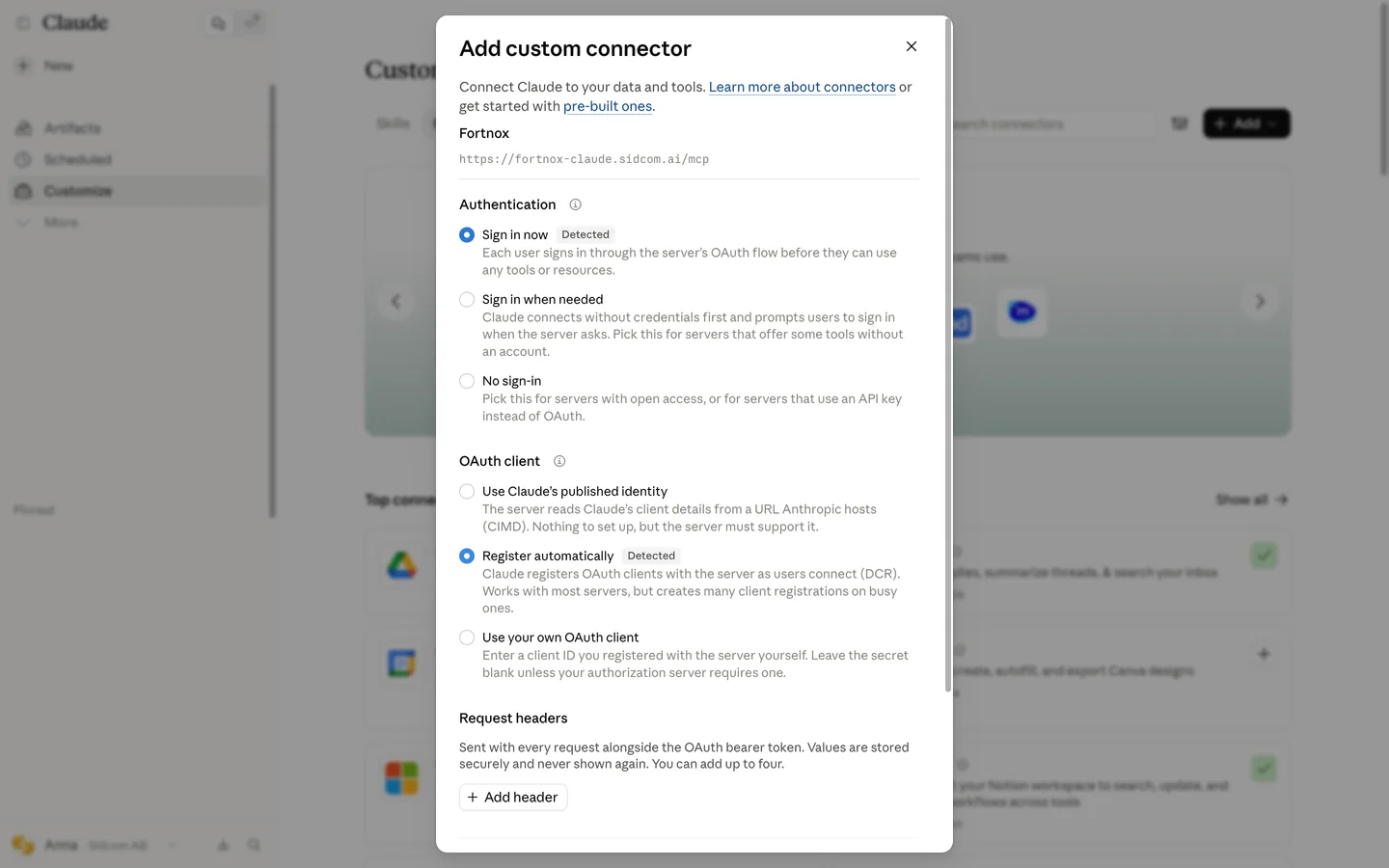
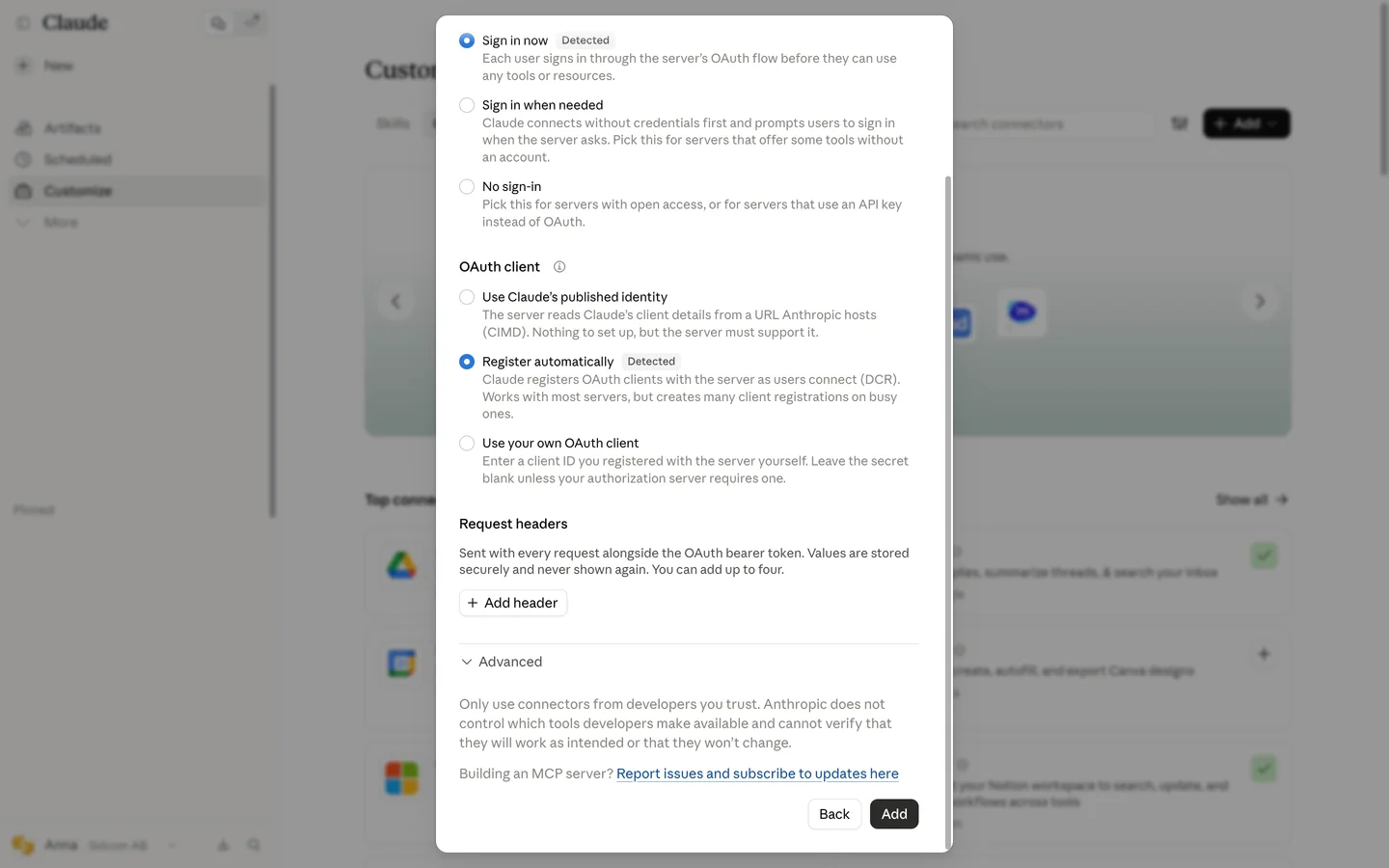
Step 8 of 9
Leave the settings as they are
Sign in now and Register automatically are already selected, so you sign in with your own Fortnox account. Nothing to change here.
Stuck on this step?
Contact support about this step →Looks different on your screen?
Still stuck? Tell us which step and we will help you through it.
Step 9 of 9
Click Add
The connector is added, and you land on its page to connect it.
ClickAdd
Stuck on this step?
Contact support about this step →Looks different on your screen?
Still stuck? Tell us which step and we will help you through it.
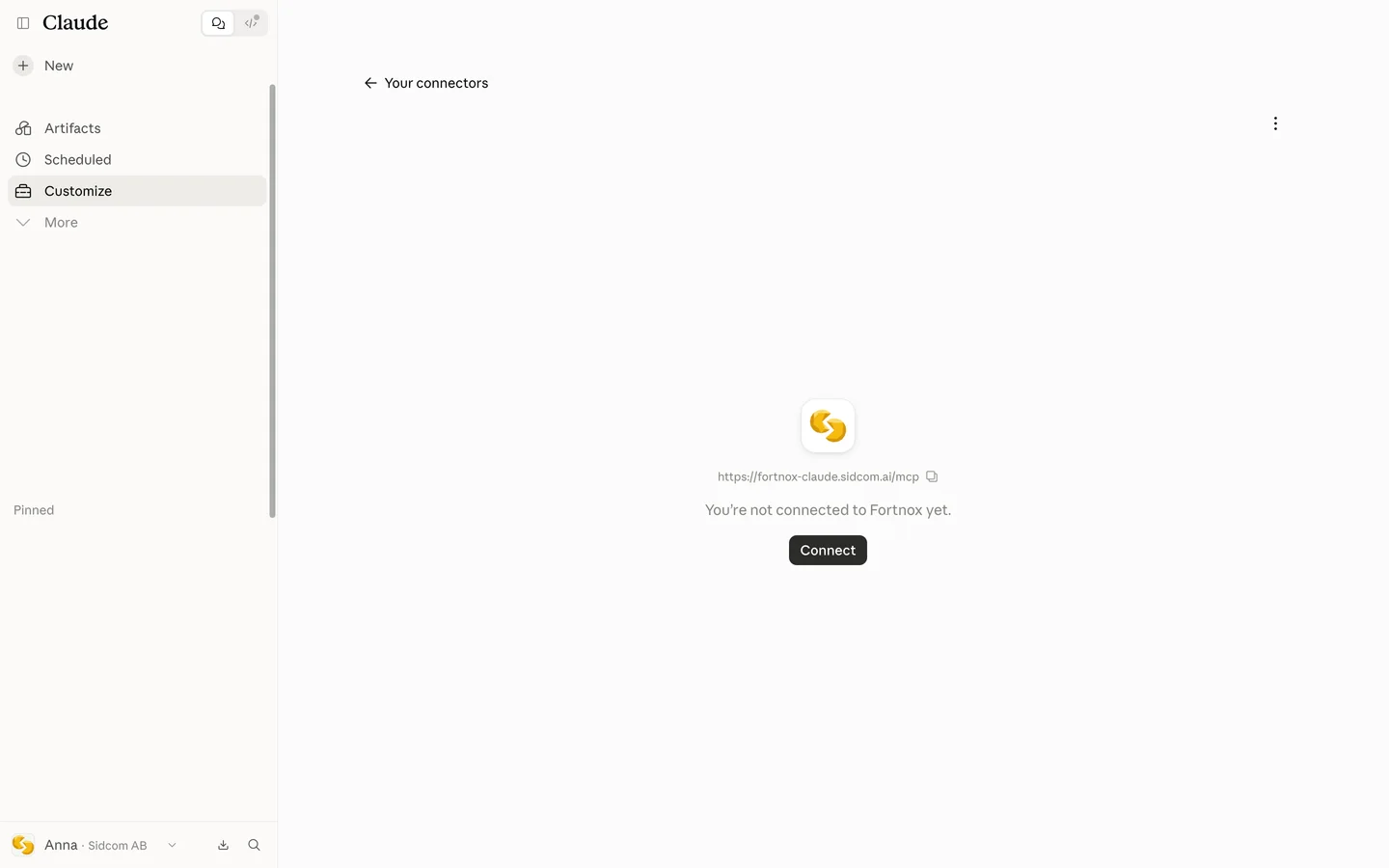
Done
Fortnox is connected. Ask Claude about your company.
Step 1 of 11
Click Connect
On the connector's page in Claude. This opens the Sidcom sign in.
ClickConnect
Stuck on this step?
Contact support about this step →Looks different on your screen?
Still stuck? Tell us which step and we will help you through it.
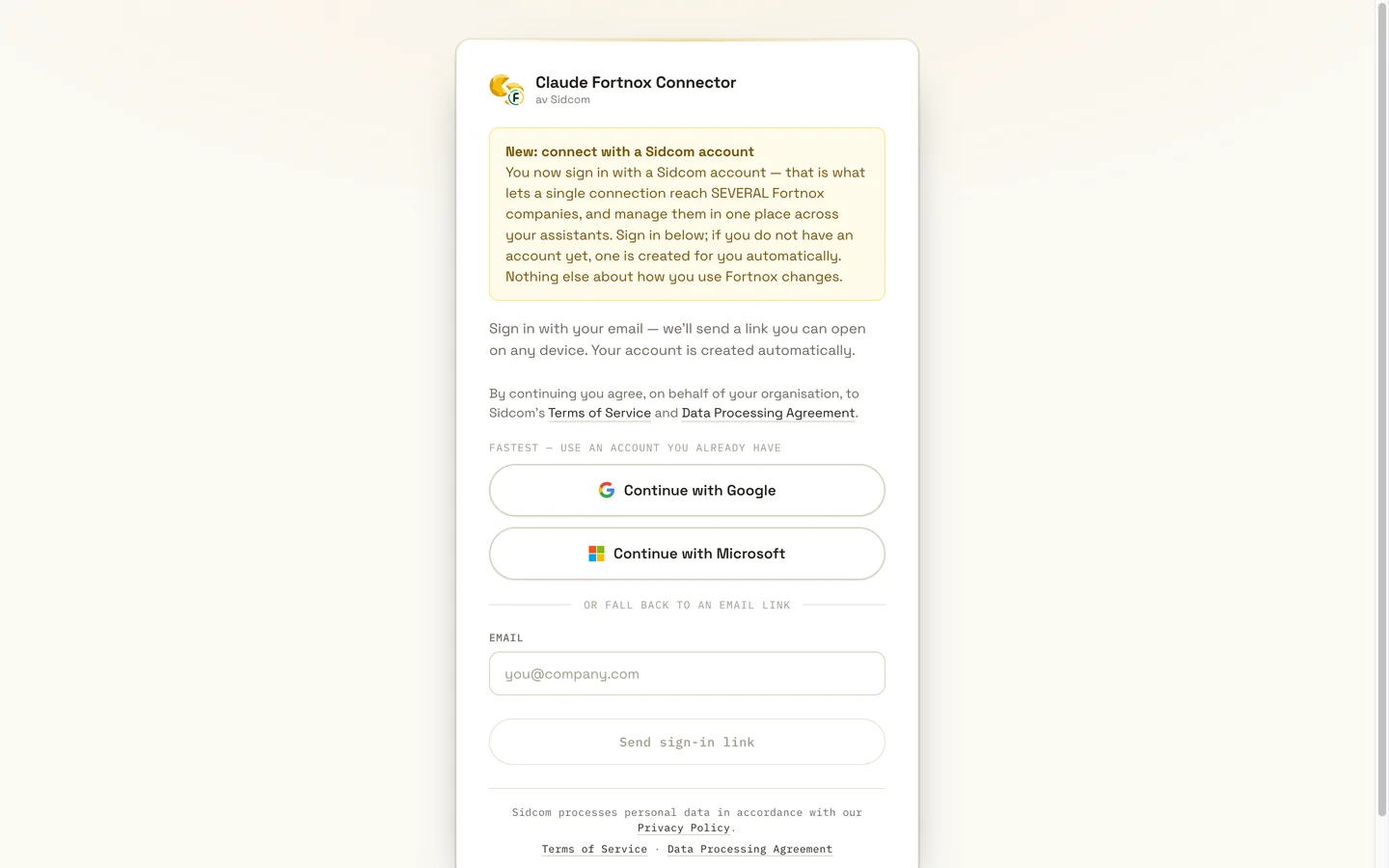
Step 2 of 11
Sign in with a Sidcom account
Use Google or Microsoft, or get a sign in link by email. If you do not have an account yet, one is created for you.
ClickContinue with Google
One Sidcom account can reach several Fortnox companies, across your AI assistants.
Stuck on this step?
Contact support about this step →Looks different on your screen?
Still stuck? Tell us which step and we will help you through it.
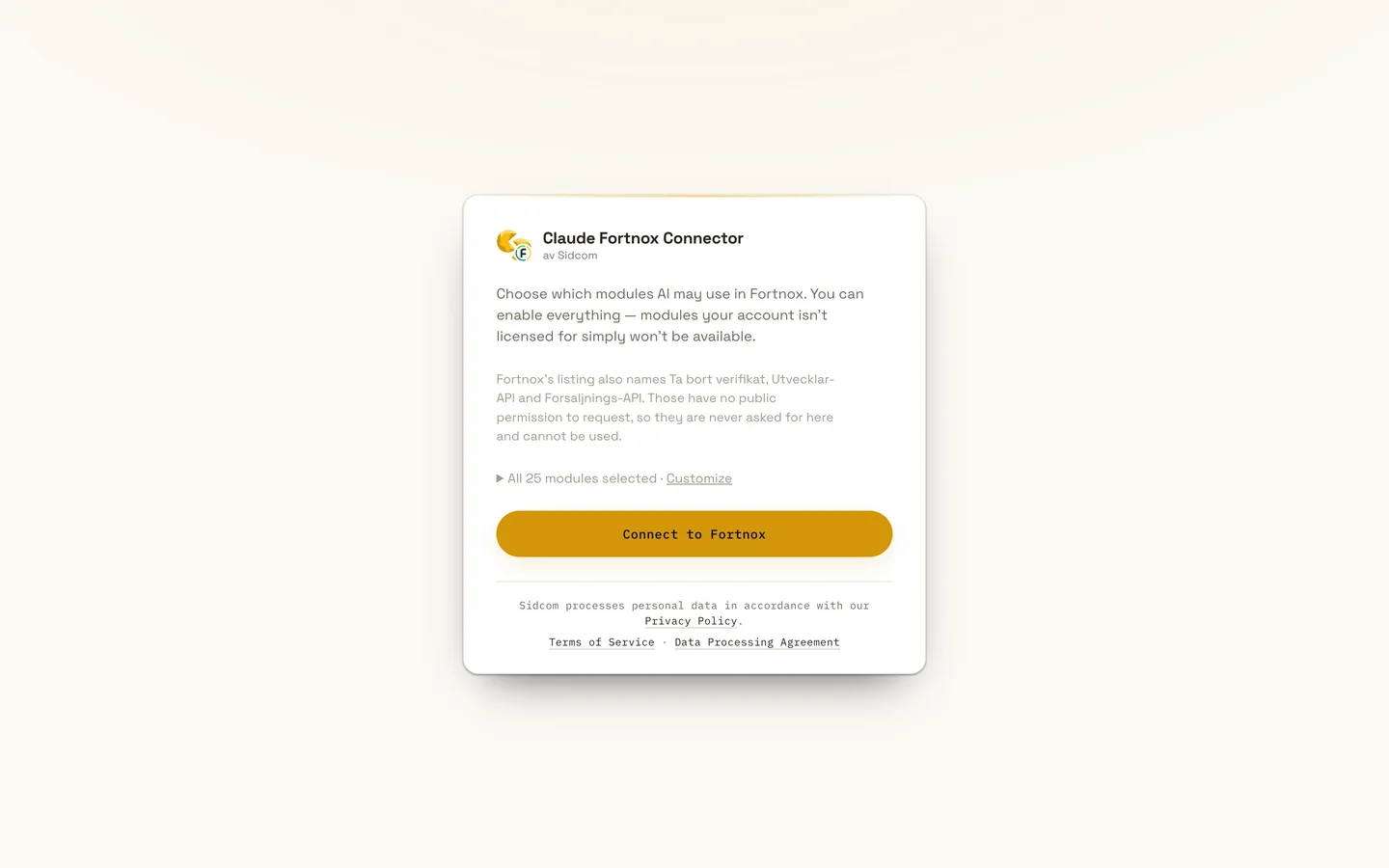
Step 3 of 11
Choose modules and connect
Pick which parts of Fortnox Claude may use. Leave them all on if you are unsure, modules the company has no licence for simply stay unavailable.
ClickConnect to Fortnox
Stuck on this step?
Contact support about this step →Looks different on your screen?
Still stuck? Tell us which step and we will help you through it.
Step 4 of 11
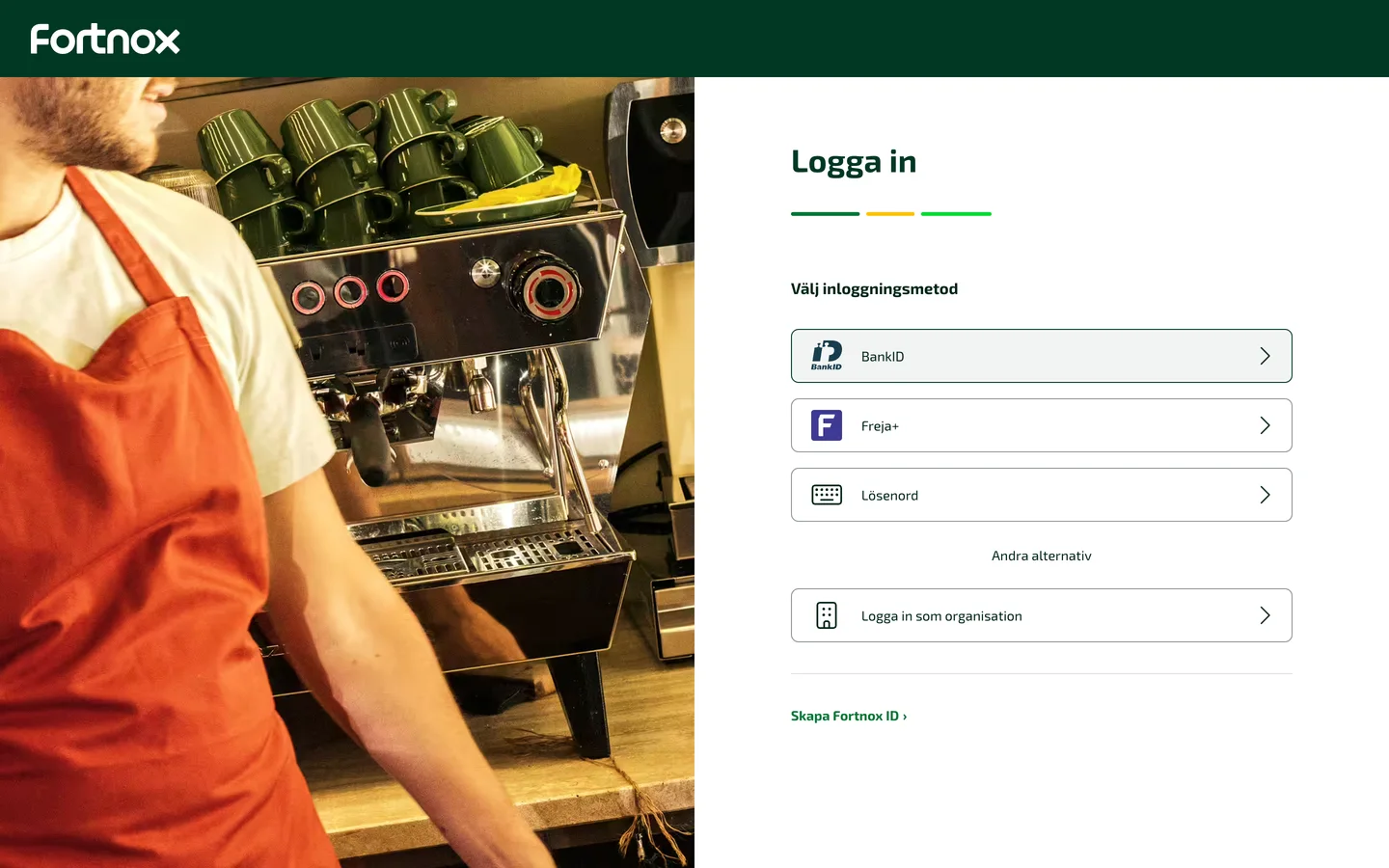
Sign in to Fortnox
Fortnox opens. Sign in the way you usually do, for example with BankID.
ClickBankID
Already signed in to Fortnox? Then this step is skipped.
Stuck on this step?
Contact support about this step →Looks different on your screen?
Still stuck? Tell us which step and we will help you through it.
Step 5 of 11
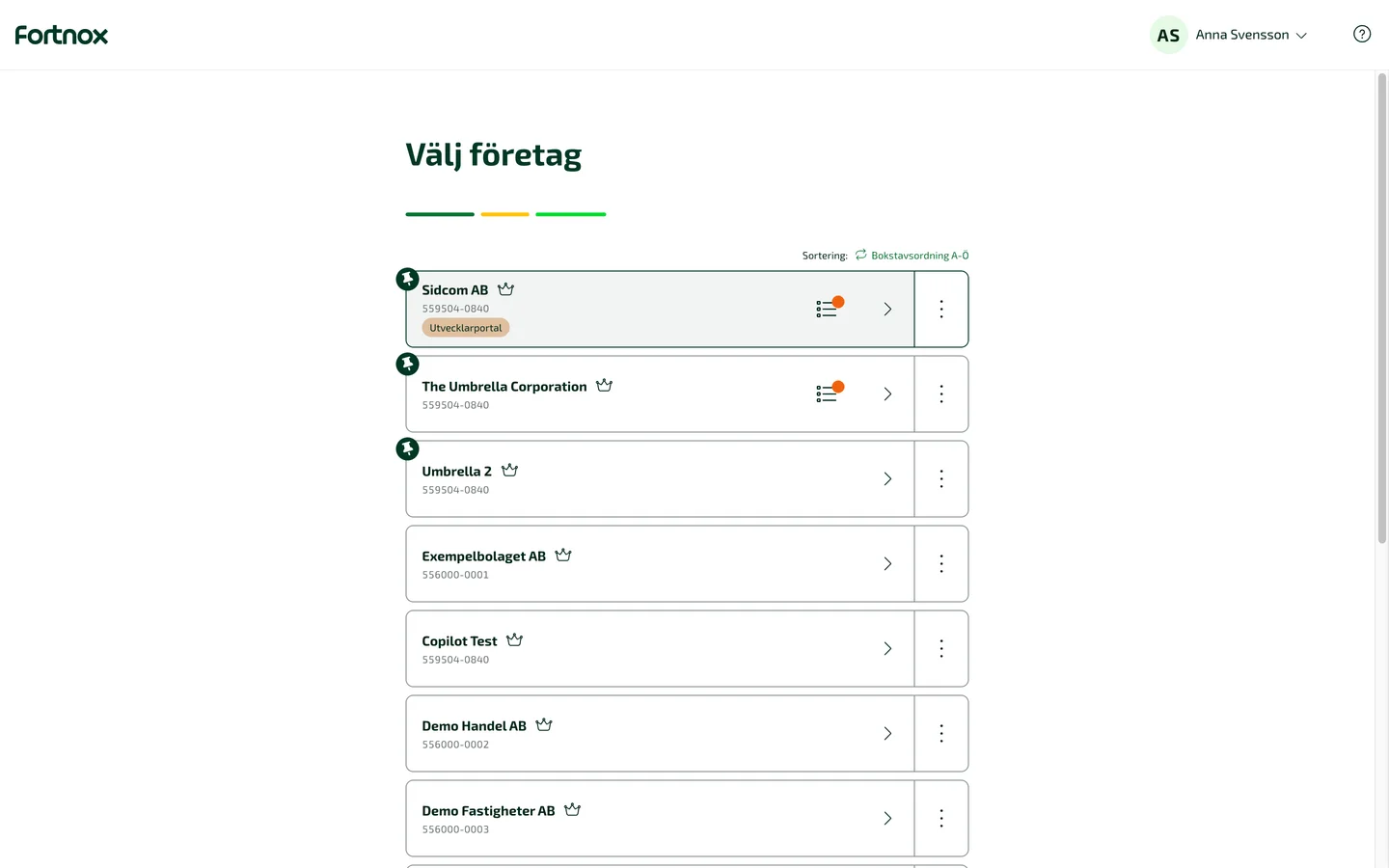
Choose the Fortnox company
Pick the company Claude should work with. You can add more later.
ClickYour company
Have Digital Byrå? Then your company is listed twice. Choose the one that is not marked Digital Byrå, otherwise the licence is not found.
Stuck on this step?
It says the licence is missing
Check that you chose the company without the Digital Byrå mark, and that the company has a free licence. The licence is assigned automatically when you connect, but only if a seat is free. How to check for free licences and buy more.
It says my connection session timed out
If you picked a company that has not activated the Claude Connector in Fortnox, activate it first in the Fortnox marketplace, then start again from Claude. Otherwise the sign in took more than ten minutes: start again and it goes quicker the second time.
Contact support about this step →Looks different on your screen?
Still stuck? Tell us which step and we will help you through it.
Step 6 of 11
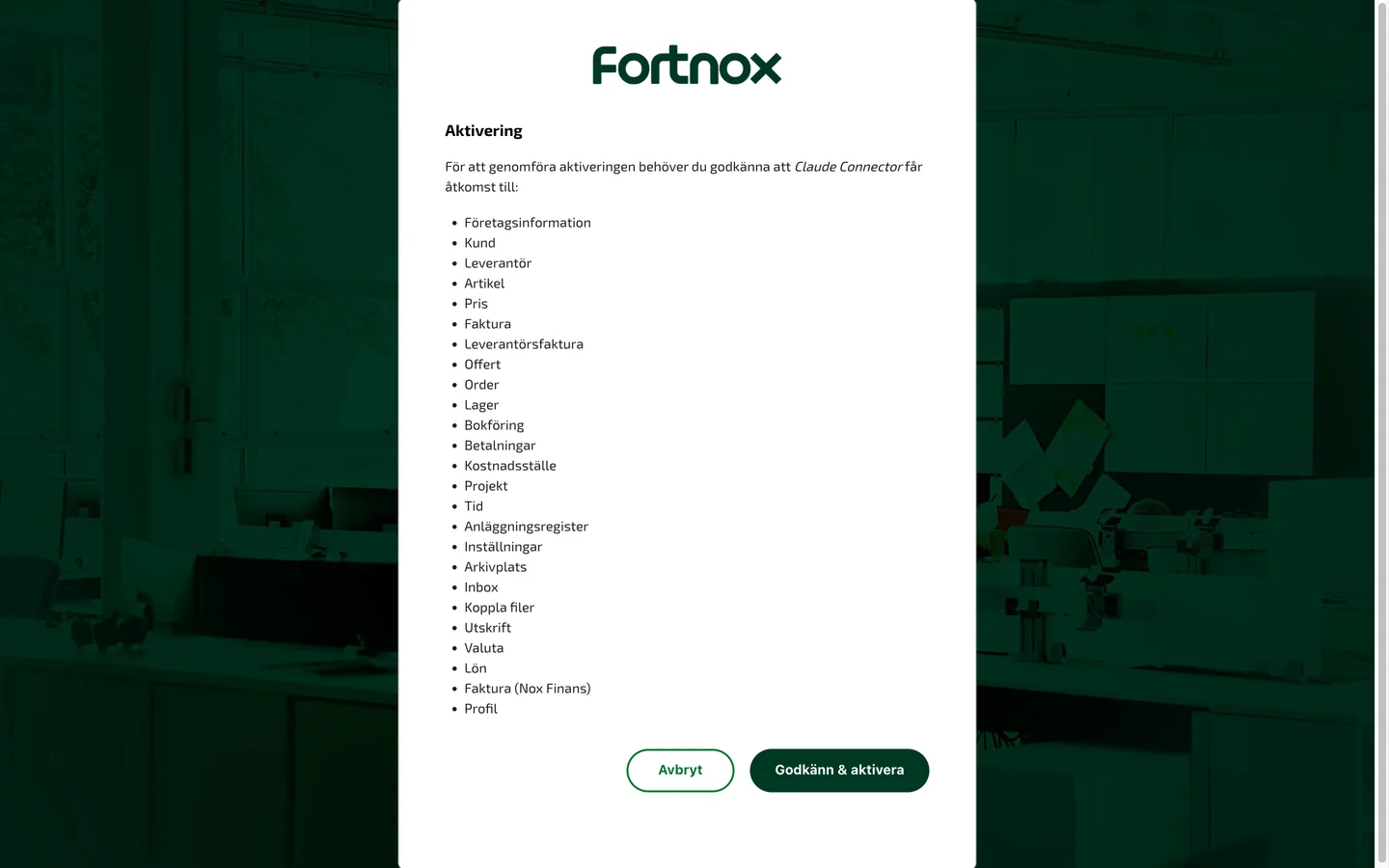
Approve access in Fortnox
Fortnox lists what the connector may use. What you can actually do is still limited by your own Fortnox user's permissions.
ClickGodkänn & aktivera
Stuck on this step?
Contact support about this step →Looks different on your screen?
Still stuck? Tell us which step and we will help you through it.
Step 7 of 11
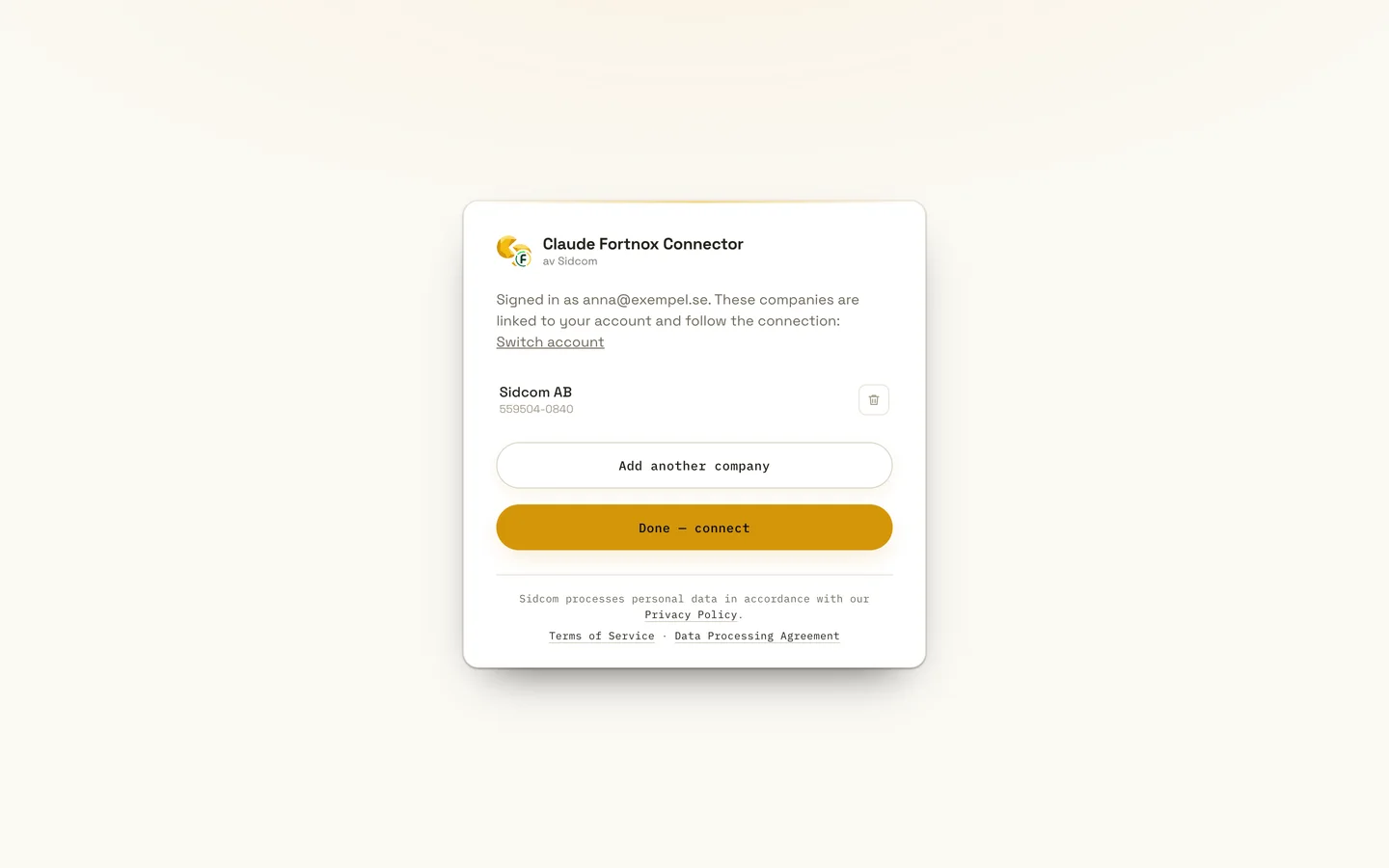
Click Done, connect
The company is now linked. Add more if you need to, then finish.
ClickDone, connect
Stuck on this step?
Contact support about this step →Looks different on your screen?
Still stuck? Tell us which step and we will help you through it.
Step 8 of 11
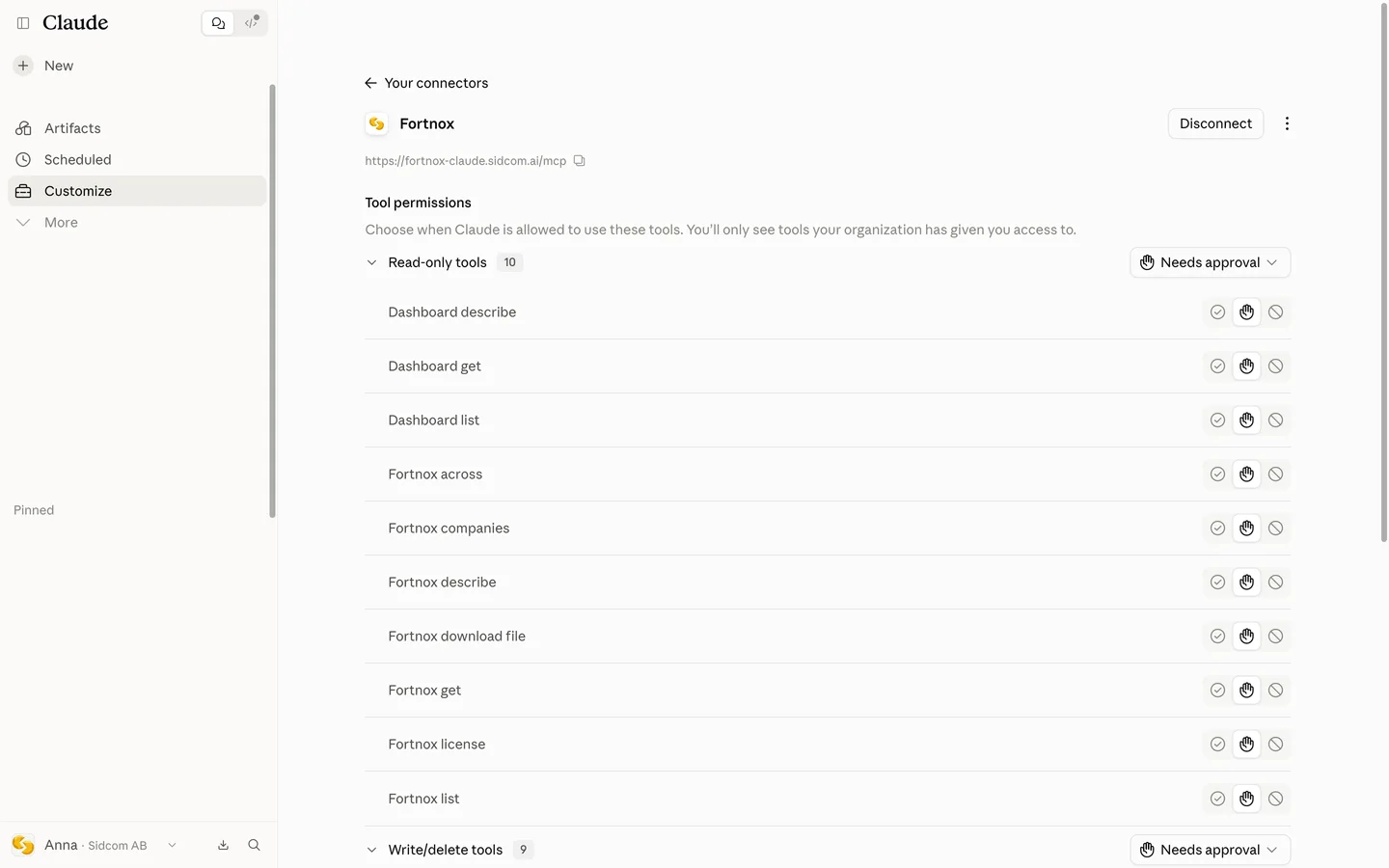
You are connected
Back in Claude you see the connector's tools. For each tool you choose whether Claude may always use it, must ask first, or may not use it.
Want Claude to only read? Block the tools under Write/delete tools. What really limits it is still your own Fortnox user's permissions.
Stuck on this step?
A new tool does not show up
Claude keeps the tool list from when you connected. Open the three dots menu on the connector's page, choose Refresh tools list and start a new chat.
Contact support about this step →Looks different on your screen?
Still stuck? Tell us which step and we will help you through it.
Step 9 of 11
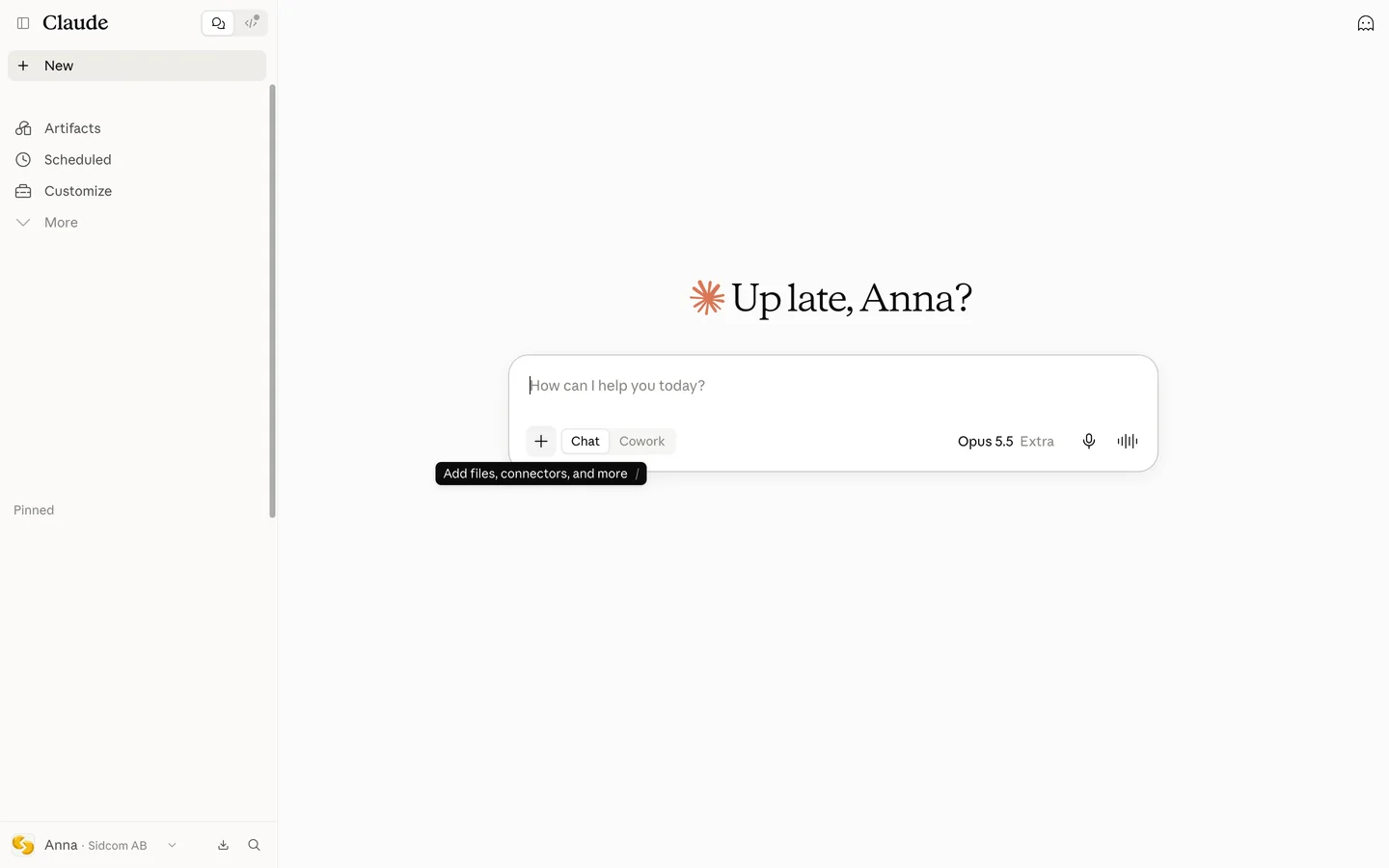
Open a new chat and click plus
The plus button is at the bottom left of the message box.
ClickAdd files, connectors, and more
Stuck on this step?
Contact support about this step →Looks different on your screen?
Still stuck? Tell us which step and we will help you through it.
Step 10 of 11
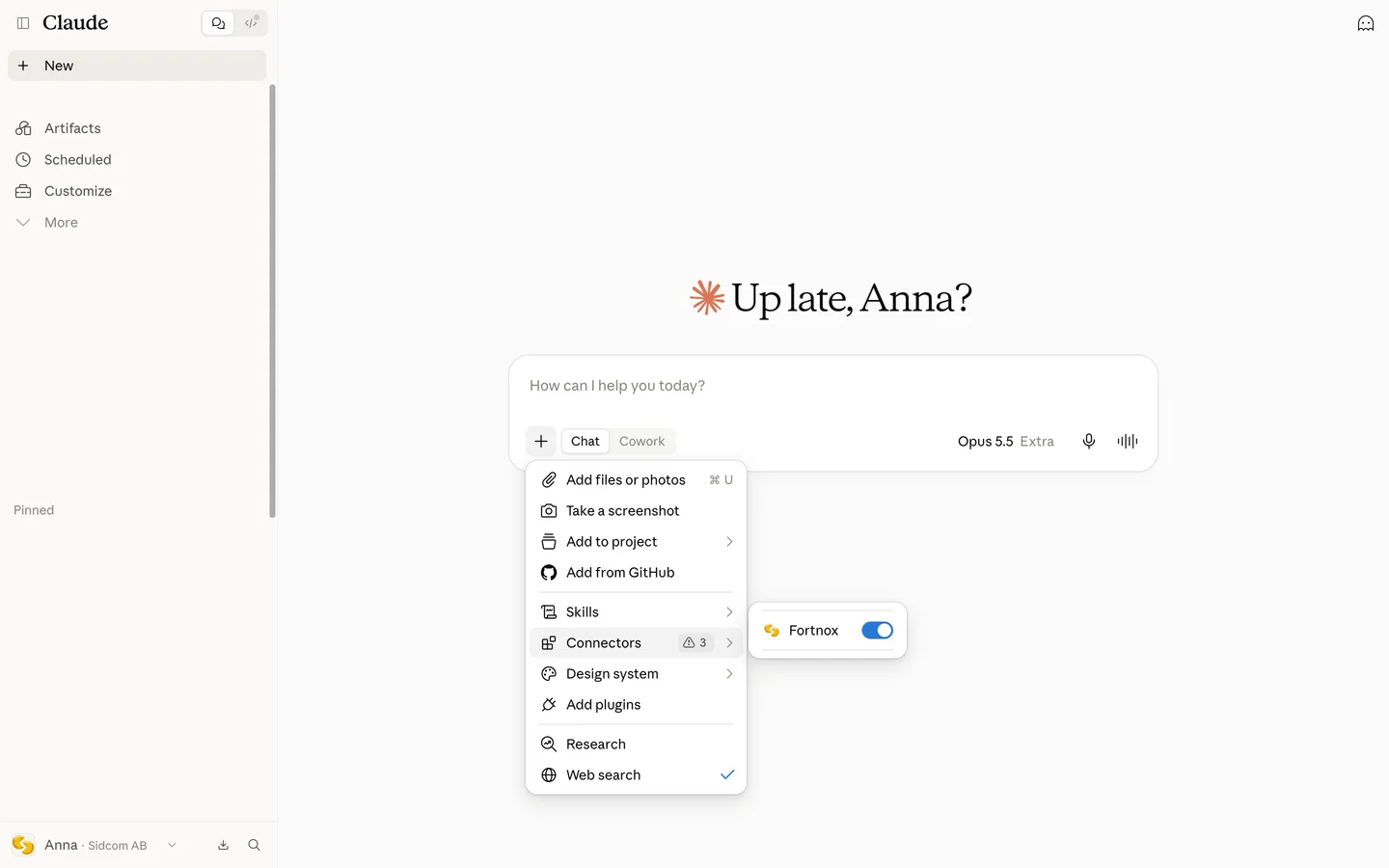
Choose Connectors
ClickConnectors
Stuck on this step?
Contact support about this step →Looks different on your screen?
Still stuck? Tell us which step and we will help you through it.
Step 11 of 11
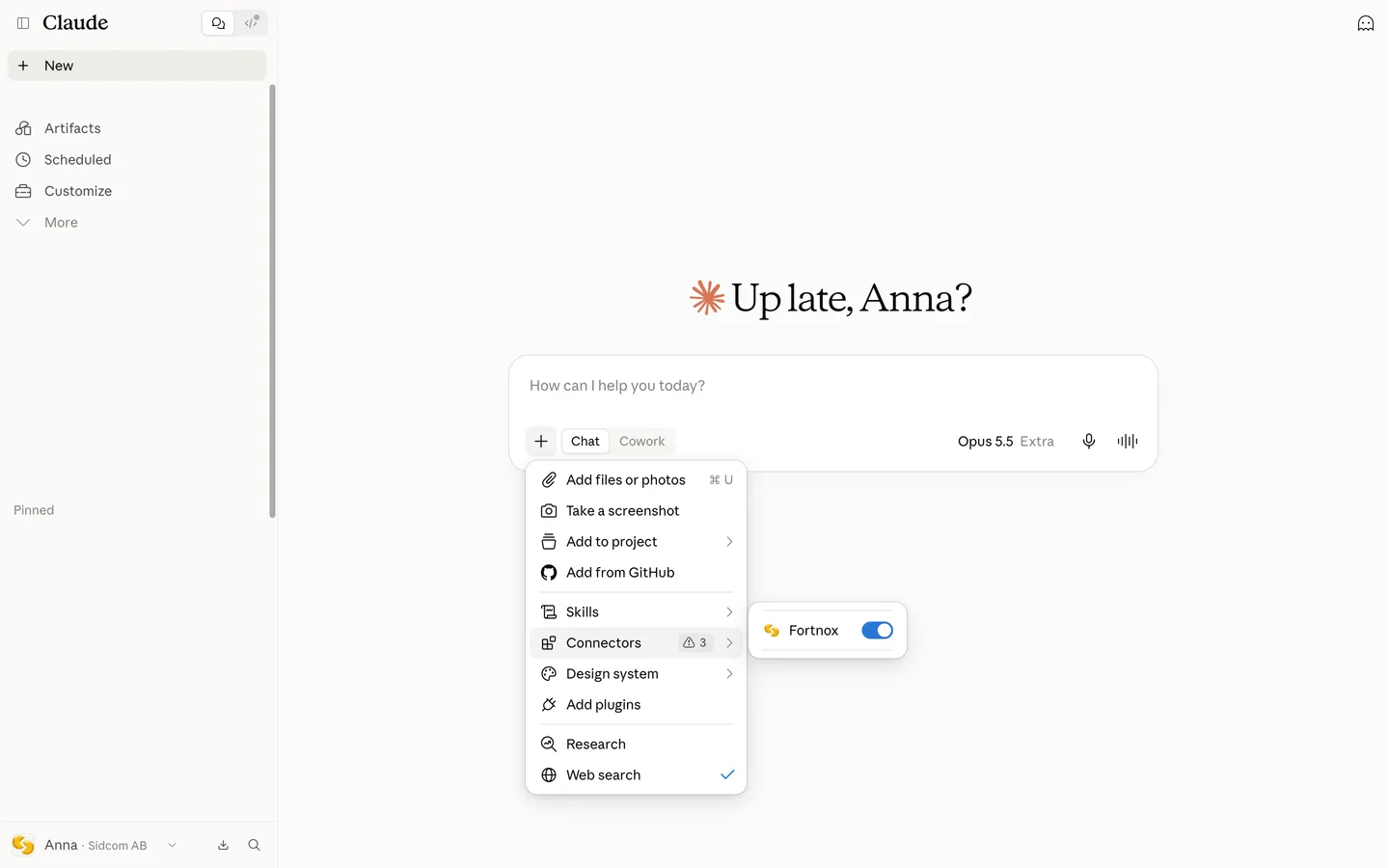
Make sure Fortnox is on
The switch should be on. Then ask something like What is the amount on my latest invoice? Claude asks for your approval before anything is written to Fortnox.
The connector then also works in the Claude desktop and mobile apps.
Stuck on this step?
Contact support about this step →Looks different on your screen?
Still stuck? Tell us which step and we will help you through it.
Claude updates its interface often. Screens last checked 29 Sept 2026.
// other_clients
Claude Code or another MCP client?
Run the command in your terminal and sign in with Fortnox when asked.
claude mcp add fortnox https://fortnox-claude.sidcom.ai/mcpAdd the server to your client's MCP configuration.
{
  "mcpServers": {
    "fortnox": {
      "url": "https://fortnox-claude.sidcom.ai/mcp"
    }
  }
}
// troubleshooting
Connection not working?
- 01
Have you bought and activated the licence?
You buy the licence in the Fortnox marketplace. Activate the connector on the company before you connect in Claude. No separate integration licence is needed.
- 02
Do you have Digital Byrå?
Then your company is listed twice when you choose a company in Fortnox, with different agreement numbers. Choose the one that is not marked Digital Byrå. If you connect to the Digital Byrå version, the licence is not found.
- 03
Is there a free licence?
The licence is assigned automatically when you connect, but only if the company has a free seat. A new user connecting needs the company to have bought enough licences. How to check for free licences and buy more.
- 04
No Add button under Connectors?
On Team and Enterprise, by default only an administrator can add connectors. Ask your administrator to add Fortnox for the organisation, then find it under Yours and click Connect.
- 05
Did the connection time out?
Start again from Claude, the Fortnox sign in needs to finish within ten minutes.
- 06
Is Claude refused although the modules are selected?
The connector only reaches what your own Fortnox user has permission to. Ask your Fortnox administrator to grant the permission under Settings, Manage users. It takes effect right away, without reconnecting.
- 07
A new tool does not show up?
Claude keeps the tool list from when you connected. Choose Refresh tools list in the three dots menu on the connector's page in Claude and start a new chat.