


Connect Claude, ChatGPT or Copilot.
For those who already have a Fortnox AI Connector account. Pick the AI you use and follow along step by step. The same address works for all of them, count on about five minutes.
Already know how it works? Add the address as an MCP connector.
https://fortnox.sidcom.ai/mcp// step by step
Pick your AI
Done
The connector is added. Next, connect your Fortnox companies.
Step 1 of 9
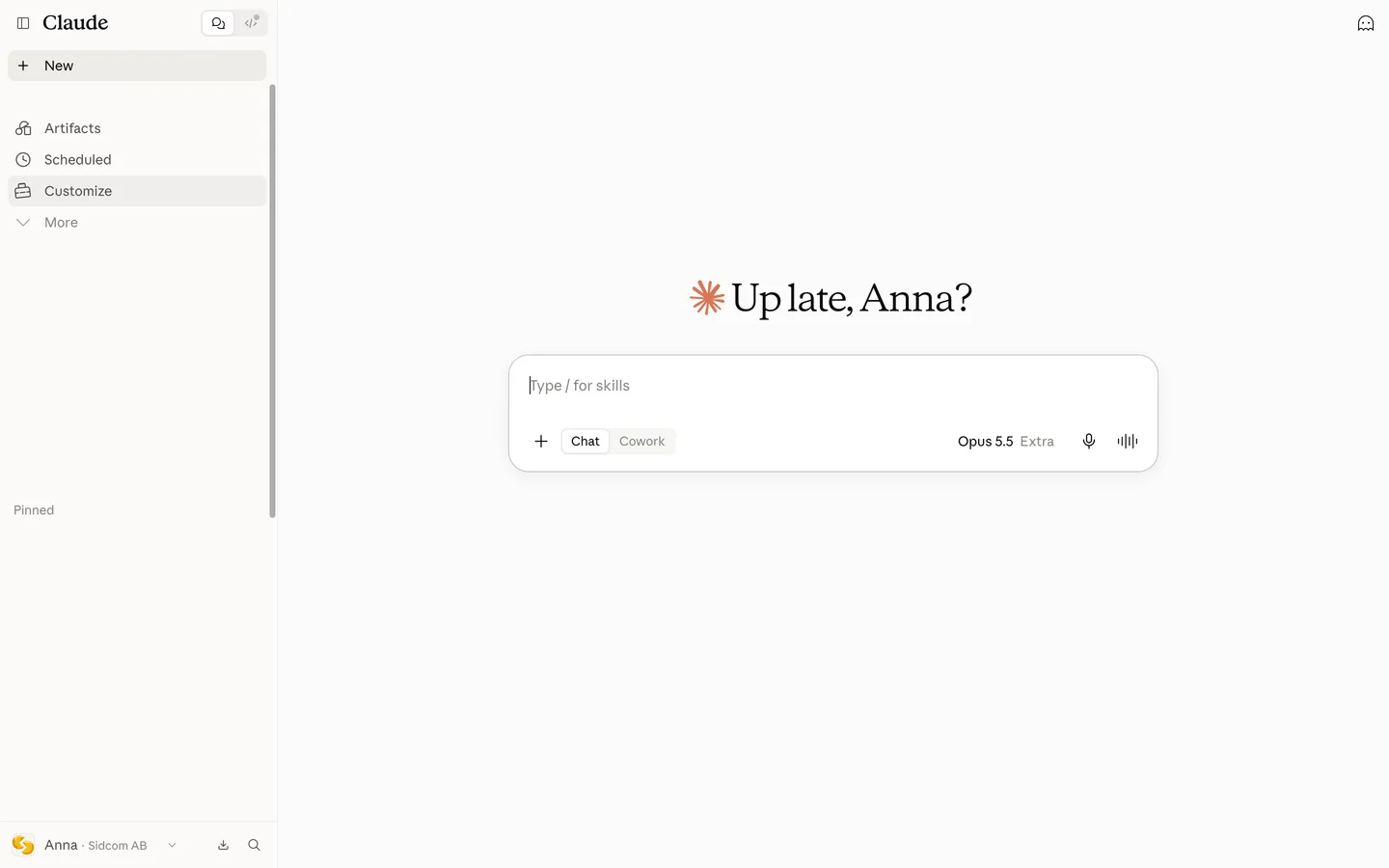
Open Customize
Customize is in the menu on the left.
ClickCustomize
Open Connectors in Claudeclaude.ai(opens in a new tab)Stuck on this step?
Contact support about this step →Looks different on your screen?
Still stuck? Tell us which step and we will help you through it.
Step 2 of 9
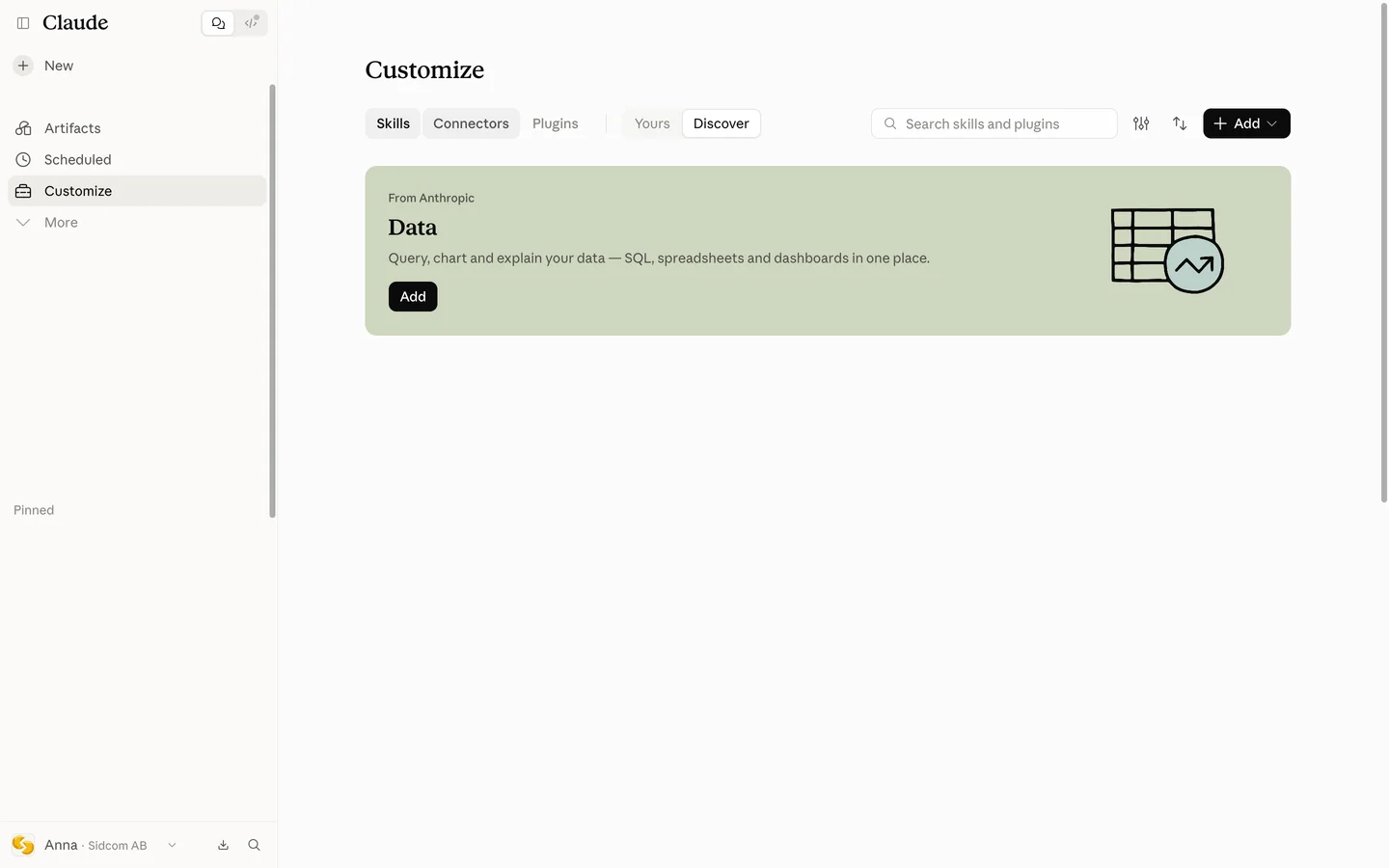
Choose the Connectors tab
At the top of the page, next to Skills.
ClickConnectors
Stuck on this step?
Contact support about this step →Looks different on your screen?
Still stuck? Tell us which step and we will help you through it.
Step 3 of 9
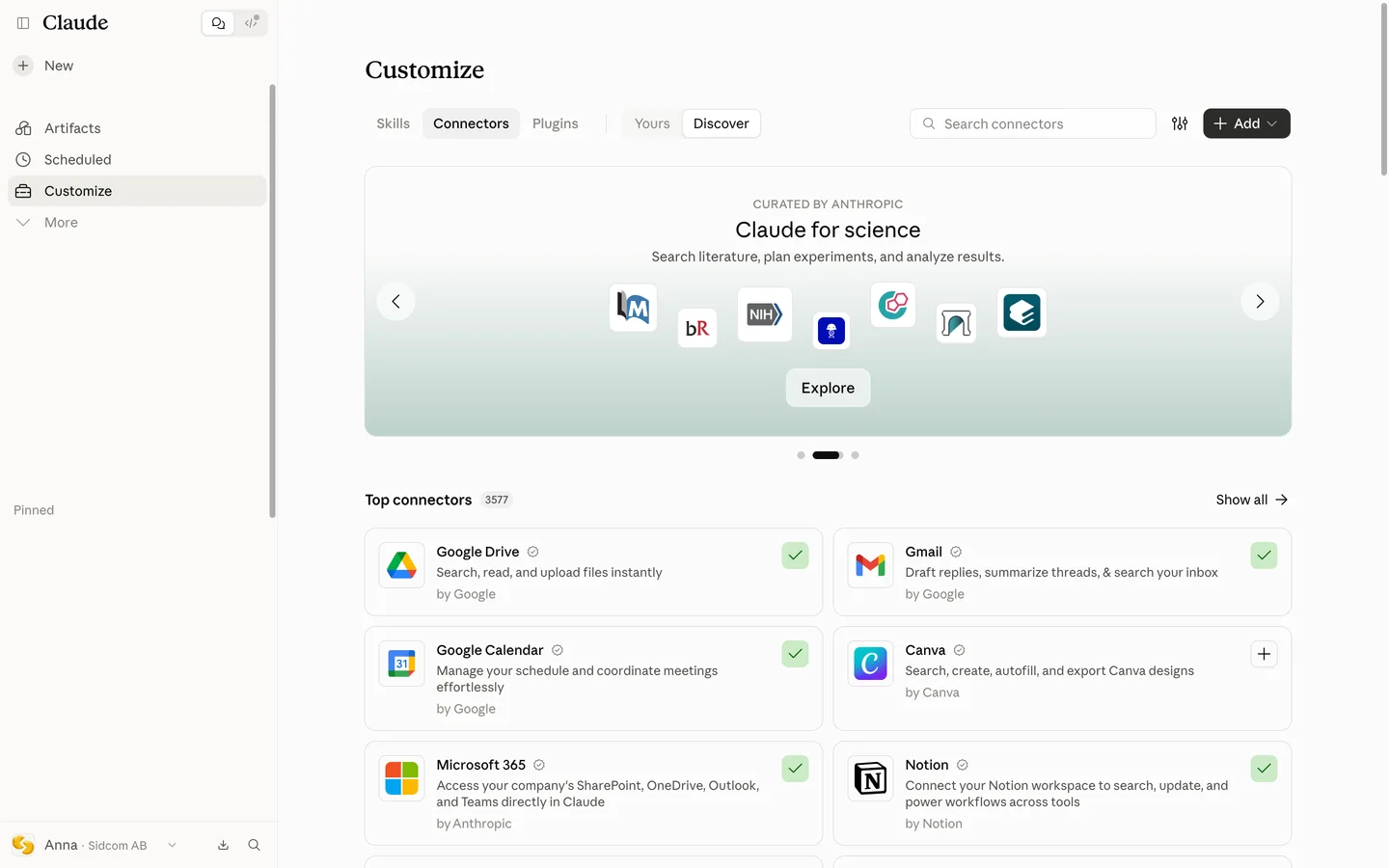
Click Add
Top right.
ClickAdd
Stuck on this step?
Contact support about this step →Looks different on your screen?
Still stuck? Tell us which step and we will help you through it.
Step 4 of 9
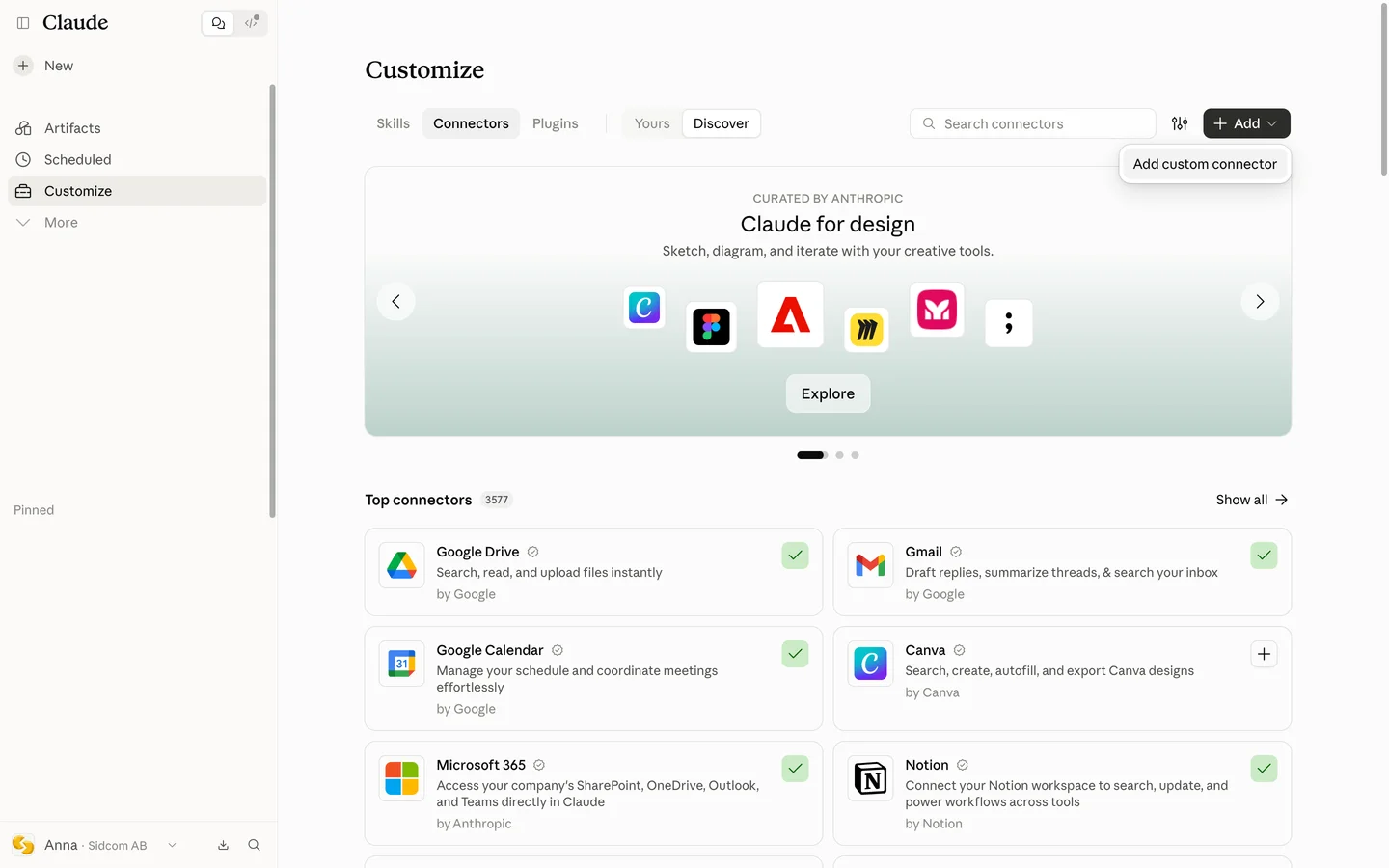
Choose Add custom connector
ClickAdd custom connector
Stuck on this step?
I do not see an Add button
On Team and Enterprise, by default only an administrator can add connectors. Ask your administrator to add Fortnox AI Connector for the organisation, then find it under Yours and click Connect.
Contact support about this step →Looks different on your screen?
Still stuck? Tell us which step and we will help you through it.
Step 5 of 9
Name it
The name shows in your list of connectors, for example Fortnox.
Type inName
Fortnox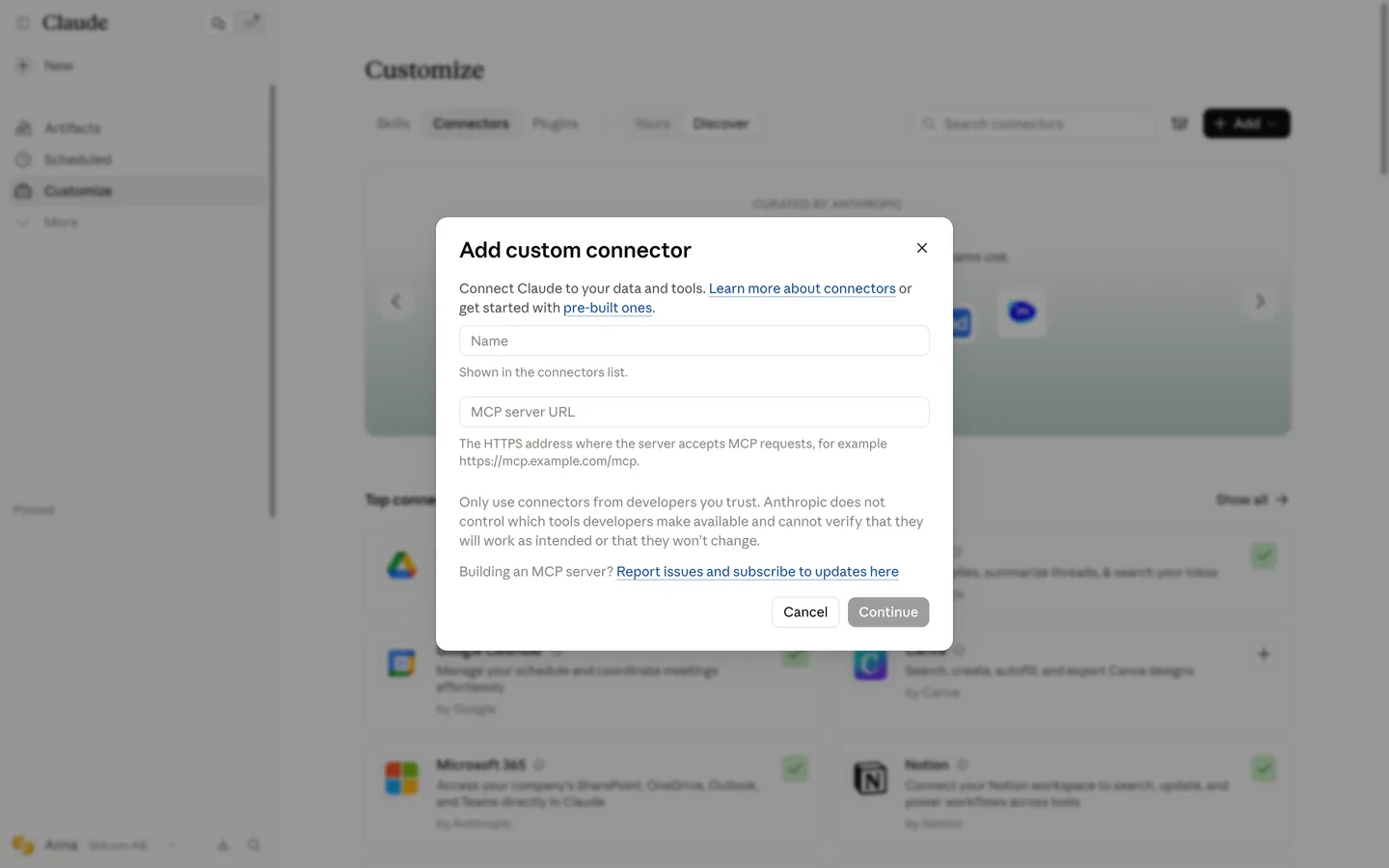
Stuck on this step?
Contact support about this step →Looks different on your screen?
Still stuck? Tell us which step and we will help you through it.
Step 6 of 9
Paste the server address
Type inMCP server URL
MCP server addresshttps://fortnox.sidcom.ai/mcp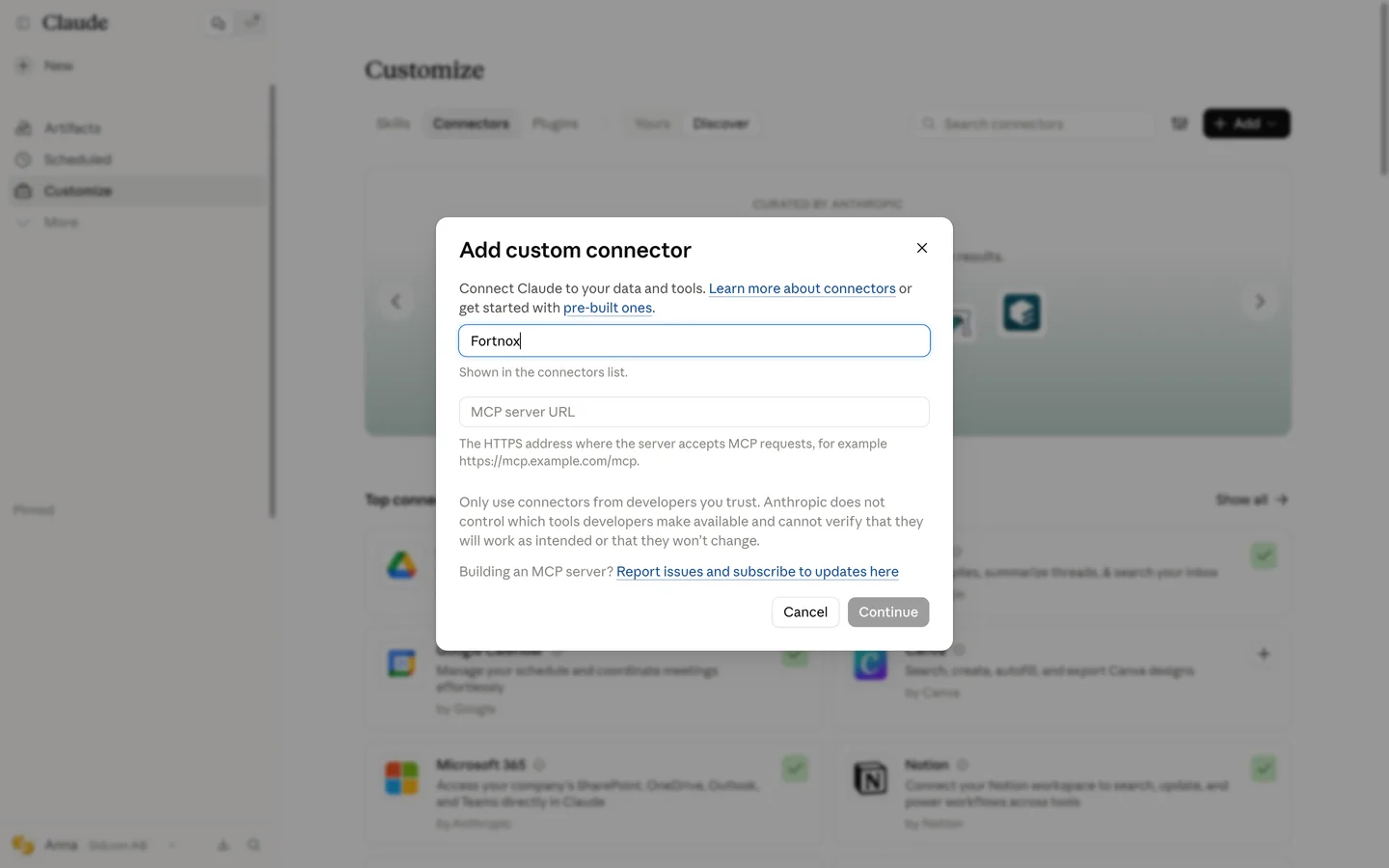
Stuck on this step?
It says a connector with this URL already exists
Someone in your organisation has already added it. Close the window, choose Yours on the Connectors page and click Connect on the existing one.
Contact support about this step →Looks different on your screen?
Still stuck? Tell us which step and we will help you through it.
Step 7 of 9
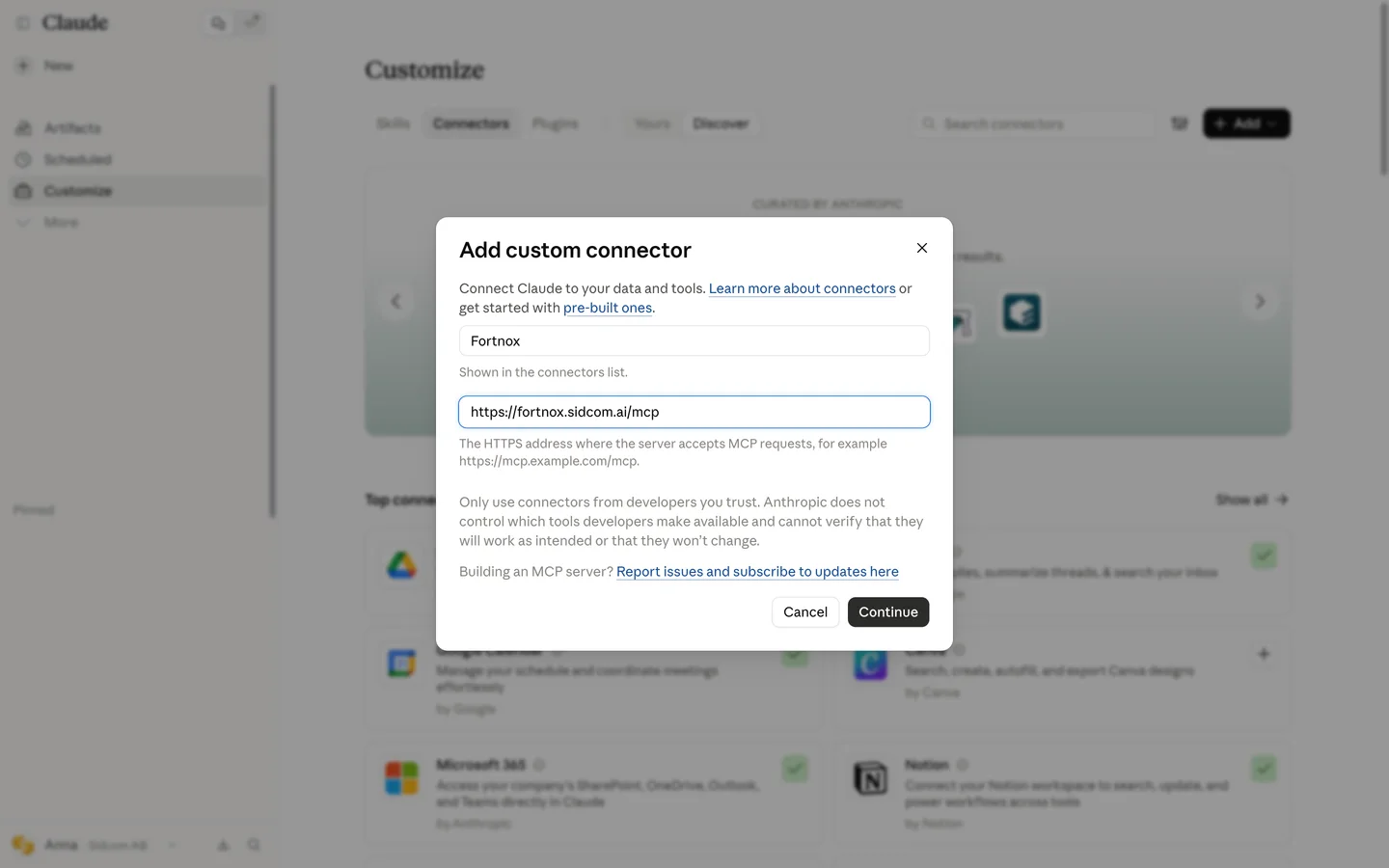
Click Continue
ClickContinue
Stuck on this step?
Contact support about this step →Looks different on your screen?
Still stuck? Tell us which step and we will help you through it.
Step 8 of 9
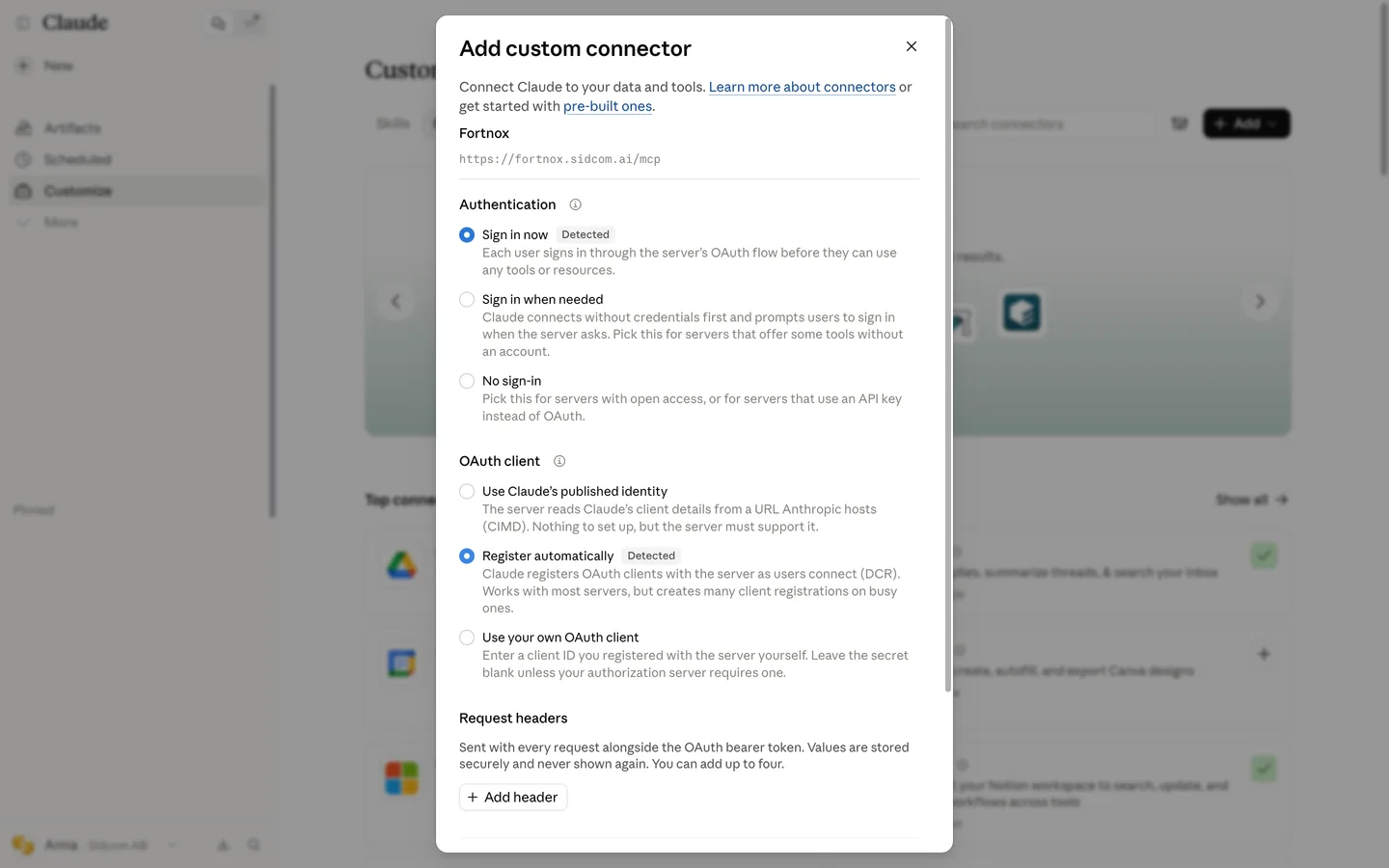
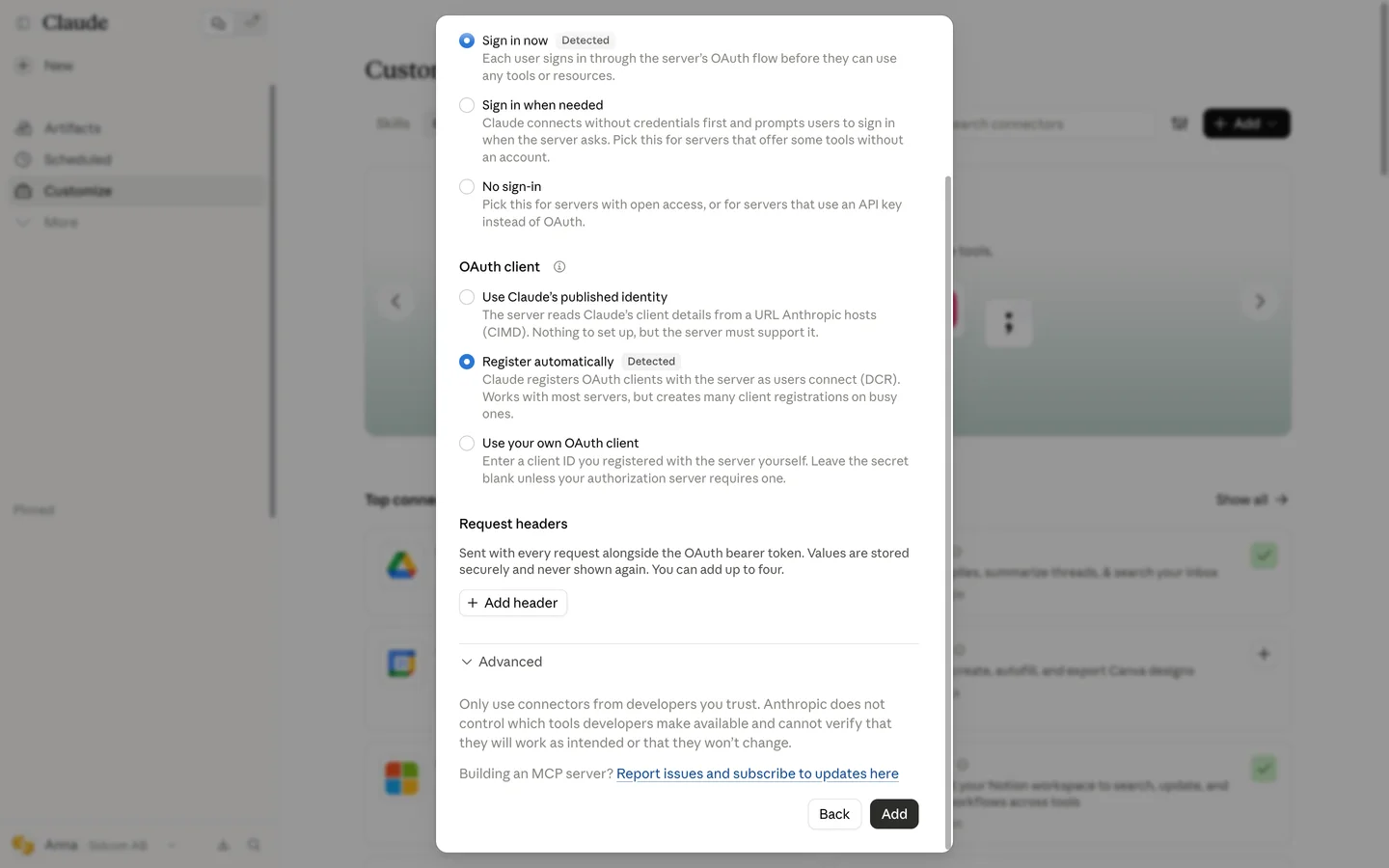
Leave the settings as they are
Sign in now and Register automatically are already selected. Nothing to change here.
Stuck on this step?
Contact support about this step →Looks different on your screen?
Still stuck? Tell us which step and we will help you through it.
Step 9 of 9
Click Add
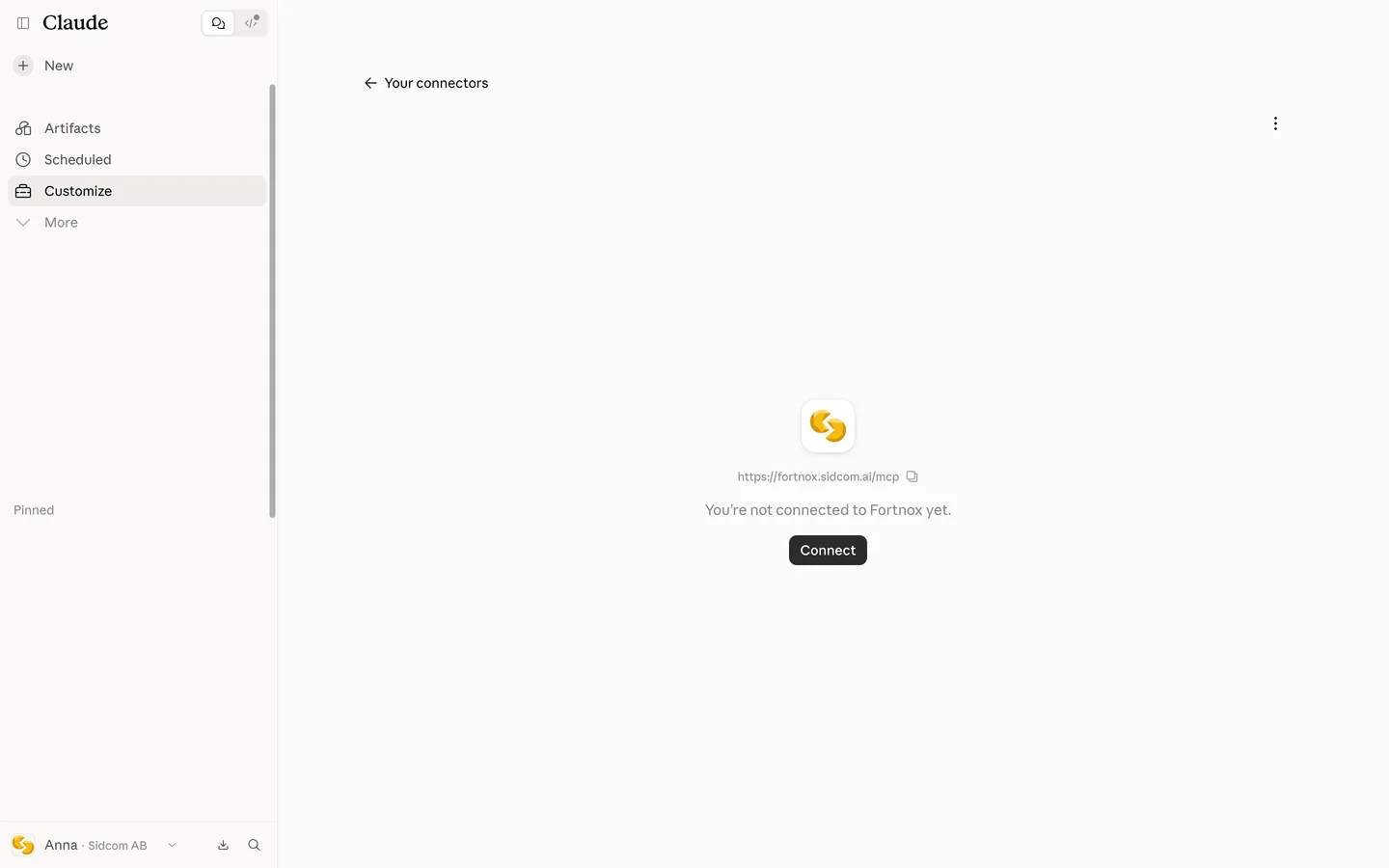
The connector is added, and you land on its page to connect it.
ClickAdd
Stuck on this step?
Contact support about this step →Looks different on your screen?
Still stuck? Tell us which step and we will help you through it.
Done
Done. Ask about one company, or several at once.
Step 1 of 11
Click Connect
On the connector's page in Claude. This opens the Sidcom sign in.
ClickConnect
Stuck on this step?
Contact support about this step →Looks different on your screen?
Still stuck? Tell us which step and we will help you through it.
Step 2 of 11
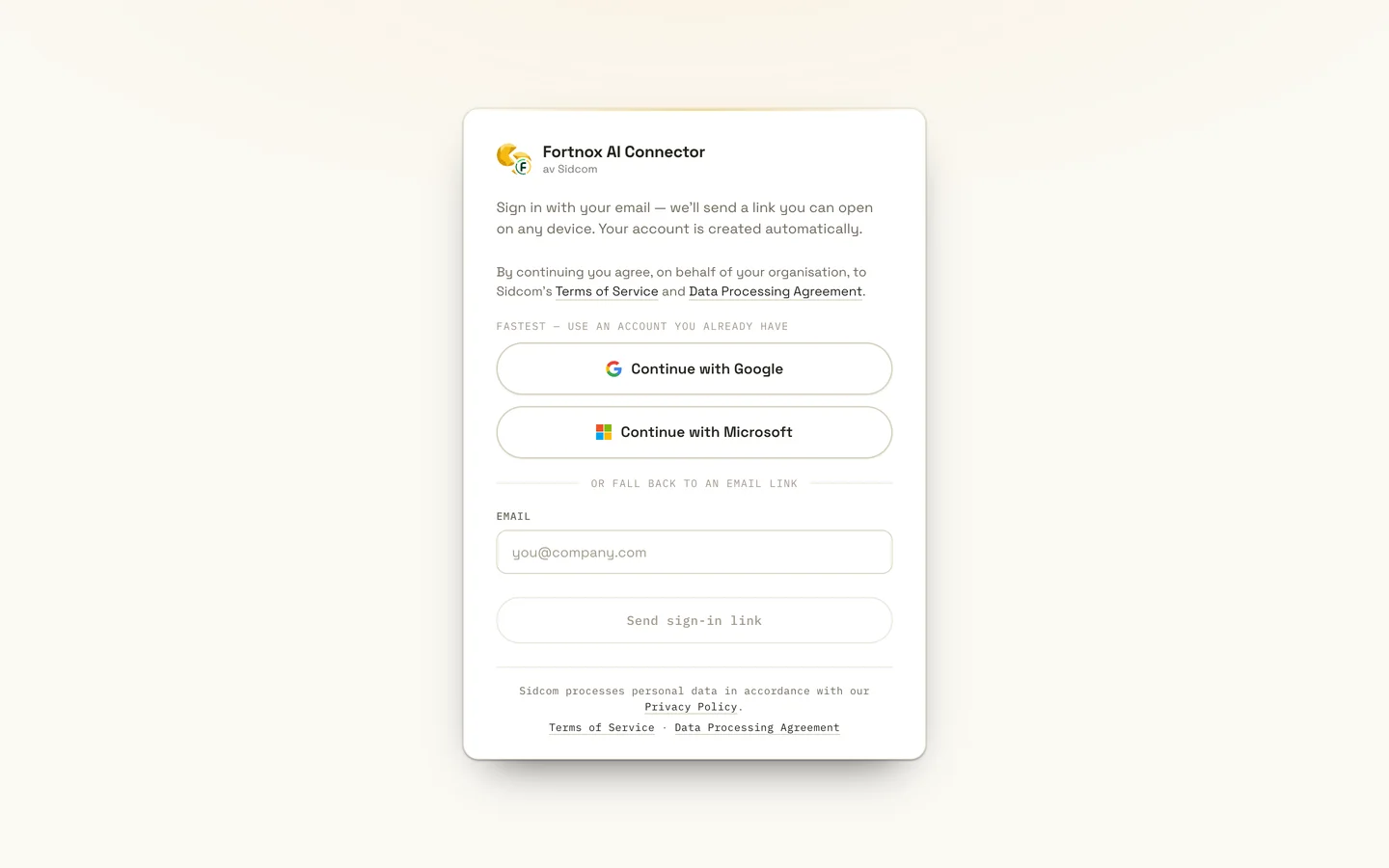
Sign in with your Sidcom account
Use the account you have for Fortnox AI Connector, with Google, Microsoft or a sign in link by email.
ClickContinue with Google
Stuck on this step?
It says the trial has ended or there is no seat
The account has no active seat. Check that you are a member of the organisation and have a seat under Members at fortnox.sidcom.ai, or ask the account owner to give you one.
Contact support about this step →Looks different on your screen?
Still stuck? Tell us which step and we will help you through it.
Step 3 of 11
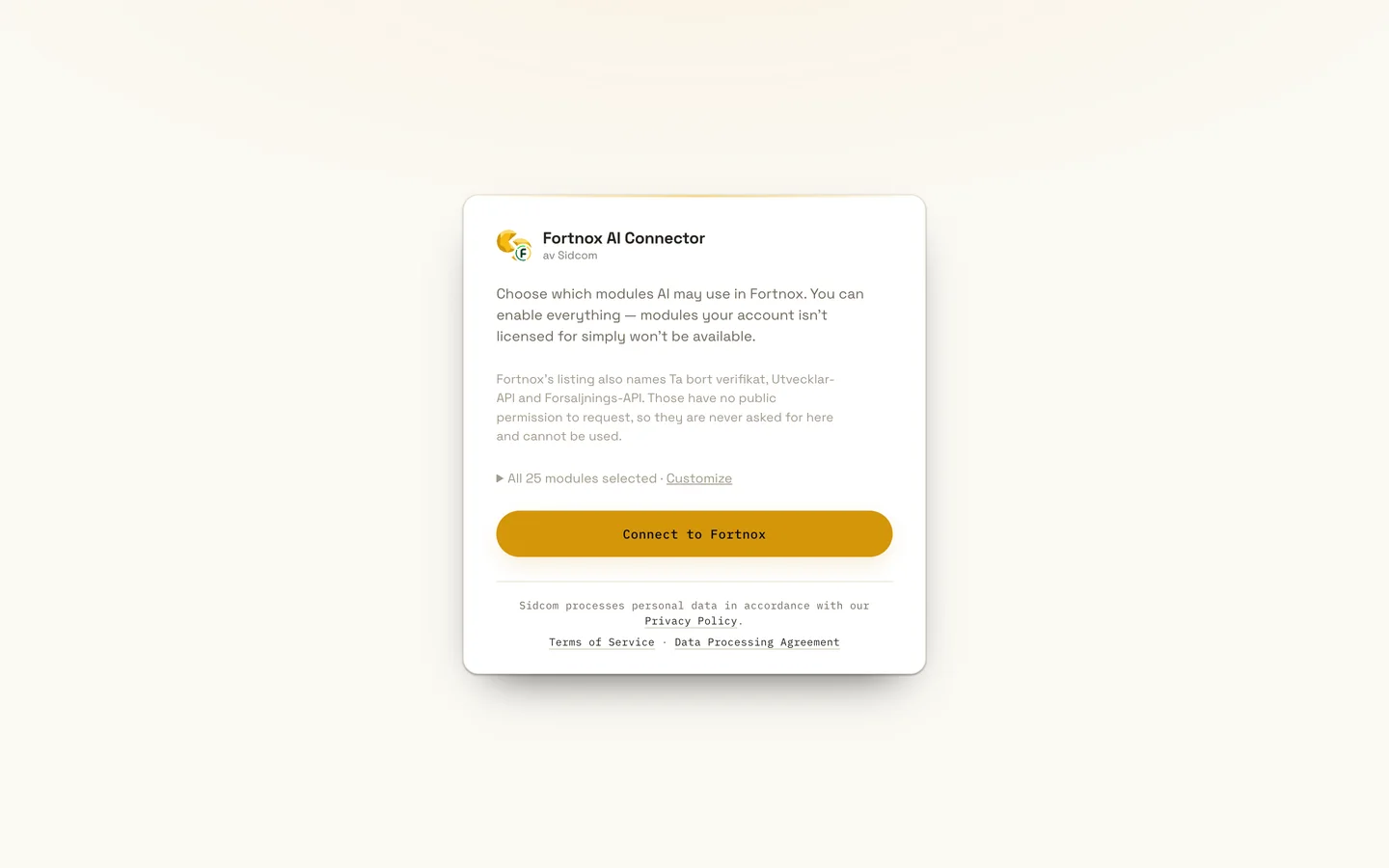
Choose modules and connect
Pick which parts of Fortnox the AI may use. Leave them all on if you are unsure, modules the company has no licence for simply stay unavailable.
ClickConnect to Fortnox
Stuck on this step?
Contact support about this step →Looks different on your screen?
Still stuck? Tell us which step and we will help you through it.
Step 4 of 11
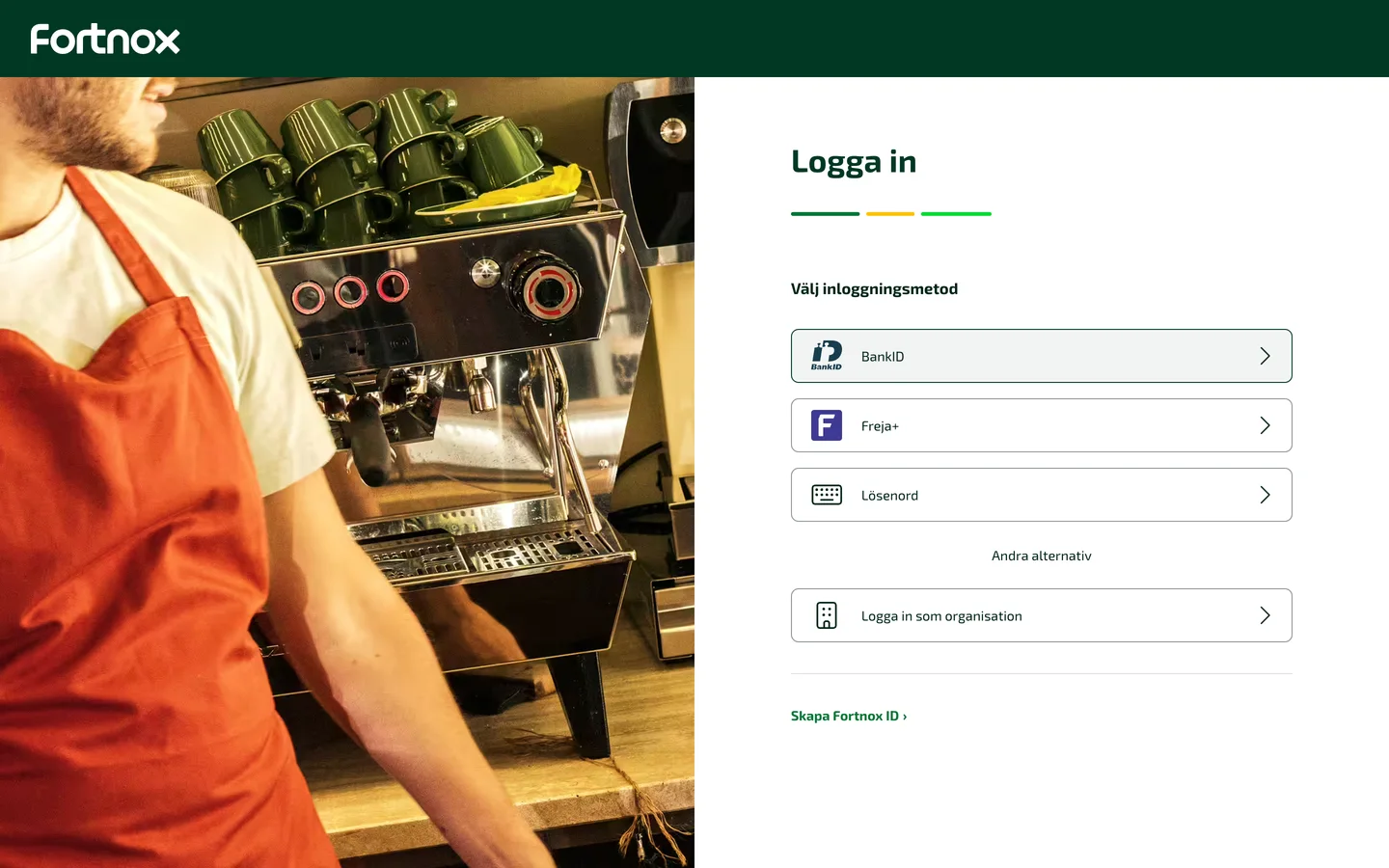
Sign in to Fortnox
Fortnox opens. Sign in the way you usually do, for example with BankID.
ClickBankID
Already signed in to Fortnox? Then this step is skipped.
Stuck on this step?
Contact support about this step →Looks different on your screen?
Still stuck? Tell us which step and we will help you through it.
Step 5 of 11
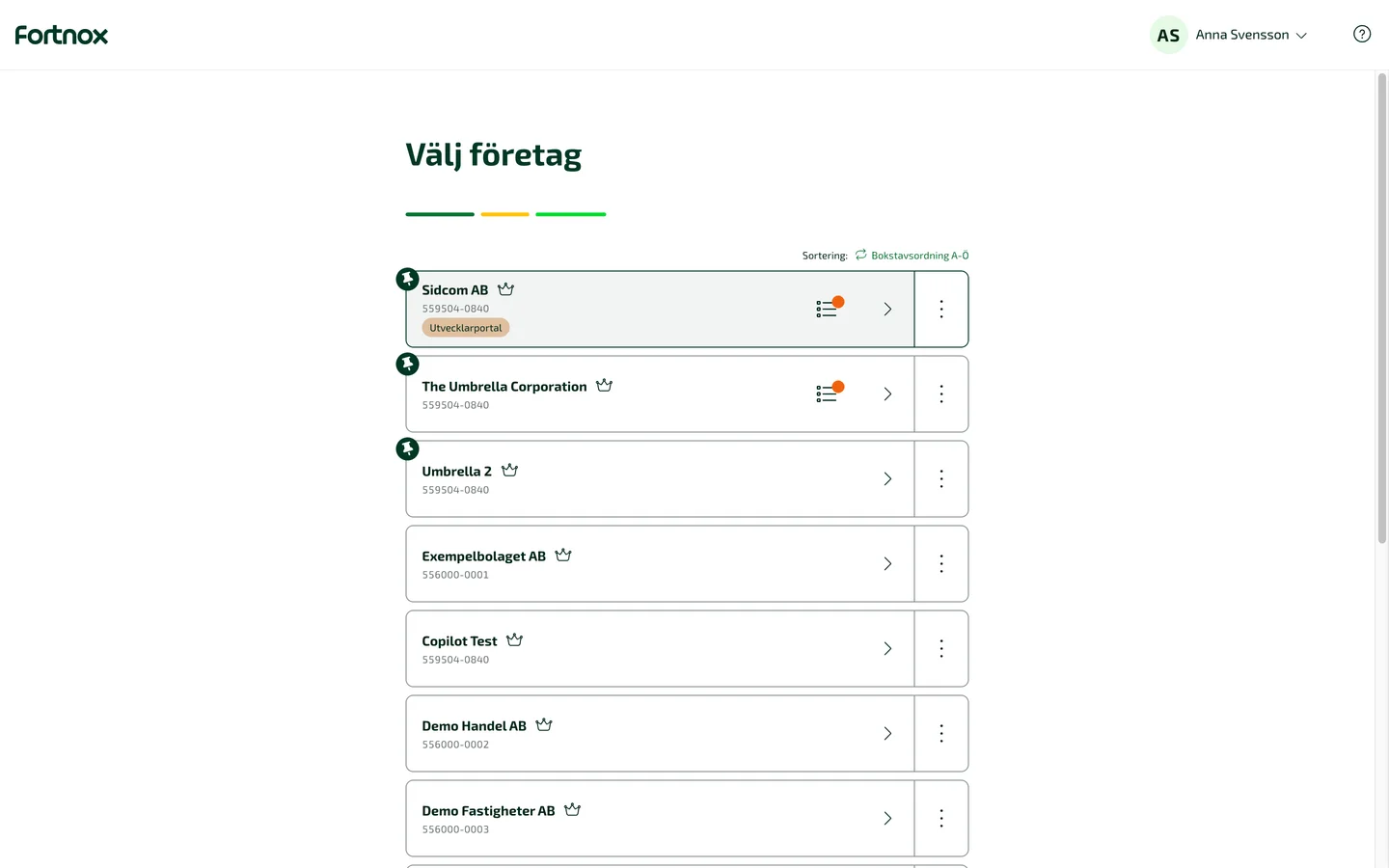
Choose the company
Pick the company you want to connect. You add more companies in the next step.
ClickThe company
Working as a consultant through Digital Byrå? Choose the client company here.
Stuck on this step?
The company cannot be chosen, or connecting fails
AI Connector needs to be activated in the Fortnox App Market for the company, and the company needs a Fortnox integration licence. Questions about the licence? Get in touch.
Contact support about this step →Looks different on your screen?
Still stuck? Tell us which step and we will help you through it.
Step 6 of 11
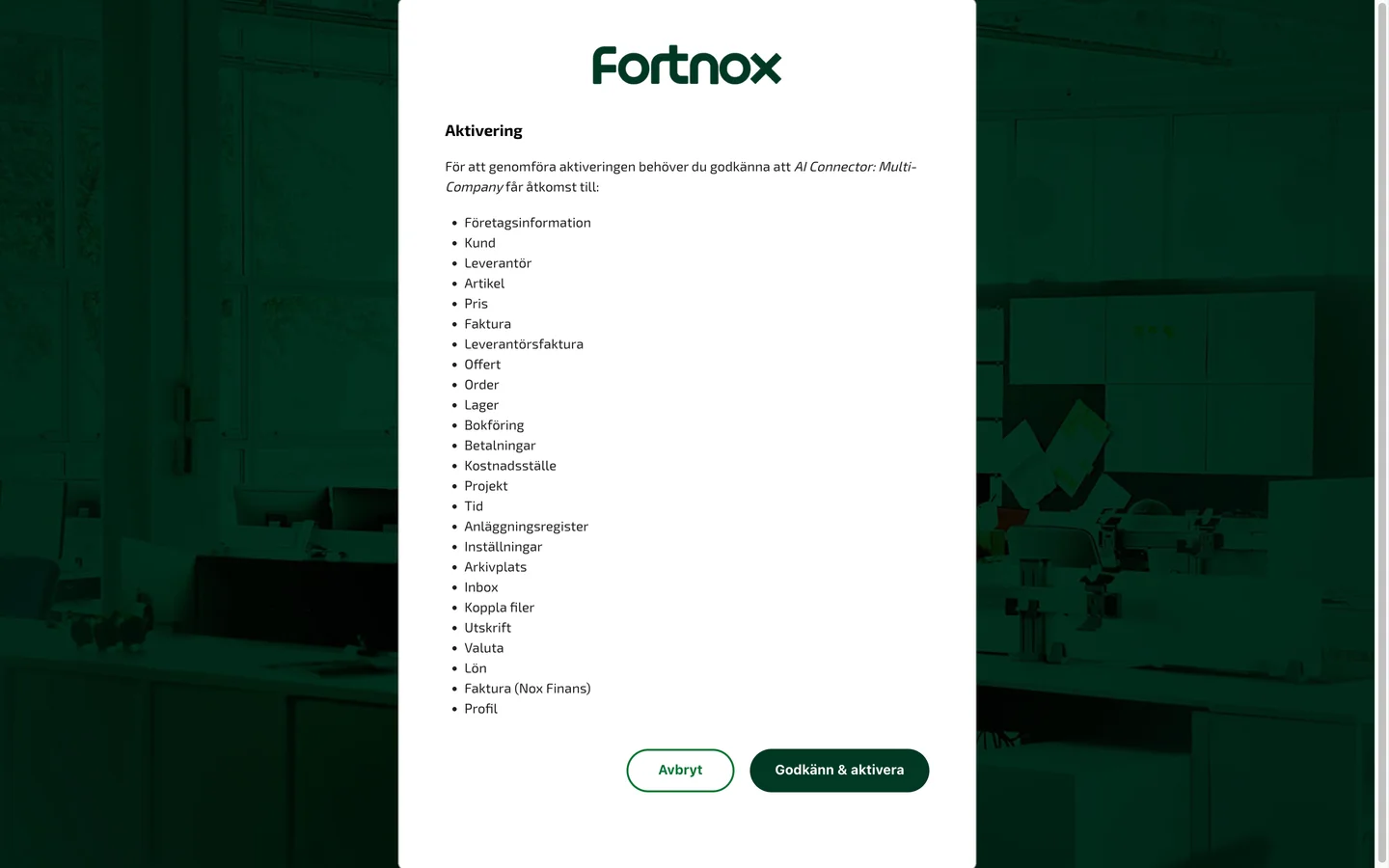
Approve access in Fortnox
Fortnox lists what the connector may use. What you can actually do is still limited by your own Fortnox user's permissions in the company.
ClickGodkänn & aktivera
Stuck on this step?
Contact support about this step →Looks different on your screen?
Still stuck? Tell us which step and we will help you through it.
Step 7 of 11
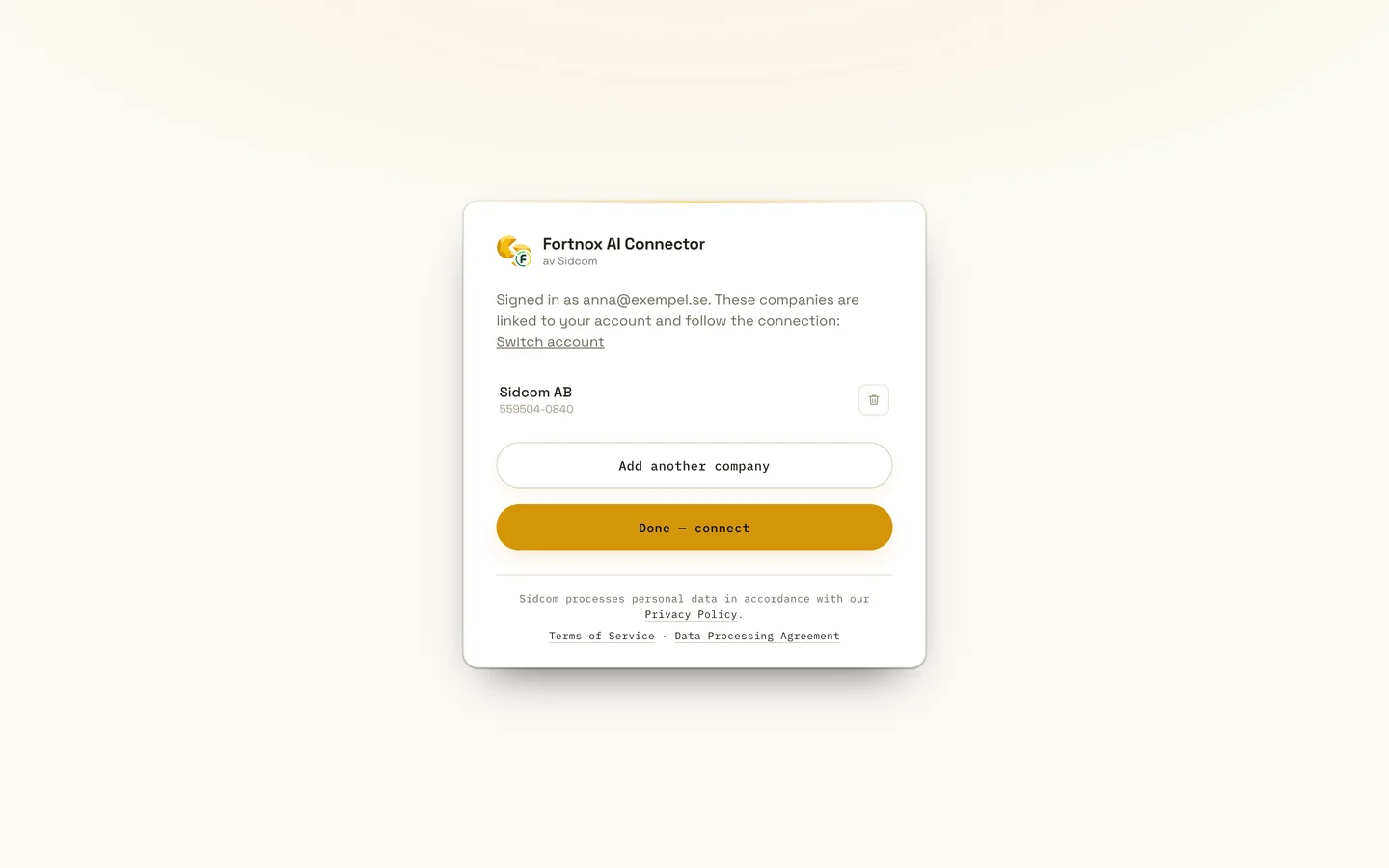
Add more companies, or click Done
The company is now linked to your account. Click Add another company and pick the next one, as many times as you need. Then click Done, connect.
ClickDone, connect
Stuck on this step?
Contact support about this step →Looks different on your screen?
Still stuck? Tell us which step and we will help you through it.
Step 8 of 11
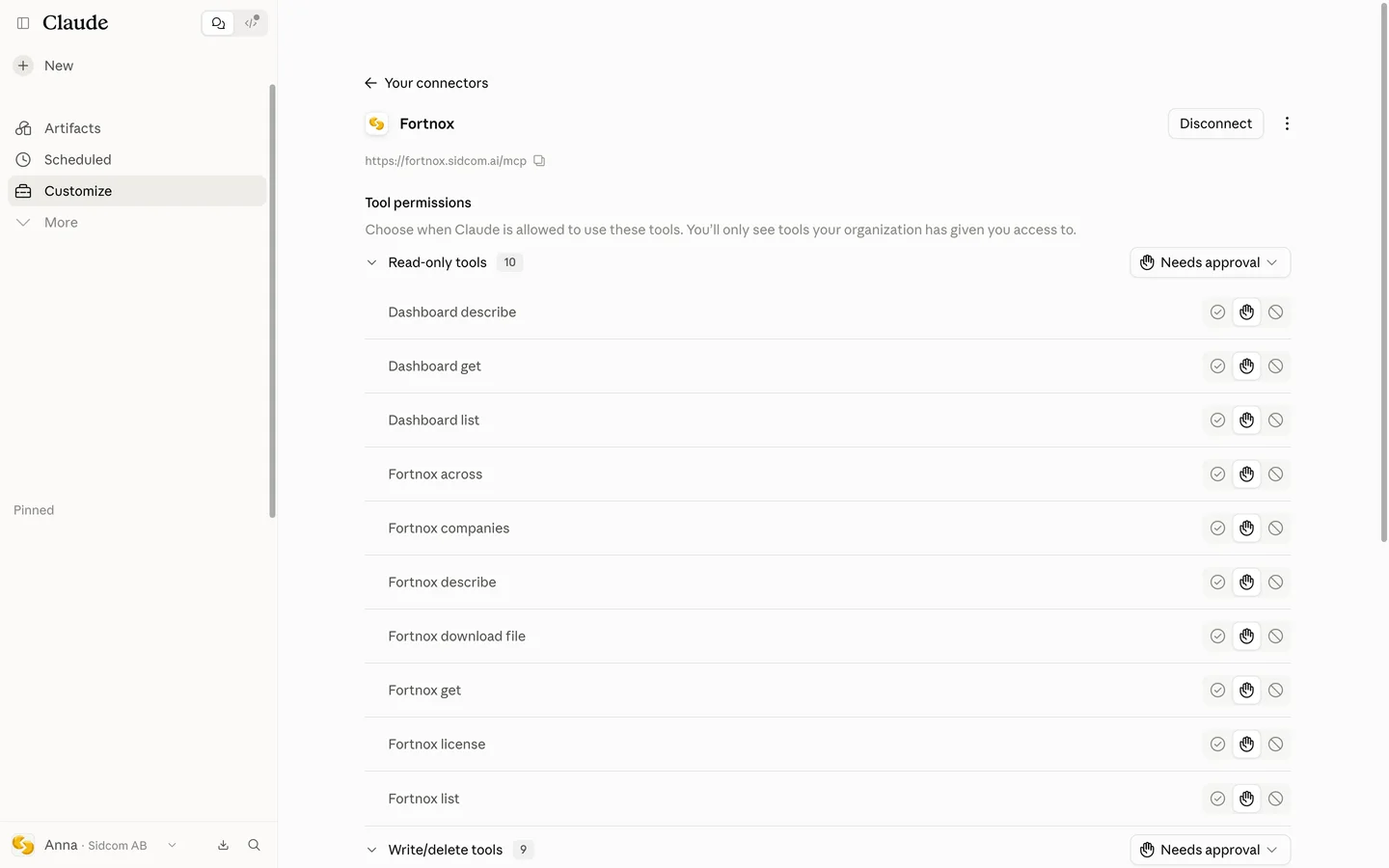
You are connected
Back in Claude you see the connector's tools. For each tool you choose whether Claude may always use it, must ask first, or may not use it.
Want Claude to only read? Block the tools under Write/delete tools. What really limits it is still your own Fortnox user's permissions.
Stuck on this step?
Contact support about this step →Looks different on your screen?
Still stuck? Tell us which step and we will help you through it.
Step 9 of 11
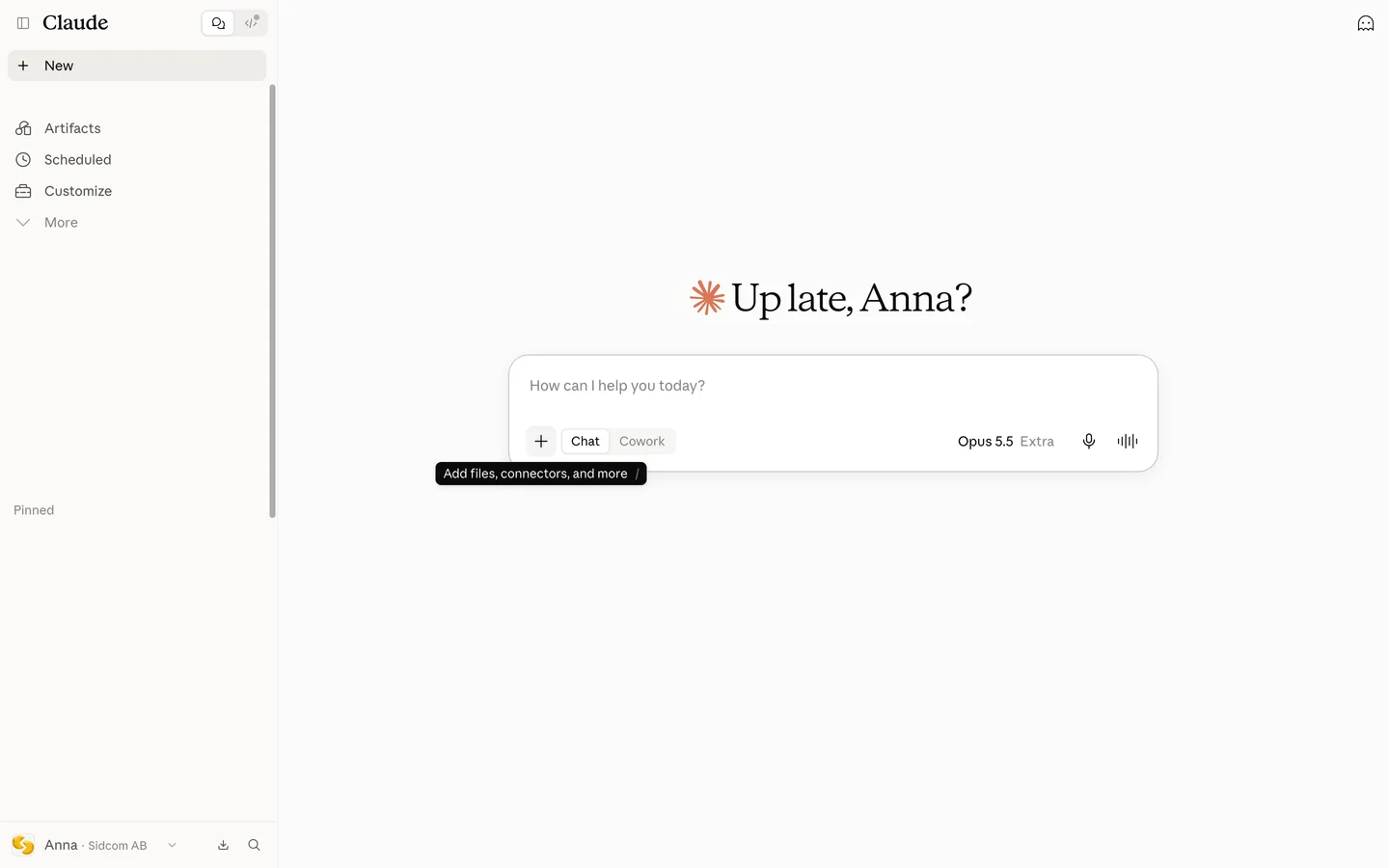
Open a new chat and click plus
The plus button is at the bottom left of the message box.
ClickAdd files, connectors, and more
Stuck on this step?
Contact support about this step →Looks different on your screen?
Still stuck? Tell us which step and we will help you through it.
Step 10 of 11
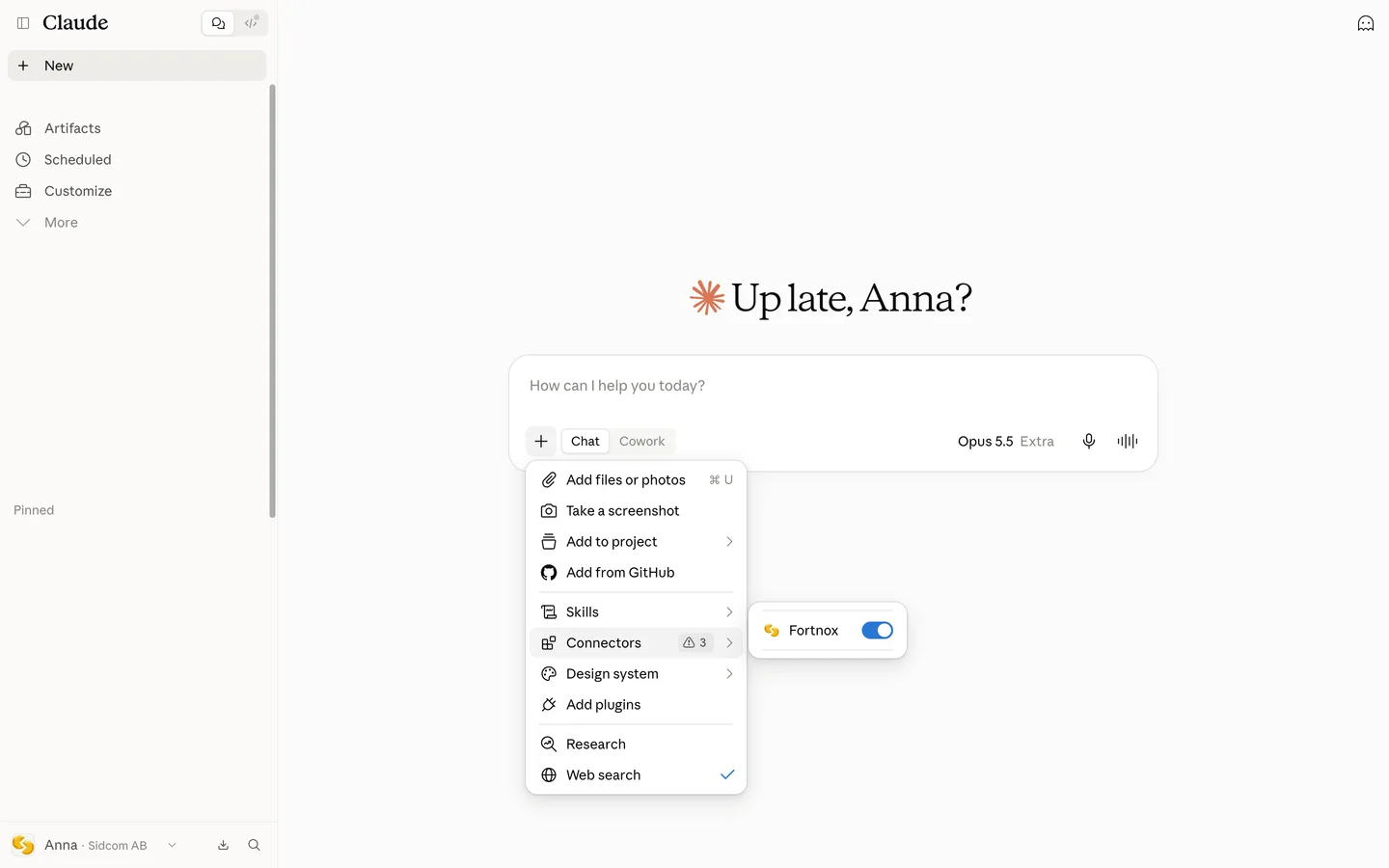
Choose Connectors
ClickConnectors
Stuck on this step?
Contact support about this step →Looks different on your screen?
Still stuck? Tell us which step and we will help you through it.
Step 11 of 11
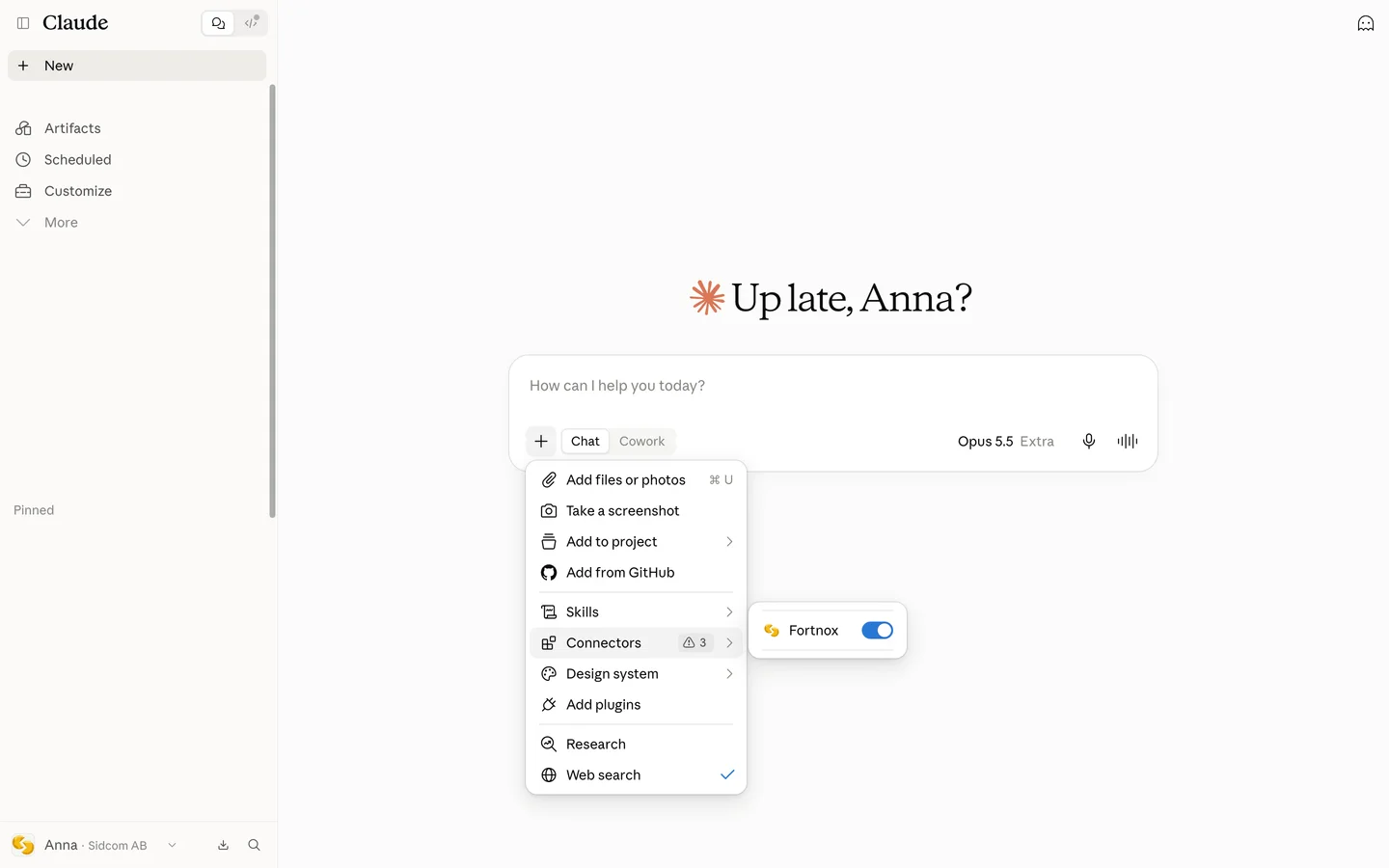
Make sure Fortnox is on, then ask
The switch should be on. Ask about one company or compare several, for example Which companies have unpaid customer invoices older than 30 days?
Stuck on this step?
It says the licence is missing when I ask
Ask Claude to run the fortnox_license tool. It shows the account status, trial, seats and whether you have a seat. A fixed account can take up to ten minutes to take effect.
Contact support about this step →Looks different on your screen?
Still stuck? Tell us which step and we will help you through it.
Claude updates its interface often. Screens last checked 29 Sept 2026.
Done
The connector is added. Next, connect your Fortnox companies.
Step 1 of 8
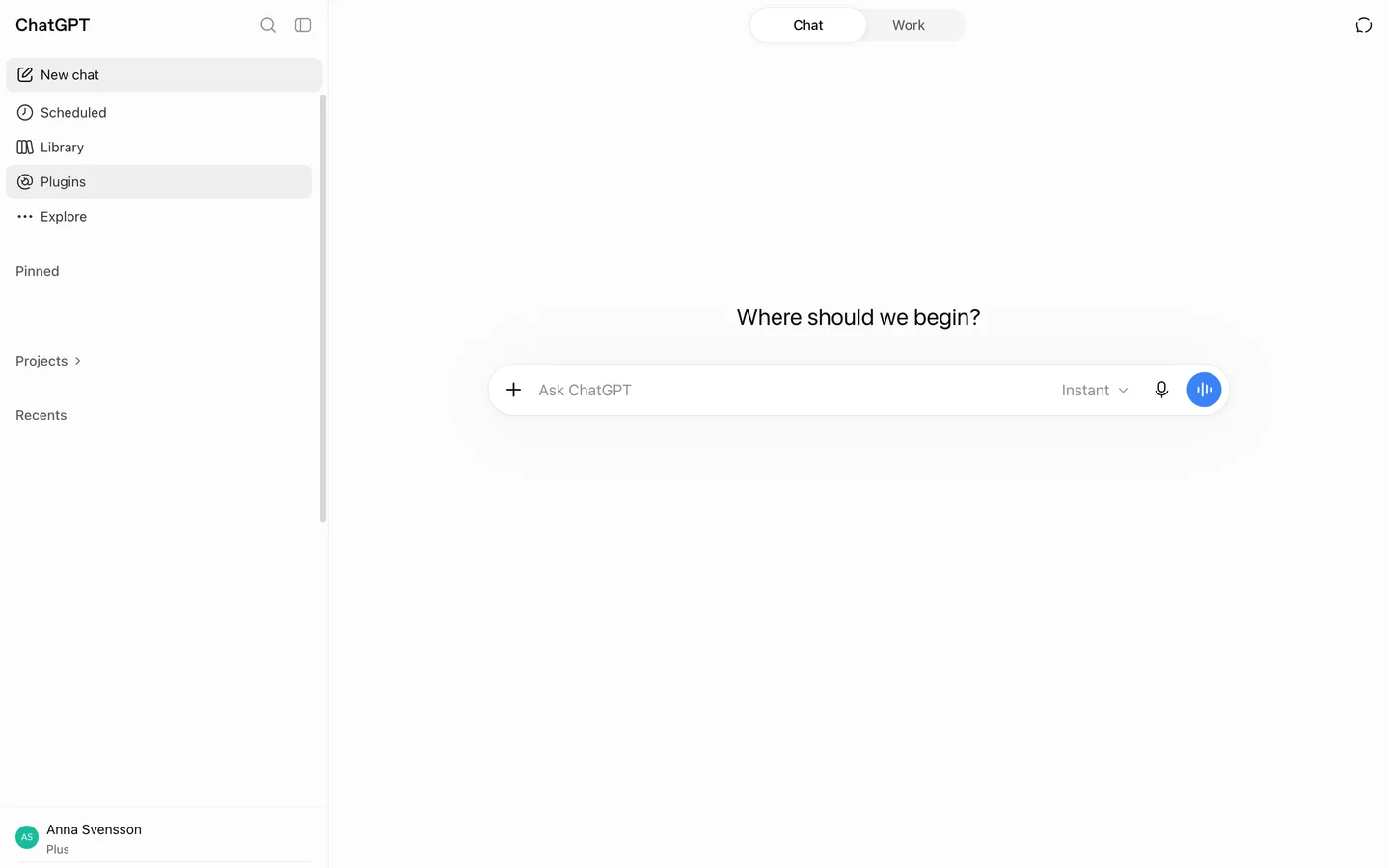
Open Plugins
Plugins is in the menu on the left, under Library.
ClickPlugins
Open Pluginschatgpt.com(opens in a new tab)No menu? Click the sidebar icon at the top left.
Stuck on this step?
Contact support about this step →Looks different on your screen?
Still stuck? Tell us which step and we will help you through it.
Step 2 of 8
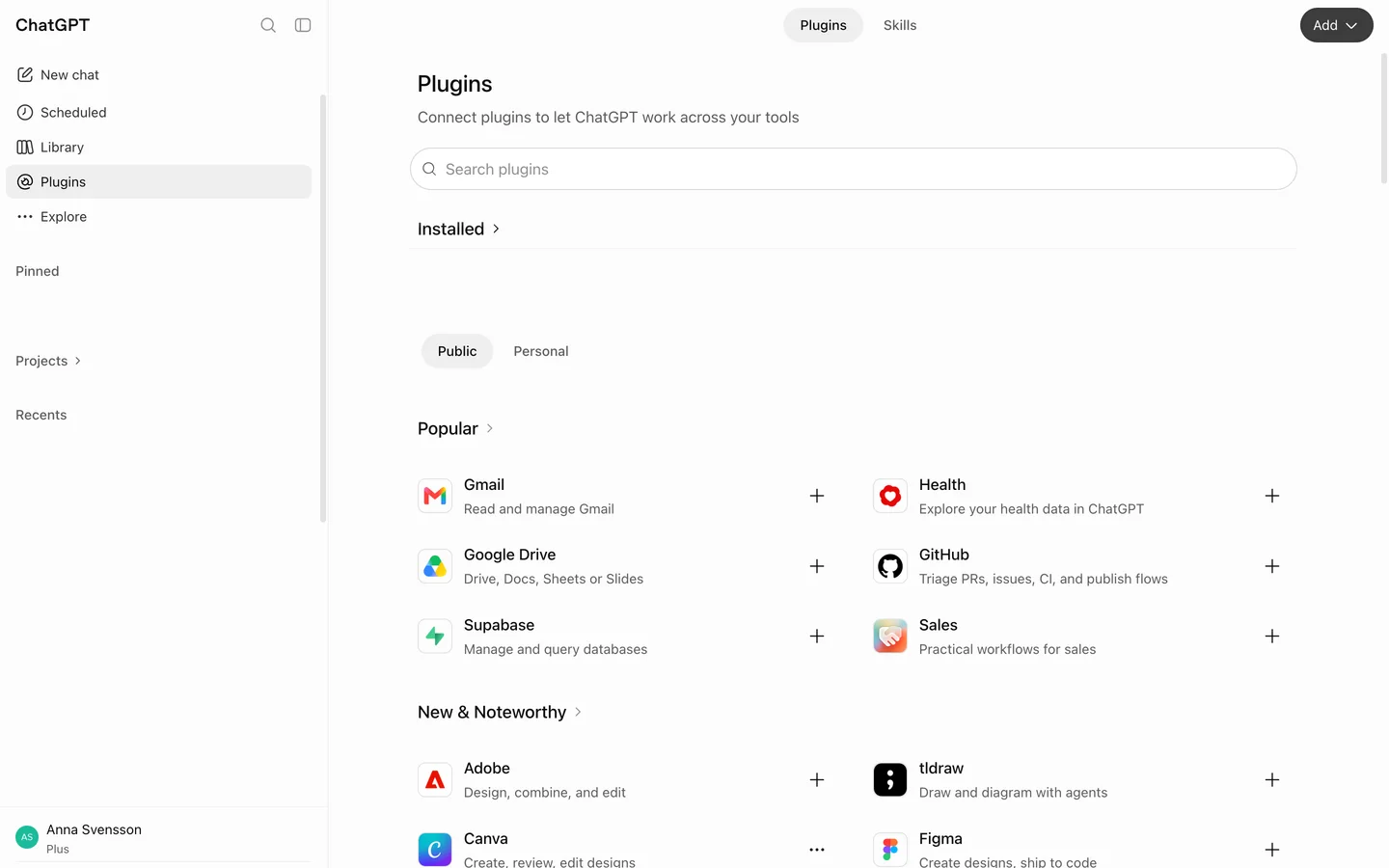
Click Add
Top right of the Plugins page.
ClickAdd
Stuck on this step?
Contact support about this step →Looks different on your screen?
Still stuck? Tell us which step and we will help you through it.
Step 3 of 8
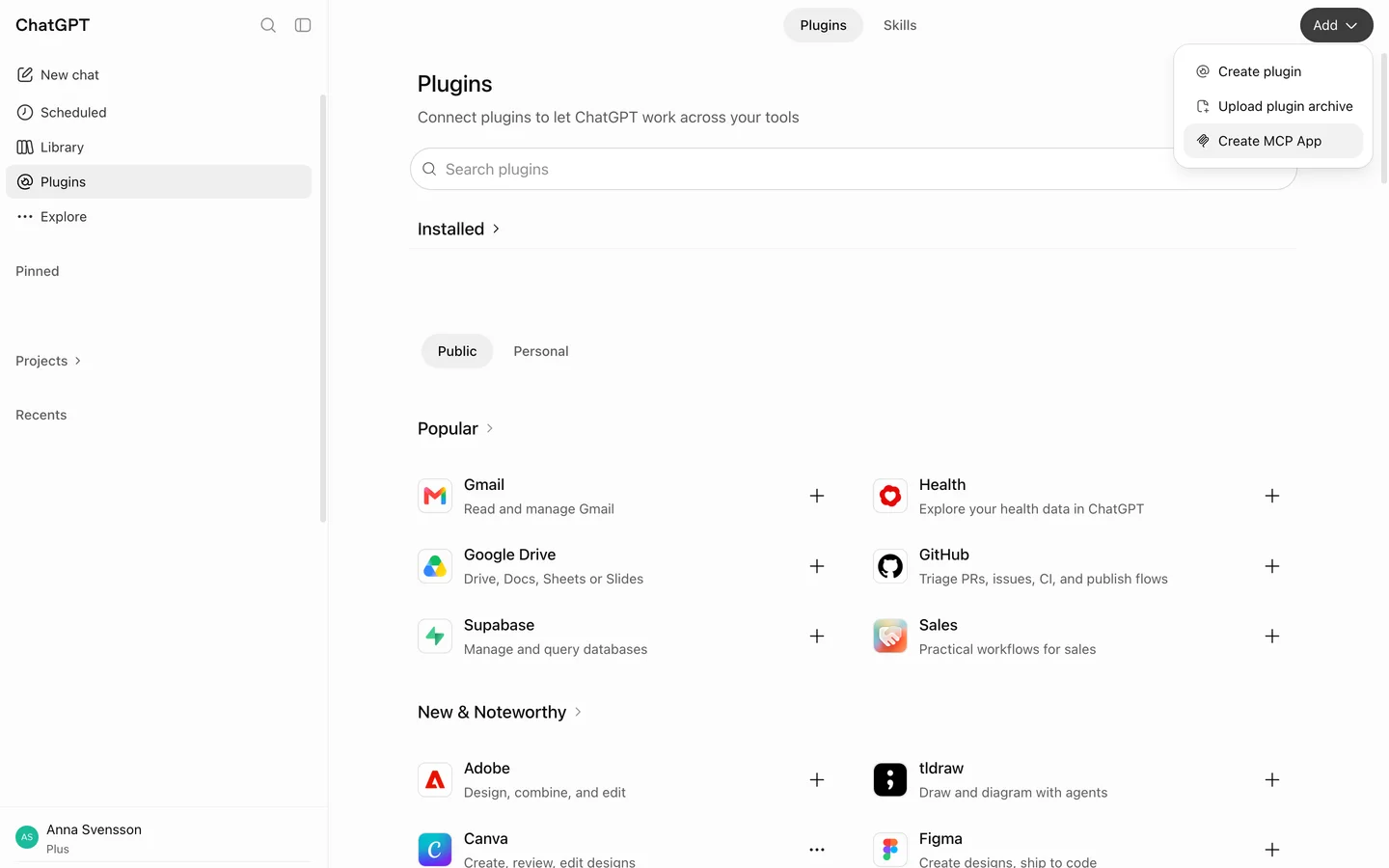
Choose Create MCP App
The Fortnox AI Connector is an MCP server, so pick this one, not Create plugin.
ClickCreate MCP App
Stuck on this step?
I do not see Create MCP App
On Business and Enterprise an administrator can turn off custom apps for the workspace. Ask your ChatGPT administrator to allow them.
Contact support about this step →Looks different on your screen?
Still stuck? Tell us which step and we will help you through it.
Step 4 of 8
Name it
Anything you will recognise in a chat, for example Fortnox.
Type inName
Fortnox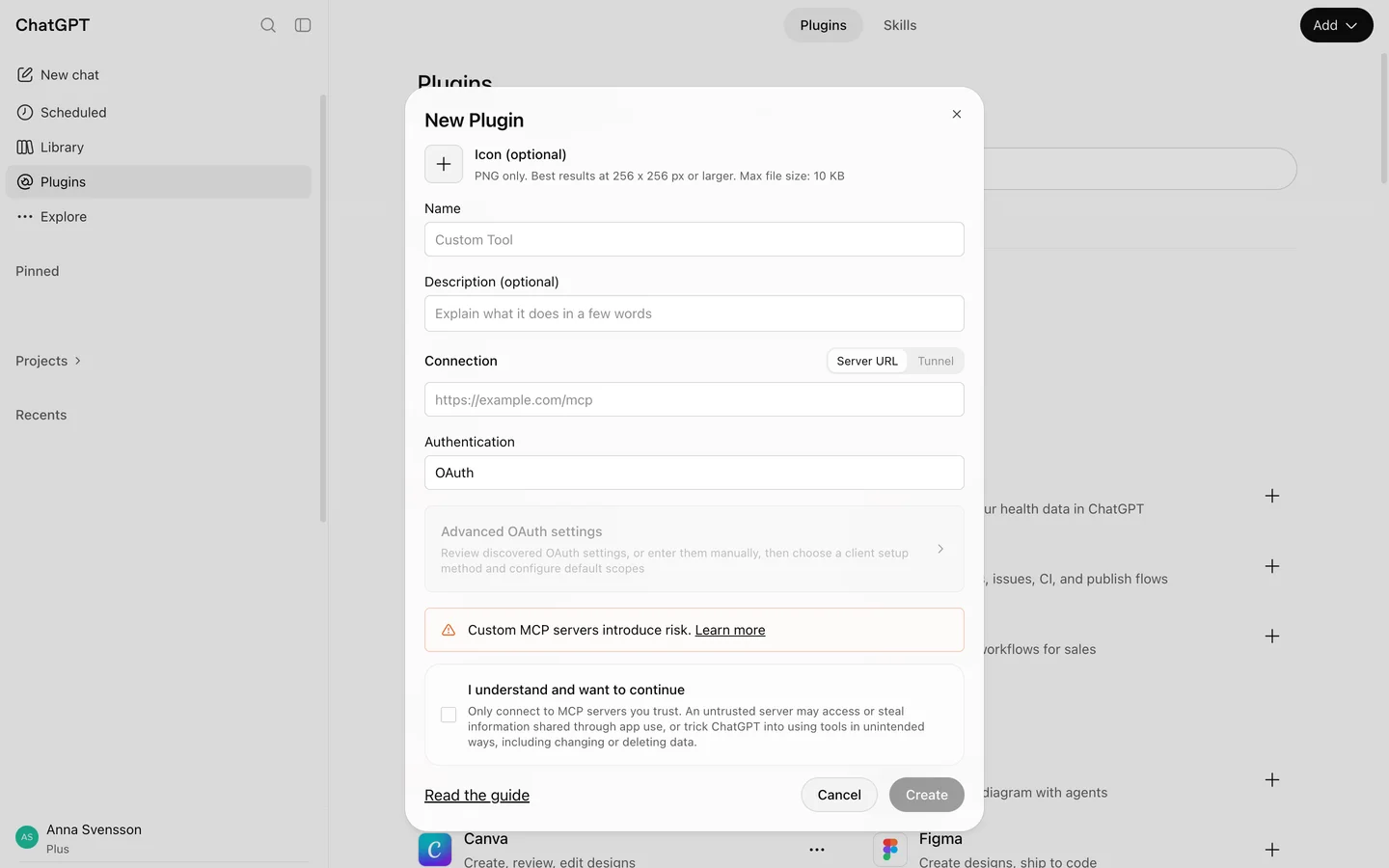
Stuck on this step?
Nothing happens when I click Create at the end
The name is already used by another plugin in your account. Pick another name, for example Fortnox bureau, and try again.
Contact support about this step →Looks different on your screen?
Still stuck? Tell us which step and we will help you through it.
Step 5 of 8
Paste the server address
Keep Connection on Server URL and paste the address below.
Type inServer URL
MCP server addresshttps://fortnox.sidcom.ai/mcp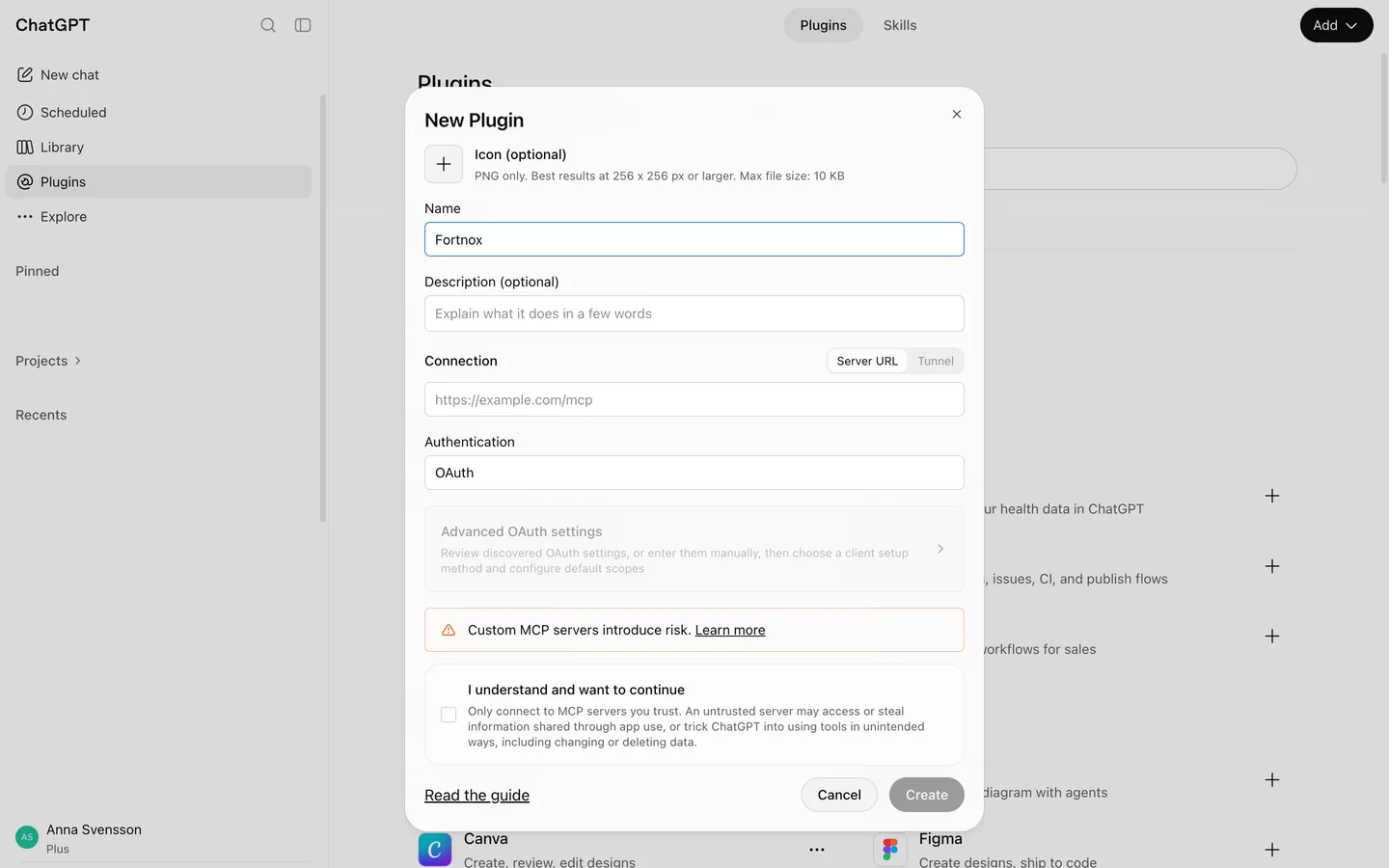
Stuck on this step?
Contact support about this step →Looks different on your screen?
Still stuck? Tell us which step and we will help you through it.
Step 6 of 8
Leave Authentication on OAuth
That way you sign in with your own Sidcom account and Fortnox. Nothing to change here.
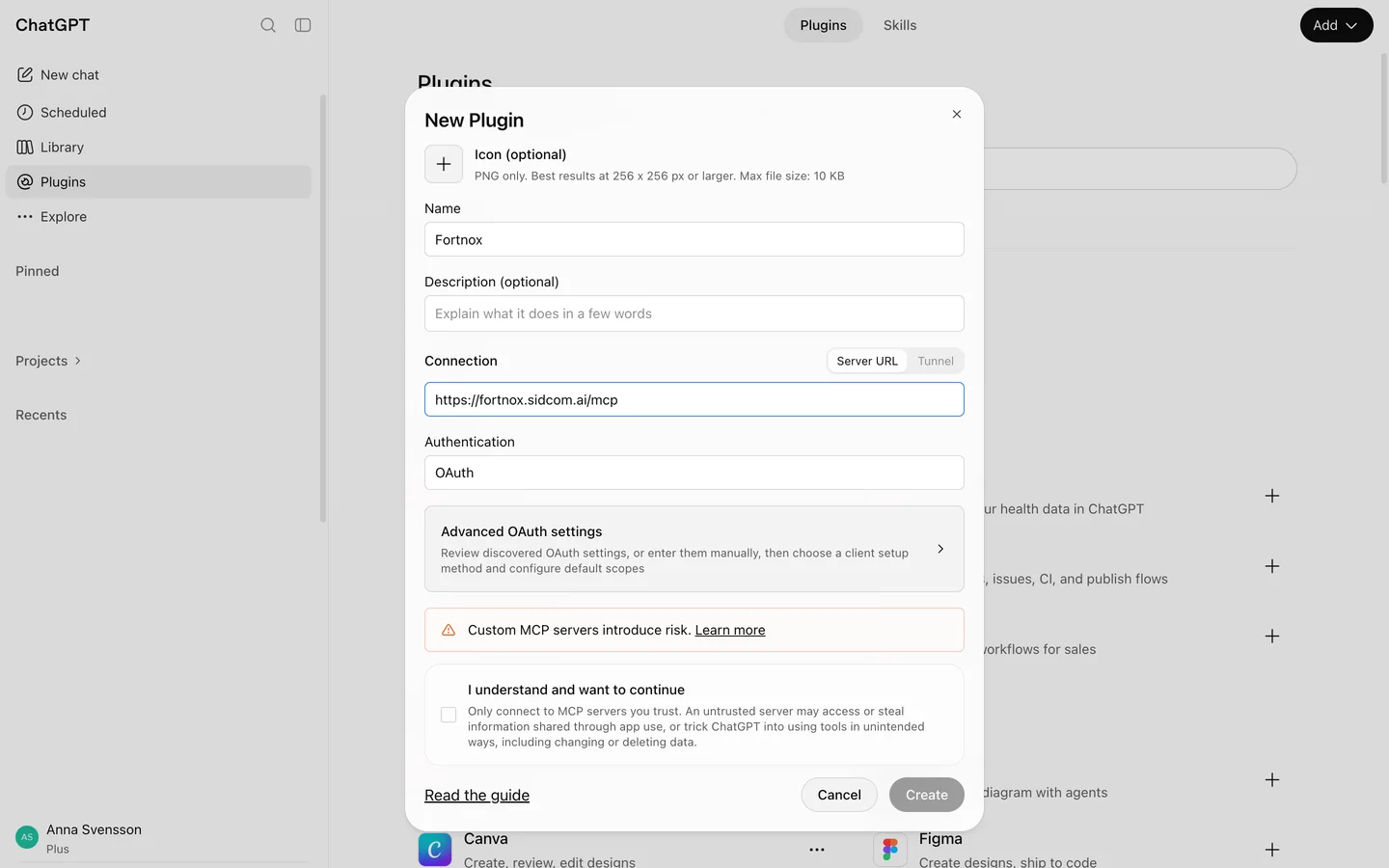
Stuck on this step?
Contact support about this step →Looks different on your screen?
Still stuck? Tell us which step and we will help you through it.
Step 7 of 8
Confirm you understand
ChatGPT shows this warning for every custom MCP server. Tick the box to continue.
ClickI understand and want to continue
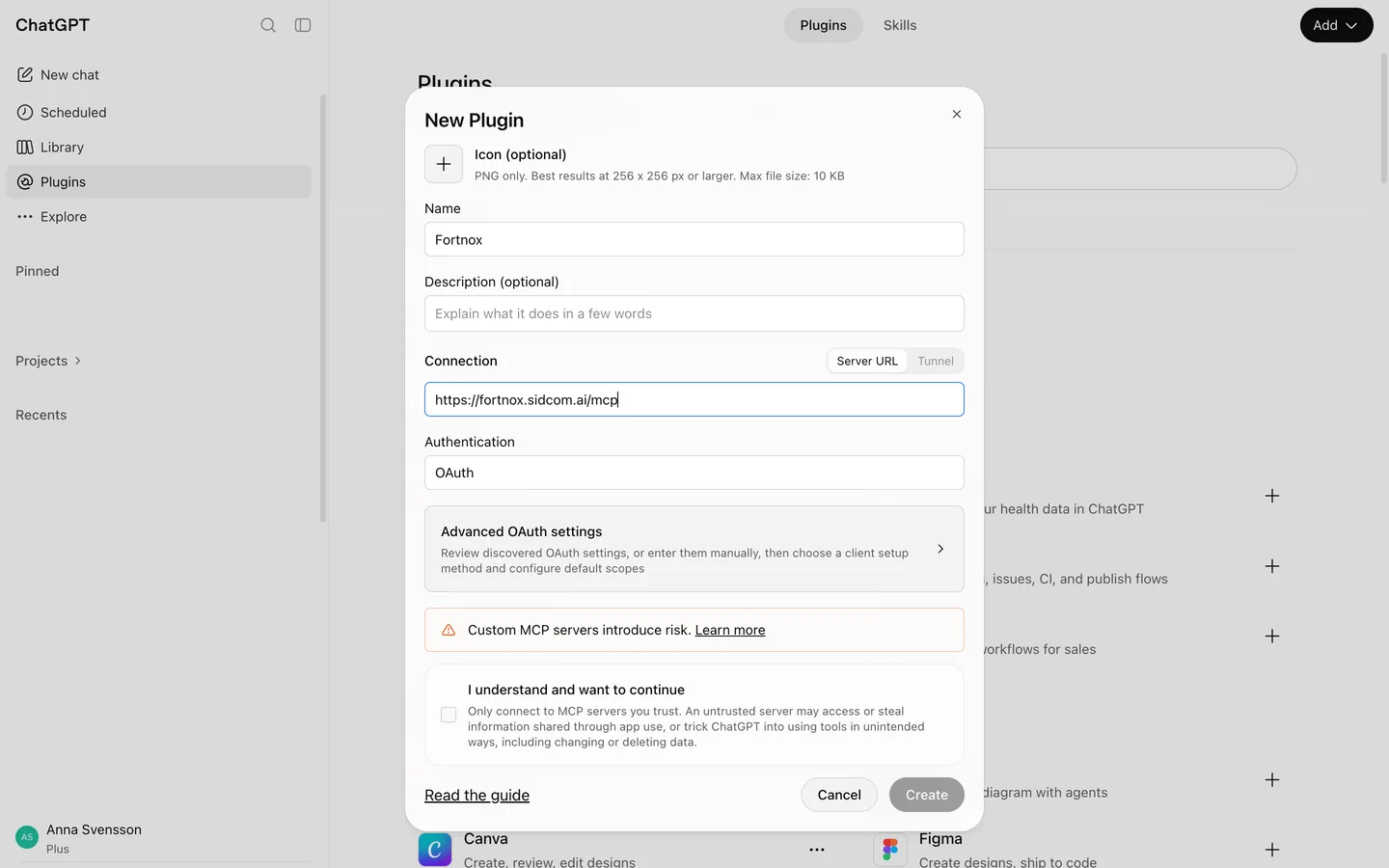
Stuck on this step?
Contact support about this step →Looks different on your screen?
Still stuck? Tell us which step and we will help you through it.
Step 8 of 8
Click Create
ChatGPT checks the server and moves straight on to connecting it.
ClickCreate
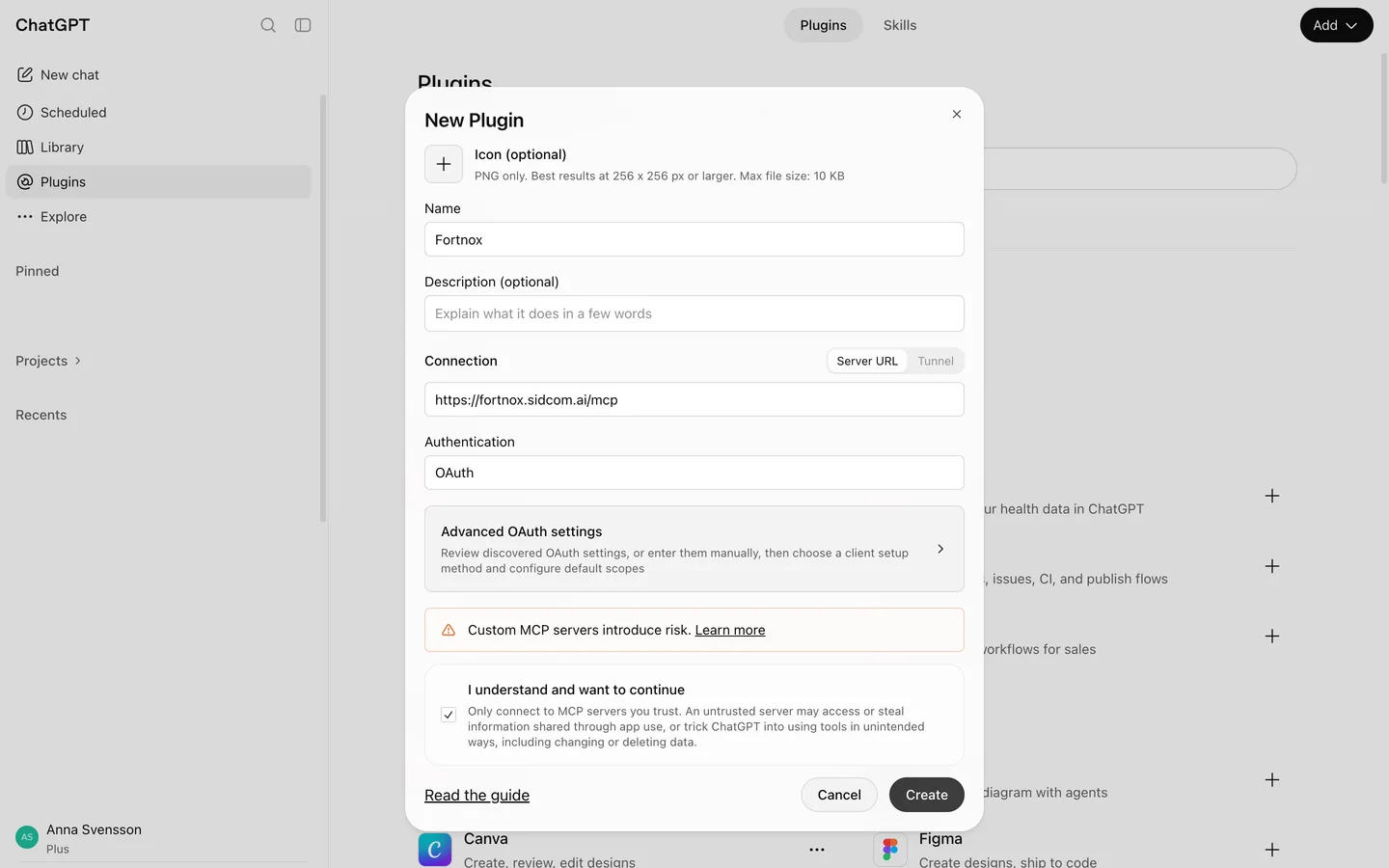
Stuck on this step?
Contact support about this step →Looks different on your screen?
Still stuck? Tell us which step and we will help you through it.
Done
Done. Ask about one company, or several at once.
Step 1 of 9
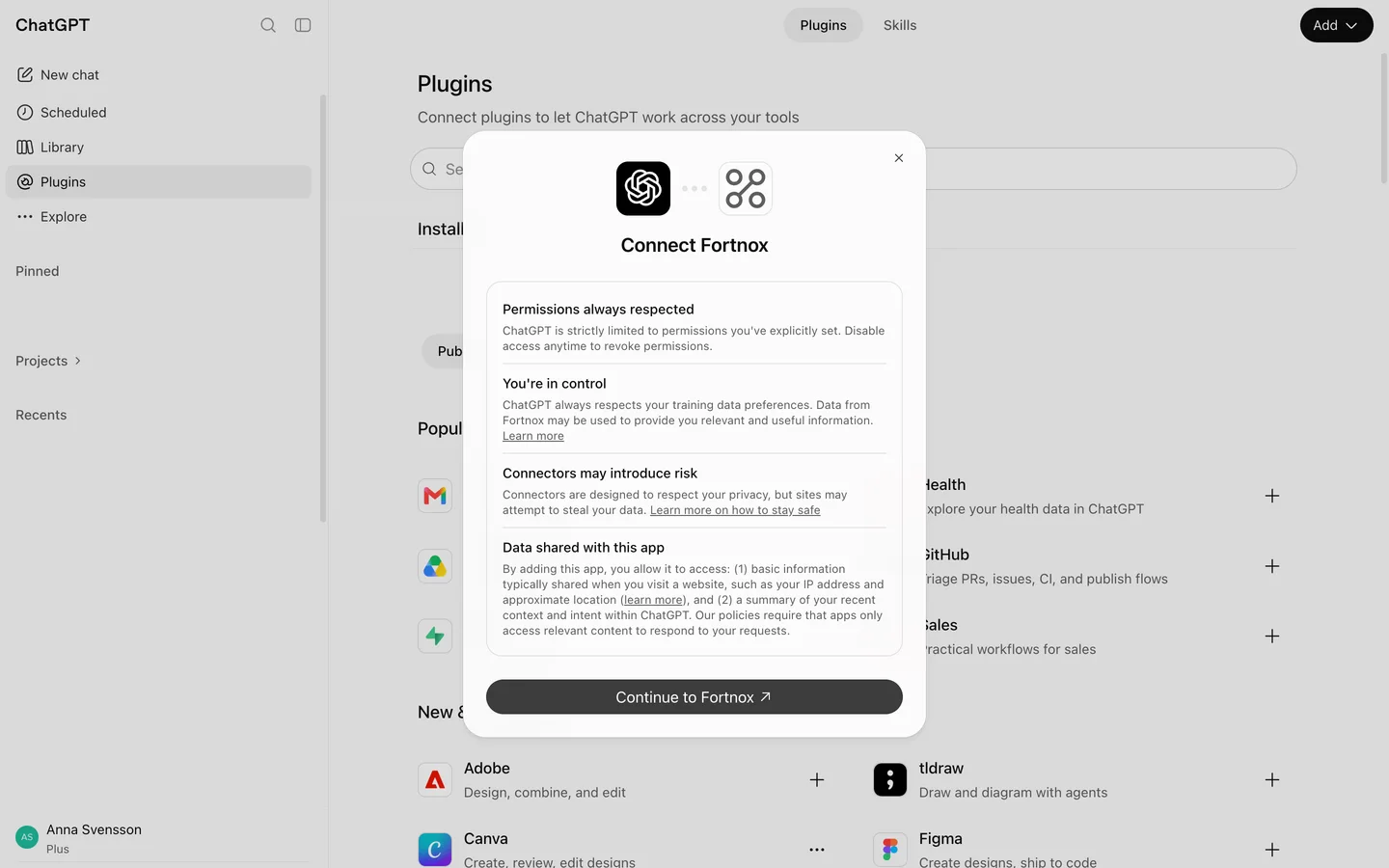
Continue to Fortnox
ChatGPT explains what the app may access. Continue to go to the sign in.
ClickContinue to Fortnox
Stuck on this step?
Contact support about this step →Looks different on your screen?
Still stuck? Tell us which step and we will help you through it.
Step 2 of 9
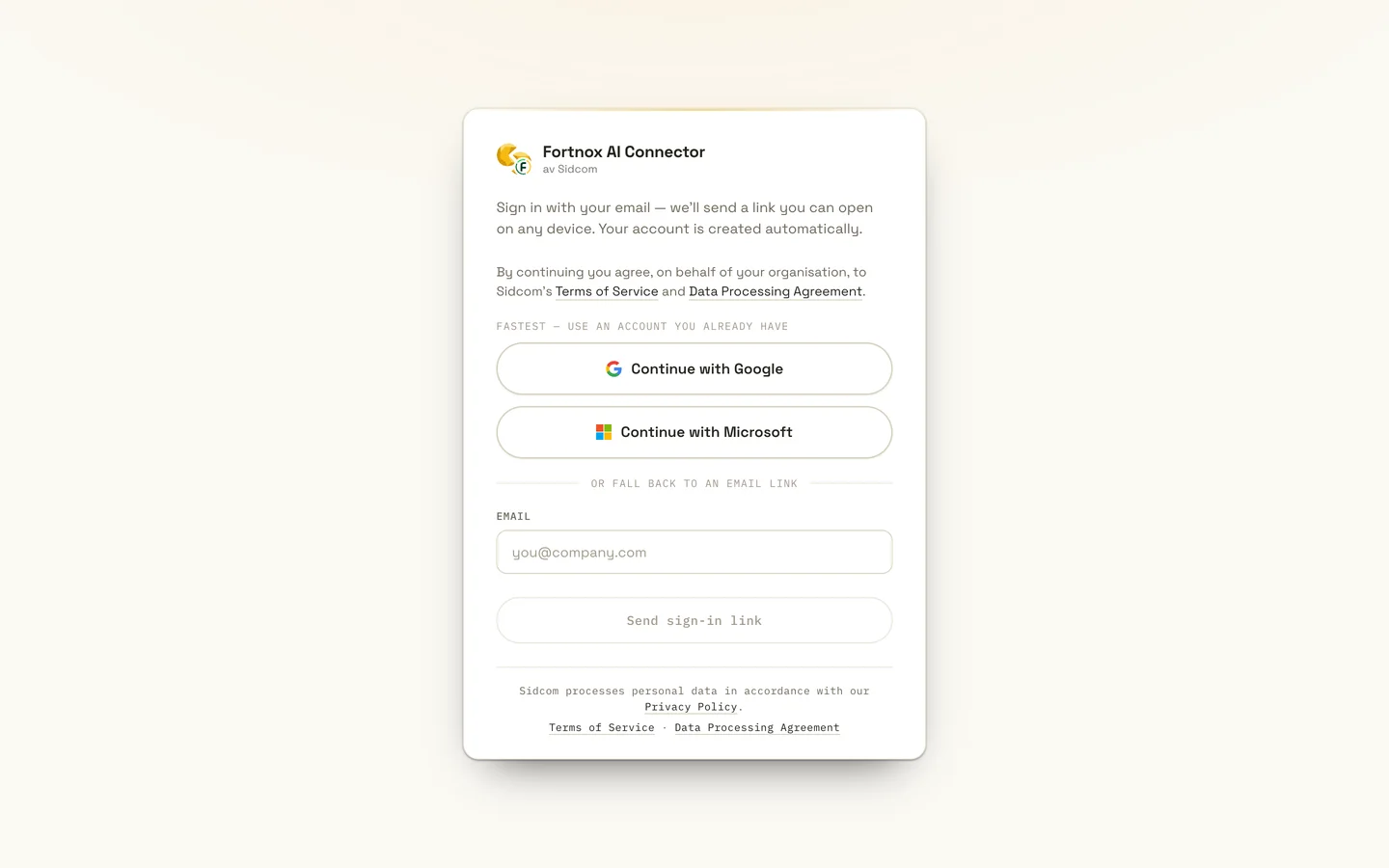
Sign in with your Sidcom account
Use the account you have for Fortnox AI Connector, with Google, Microsoft or a sign in link by email.
ClickContinue with Google
Stuck on this step?
It says the trial has ended or there is no seat
The account has no active seat. Check that you are a member of the organisation and have a seat under Members at fortnox.sidcom.ai, or ask the account owner to give you one.
Contact support about this step →Looks different on your screen?
Still stuck? Tell us which step and we will help you through it.
Step 3 of 9
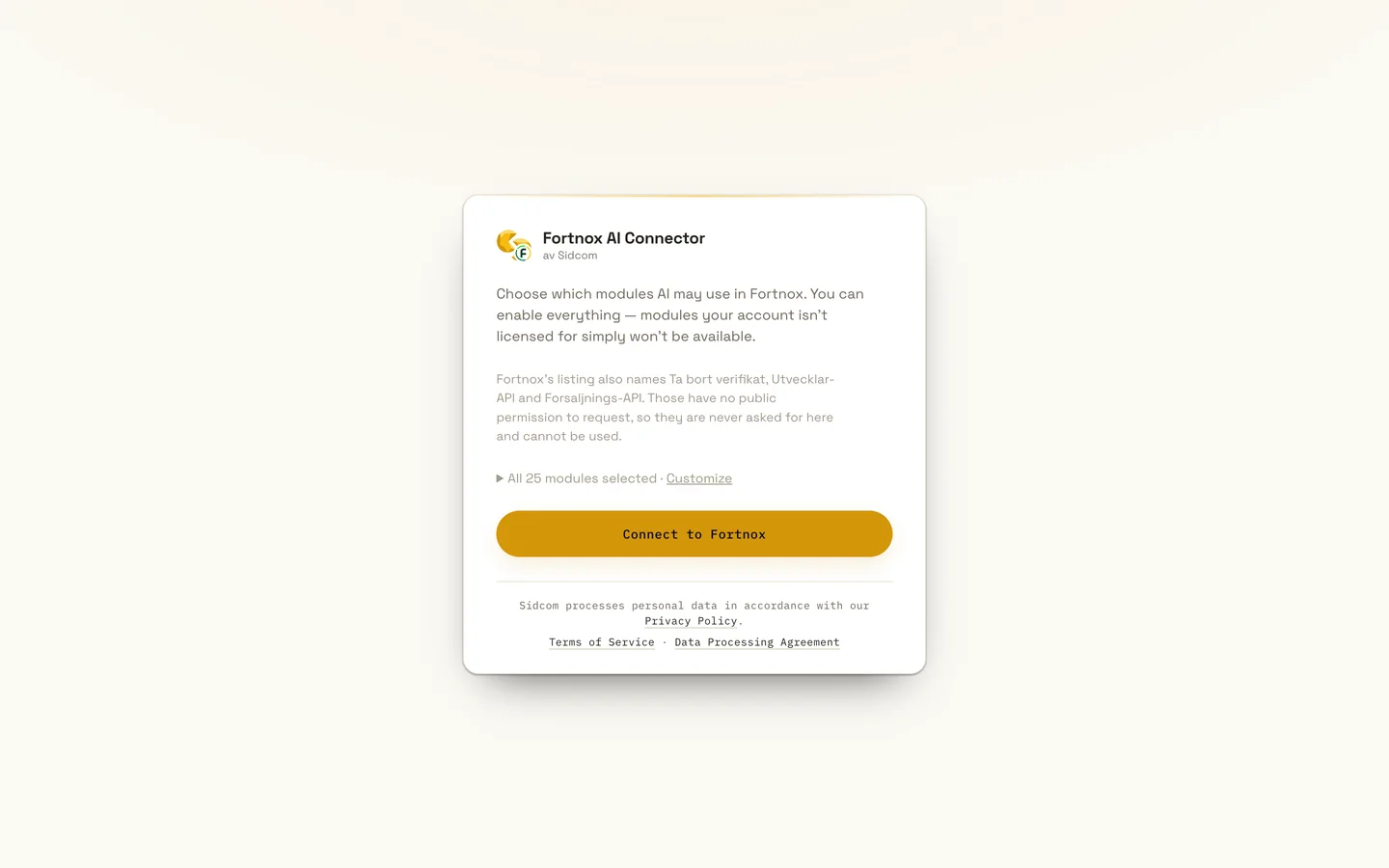
Choose modules and connect
Pick which parts of Fortnox the AI may use. Leave them all on if you are unsure, modules the company has no licence for simply stay unavailable.
ClickConnect to Fortnox
Stuck on this step?
Contact support about this step →Looks different on your screen?
Still stuck? Tell us which step and we will help you through it.
Step 4 of 9
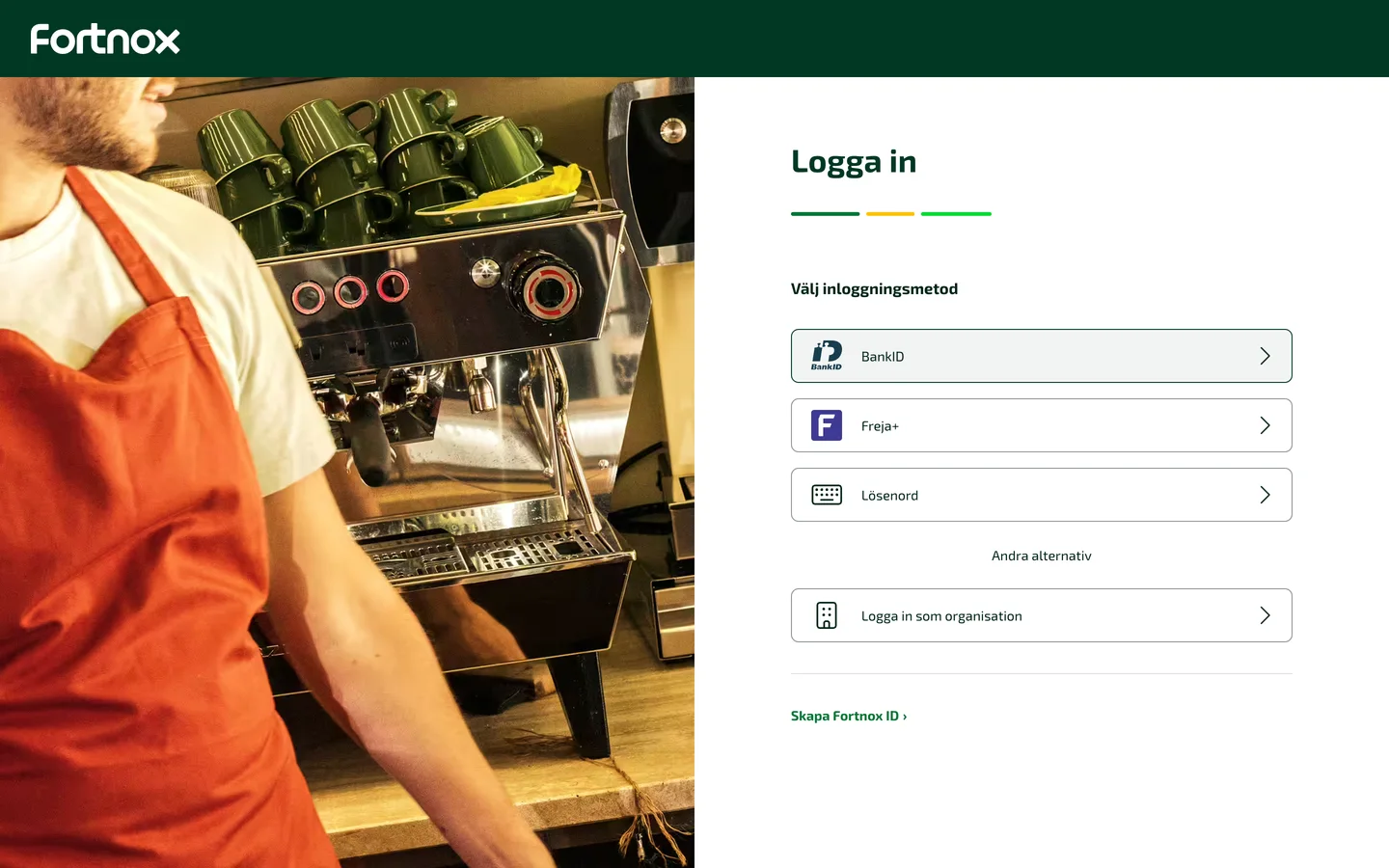
Sign in to Fortnox
Fortnox opens. Sign in the way you usually do, for example with BankID.
ClickBankID
Already signed in to Fortnox? Then this step is skipped.
Stuck on this step?
Contact support about this step →Looks different on your screen?
Still stuck? Tell us which step and we will help you through it.
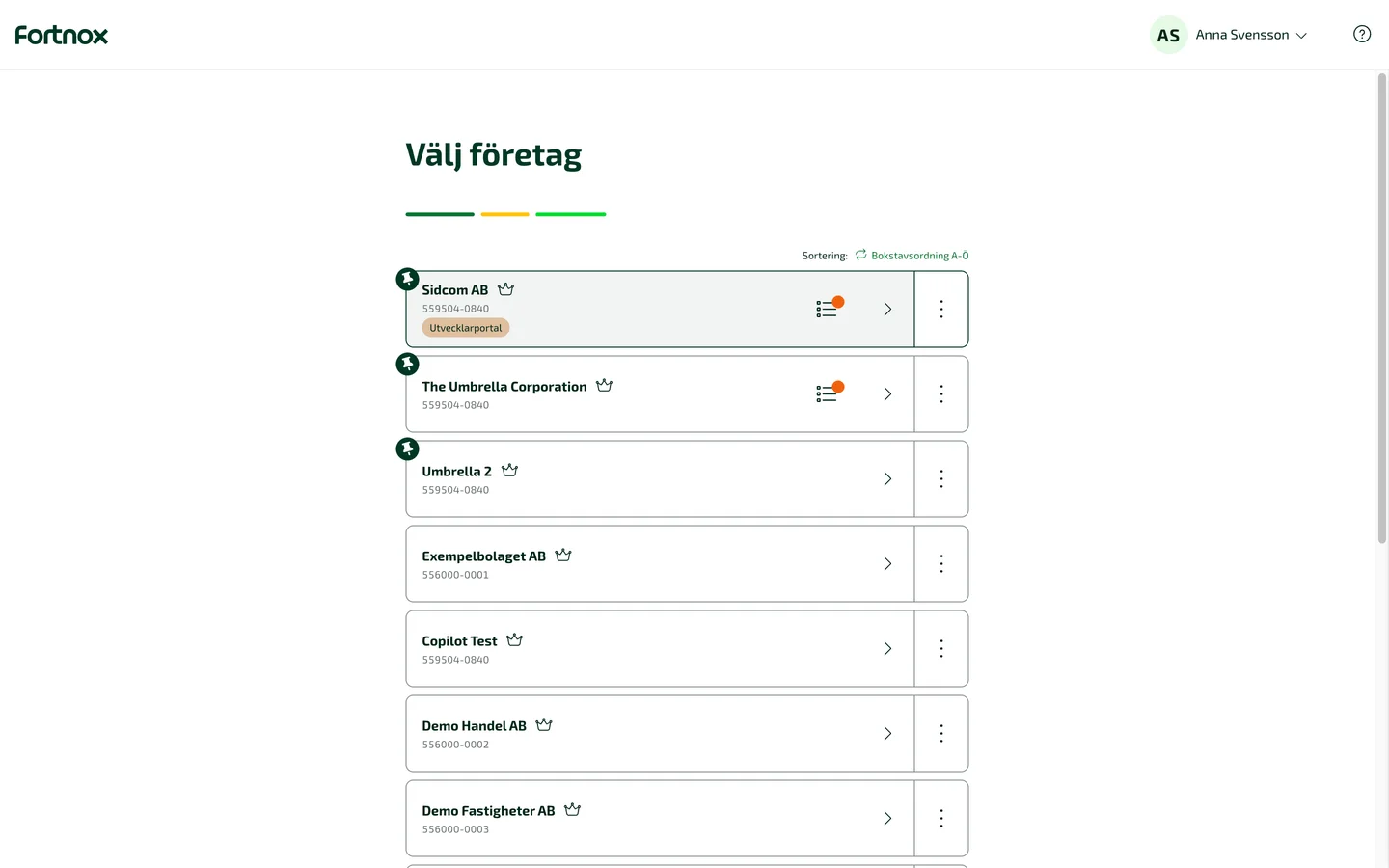
Step 5 of 9
Choose the company
Pick the company you want to connect. You add more companies in the next step.
ClickThe company
Working as a consultant through Digital Byrå? Choose the client company here.
Stuck on this step?
The company cannot be chosen, or connecting fails
AI Connector needs to be activated in the Fortnox App Market for the company, and the company needs a Fortnox integration licence. Questions about the licence? Get in touch.
Contact support about this step →Looks different on your screen?
Still stuck? Tell us which step and we will help you through it.
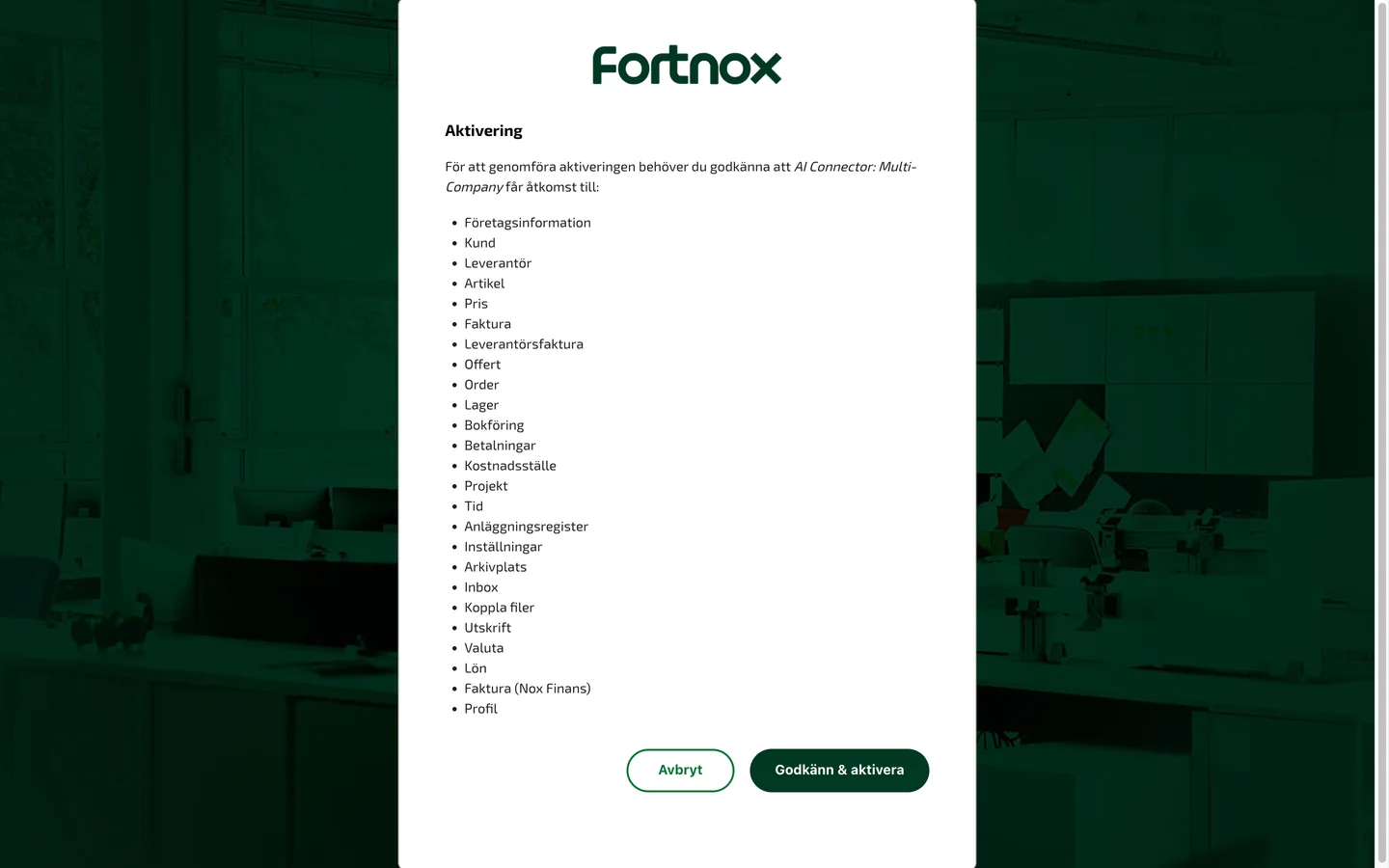
Step 6 of 9
Approve access in Fortnox
Fortnox lists what the connector may use. What you can actually do is still limited by your own Fortnox user's permissions in the company.
ClickGodkänn & aktivera
Stuck on this step?
Contact support about this step →Looks different on your screen?
Still stuck? Tell us which step and we will help you through it.
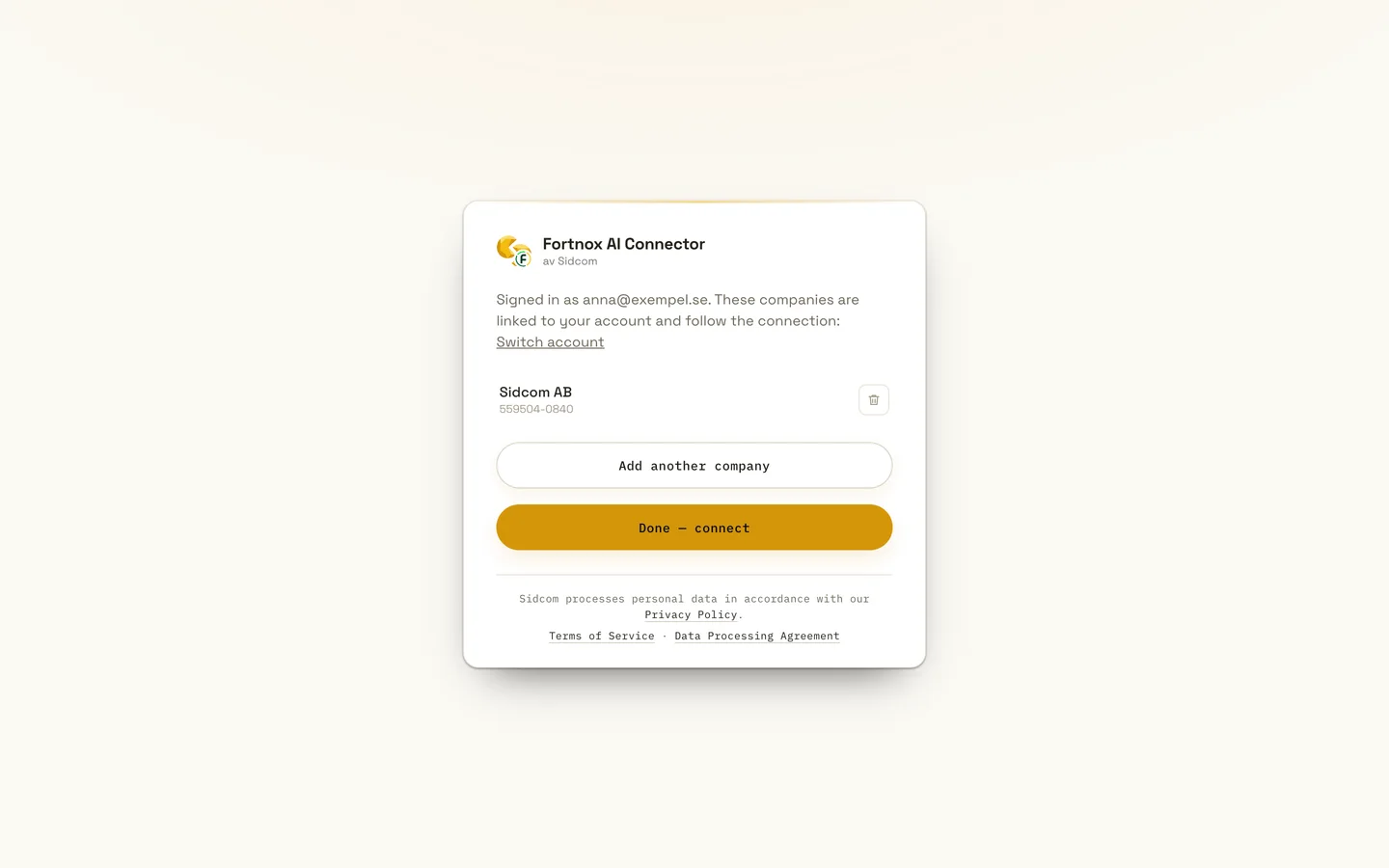
Step 7 of 9
Add more companies, or click Done
The company is now linked to your account. Click Add another company and pick the next one, as many times as you need. Then click Done, connect.
ClickDone, connect
Stuck on this step?
Contact support about this step →Looks different on your screen?
Still stuck? Tell us which step and we will help you through it.
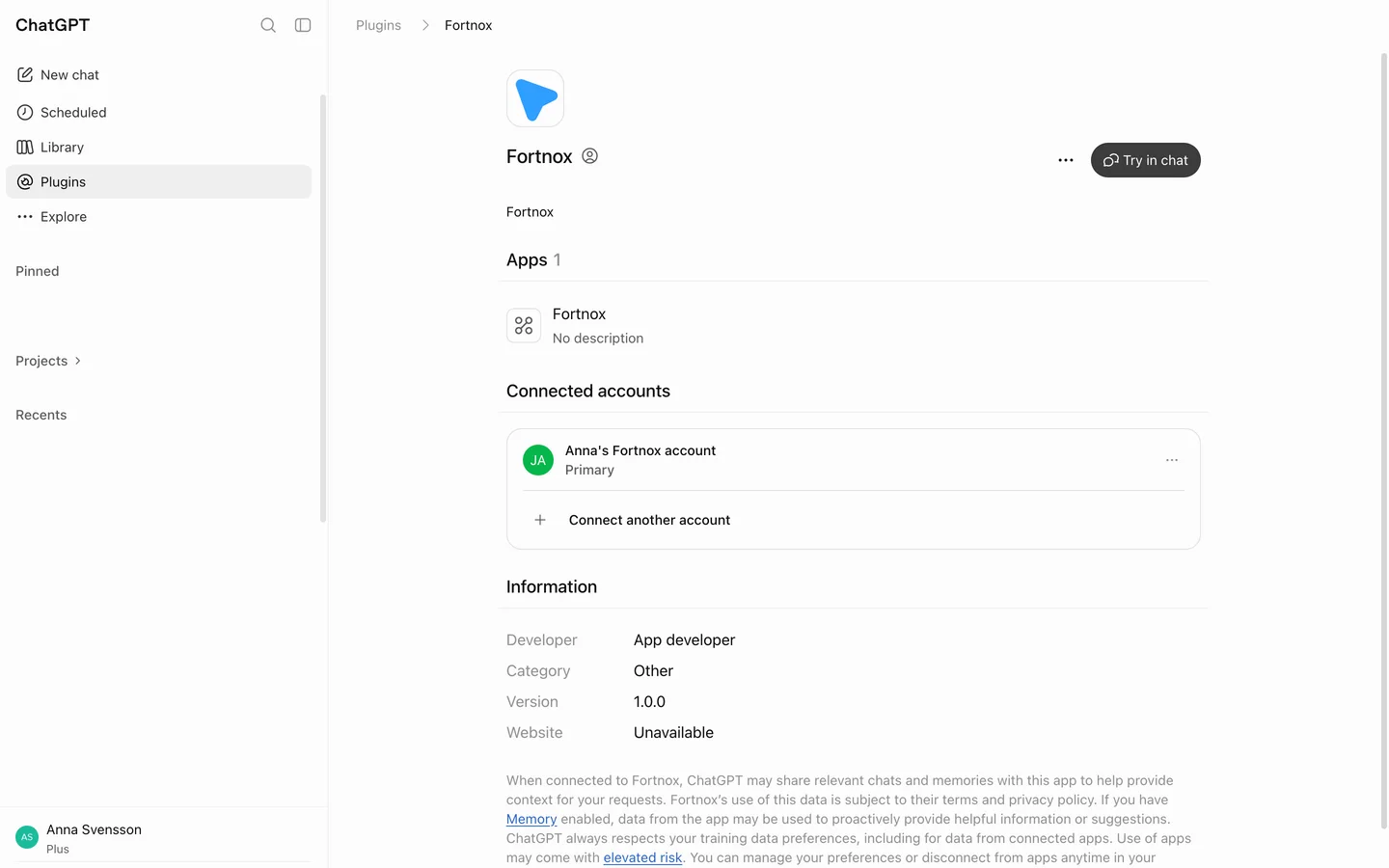
Step 8 of 9
You are connected
Back in ChatGPT, the plugin shows your account under Connected accounts. Click Try in chat to start using it.
ClickTry in chat
Stuck on this step?
Contact support about this step →Looks different on your screen?
Still stuck? Tell us which step and we will help you through it.
Step 9 of 9
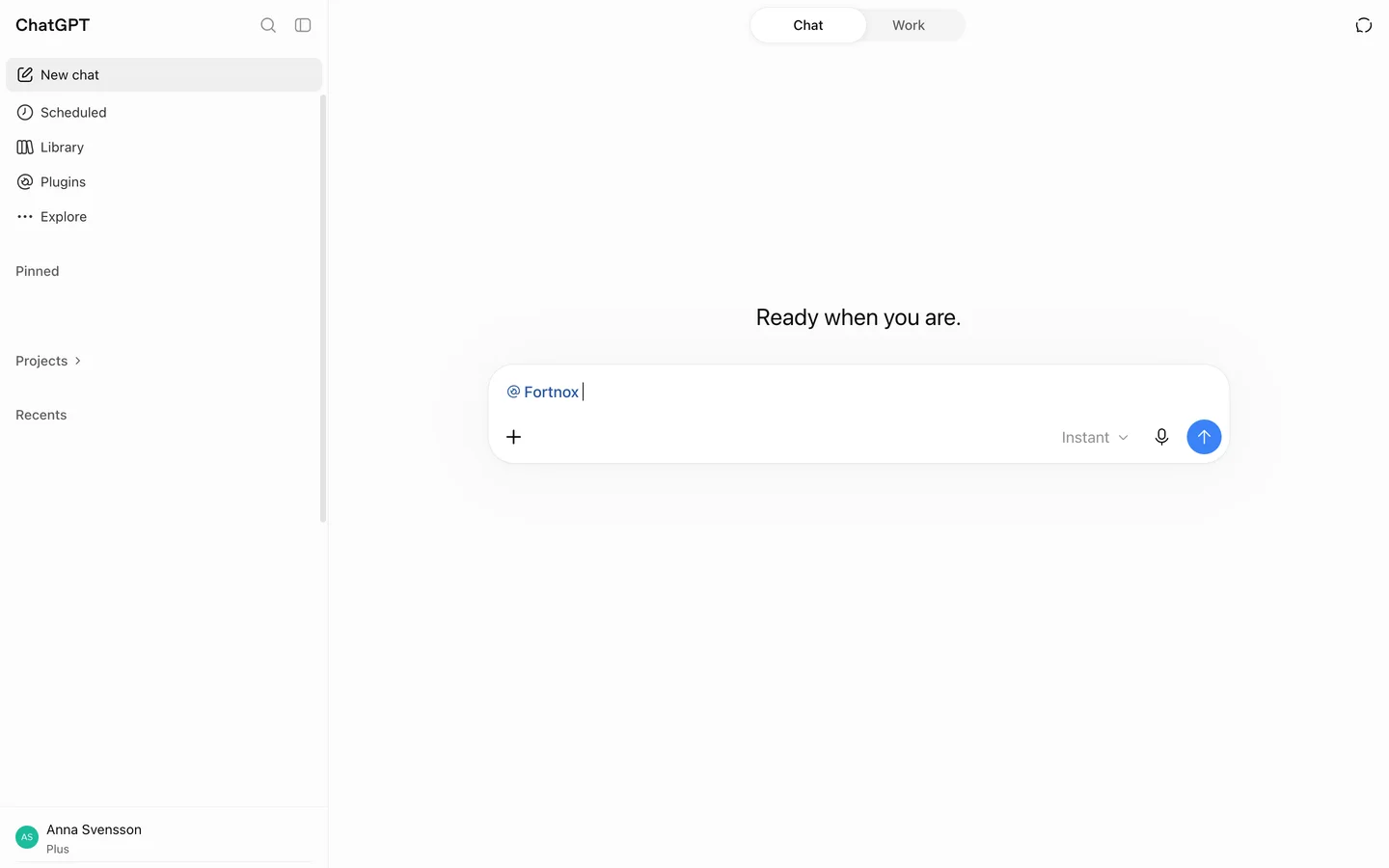
Ask about your companies
Fortnox is selected in the chat. Ask about one company or compare several, for example Which companies have unpaid customer invoices older than 30 days?
Stuck on this step?
It says the licence is missing when I ask
Ask the AI to run the fortnox_license tool. It shows the account status, trial, seats and whether you have a seat. A fixed account can take up to ten minutes to take effect.
Contact support about this step →Looks different on your screen?
Still stuck? Tell us which step and we will help you through it.
ChatGPT updates its interface often. Screens last checked 29 Sept 2026.
In Microsoft Copilot you add the connector to an agent in Copilot Studio, not directly in the chat. IT often sets up the Microsoft prerequisites the first time.
Check the Microsoft prerequisites
Users with a Microsoft 365 Copilot licence need no credits with a standard agent, others use Copilot Credits. You need to be allowed to create agents and add MCP servers. See the checklist and the most common errors on the Copilot page.
Add the connector to your agent in Copilot Studio
Create a standard agent in Copilot Studio through Other ways to build, not the agent labelled GitHub Copilot, which asks permission for every tool. Add the connector under Tools as Model Context Protocol with the address https://fortnox.sidcom.ai/mcp and OAuth 2.0.
Sign in with your Sidcom account and connect the companies
The same sign in as for Claude and ChatGPT. Choose modules, pick the company in Fortnox and approve, and add more companies before you click Done, connect.
Publish and share the agent
Publish the agent to Microsoft 365 Copilot and share it with your colleagues.