



Connect your bank to Claude or ChatGPT.
Add the address to your AI, sign in and approve with BankID. The same address works for all of them.
Which AI do you use?
In Claude on the web or in the desktop app. On Team and Enterprise, an administrator may need to add the connector for the organisation first.
In ChatGPT in the browser, at chatgpt.com. It works on every plan where you can add your own MCP servers.
In Microsoft Copilot you add the connector to an agent in Copilot Studio, not directly in the chat. Get in touch before you start and we go through it with you.
Create a standard agent in Copilot Studio
In Copilot Studio, create an agent through Other ways to build.
Add the connector as a tool
Under Tools, add a Model Context Protocol tool with the address https://banking.connect.sidcom.ai/mcp and OAuth 2.0 with dynamic discovery.
Sign in and connect your bank
Create the connection, sign in with your Sidcom account, connect your bank and approve with BankID.
Publish and share the agent
Publish the agent to Microsoft 365 Copilot and share it with your colleagues.
Done
The connector is added. Next, sign in and connect your bank.
Step 1 of 9
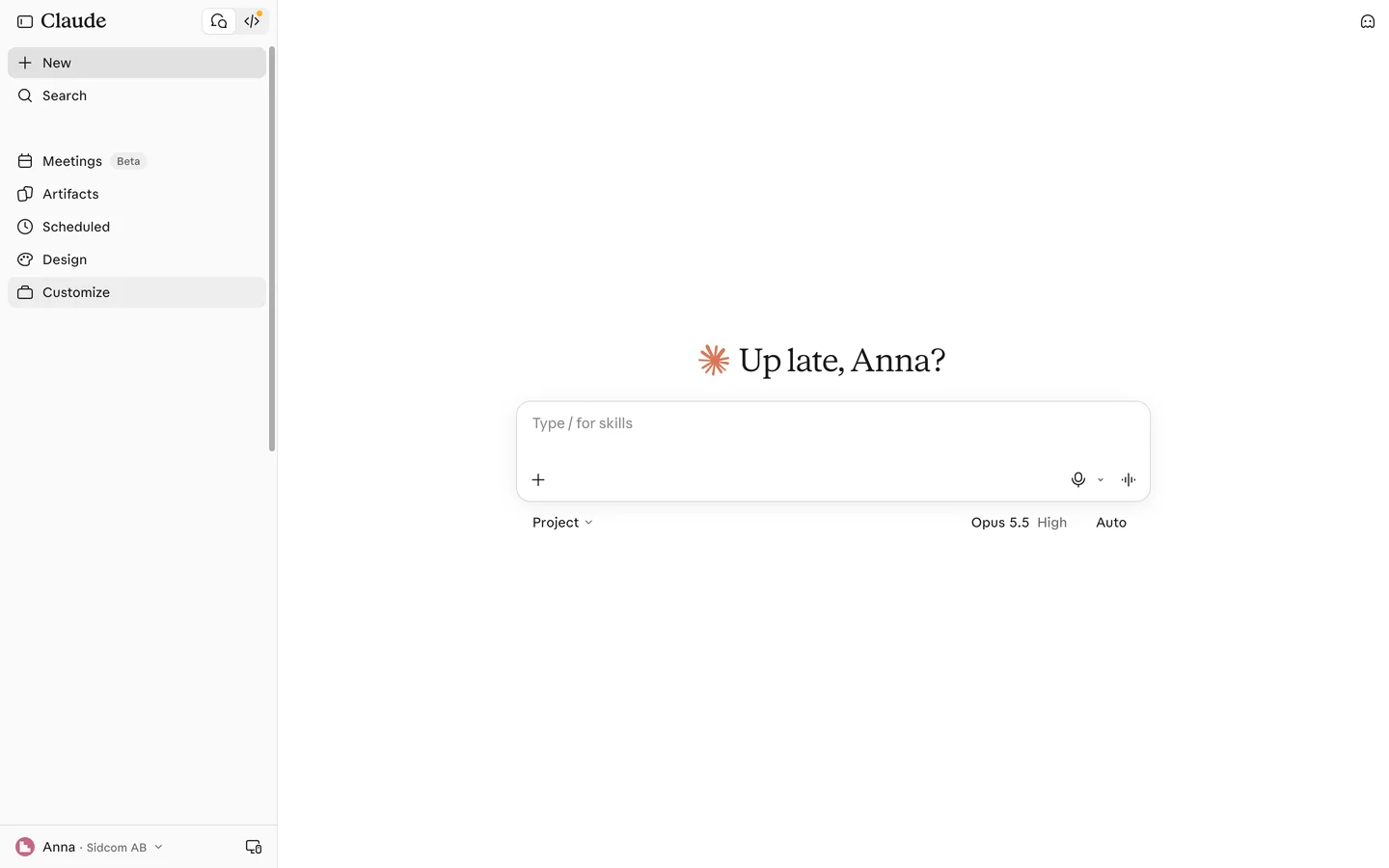
Open Customize
Customize is in the menu on the left.
ClickCustomize
Open Connectors in Claudeclaude.ai(opens in a new tab)Stuck on this step?
Contact support about this step →Looks different on your screen?
Still stuck? Tell us which step and we will help you through it.
Step 2 of 9
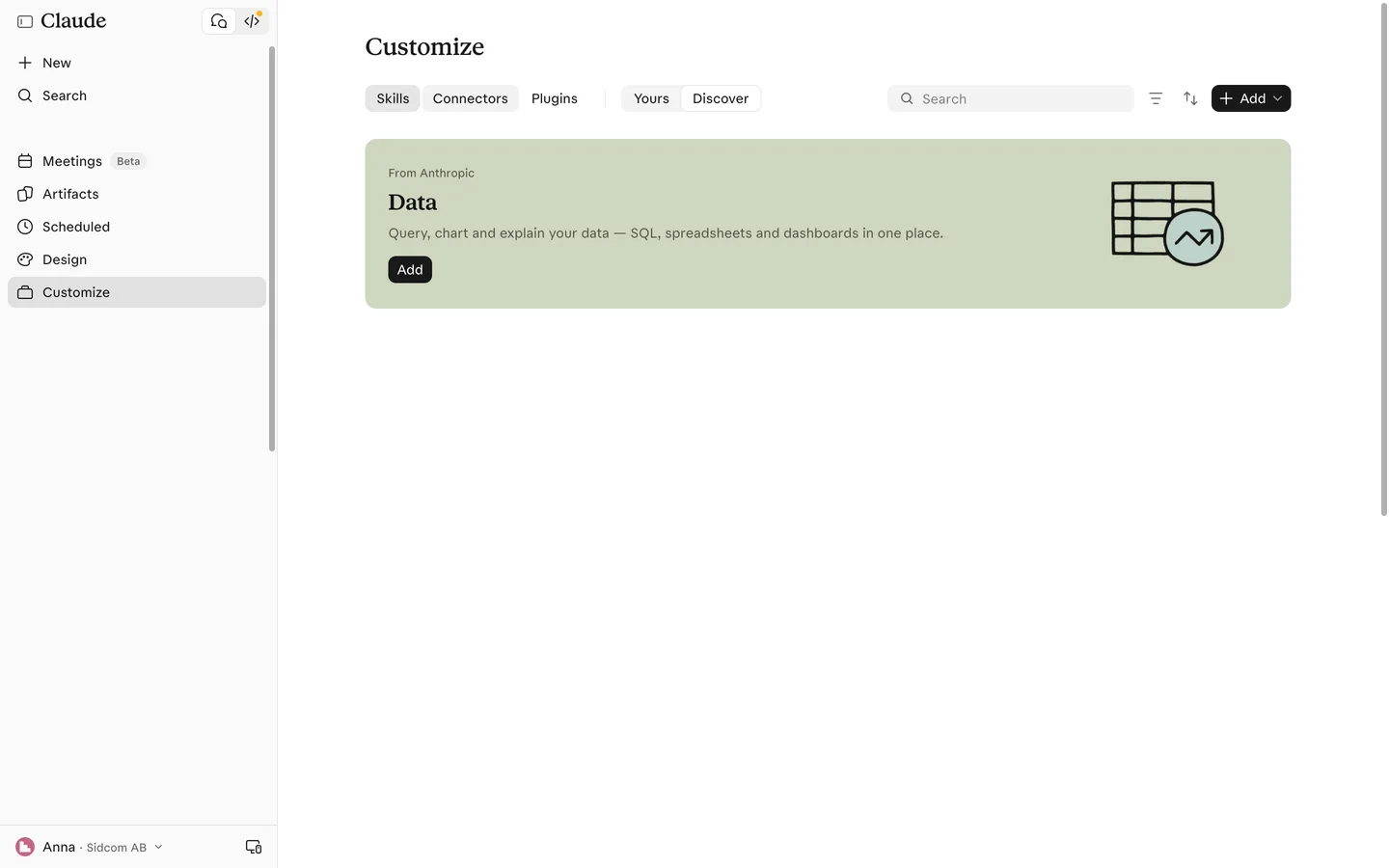
Choose the Connectors tab
At the top of the page, next to Skills.
ClickConnectors
Stuck on this step?
Contact support about this step →Looks different on your screen?
Still stuck? Tell us which step and we will help you through it.
Step 3 of 9
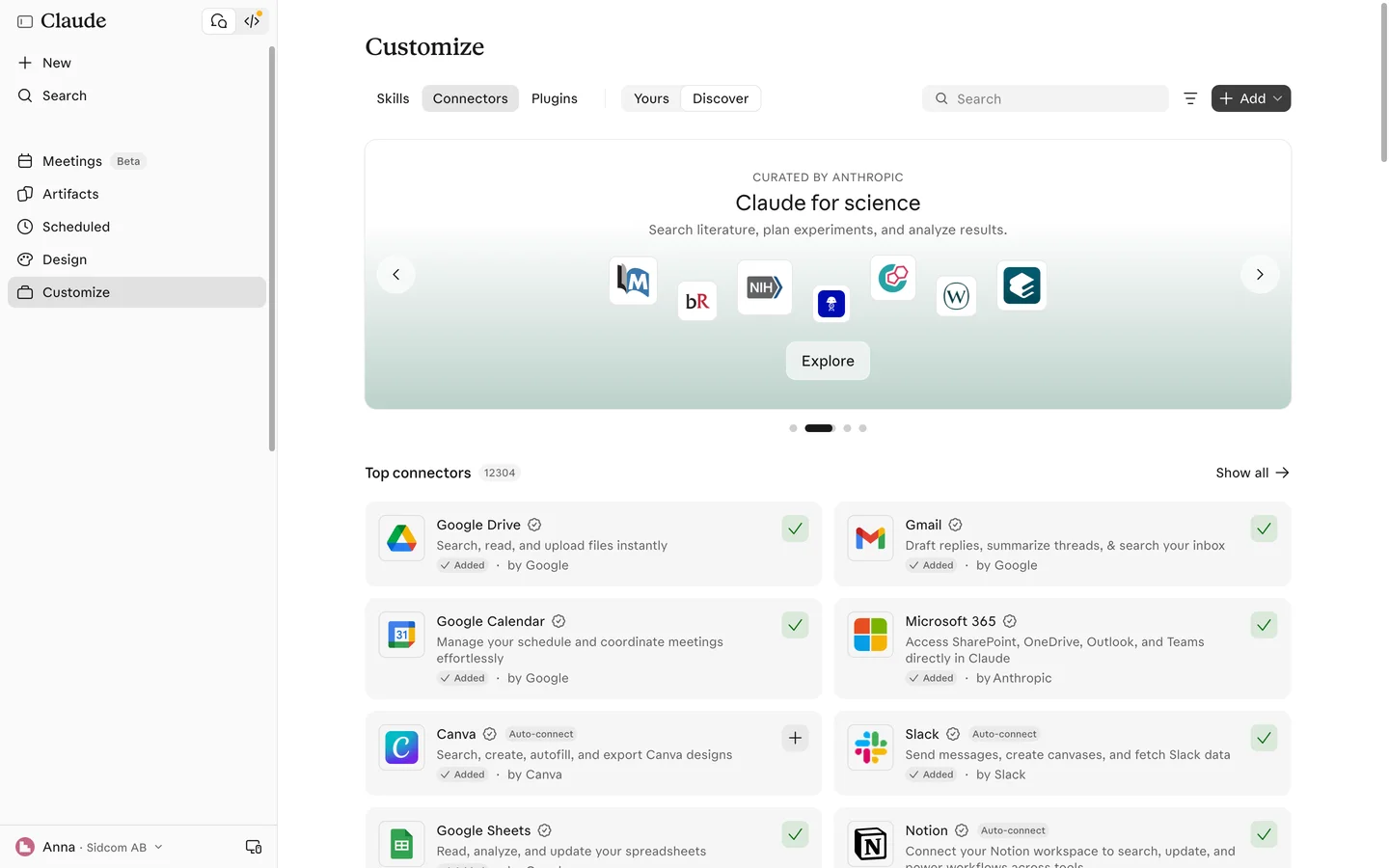
Click Add
Top right.
ClickAdd
Stuck on this step?
Contact support about this step →Looks different on your screen?
Still stuck? Tell us which step and we will help you through it.
Step 4 of 9
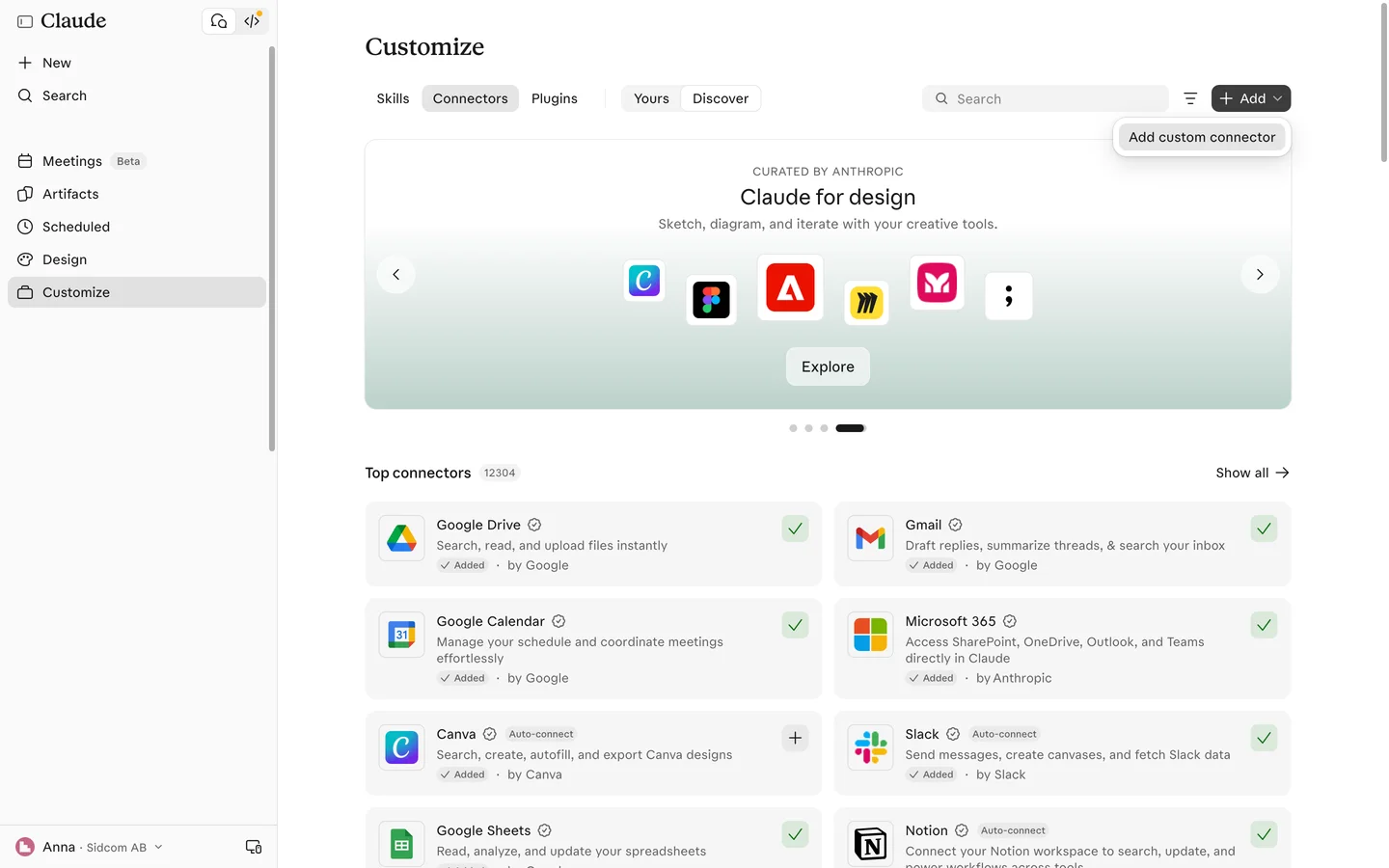
Choose Add custom connector
You add Sidcom Banking as a custom connector with the address below.
ClickAdd custom connector
Stuck on this step?
I do not see an Add button
On Team and Enterprise, only an administrator can add connectors by default. Ask your administrator to add Sidcom Banking for the organisation, then find it under Yours and click Connect.
Contact support about this step →Looks different on your screen?
Still stuck? Tell us which step and we will help you through it.
Step 5 of 9
Give it a name
The name shows in your list of connectors. Sidcom Banking works well.
Type inName
Sidcom Banking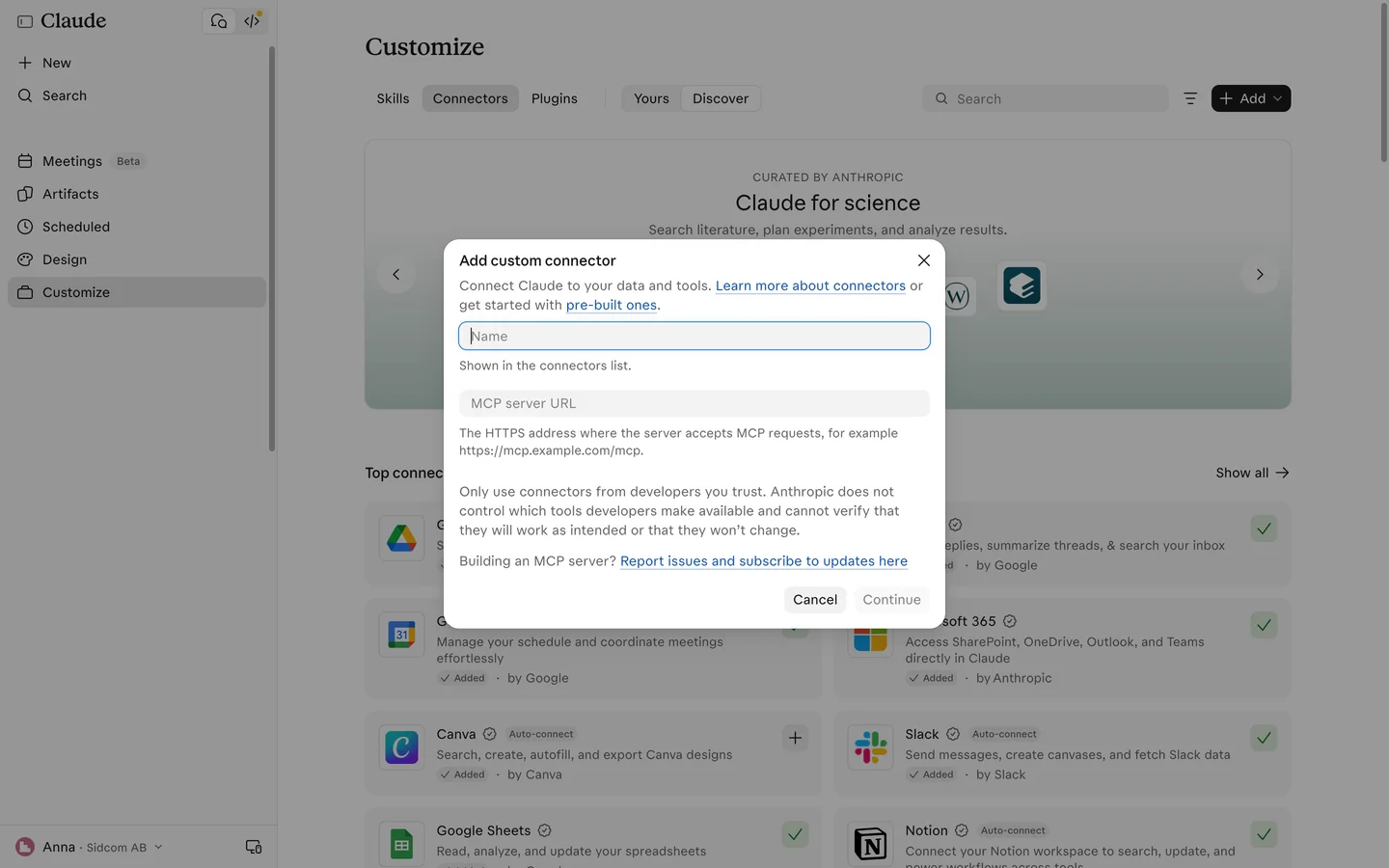
Stuck on this step?
Contact support about this step →Looks different on your screen?
Still stuck? Tell us which step and we will help you through it.
Step 6 of 9
Paste the server address
Type inMCP server URL
MCP server addresshttps://banking.connect.sidcom.ai/mcp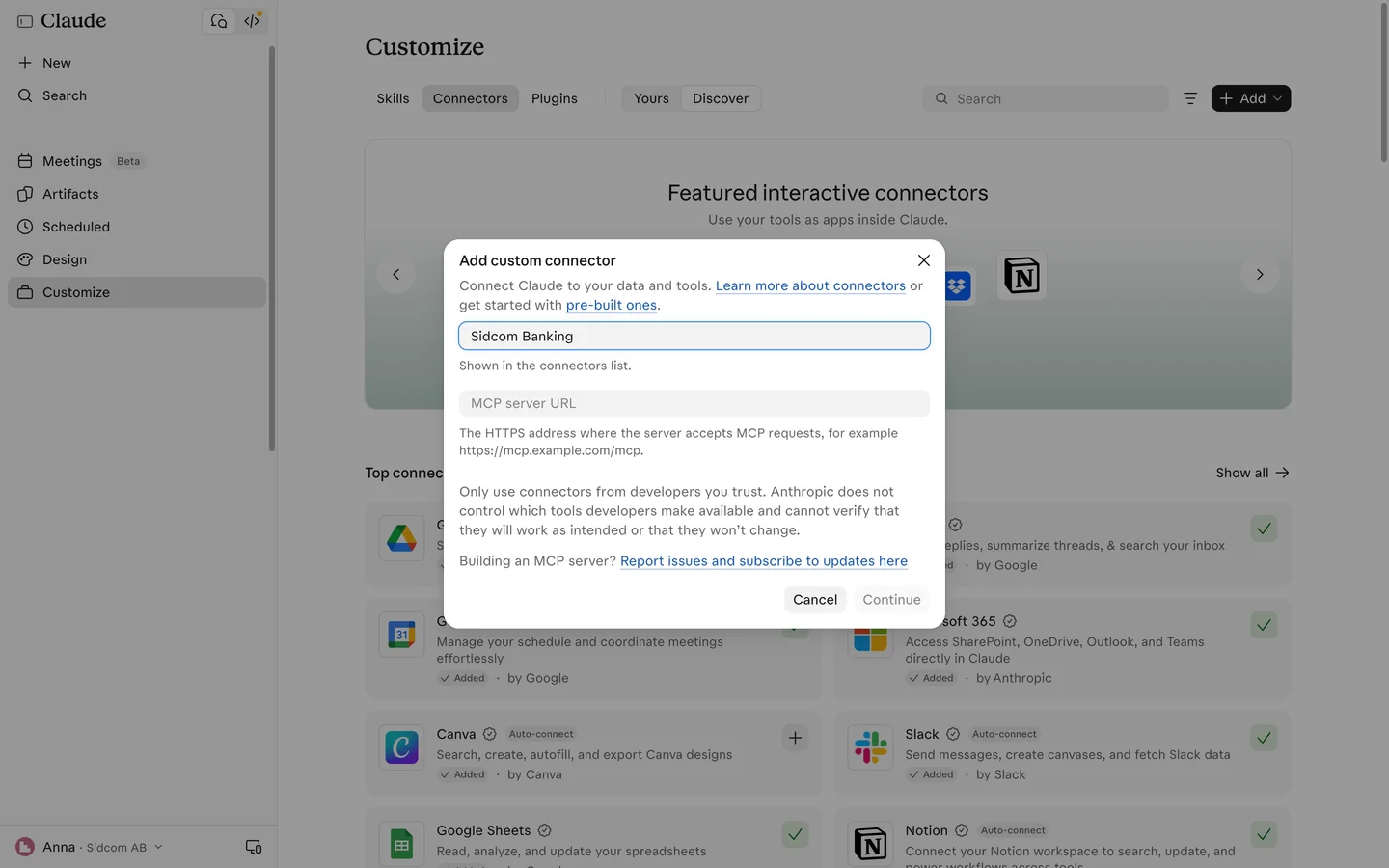
Stuck on this step?
It says a connector with this address already exists
Then someone in your organisation has already added Sidcom Banking. Close the dialog, choose Yours on the Connectors page and click Connect on the existing one to connect with your own account.
Contact support about this step →Looks different on your screen?
Still stuck? Tell us which step and we will help you through it.
Step 7 of 9
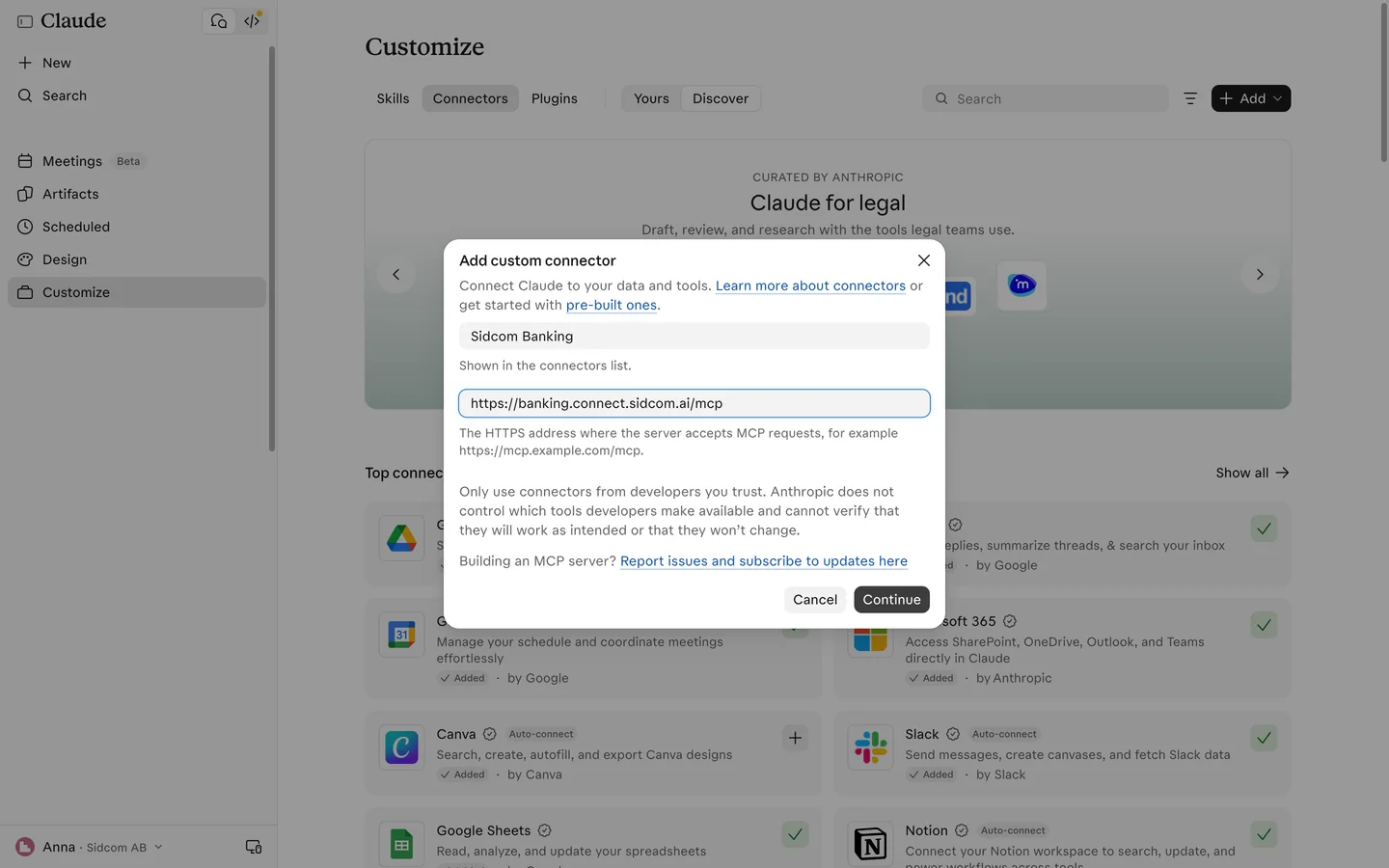
Click Continue
ClickContinue
Stuck on this step?
Contact support about this step →Looks different on your screen?
Still stuck? Tell us which step and we will help you through it.
Step 8 of 9
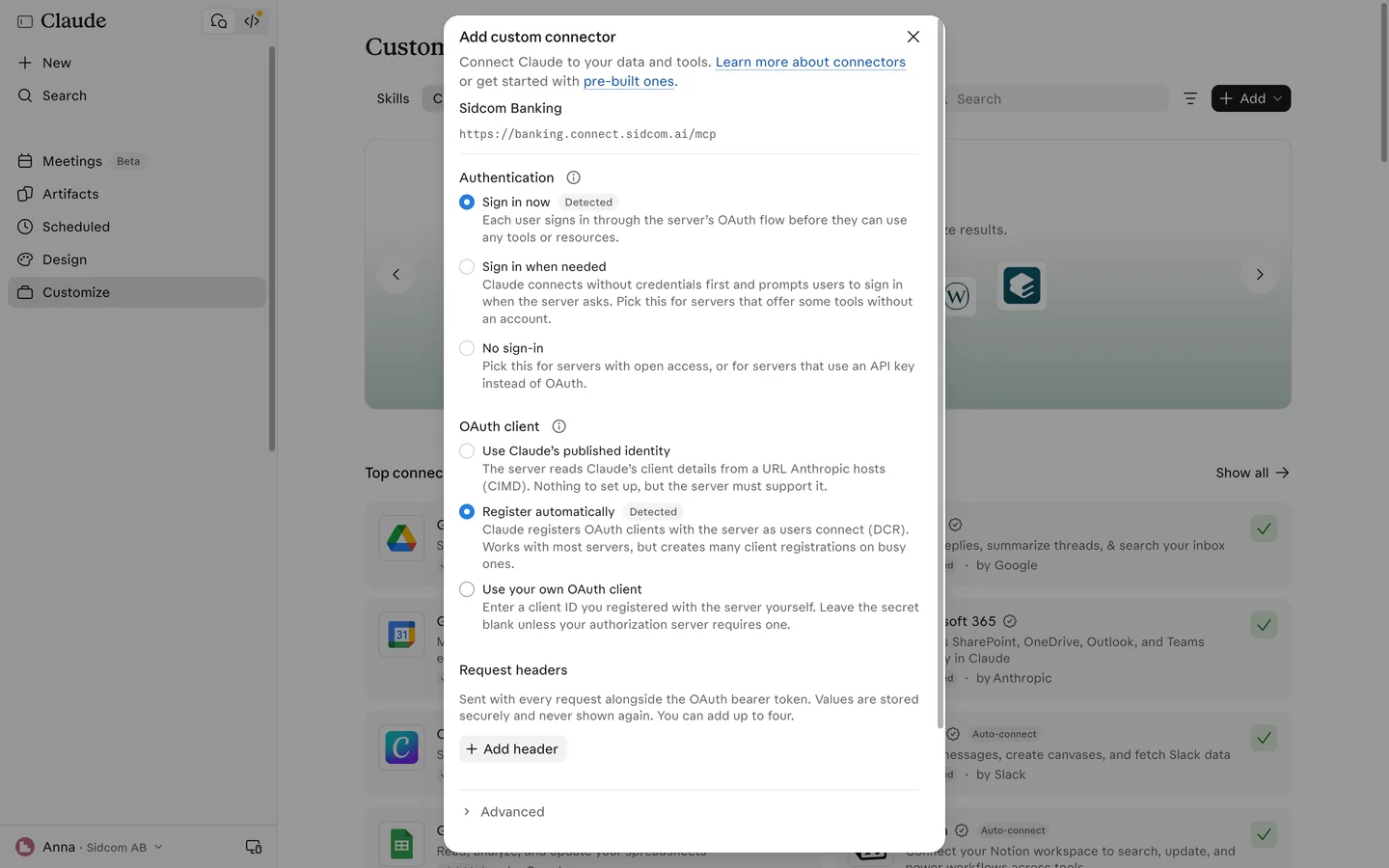
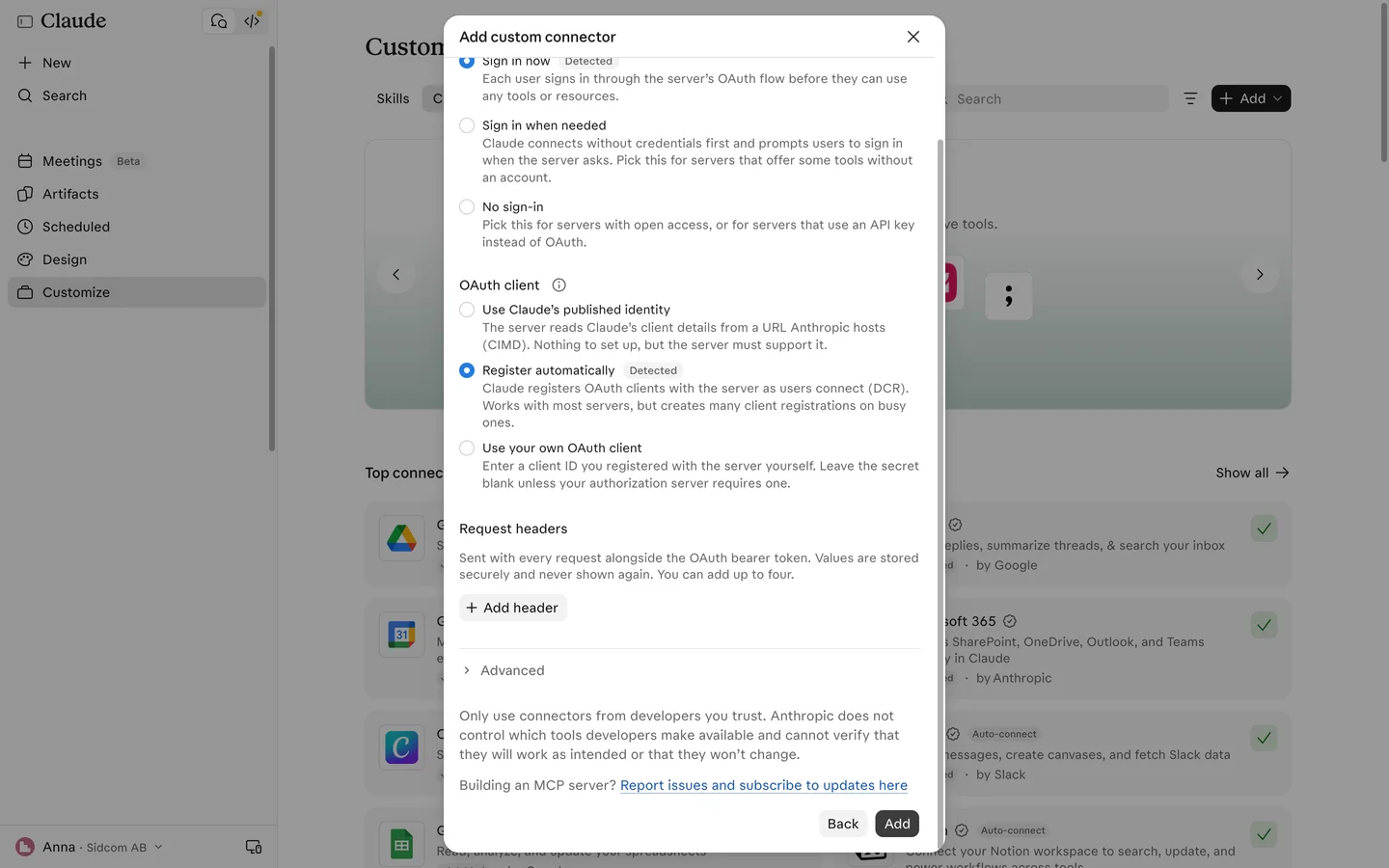
Leave the settings as they are
Sign in now and Register automatically are already selected. There is nothing to change here.
Stuck on this step?
Contact support about this step →Looks different on your screen?
Still stuck? Tell us which step and we will help you through it.
Step 9 of 9
Click Add
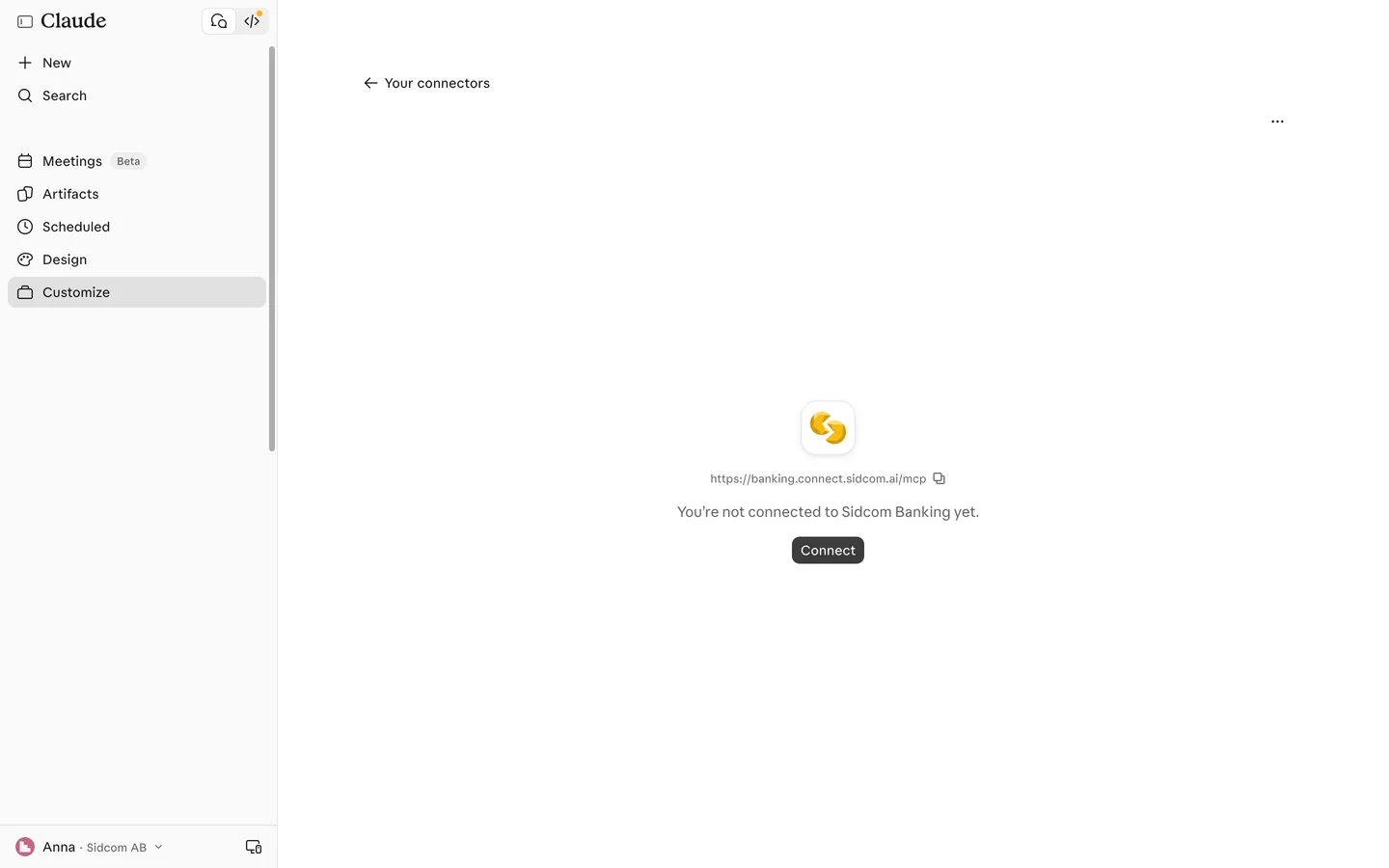
The connector is added, and you land on its page to connect.
ClickAdd
Stuck on this step?
Contact support about this step →Looks different on your screen?
Still stuck? Tell us which step and we will help you through it.
Done
The bank is connected. Ask Claude about balances and transactions.
Step 1 of 21
Click Connect
On the connector's page in Claude. This opens the sign-in at Sidcom.
ClickConnect
Stuck on this step?
Contact support about this step →Looks different on your screen?
Still stuck? Tell us which step and we will help you through it.
Step 2 of 21
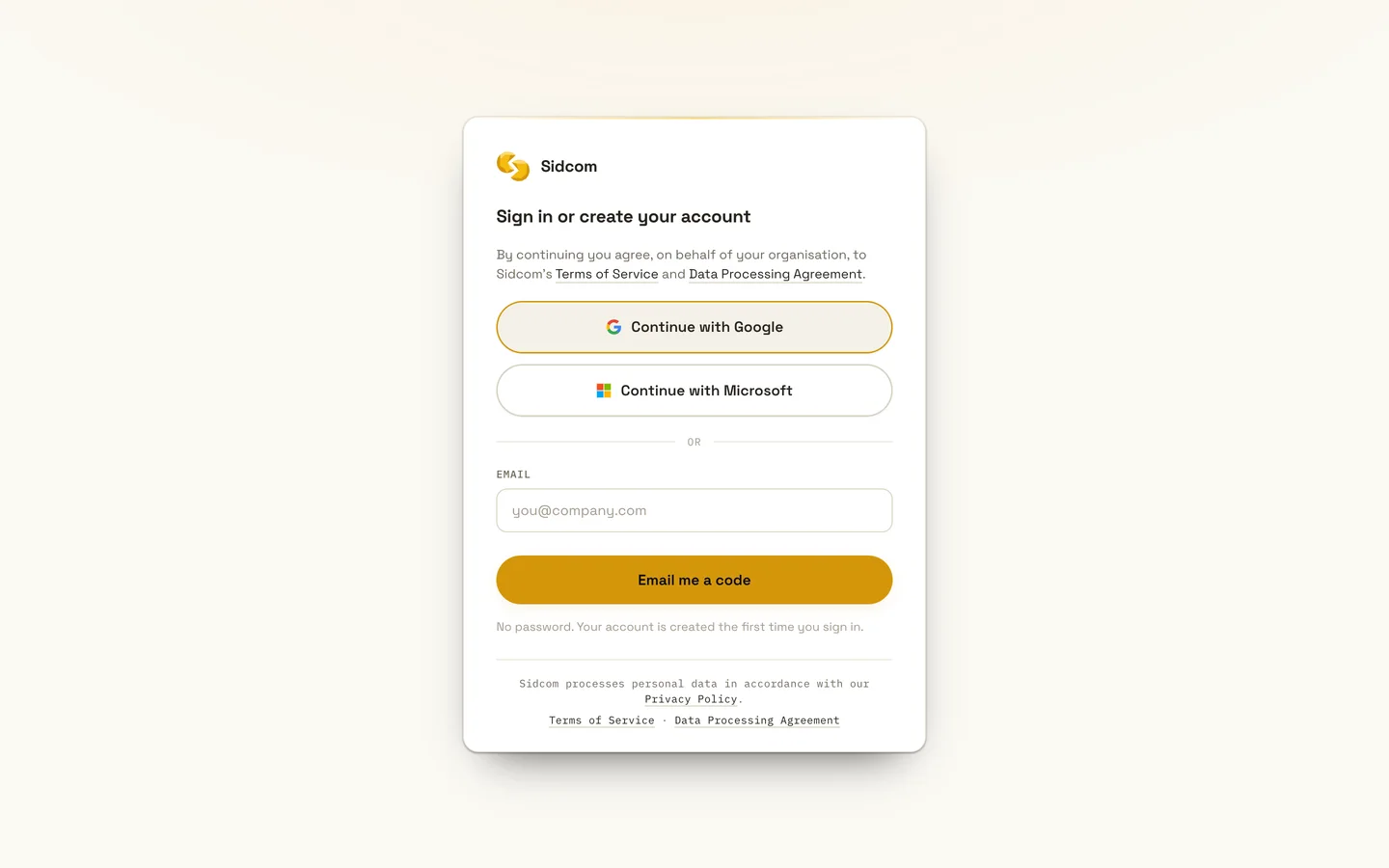
Sign in with a Sidcom account
Use Google or Microsoft, or get a code by email. If you have no account, one is created for you.
ClickContinue with Google
If you already have a Sidcom account for a Fortnox connector, use the same one here.
Stuck on this step?
Contact support about this step →Looks different on your screen?
Still stuck? Tell us which step and we will help you through it.
Step 3 of 21
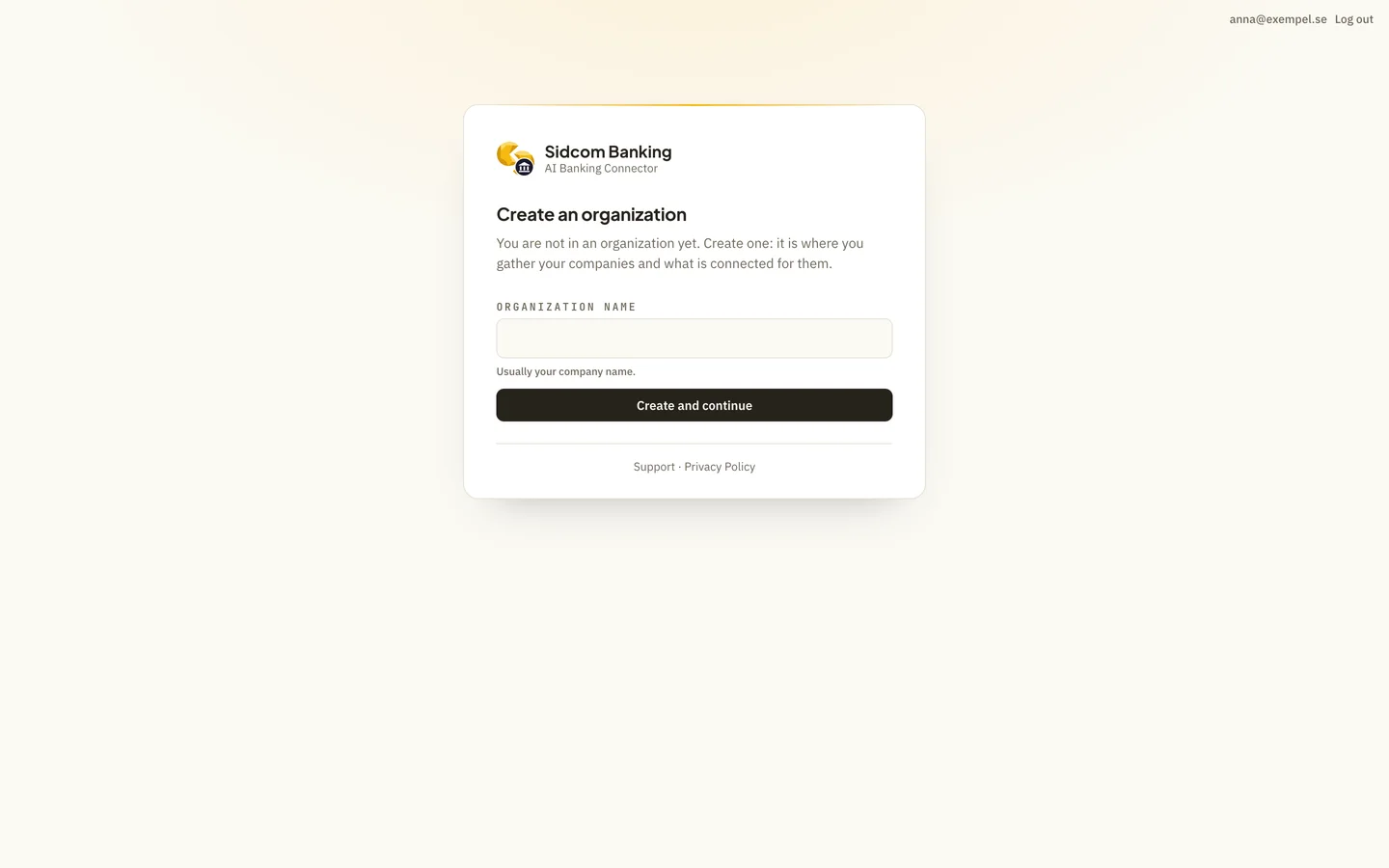
Name your organisation
The first time, you create an organisation at Sidcom. It is where your companies and what is connected for them are gathered. Usually the company's name.
Type inOrganization name
Sidcom ABIf you already have an organisation at Sidcom, you skip this step and the next.
Stuck on this step?
Contact support about this step →Looks different on your screen?
Still stuck? Tell us which step and we will help you through it.
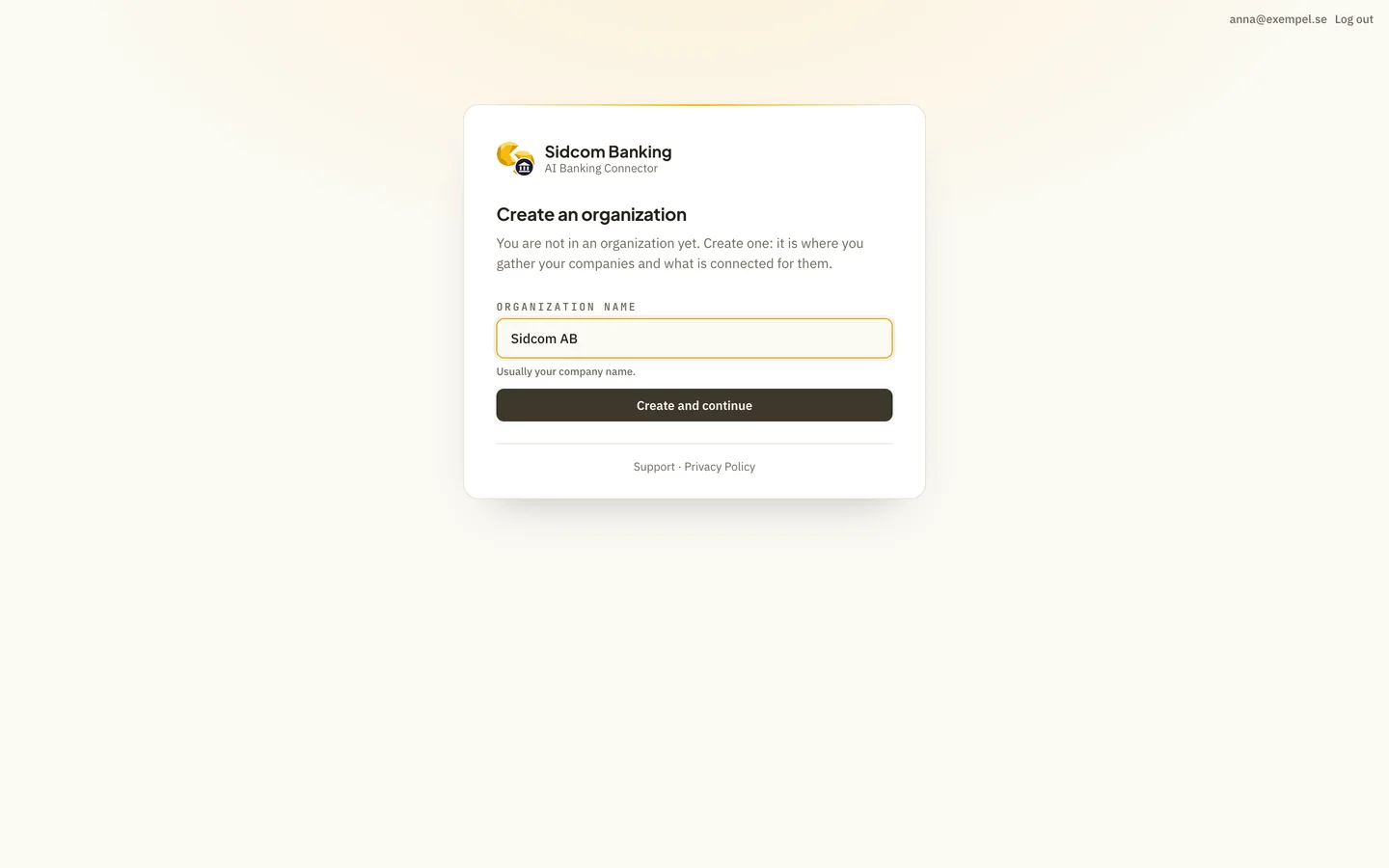
Step 4 of 21
Click Create and continue
ClickCreate and continue
Stuck on this step?
Contact support about this step →Looks different on your screen?
Still stuck? Tell us which step and we will help you through it.
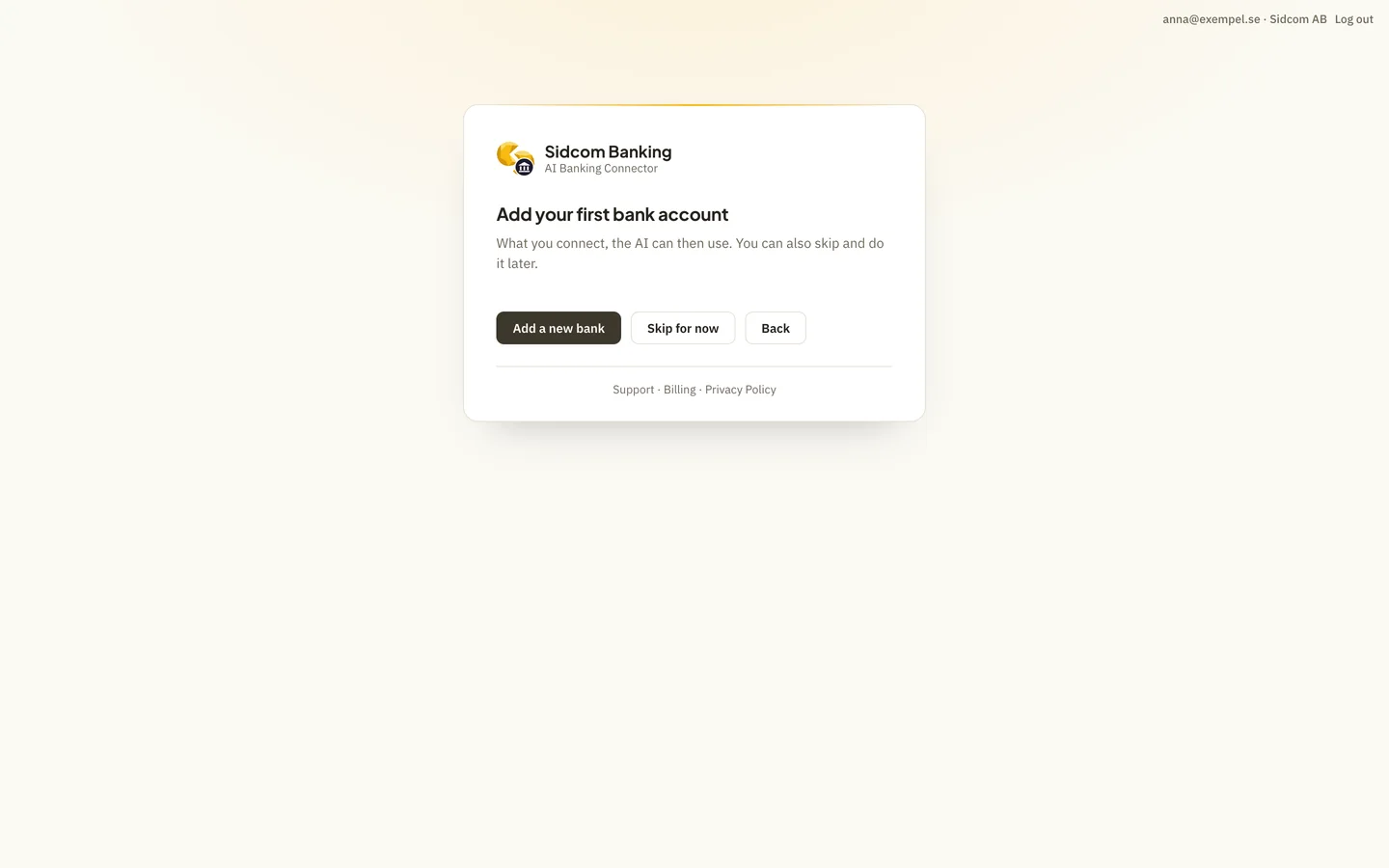
Step 5 of 21
Click Add a new bank
Nothing is connected yet. This is where you add your first bank.
ClickAdd a new bank
Stuck on this step?
Contact support about this step →Looks different on your screen?
Still stuck? Tell us which step and we will help you through it.
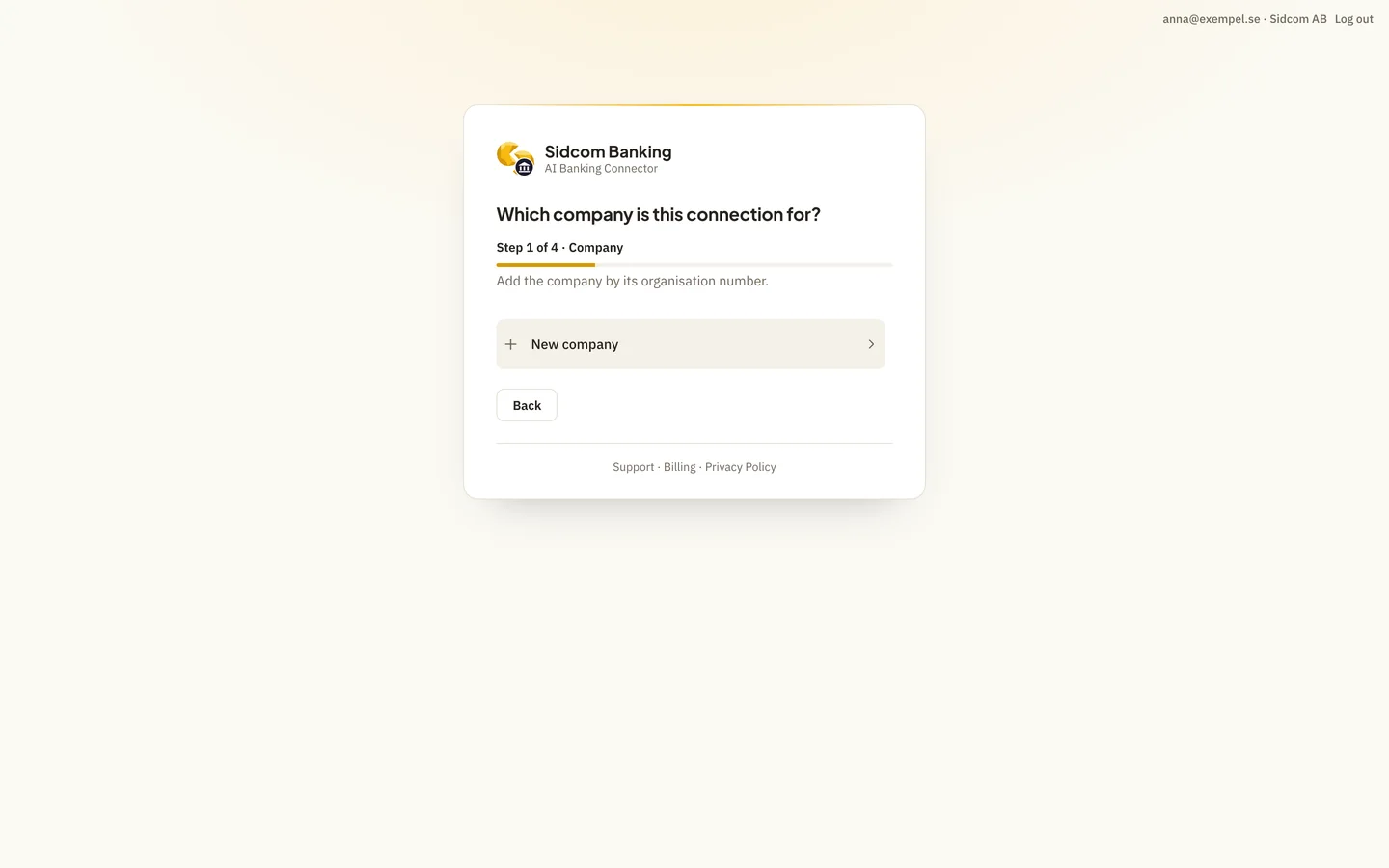
Step 6 of 21
Choose New company
Every bank connection belongs to a company. Add the company by its organisation number.
ClickNew company
If you have added companies before, they are listed here. Then choose the company in the list and go on to who may use the connection.
Stuck on this step?
Contact support about this step →Looks different on your screen?
Still stuck? Tell us which step and we will help you through it.
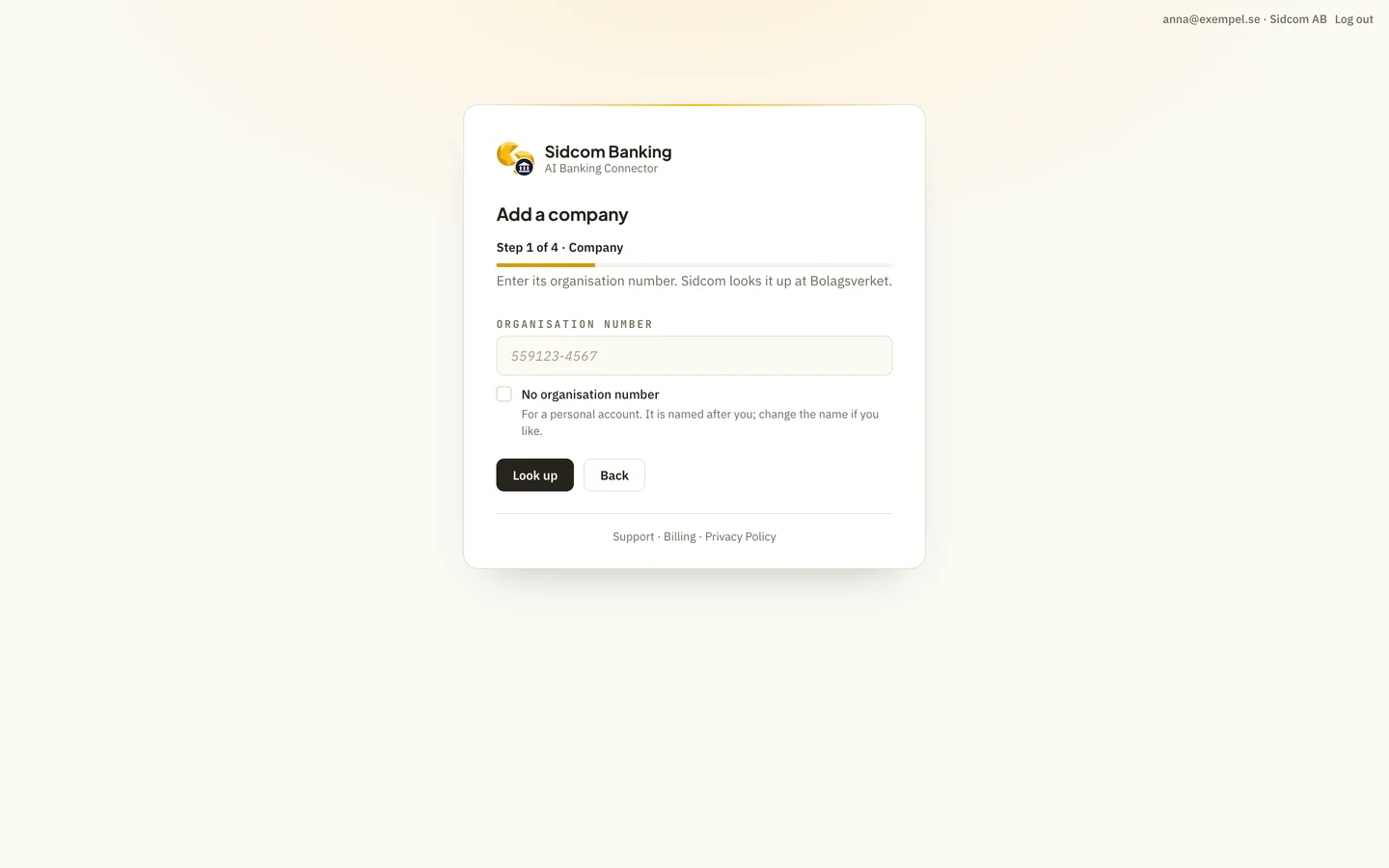
Step 7 of 21
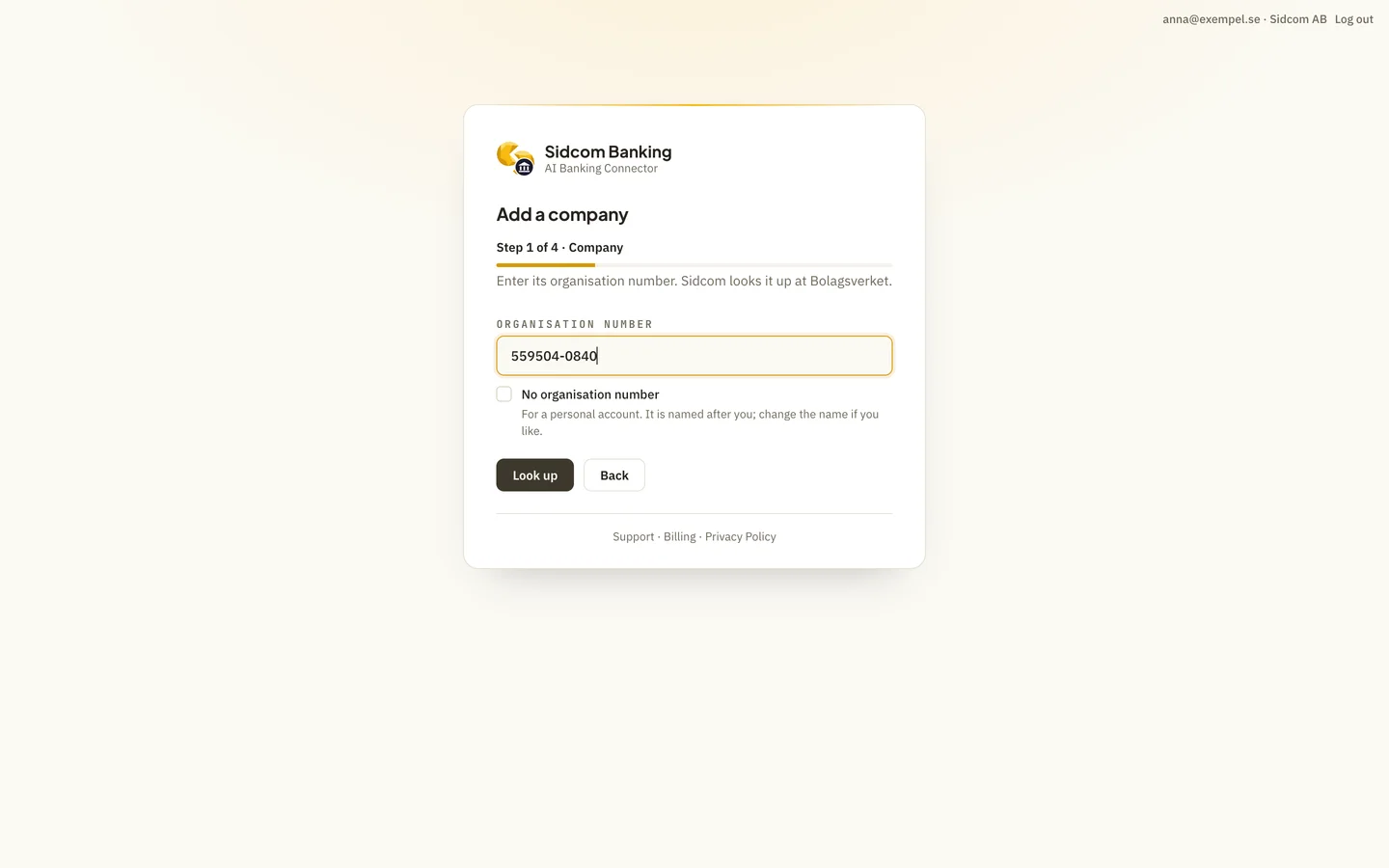
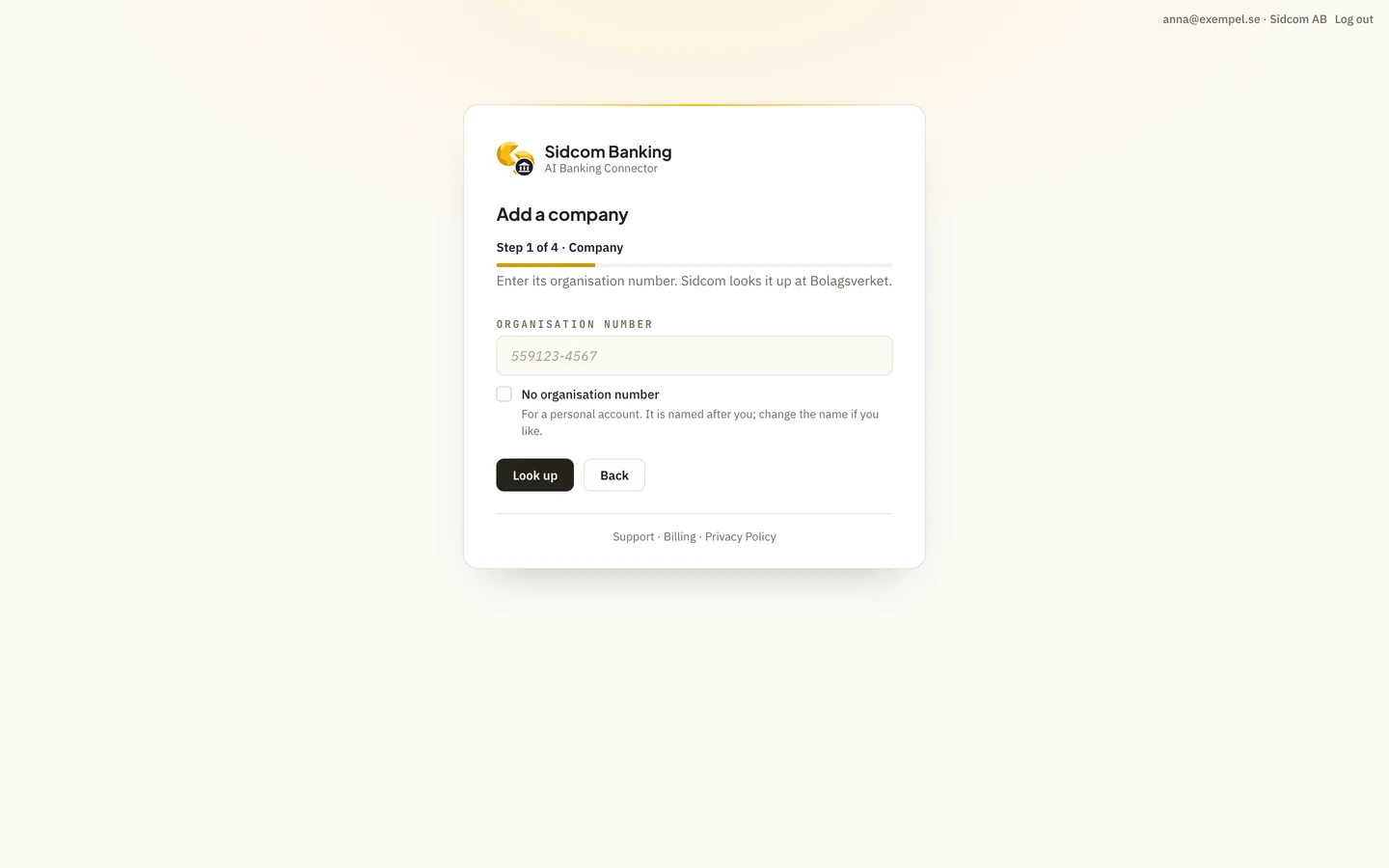
Enter the organisation number
Ten digits, with or without the hyphen.
Type inOrganisation number
559504-0840Is it a private account? Tick the box below the field instead.
Stuck on this step?
Contact support about this step →Looks different on your screen?
Still stuck? Tell us which step and we will help you through it.
Step 8 of 21
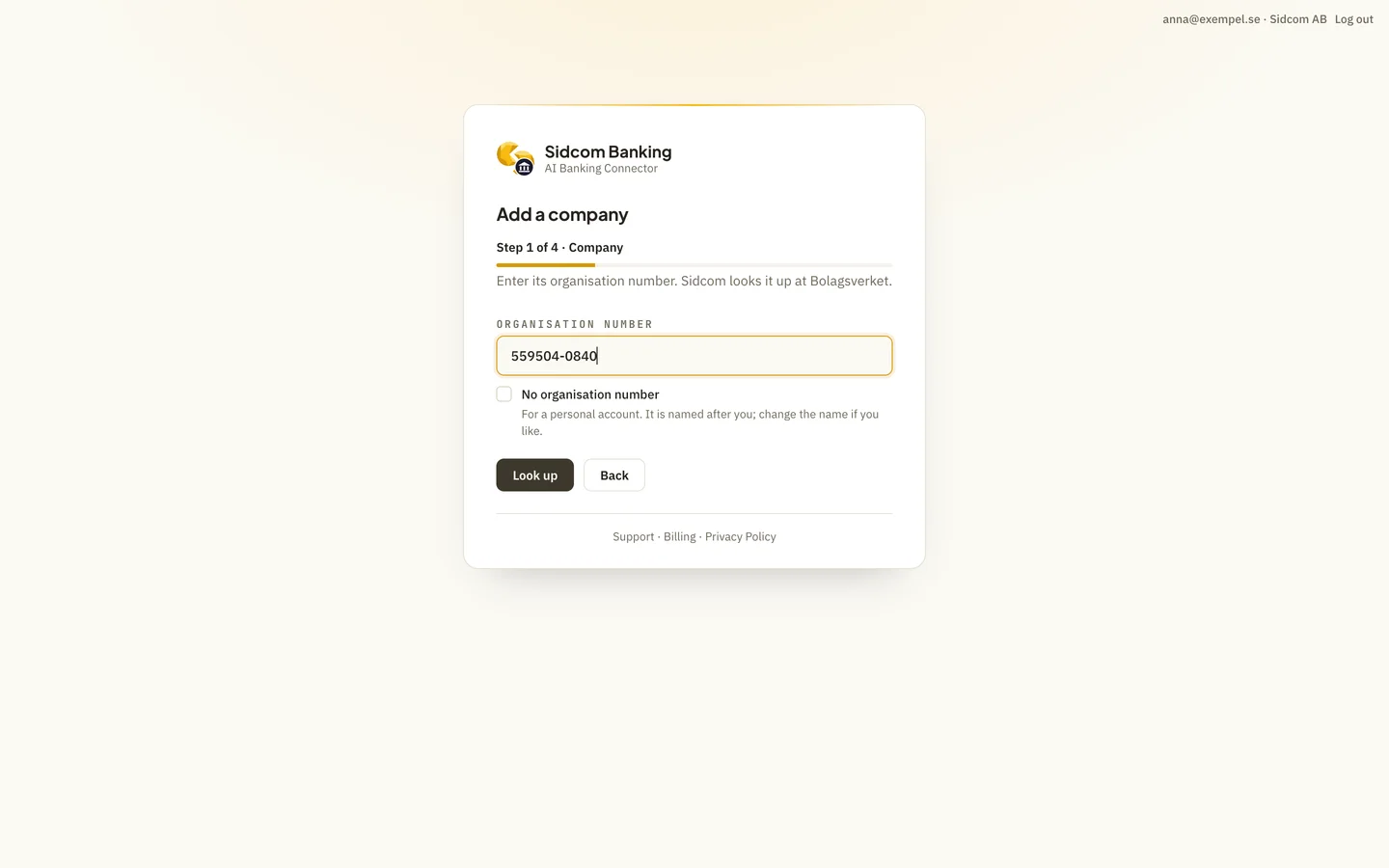
Click Look up
Sidcom fetches the company's name and city from Bolagsverket.
ClickLook up
Stuck on this step?
Contact support about this step →Looks different on your screen?
Still stuck? Tell us which step and we will help you through it.
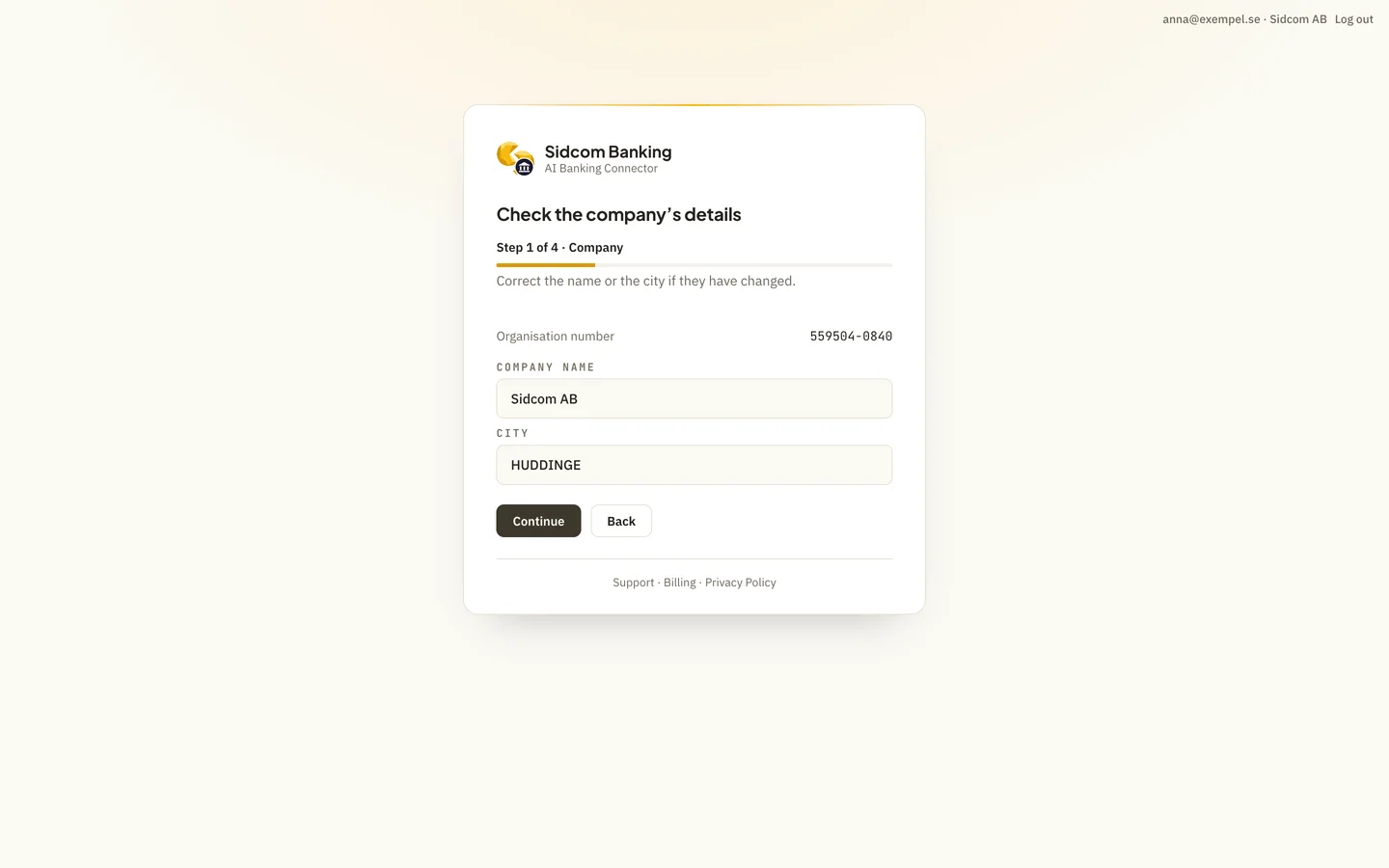
Step 9 of 21
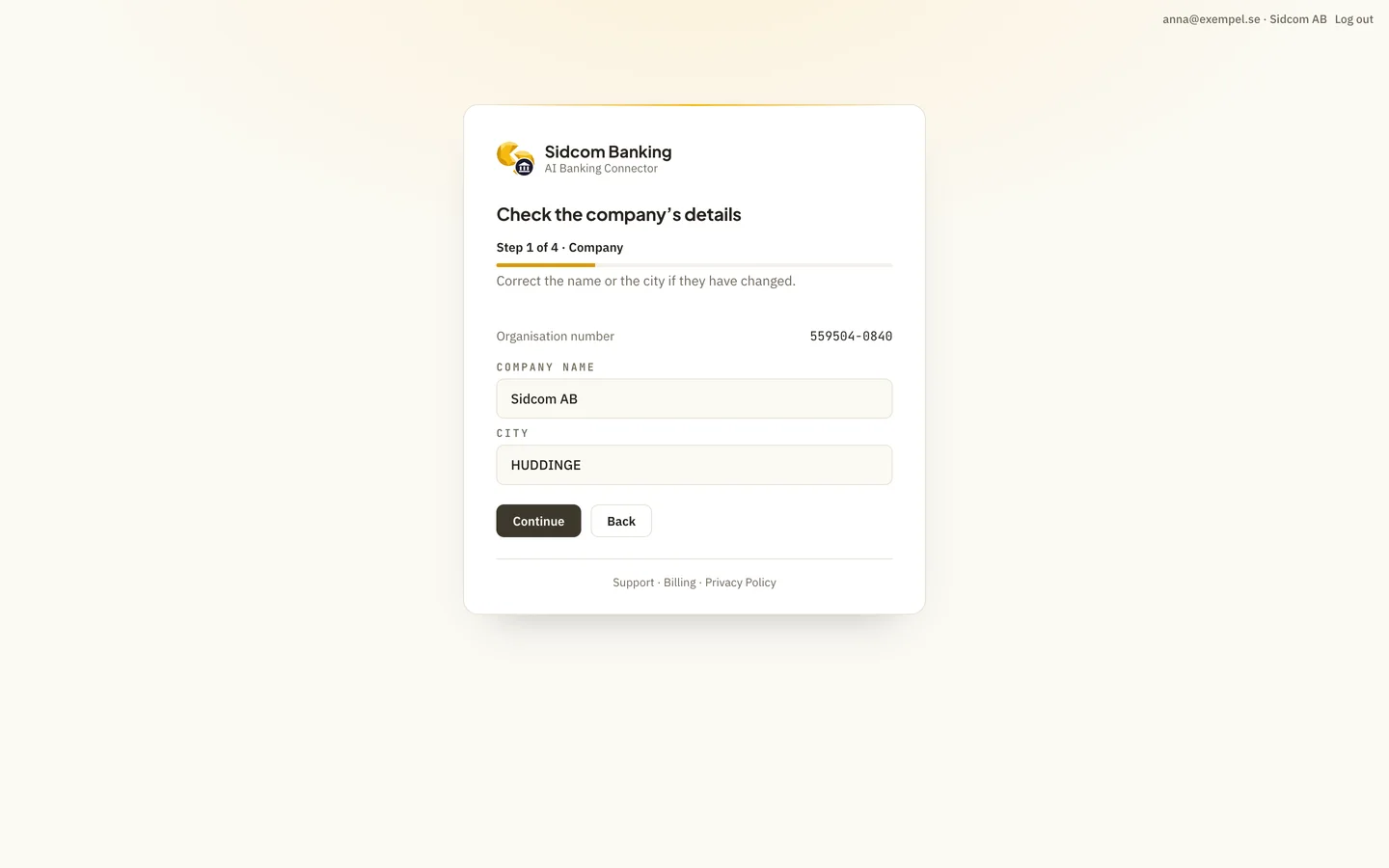
Check the details
Correct the name or the city if they have changed. Then click Continue.
ClickContinue
Stuck on this step?
Contact support about this step →Looks different on your screen?
Still stuck? Tell us which step and we will help you through it.
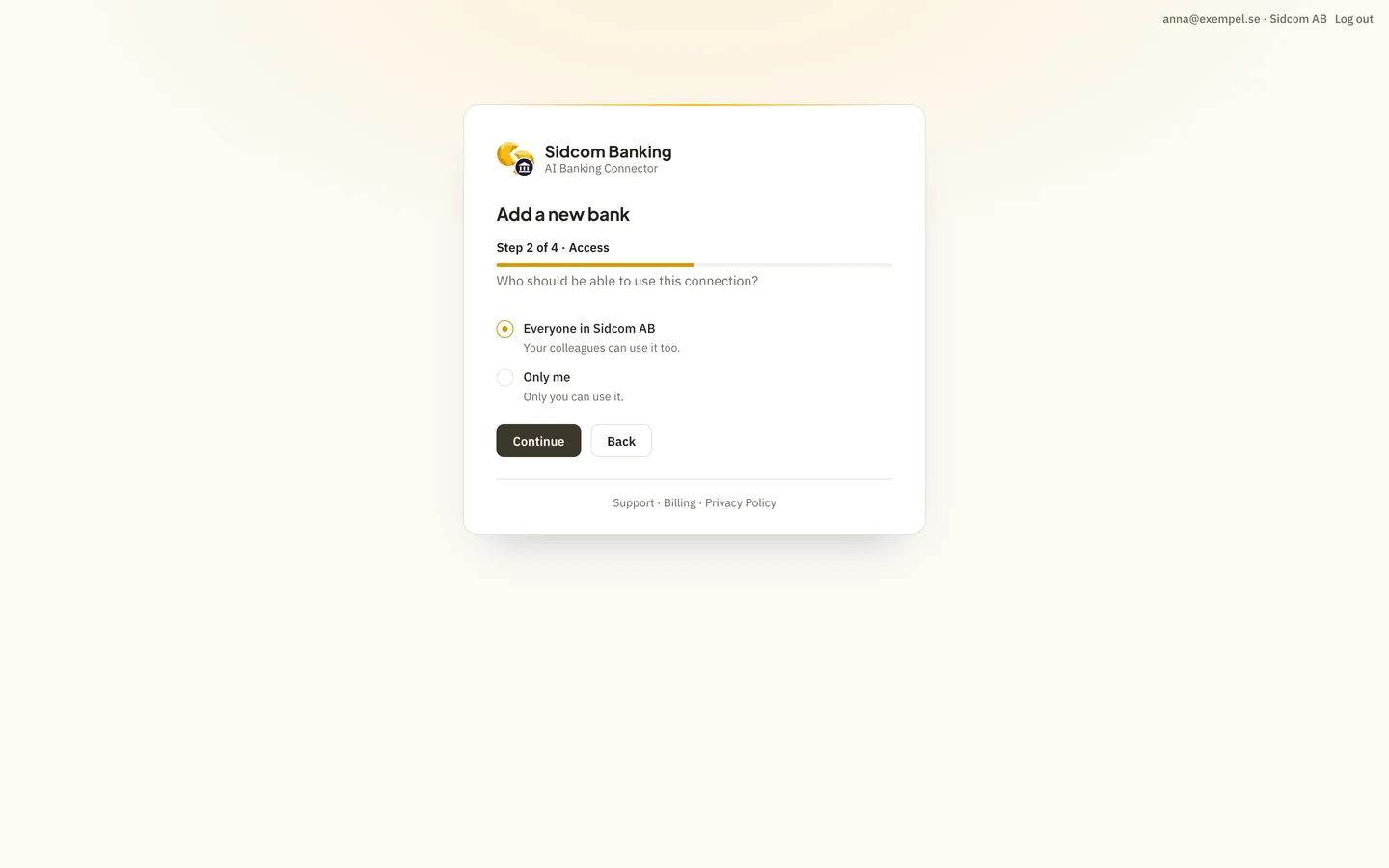
Step 10 of 21
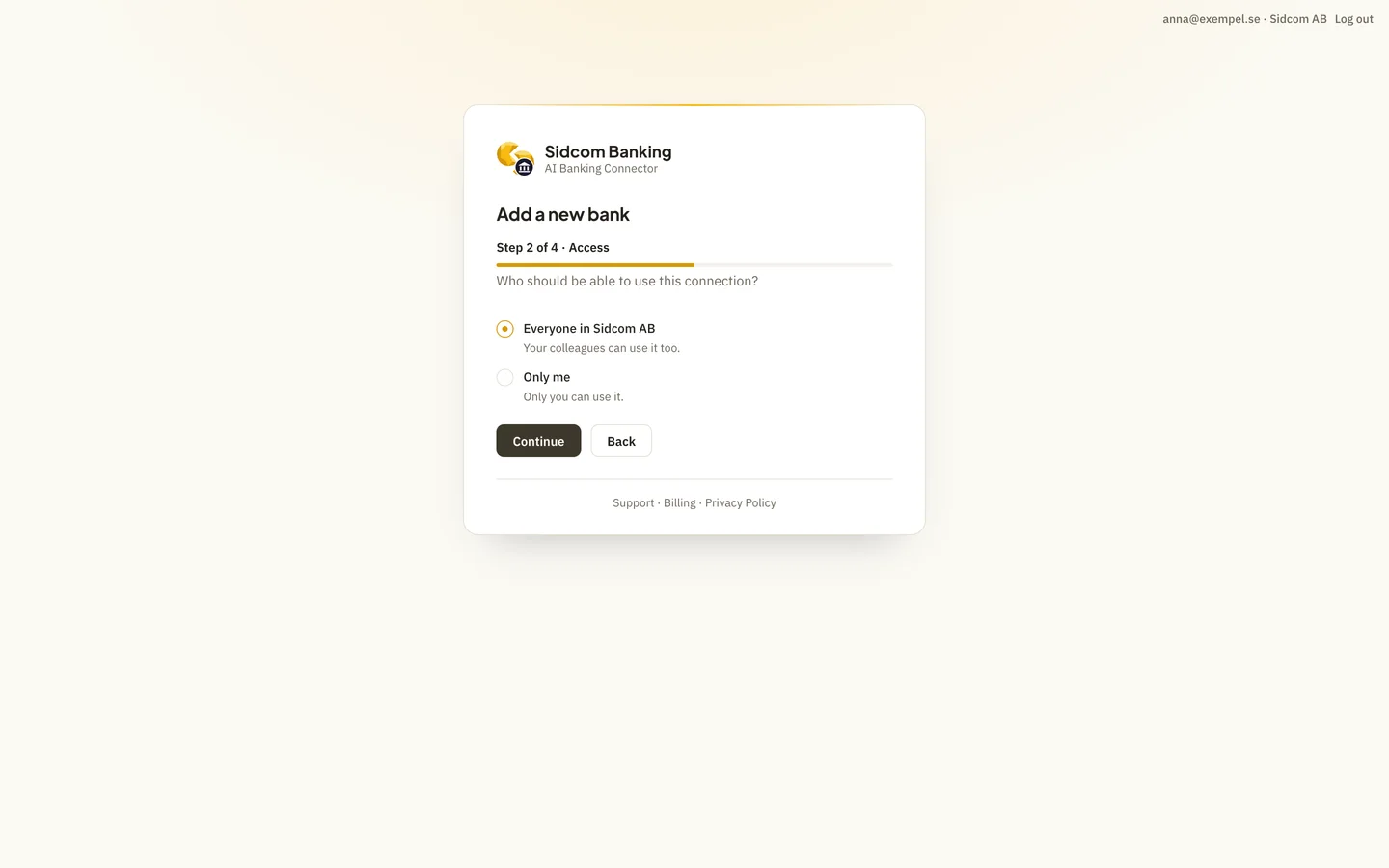
Choose who may use the connection
Everyone in the company, so your colleagues can ask about the bank too, or only you. Then click Continue.
ClickContinue
Stuck on this step?
Contact support about this step →Looks different on your screen?
Still stuck? Tell us which step and we will help you through it.
Step 11 of 21
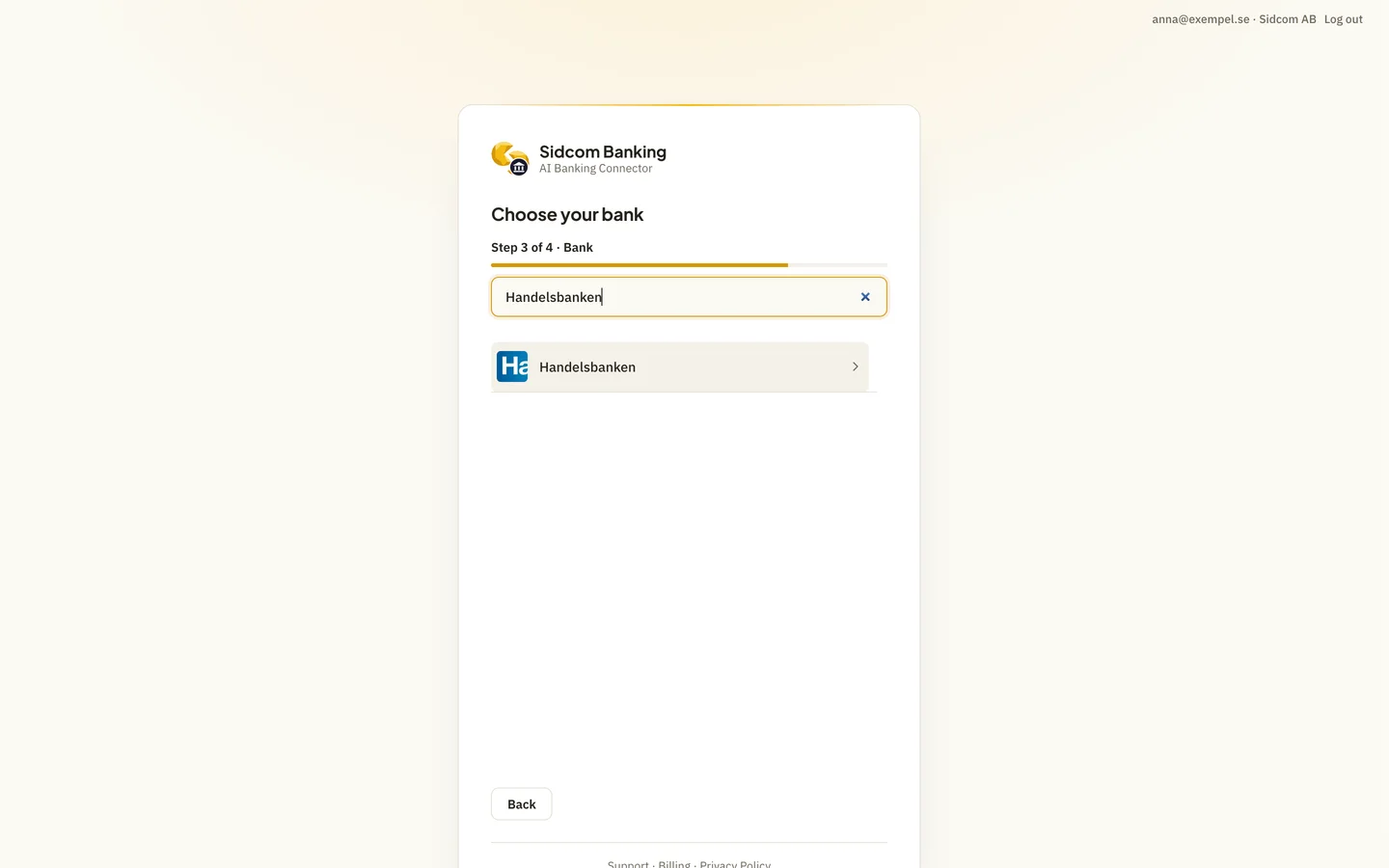
Find your bank
Type the bank's name in the search box. The list holds more than a hundred banks.
Type inSearch by name
Handelsbanken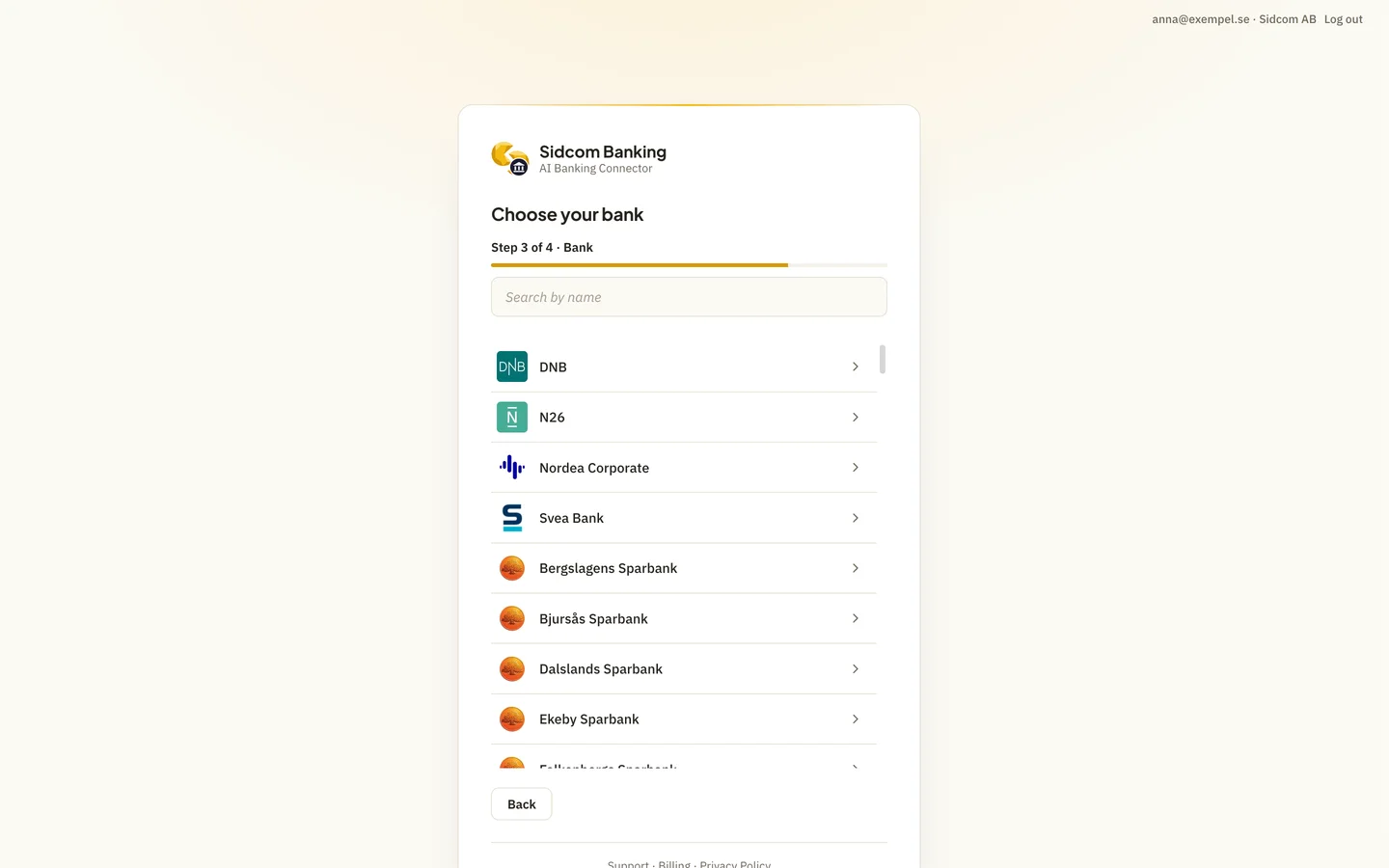
Stuck on this step?
Contact support about this step →Looks different on your screen?
Still stuck? Tell us which step and we will help you through it.
Step 12 of 21
Choose the bank
Handelsbanken here, as an example. If the company has several banks, add them one at a time.
ClickYour bank
Stuck on this step?
I cannot find my bank
Some banks have separate entries for business and personal, for example Nordea Corporate. Try searching for part of the name. If the bank is missing altogether, get in touch and we will look into it.
Contact support about this step →Looks different on your screen?
Still stuck? Tell us which step and we will help you through it.
Step 13 of 21
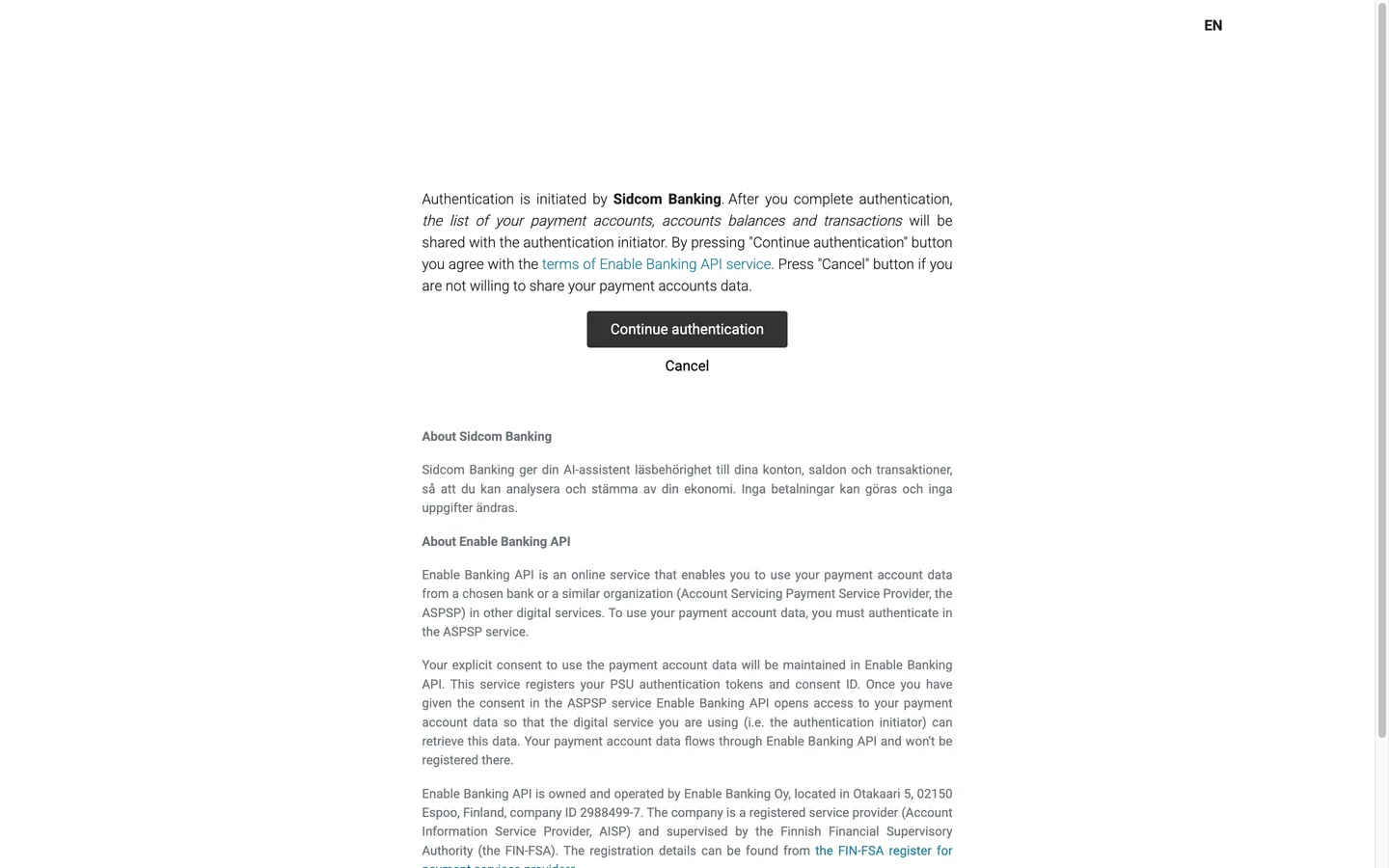
Agree to share the account data
The connection to the bank goes through Enable Banking, a registered account information service provider. It gives read access only, to accounts, balances and transactions.
ClickContinue authentication
Stuck on this step?
It says the connection did not go through
Then the approval was cancelled here or at the bank. Click Start again on the page shown and you are back at the choice of bank.
Contact support about this step →Looks different on your screen?
Still stuck? Tell us which step and we will help you through it.
Step 14 of 21
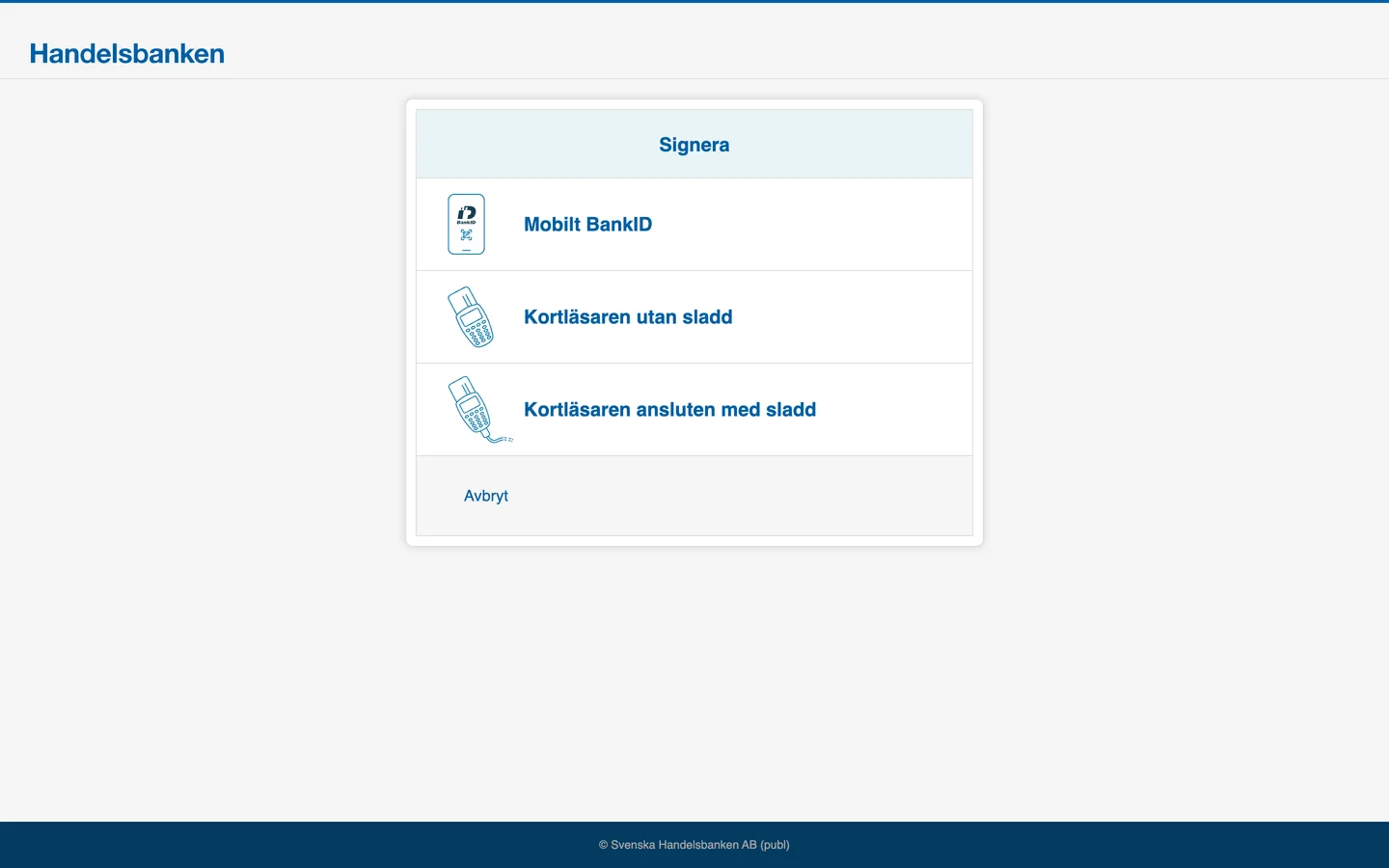
Approve with BankID at the bank
You are now in the bank's own sign-in. The page looks different for every bank. Sign in as usual and approve sharing the accounts.
The person approving needs access to the company's accounts at the bank. At an accounting firm that is often a consultant with a power of attorney in the client's bank.
Stuck on this step?
The bank shows a technical error when I sign
The sign-in is for the company you chose at Sidcom. This can happen when you do not have access to that company's accounts at the bank. Check that you chose the right company, or ask someone with access to do this step.
I do not have access to the company's bank
Ask someone who does to do this step. Send them the link to this guide, they sign in with their own Sidcom account and choose the same company.
Contact support about this step →Looks different on your screen?
Still stuck? Tell us which step and we will help you through it.
Step 15 of 21
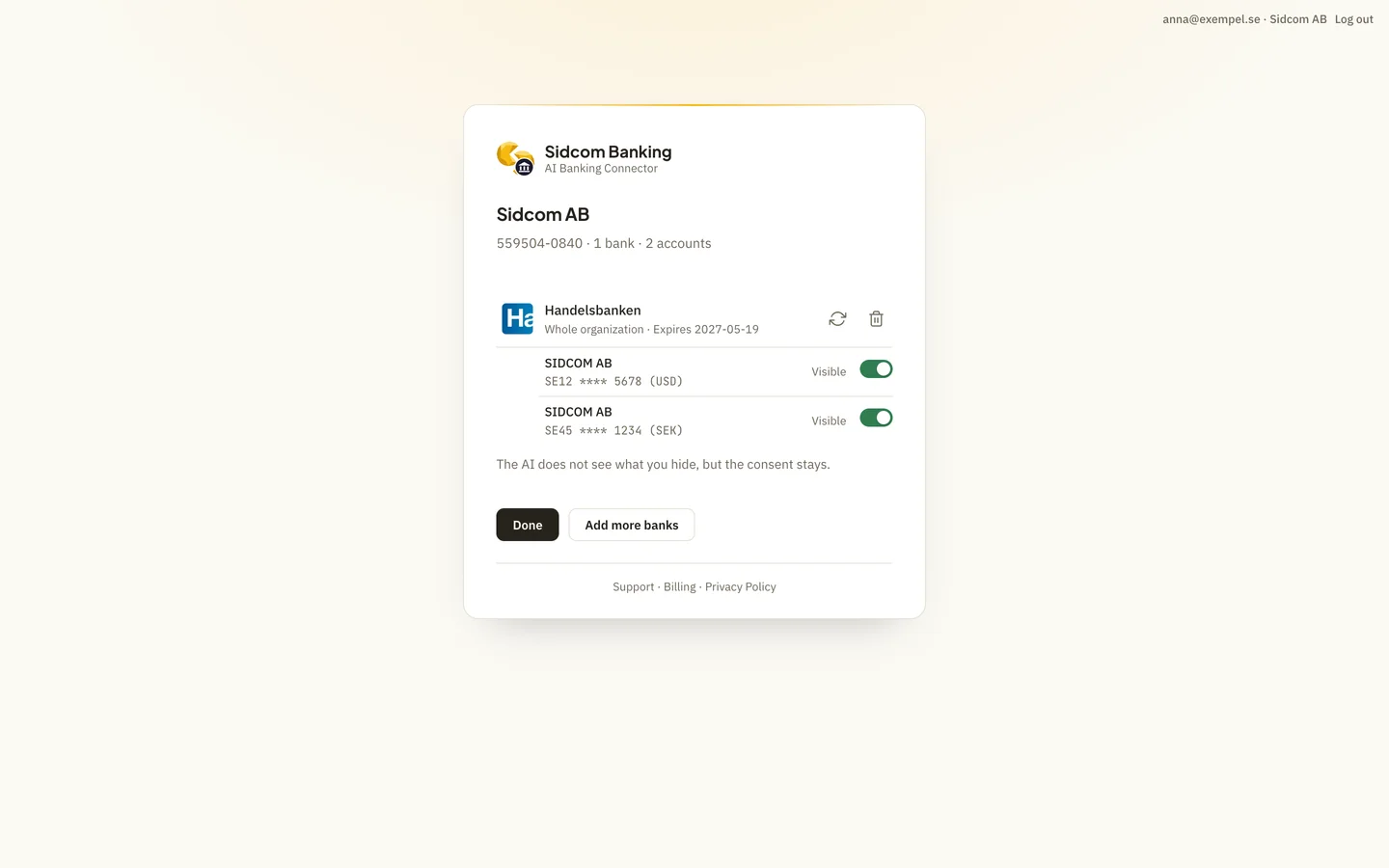
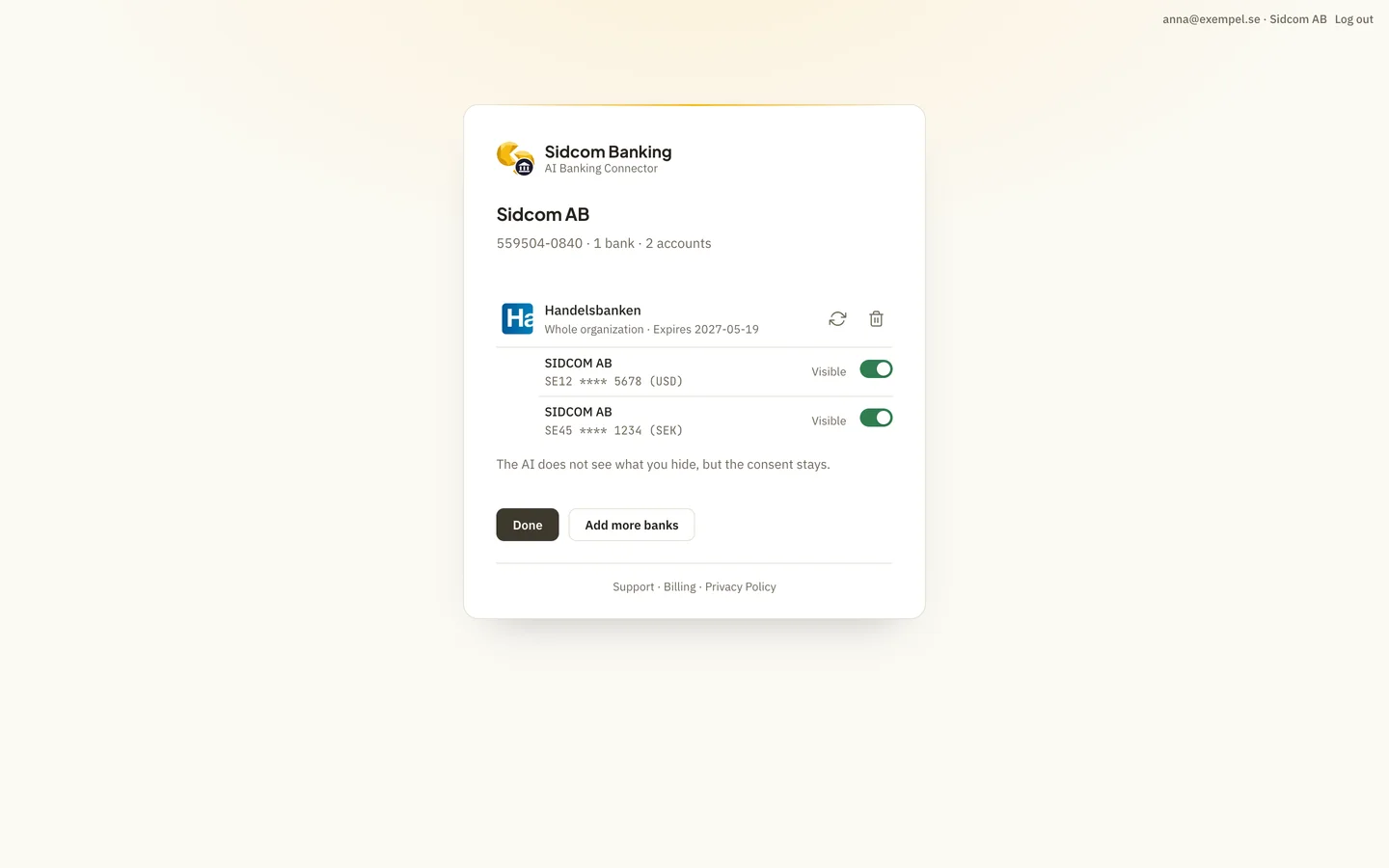
Choose which accounts the AI may read
Back at Sidcom, the company's accounts at the bank are listed. All are visible to begin with. Switch off any account the AI should not see.
A hidden account is never read. The approval at the bank lasts up to 180 days, depending on the bank.
Stuck on this step?
Contact support about this step →Looks different on your screen?
Still stuck? Tell us which step and we will help you through it.
Step 16 of 21
Click Done
To connect another bank for the same company, choose Add more banks first.
ClickDone
Stuck on this step?
Contact support about this step →Looks different on your screen?
Still stuck? Tell us which step and we will help you through it.
Step 17 of 21
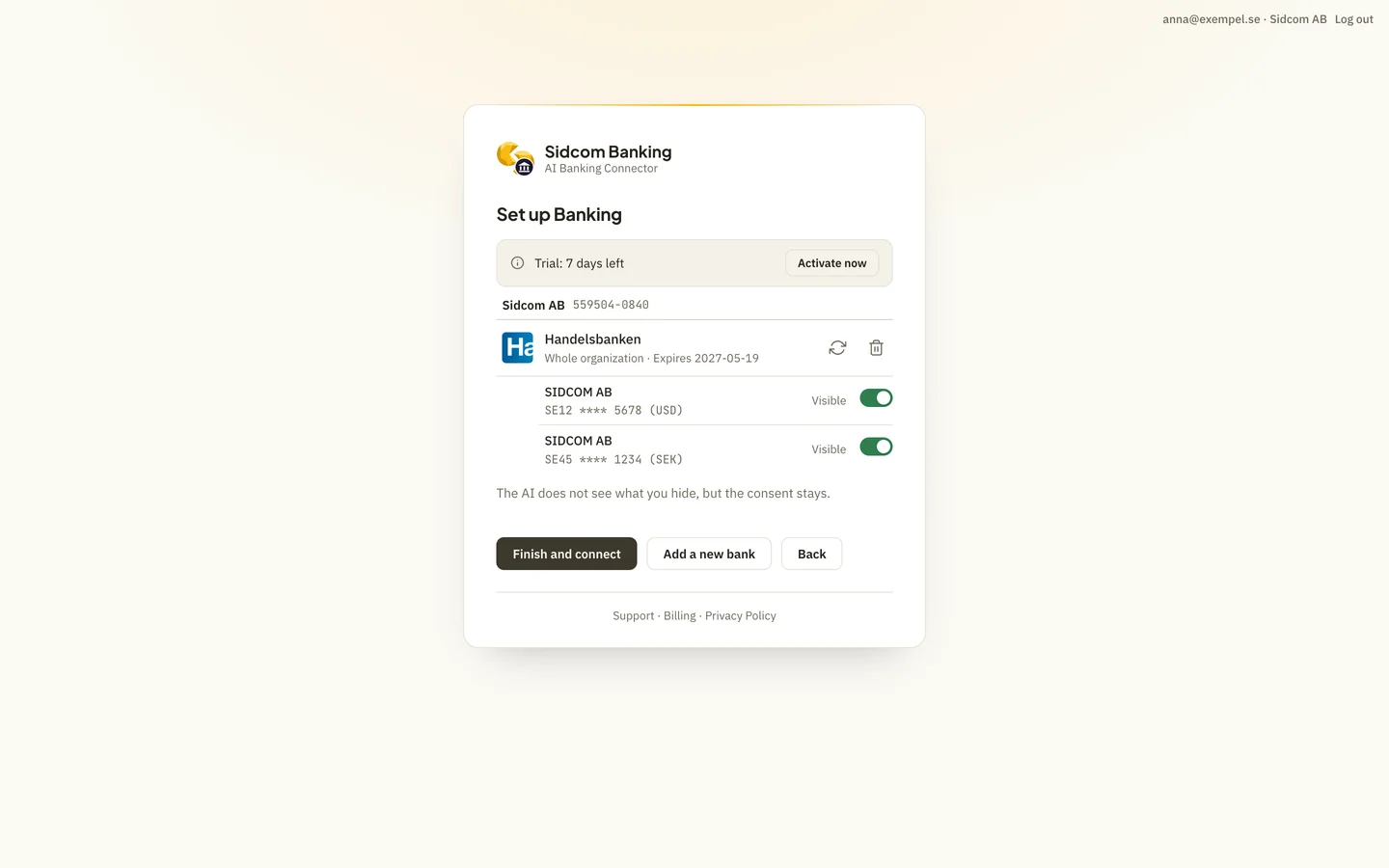
Click Finish and connect
You see what is connected for each company. Finish to return to Claude.
ClickFinish and connect
Stuck on this step?
Contact support about this step →Looks different on your screen?
Still stuck? Tell us which step and we will help you through it.
Step 18 of 21
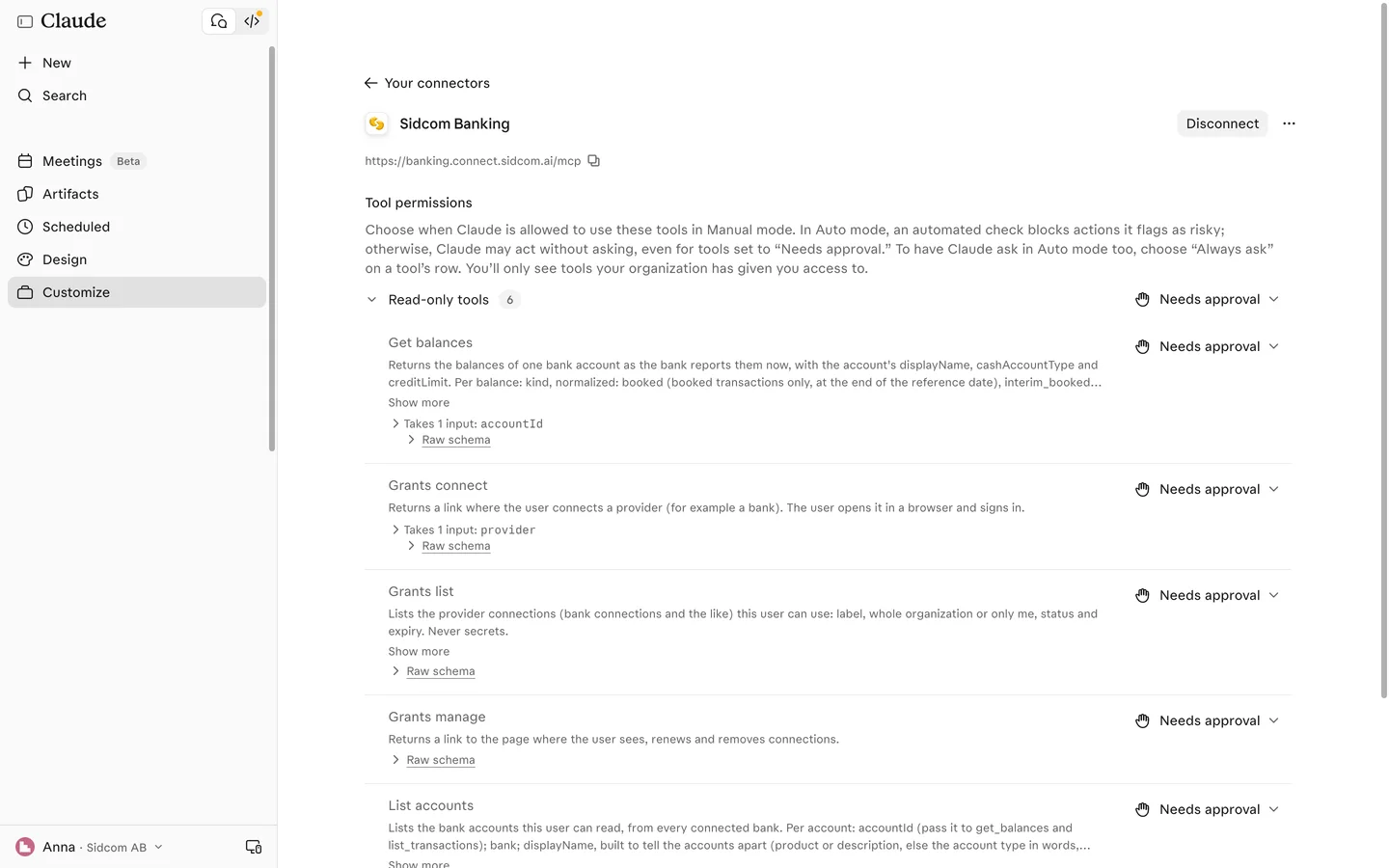
You are connected
Back in Claude you see the connector's tools. All of them only read, none can make a payment or change anything at the bank.
Stuck on this step?
Contact support about this step →Looks different on your screen?
Still stuck? Tell us which step and we will help you through it.
Step 19 of 21
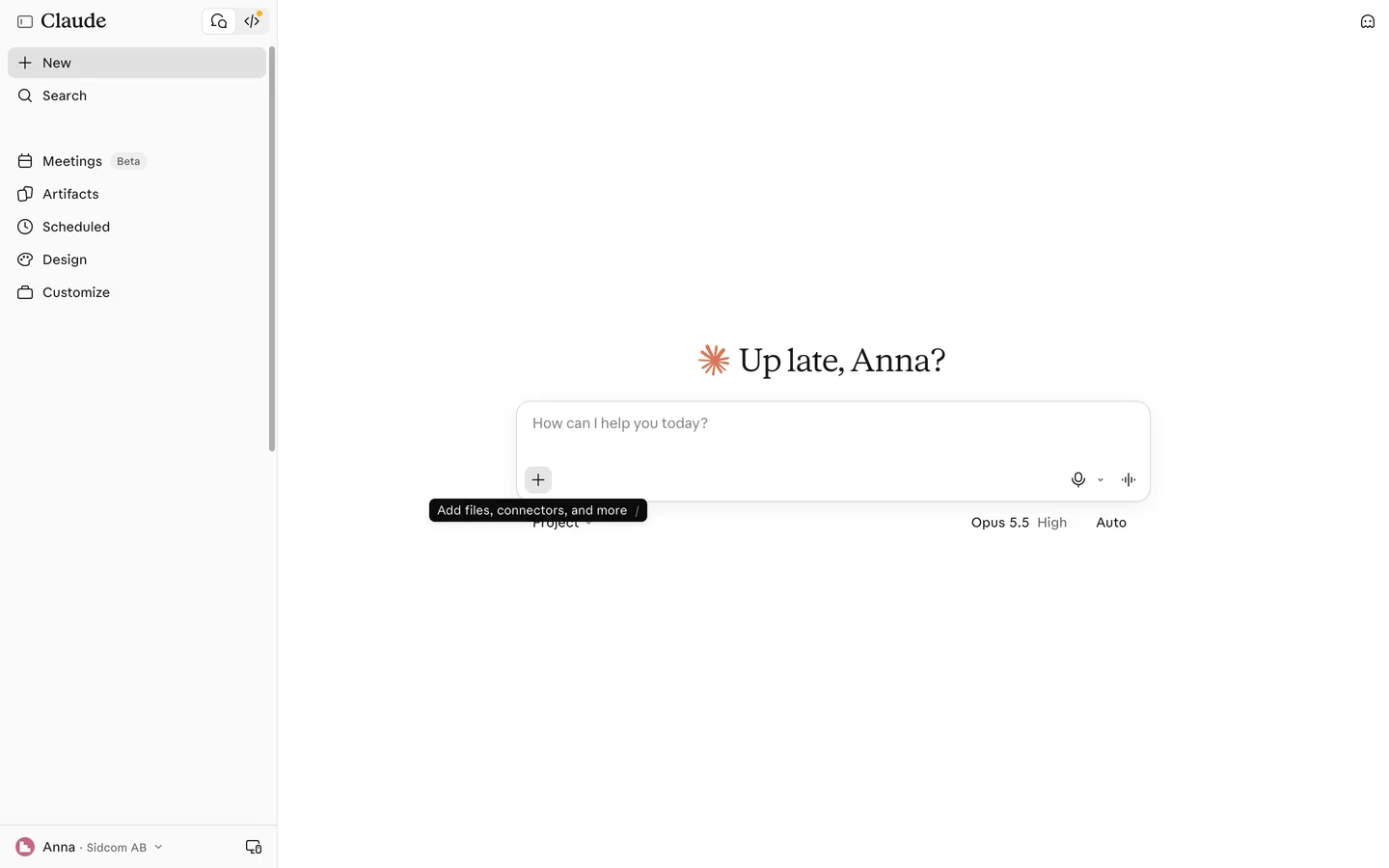
Open a new chat and click the plus
The plus button is at the bottom left of the message box.
ClickAdd files, connectors, and more
Stuck on this step?
Contact support about this step →Looks different on your screen?
Still stuck? Tell us which step and we will help you through it.
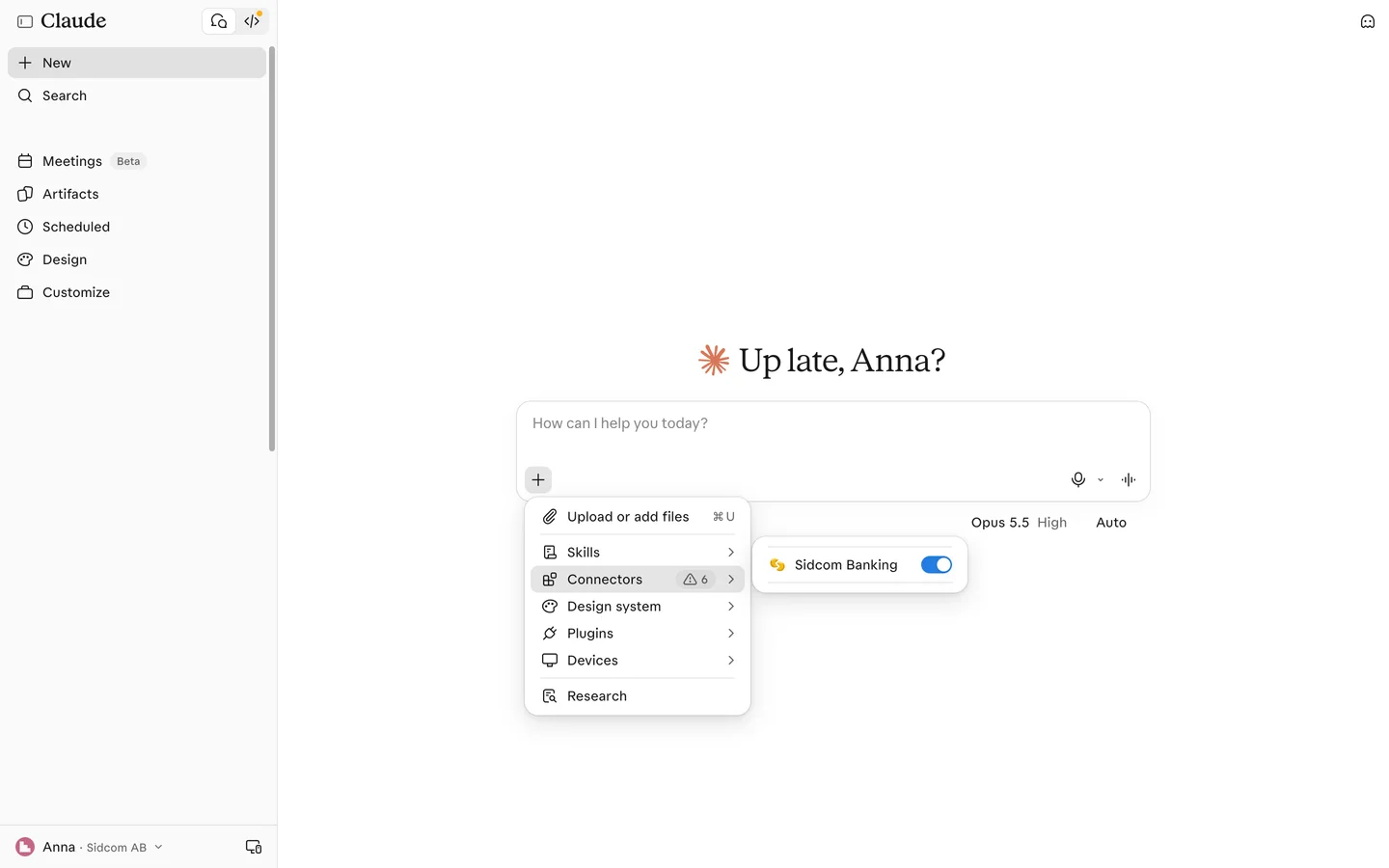
Step 20 of 21
Choose Connectors
ClickConnectors
Stuck on this step?
Contact support about this step →Looks different on your screen?
Still stuck? Tell us which step and we will help you through it.
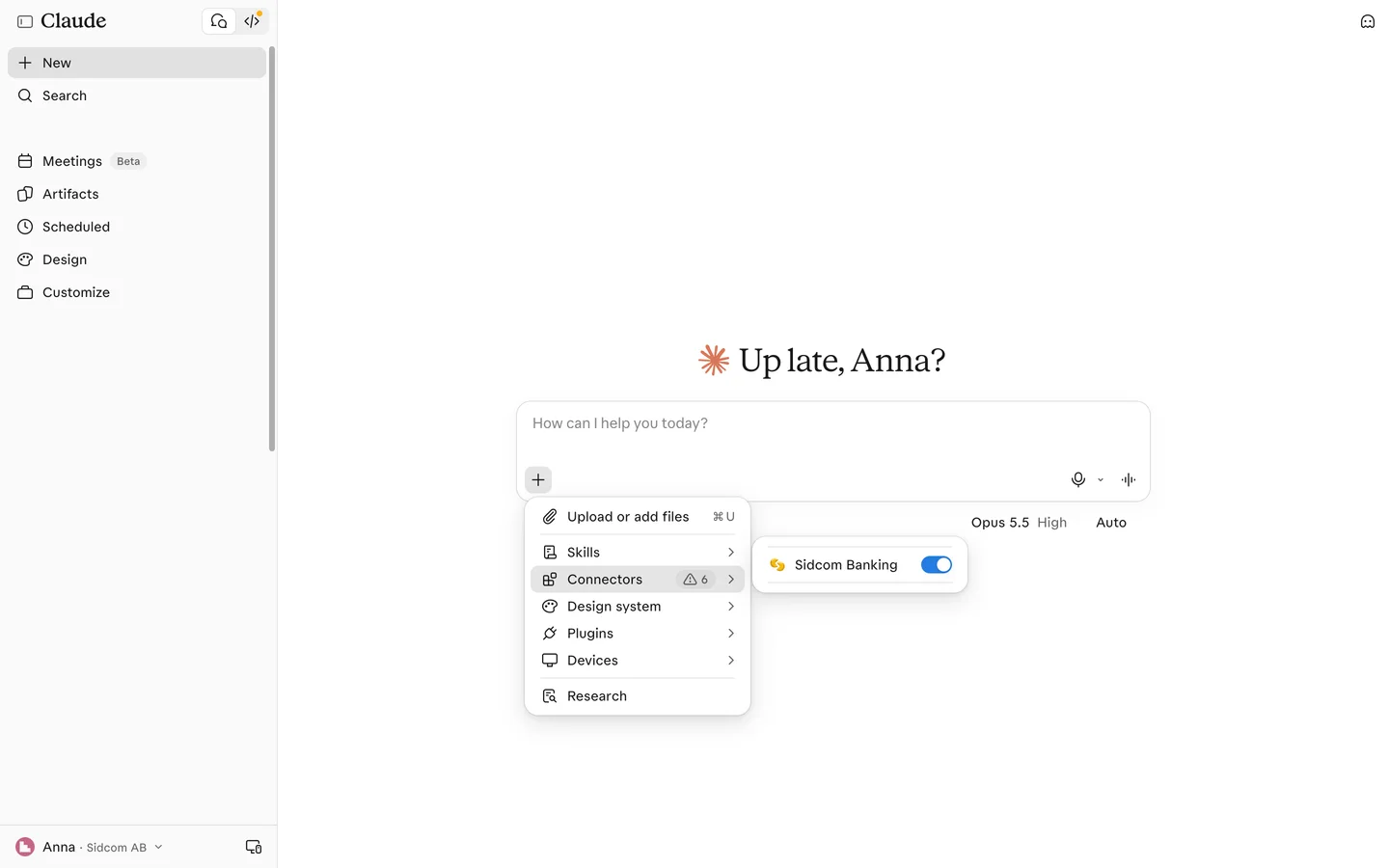
Step 21 of 21
Make sure Sidcom Banking is on
The switch should be on. Then ask something like What is the balance on all our accounts today?
With one of Sidcom's Fortnox connectors in the same chat, Claude can reconcile the bank against the books.
Stuck on this step?
Contact support about this step →Looks different on your screen?
Still stuck? Tell us which step and we will help you through it.
Claude updates its interface often. Screens last checked 19 Nov 2026.
Done
The connector is added. Next, sign in and connect your bank.
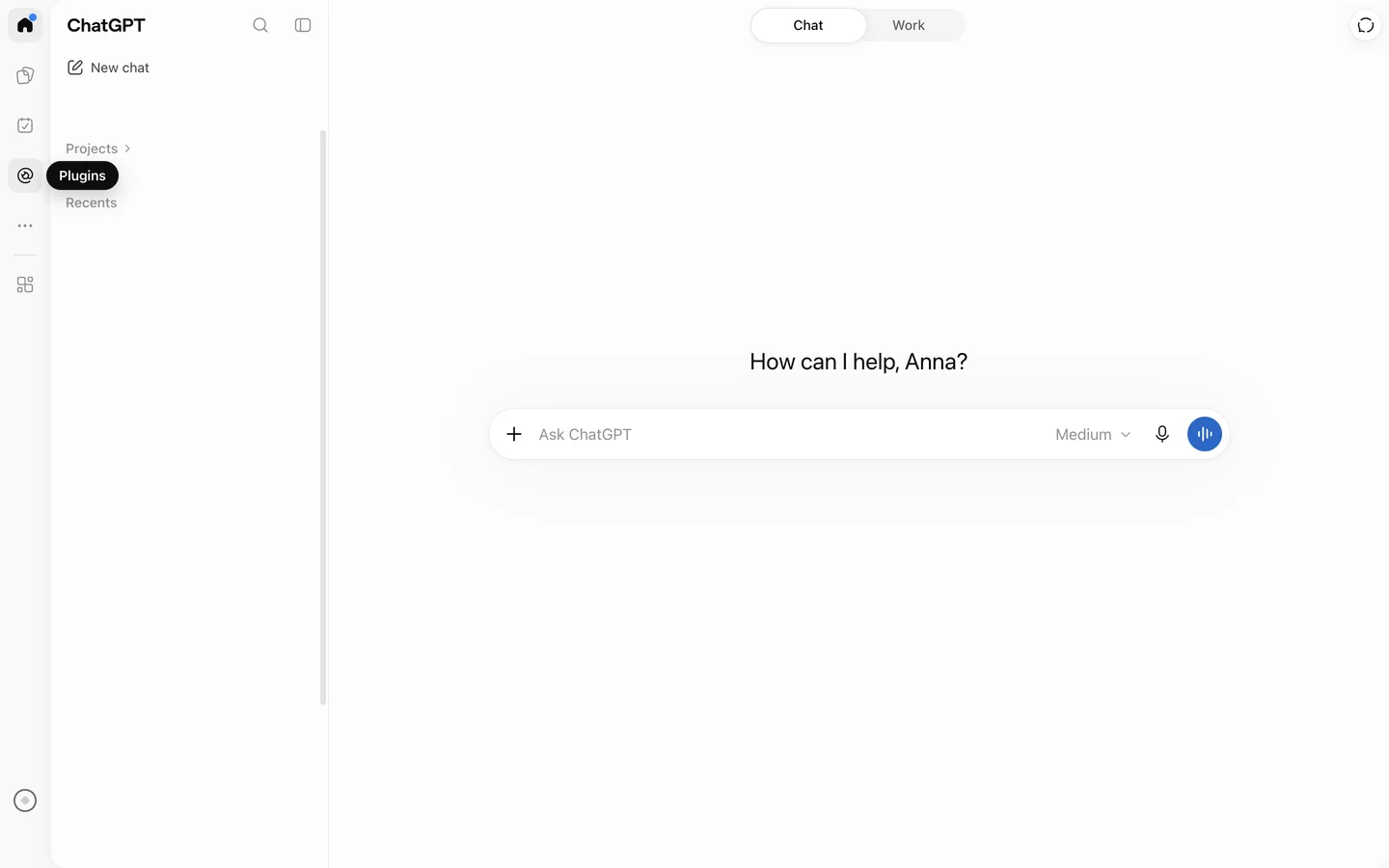
Step 1 of 8
Open Plugins
Plugins is in the icon bar on the far left.
ClickPlugins
Open Pluginschatgpt.com(opens in a new tab)Stuck on this step?
I have no Plugins in the menu
It is not in the mobile app. Open chatgpt.com/plugins in a browser on your computer instead.
Contact support about this step →Looks different on your screen?
Still stuck? Tell us which step and we will help you through it.
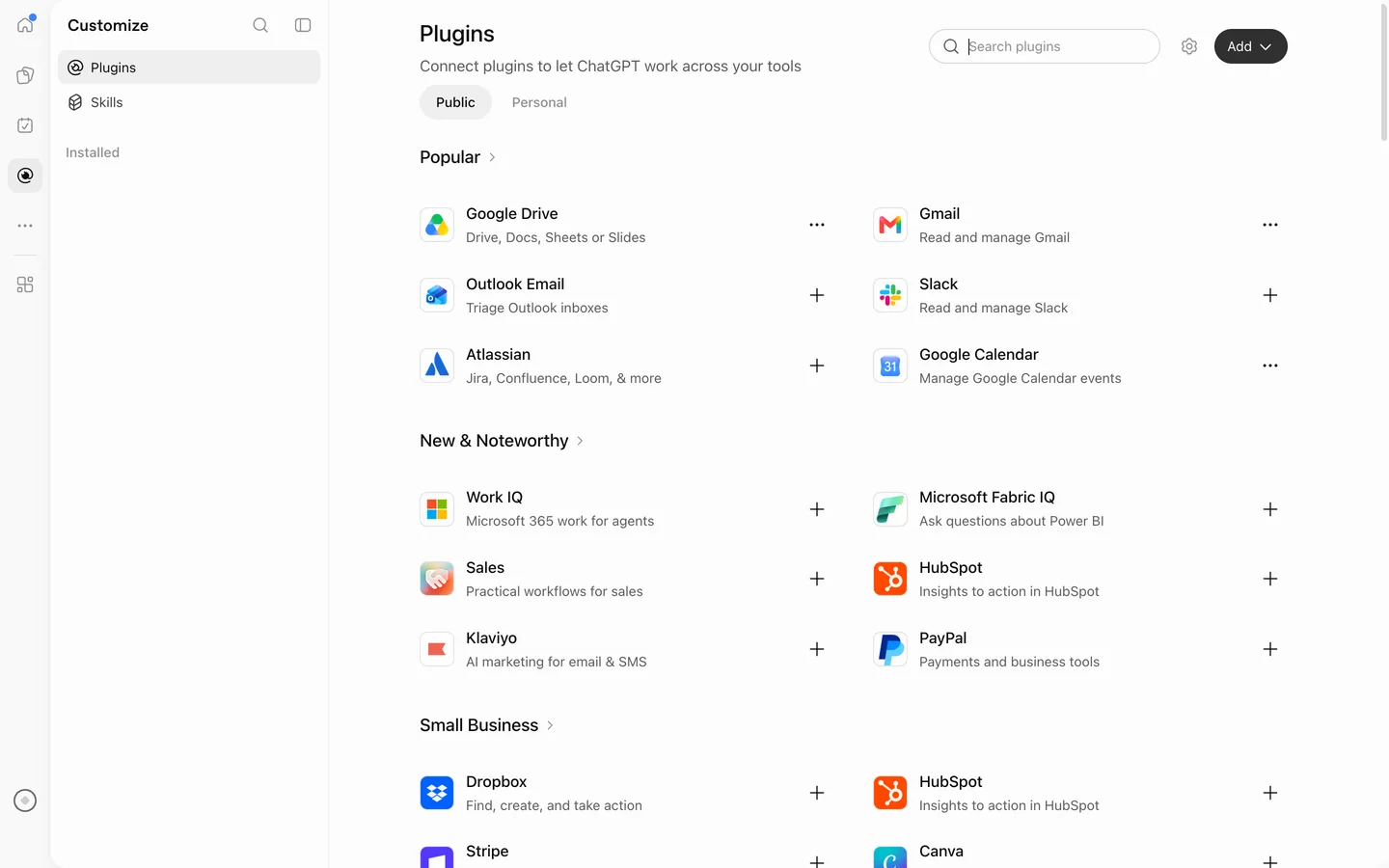
Step 2 of 8
Click Add
Top right on the Plugins page.
ClickAdd
Stuck on this step?
Contact support about this step →Looks different on your screen?
Still stuck? Tell us which step and we will help you through it.
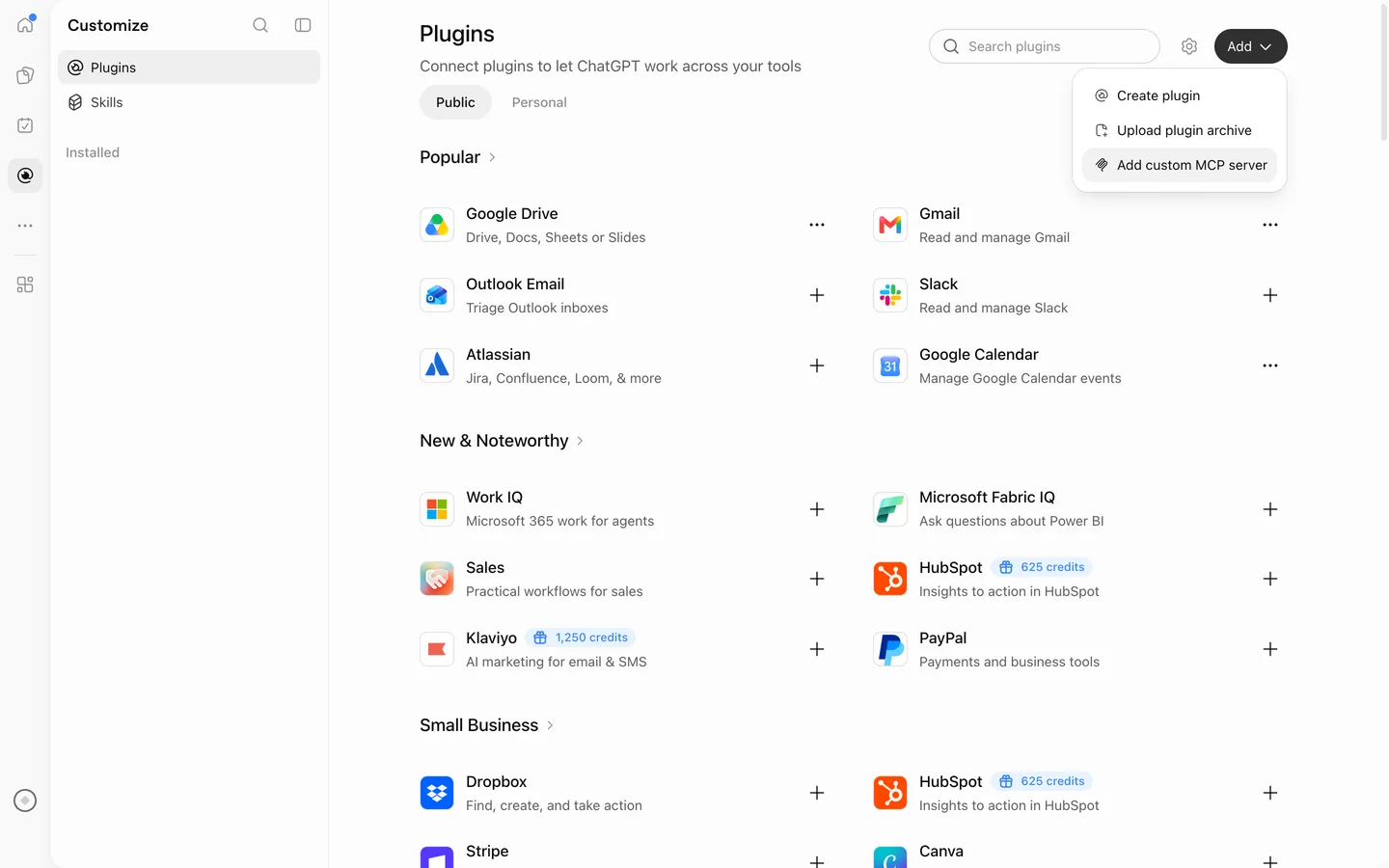
Step 3 of 8
Choose Add custom MCP server
Sidcom Banking is an MCP server, so pick this one, not Create plugin.
ClickAdd custom MCP server
Stuck on this step?
I do not see Add custom MCP server
On Business and Enterprise an administrator can turn off custom MCP servers for the workspace. Ask your ChatGPT administrator to allow them, or to add Sidcom Banking for everyone.
Contact support about this step →Looks different on your screen?
Still stuck? Tell us which step and we will help you through it.
Step 4 of 8
Give it a name
Something you recognise in the chat. Sidcom Banking works well.
Type inName
Sidcom Banking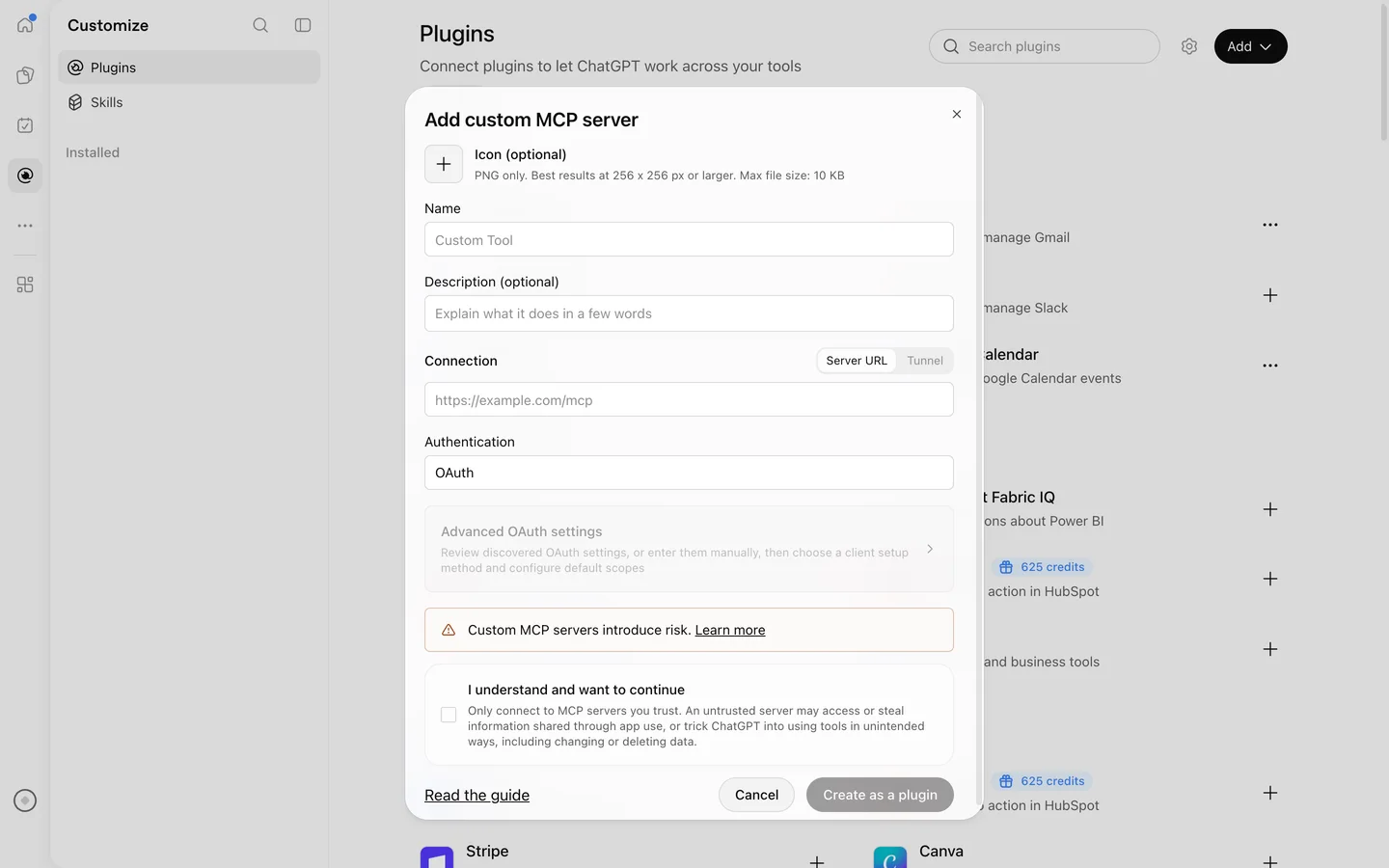
Stuck on this step?
Nothing happens when I click Create as a plugin
The name is already used by another plugin in your account. Choose another name, for example Sidcom Banking 2, and try again.
Contact support about this step →Looks different on your screen?
Still stuck? Tell us which step and we will help you through it.
Step 5 of 8
Paste the server address
Leave Connection on Server URL and paste the address below.
Type inServer URL
MCP server addresshttps://banking.connect.sidcom.ai/mcp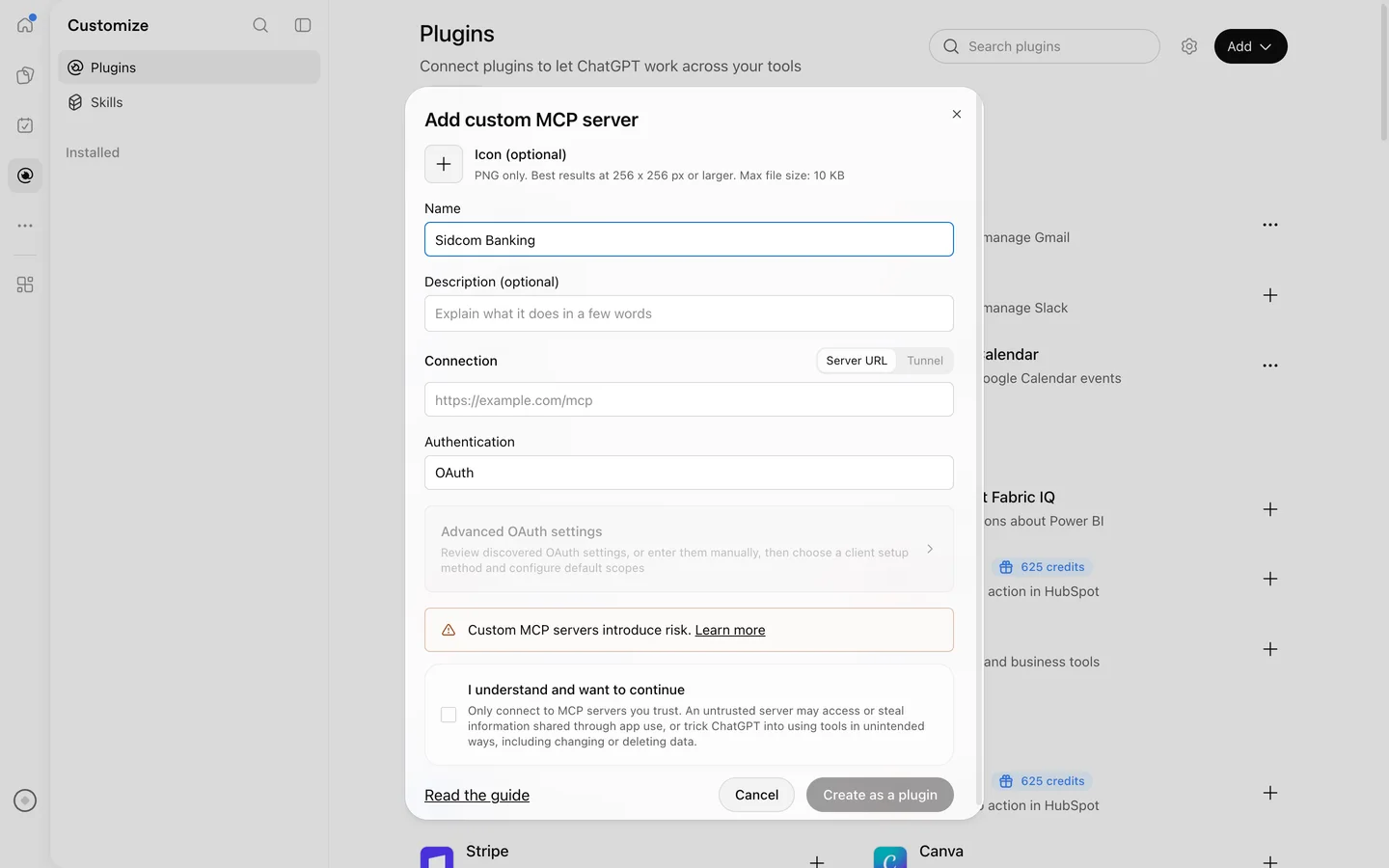
Stuck on this step?
Contact support about this step →Looks different on your screen?
Still stuck? Tell us which step and we will help you through it.
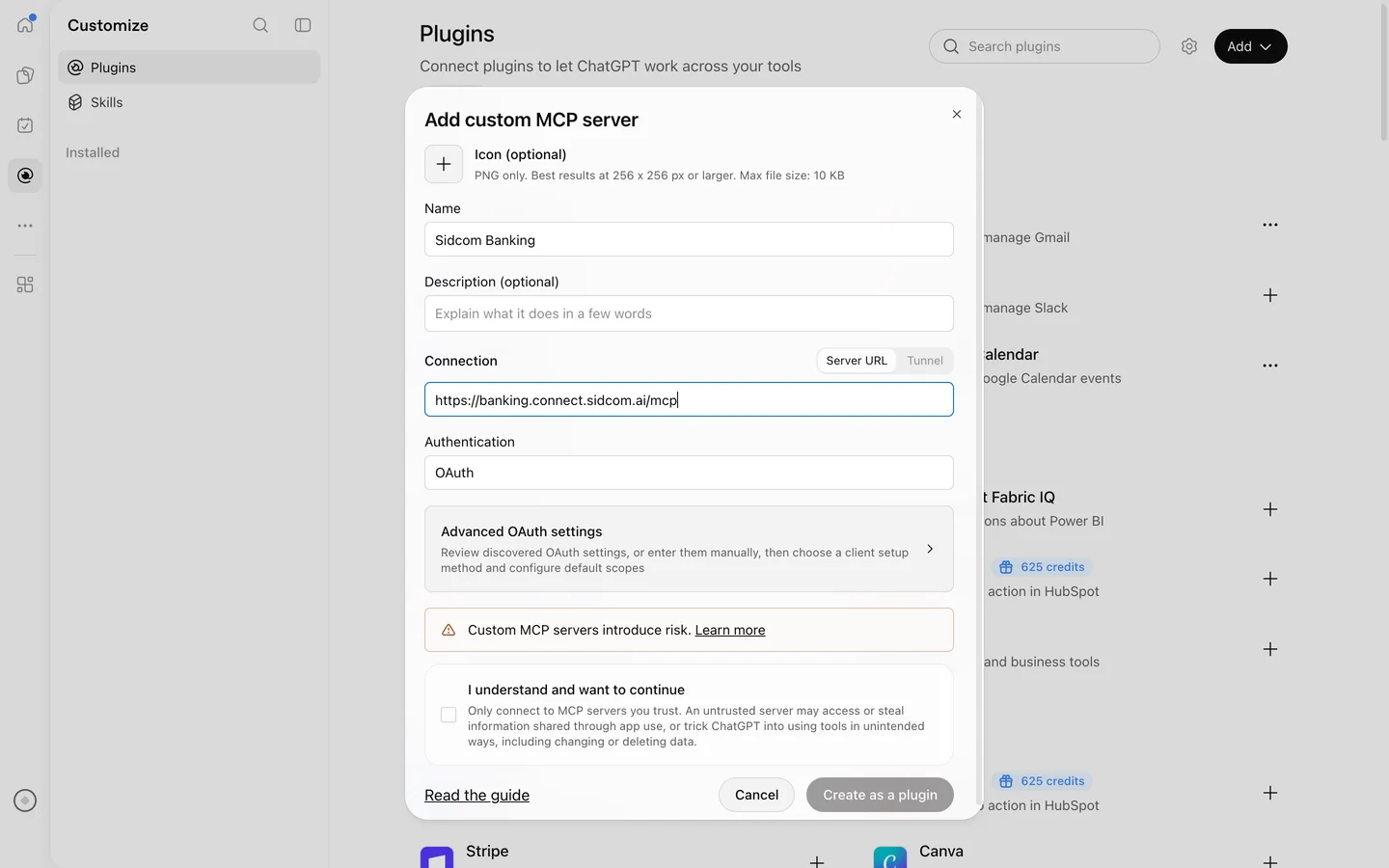
Step 6 of 8
Leave Authentication on OAuth
That way you sign in with your own Sidcom account. There is nothing to change here.
Stuck on this step?
Contact support about this step →Looks different on your screen?
Still stuck? Tell us which step and we will help you through it.
Step 7 of 8
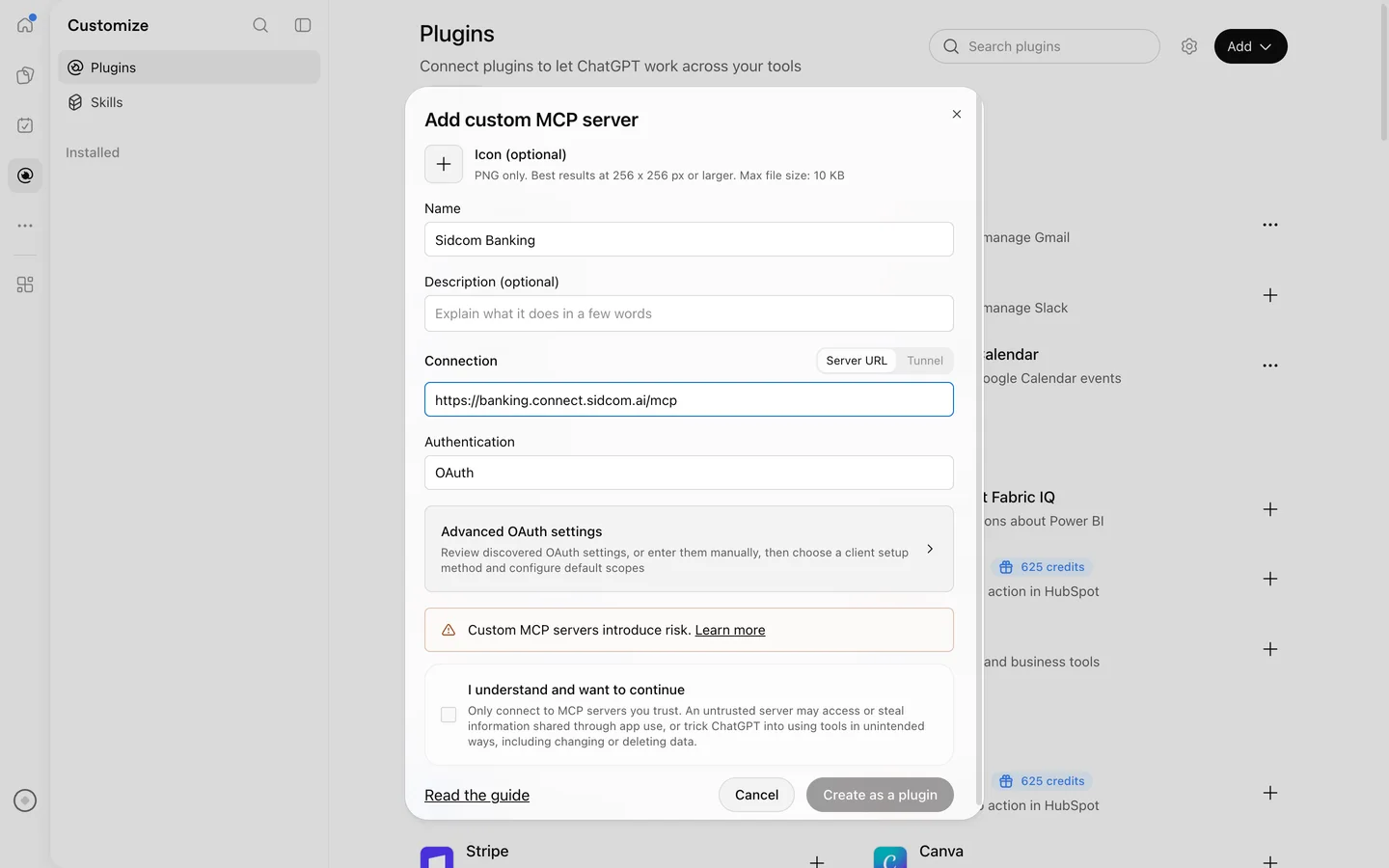
Confirm that you understand
ChatGPT shows the warning for every custom MCP server. Tick the box to go on.
ClickI understand and want to continue
Stuck on this step?
Contact support about this step →Looks different on your screen?
Still stuck? Tell us which step and we will help you through it.
Step 8 of 8
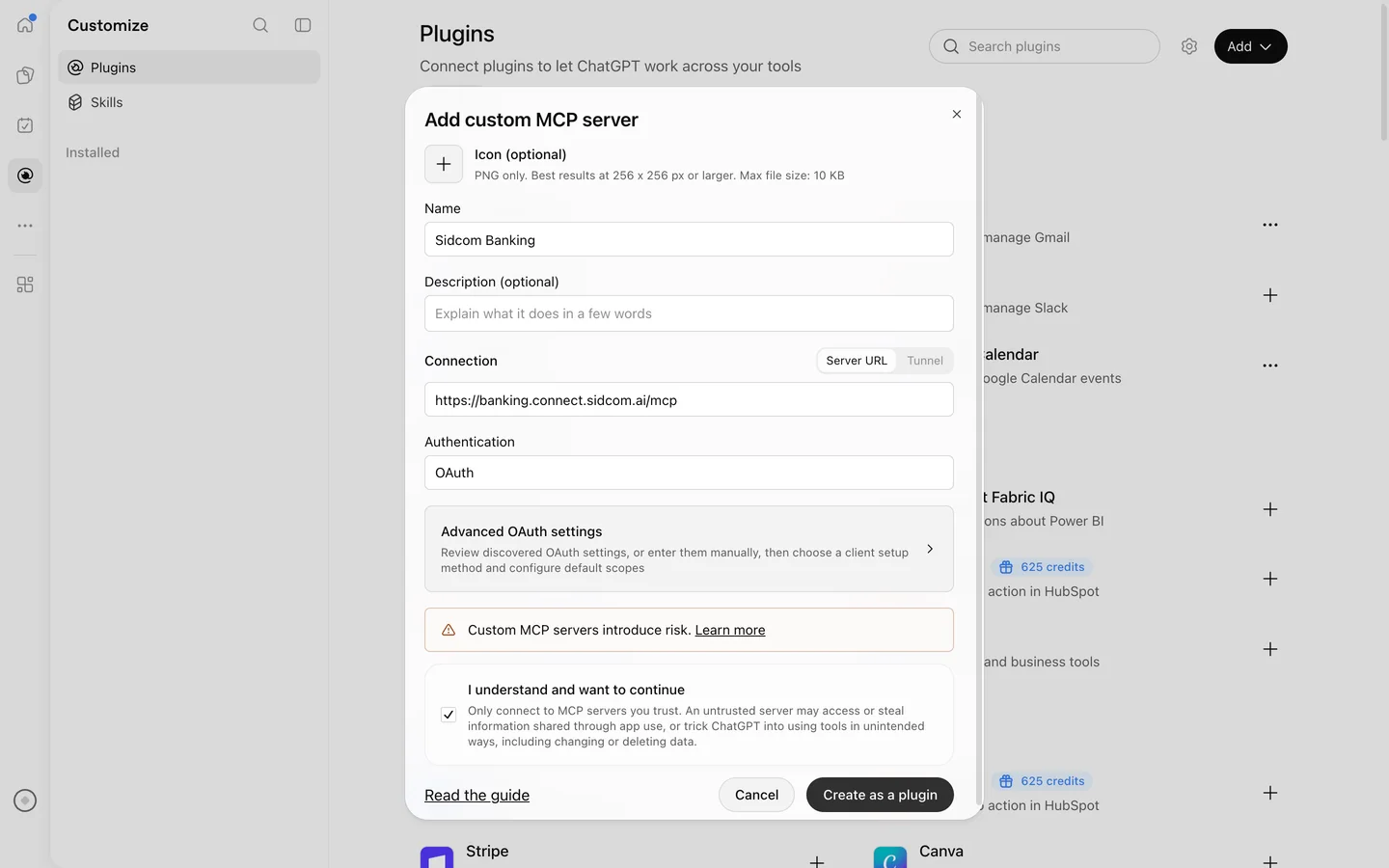
Click Create as a plugin
ChatGPT checks the server and goes straight on to the connection.
ClickCreate as a plugin
It can take half a minute while ChatGPT reaches the server.
Stuck on this step?
Contact support about this step →Looks different on your screen?
Still stuck? Tell us which step and we will help you through it.
Done
The bank is connected. Ask ChatGPT about balances and transactions.
Step 1 of 20
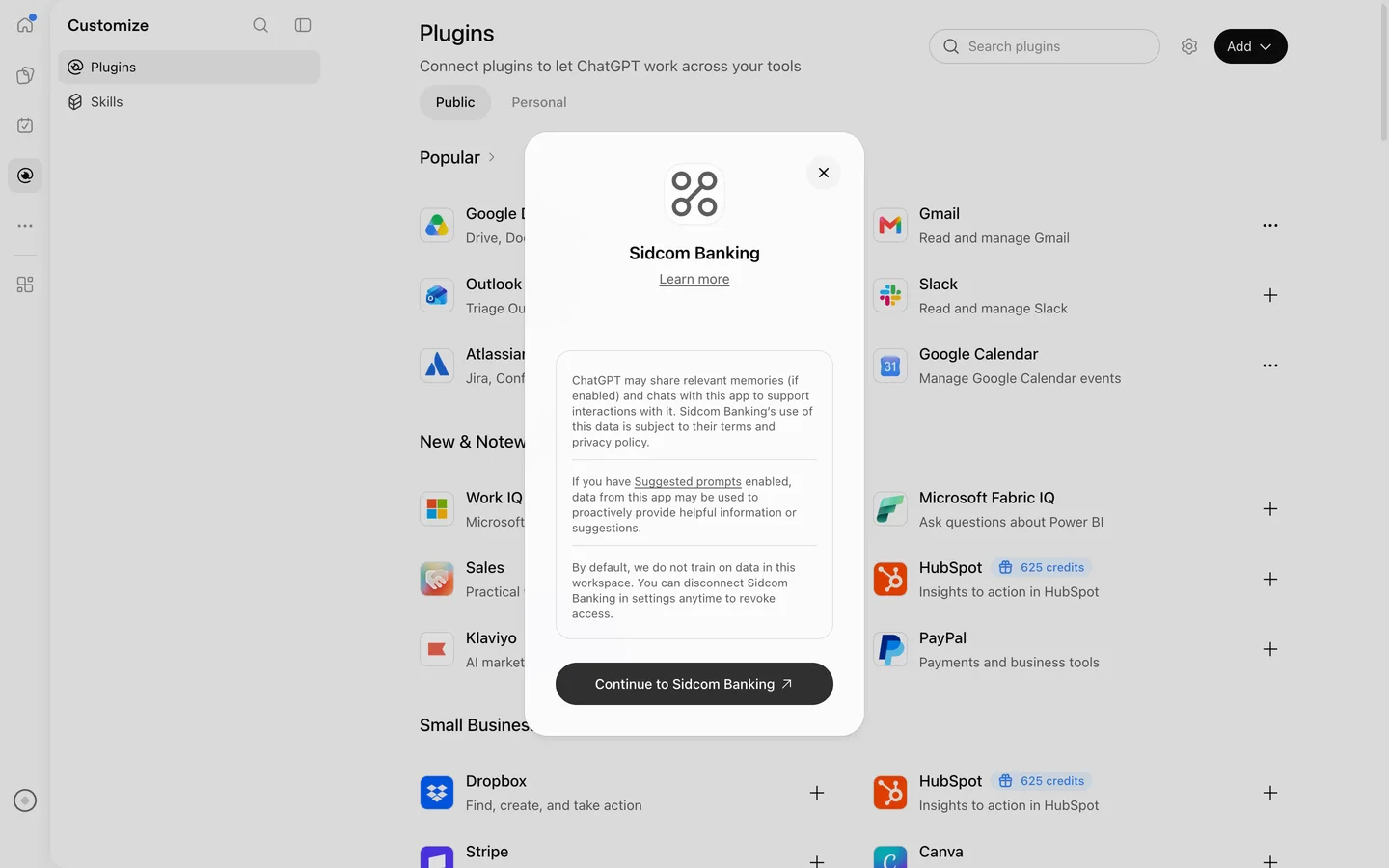
Continue to Sidcom Banking
ChatGPT describes what the app may access. Continue to reach the sign-in.
ClickContinue to Sidcom Banking
Stuck on this step?
I closed the window by mistake
Open Plugins, choose Sidcom Banking under Installed and connect from there.
Contact support about this step →Looks different on your screen?
Still stuck? Tell us which step and we will help you through it.
Step 2 of 20
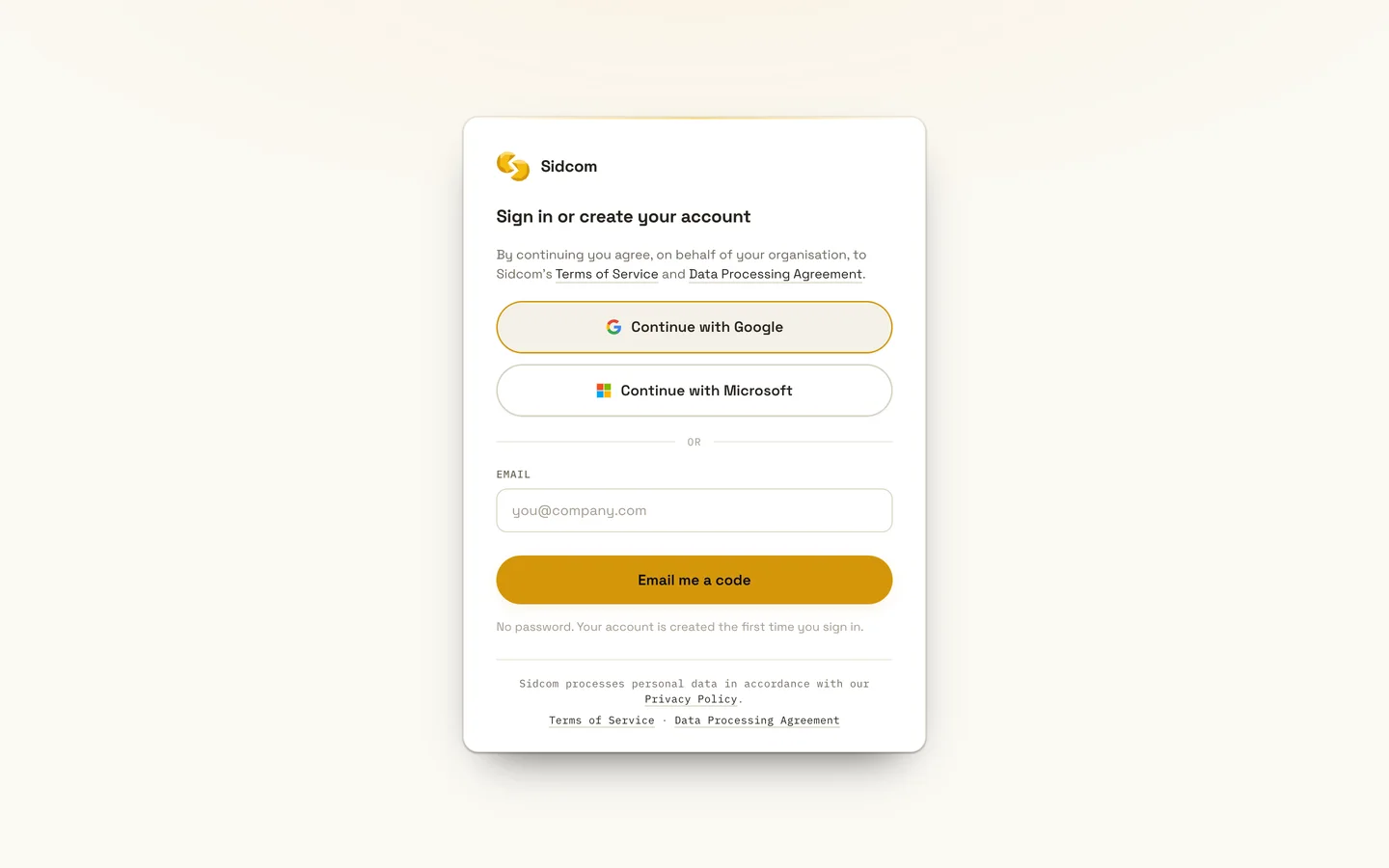
Sign in with a Sidcom account
Use Google or Microsoft, or get a code by email. If you have no account, one is created for you.
ClickContinue with Google
If you already have a Sidcom account for a Fortnox connector, use the same one here.
Stuck on this step?
Contact support about this step →Looks different on your screen?
Still stuck? Tell us which step and we will help you through it.
Step 3 of 20
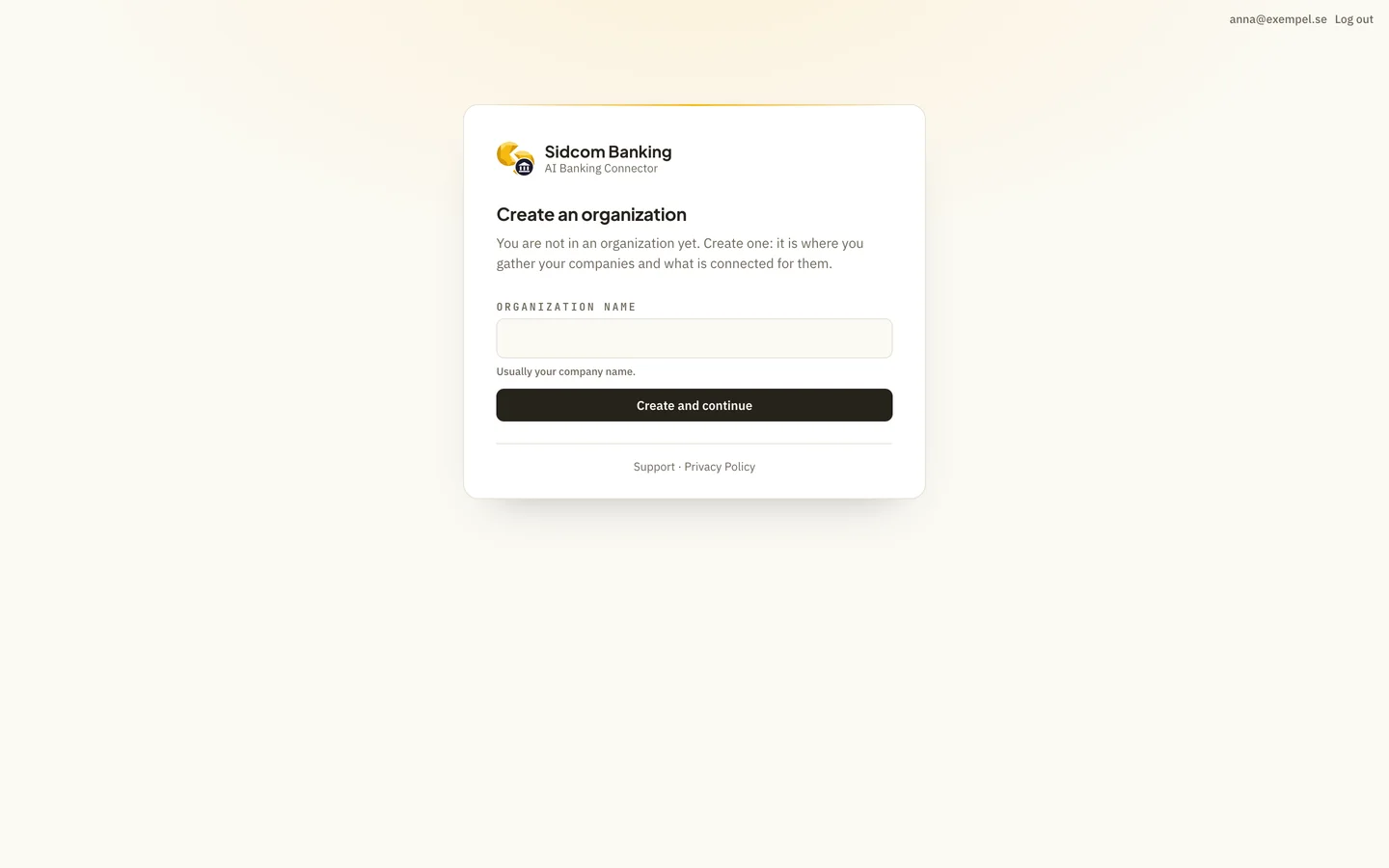
Name your organisation
The first time, you create an organisation at Sidcom. It is where your companies and what is connected for them are gathered. Usually the company's name.
Type inOrganization name
Sidcom ABIf you already have an organisation at Sidcom, you skip this step and the next.
Stuck on this step?
Contact support about this step →Looks different on your screen?
Still stuck? Tell us which step and we will help you through it.
Step 4 of 20
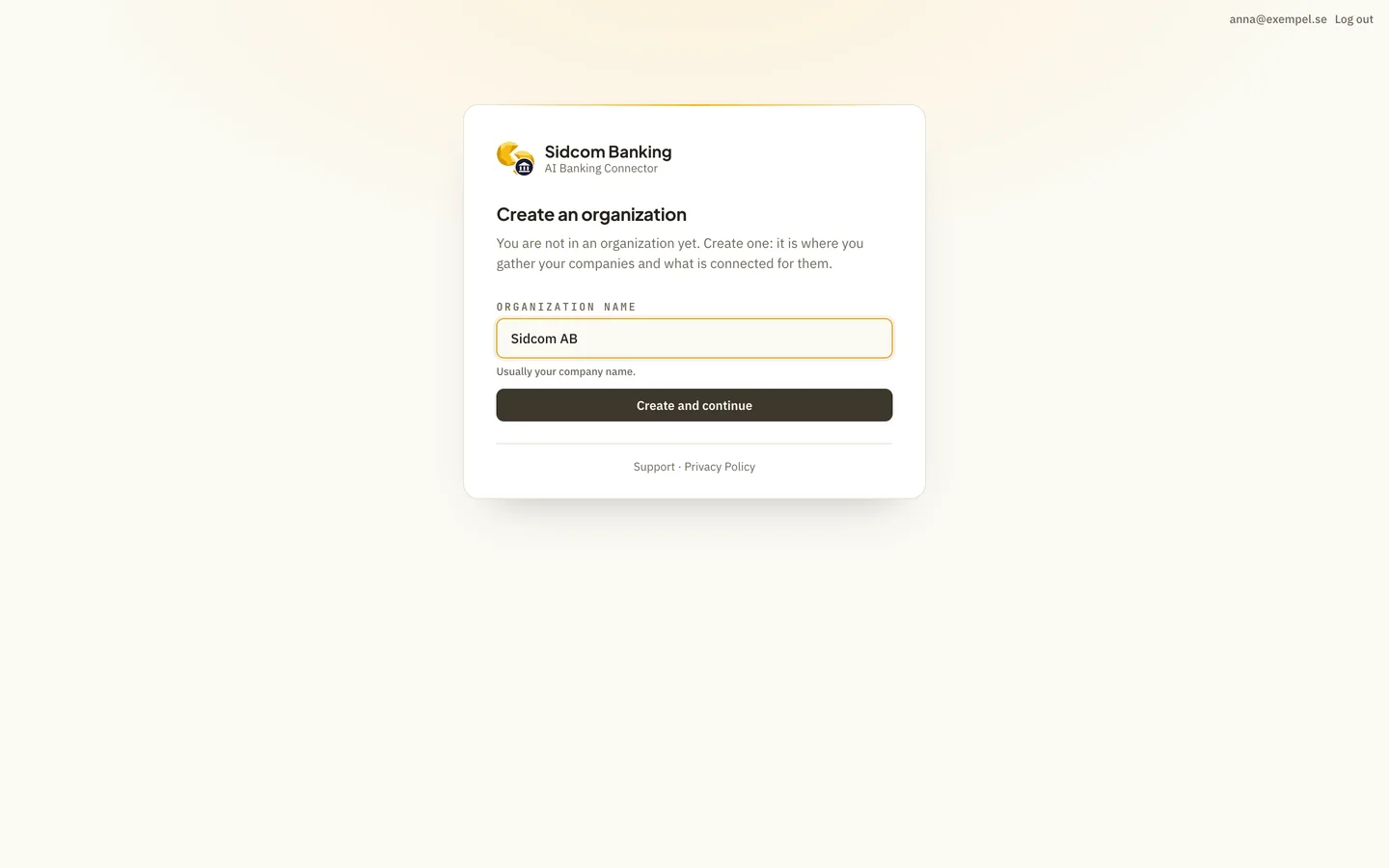
Click Create and continue
ClickCreate and continue
Stuck on this step?
Contact support about this step →Looks different on your screen?
Still stuck? Tell us which step and we will help you through it.
Step 5 of 20
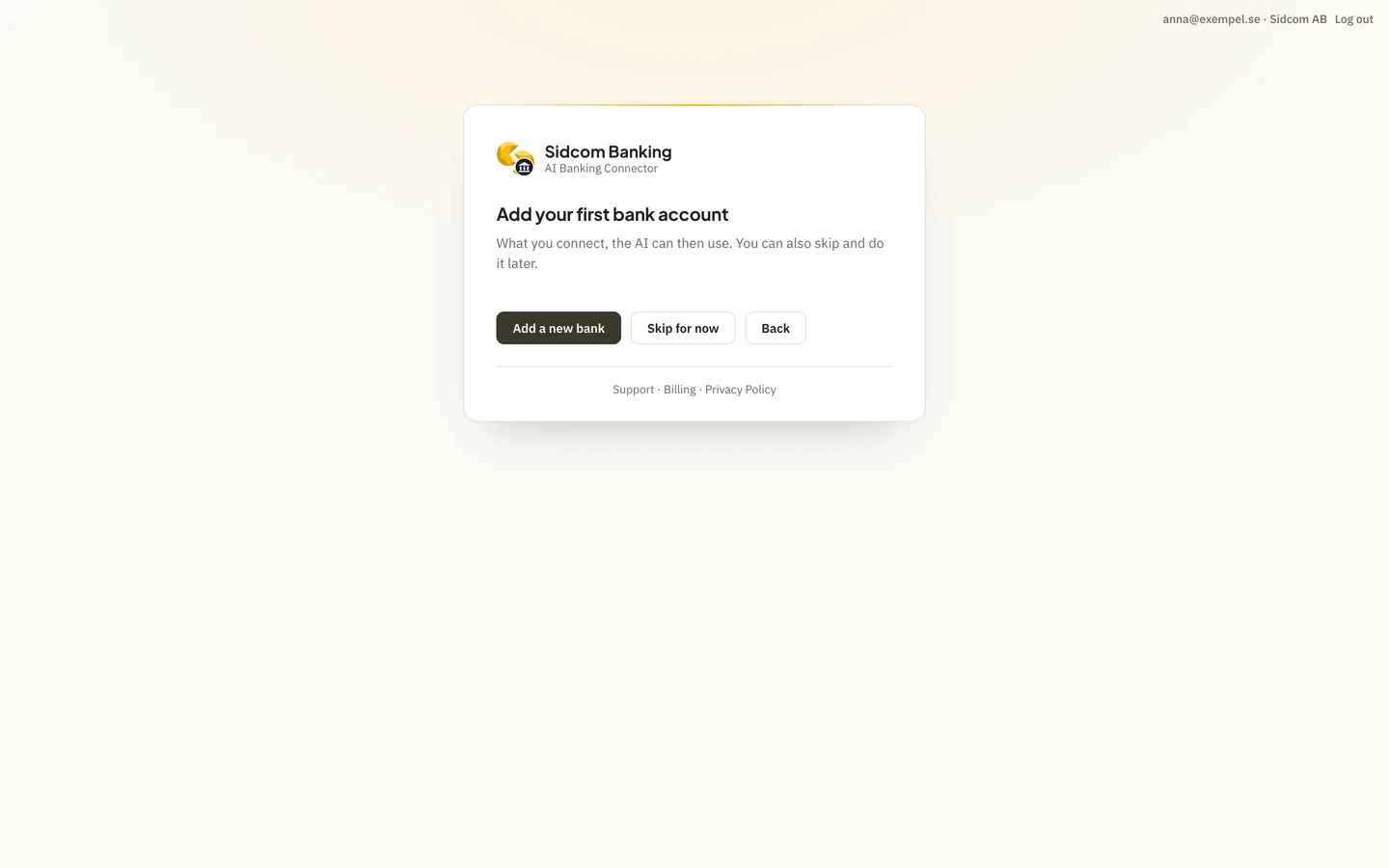
Click Add a new bank
Nothing is connected yet. This is where you add your first bank.
ClickAdd a new bank
Stuck on this step?
Contact support about this step →Looks different on your screen?
Still stuck? Tell us which step and we will help you through it.
Step 6 of 20
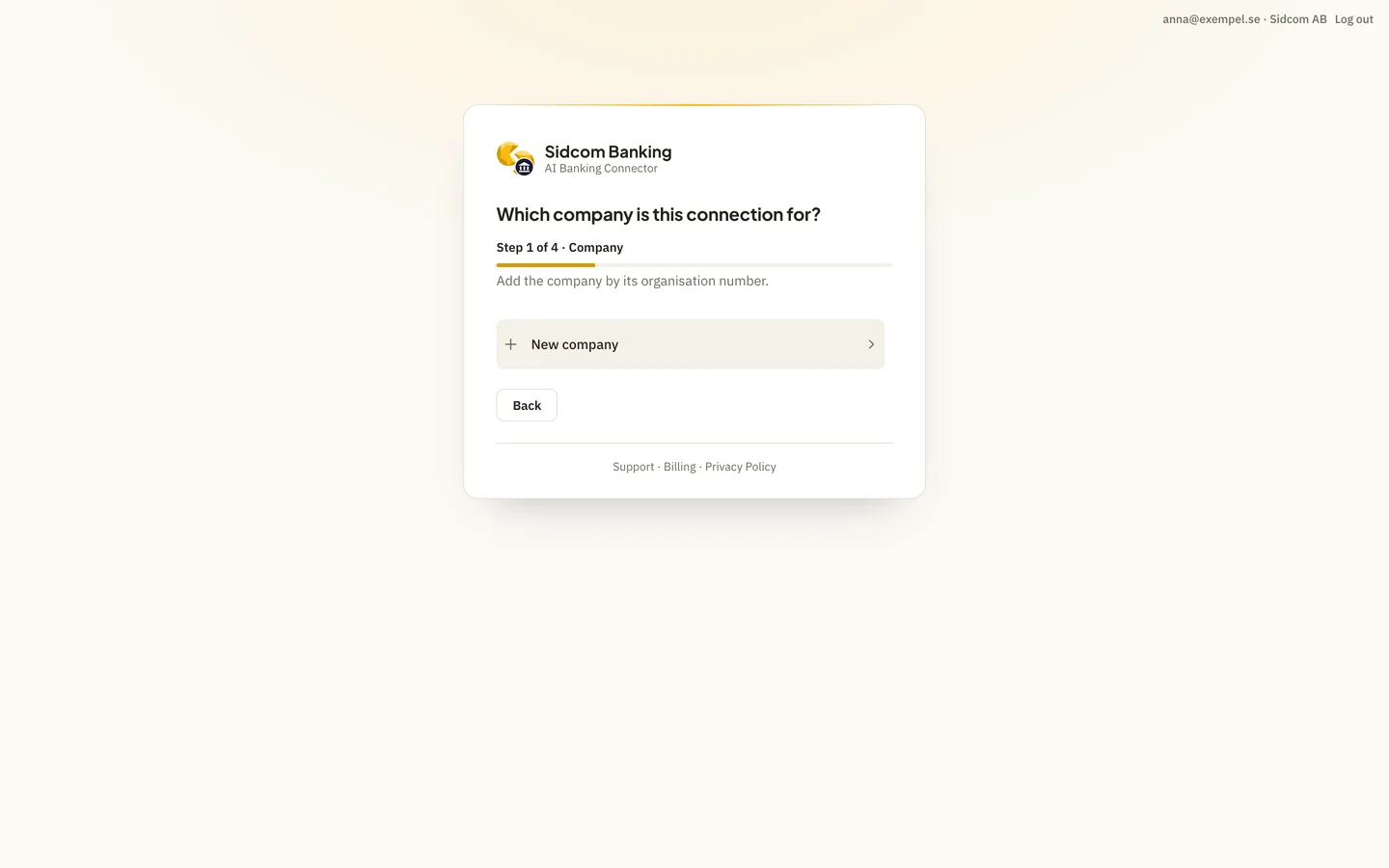
Choose New company
Every bank connection belongs to a company. Add the company by its organisation number.
ClickNew company
If you have added companies before, they are listed here. Then choose the company in the list and go on to who may use the connection.
Stuck on this step?
Contact support about this step →Looks different on your screen?
Still stuck? Tell us which step and we will help you through it.
Step 7 of 20
Enter the organisation number
Ten digits, with or without the hyphen.
Type inOrganisation number
559504-0840Is it a private account? Tick the box below the field instead.
Stuck on this step?
Contact support about this step →Looks different on your screen?
Still stuck? Tell us which step and we will help you through it.
Step 8 of 20
Click Look up
Sidcom fetches the company's name and city from Bolagsverket.
ClickLook up
Stuck on this step?
Contact support about this step →Looks different on your screen?
Still stuck? Tell us which step and we will help you through it.
Step 9 of 20
Check the details
Correct the name or the city if they have changed. Then click Continue.
ClickContinue
Stuck on this step?
Contact support about this step →Looks different on your screen?
Still stuck? Tell us which step and we will help you through it.
Step 10 of 20
Choose who may use the connection
Everyone in the company, so your colleagues can ask about the bank too, or only you. Then click Continue.
ClickContinue
Stuck on this step?
Contact support about this step →Looks different on your screen?
Still stuck? Tell us which step and we will help you through it.
Step 11 of 20
Find your bank
Type the bank's name in the search box. The list holds more than a hundred banks.
Type inSearch by name
Handelsbanken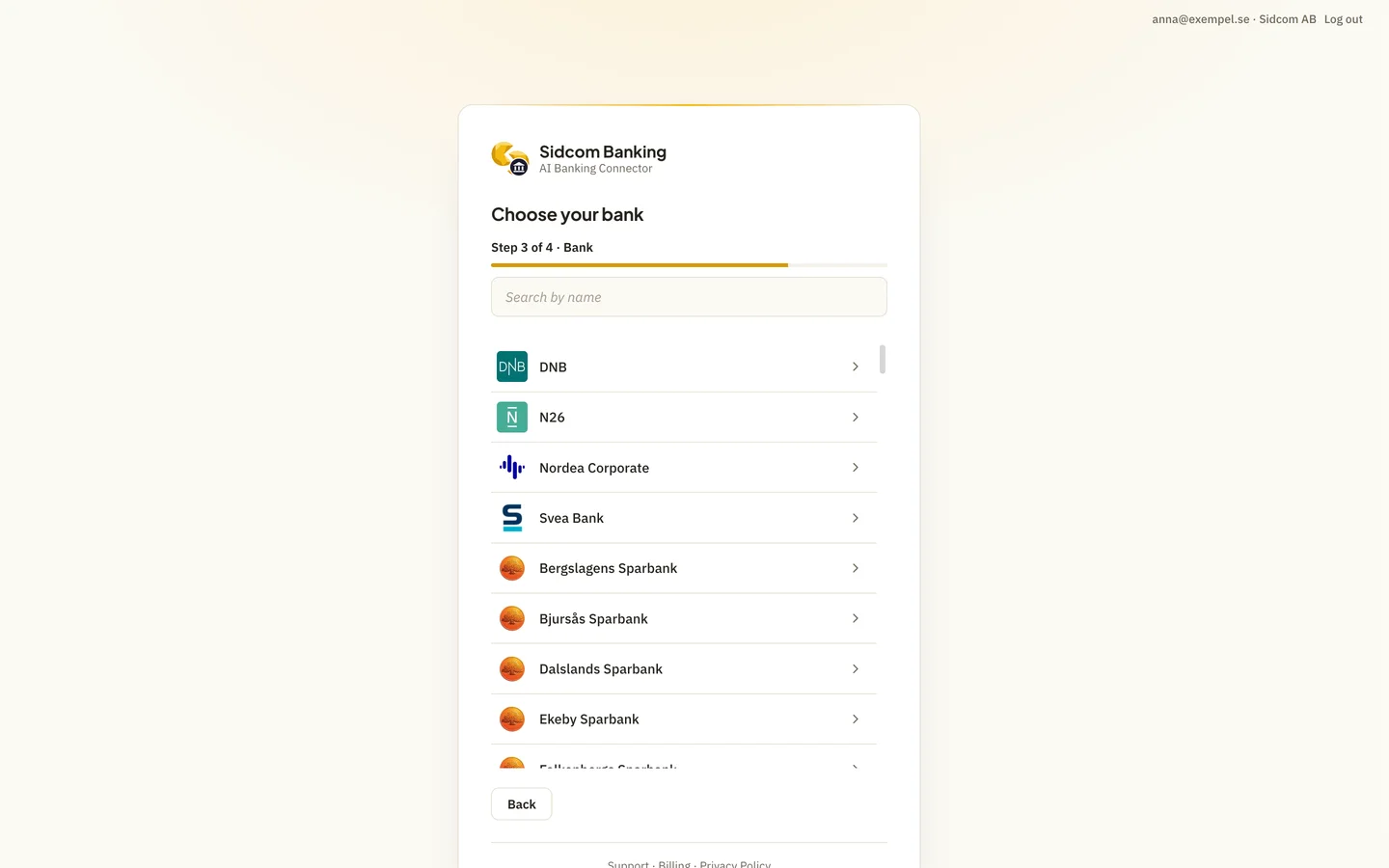
Stuck on this step?
Contact support about this step →Looks different on your screen?
Still stuck? Tell us which step and we will help you through it.
Step 12 of 20
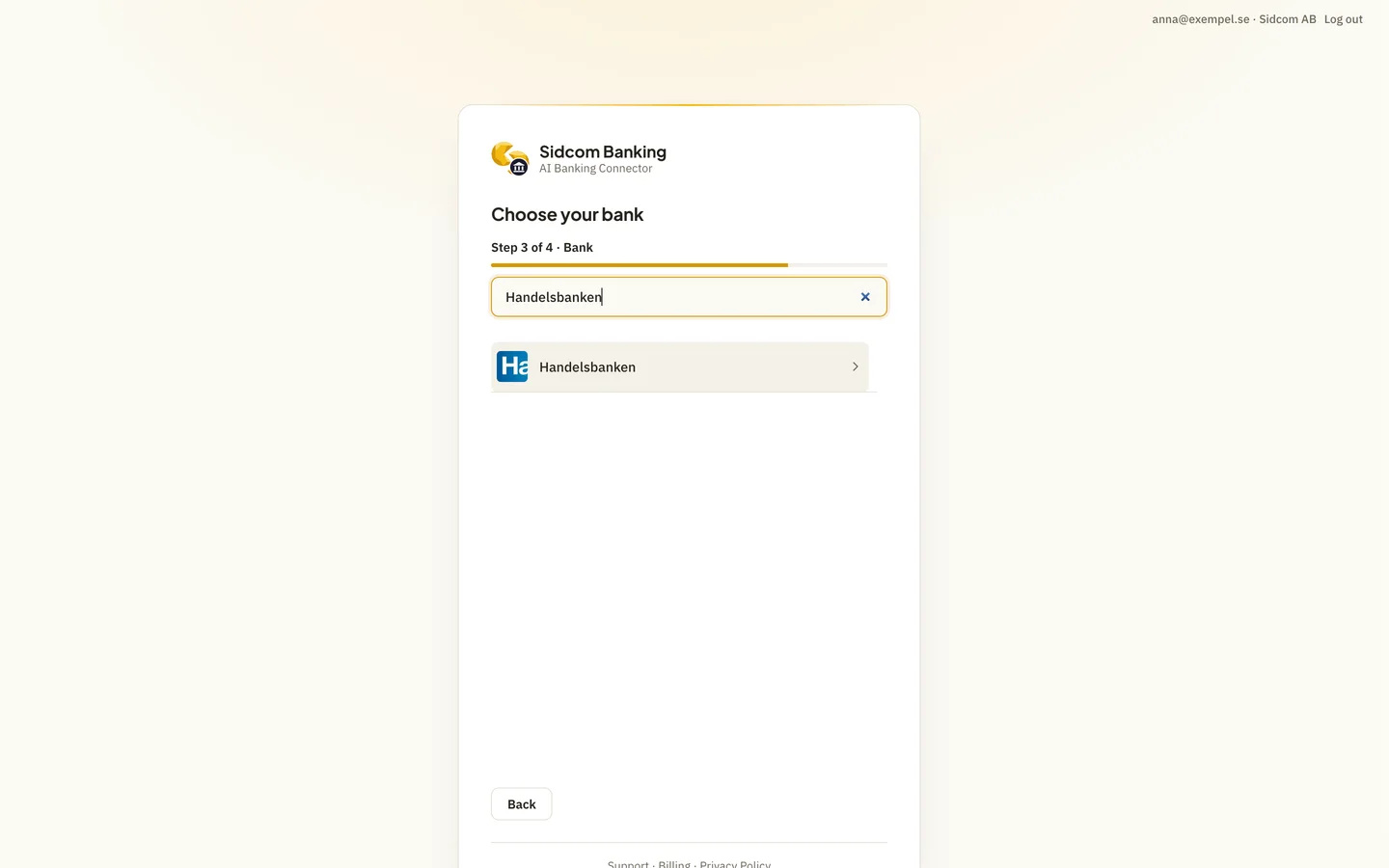
Choose the bank
Handelsbanken here, as an example. If the company has several banks, add them one at a time.
ClickYour bank
Stuck on this step?
I cannot find my bank
Some banks have separate entries for business and personal, for example Nordea Corporate. Try searching for part of the name. If the bank is missing altogether, get in touch and we will look into it.
Contact support about this step →Looks different on your screen?
Still stuck? Tell us which step and we will help you through it.
Step 13 of 20
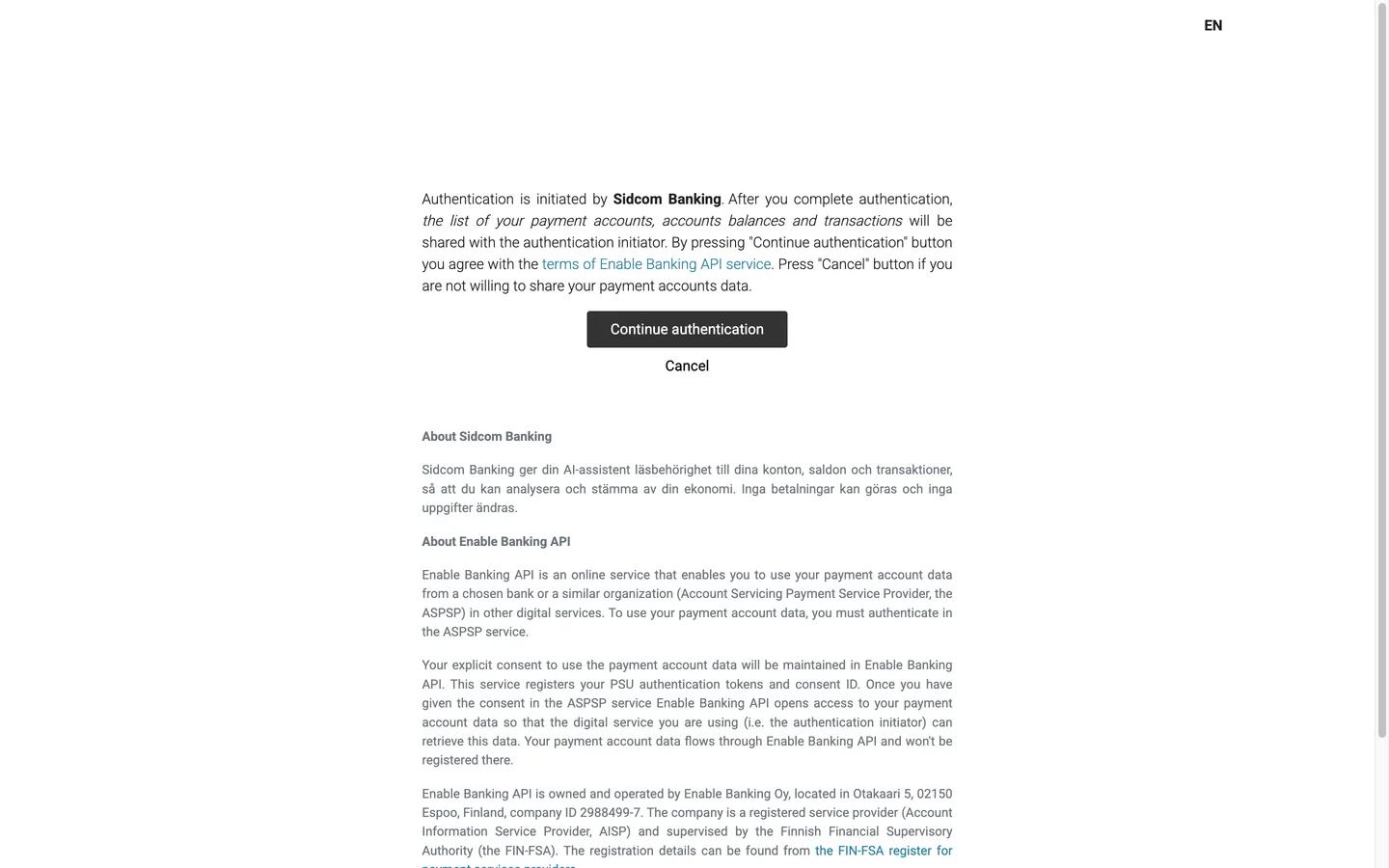
Agree to share the account data
The connection to the bank goes through Enable Banking, a registered account information service provider. It gives read access only, to accounts, balances and transactions.
ClickContinue authentication
Stuck on this step?
It says the connection did not go through
Then the approval was cancelled here or at the bank. Click Start again on the page shown and you are back at the choice of bank.
Contact support about this step →Looks different on your screen?
Still stuck? Tell us which step and we will help you through it.
Step 14 of 20
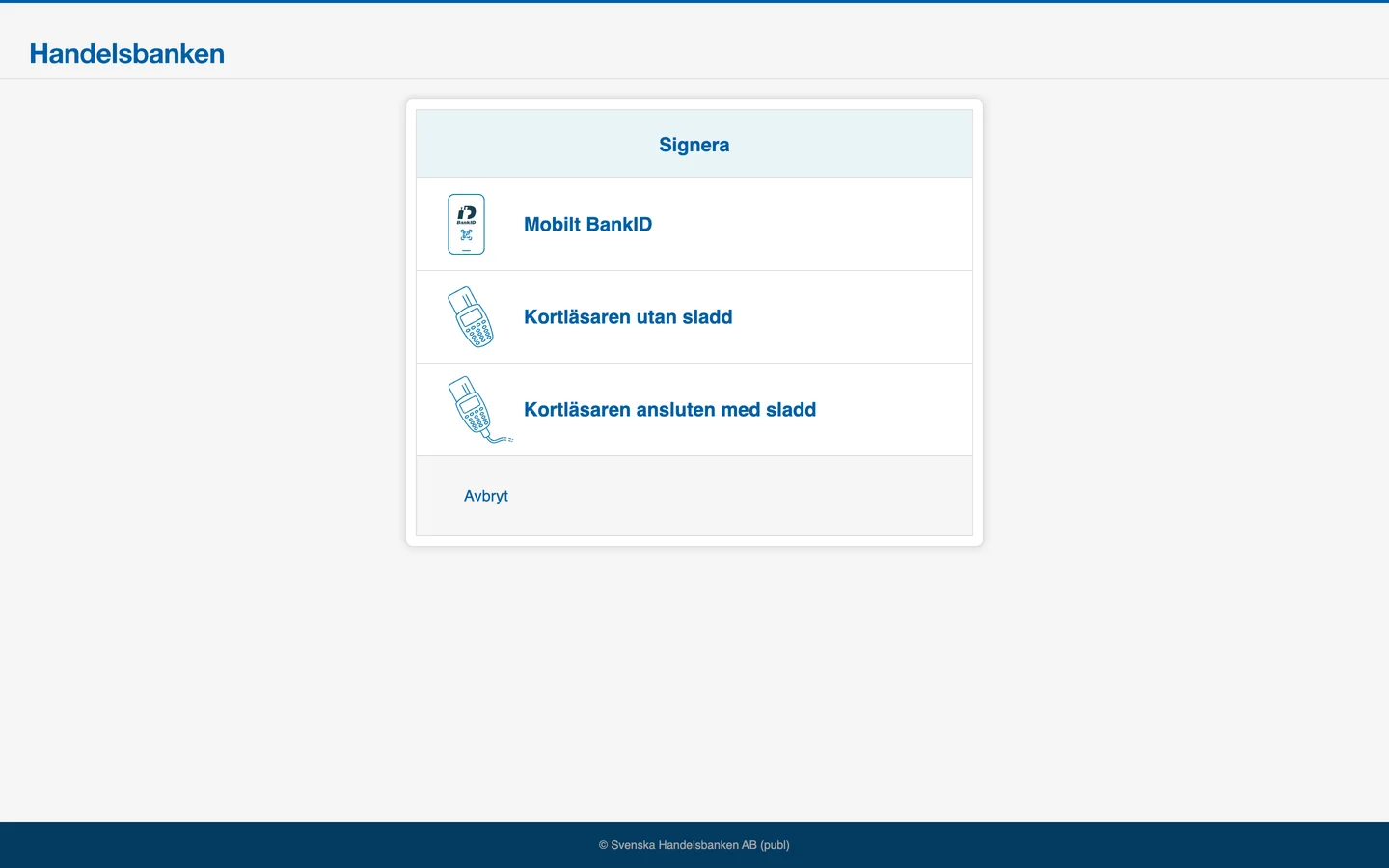
Approve with BankID at the bank
You are now in the bank's own sign-in. The page looks different for every bank. Sign in as usual and approve sharing the accounts.
The person approving needs access to the company's accounts at the bank. At an accounting firm that is often a consultant with a power of attorney in the client's bank.
Stuck on this step?
The bank shows a technical error when I sign
The sign-in is for the company you chose at Sidcom. This can happen when you do not have access to that company's accounts at the bank. Check that you chose the right company, or ask someone with access to do this step.
I do not have access to the company's bank
Ask someone who does to do this step. Send them the link to this guide, they sign in with their own Sidcom account and choose the same company.
Contact support about this step →Looks different on your screen?
Still stuck? Tell us which step and we will help you through it.
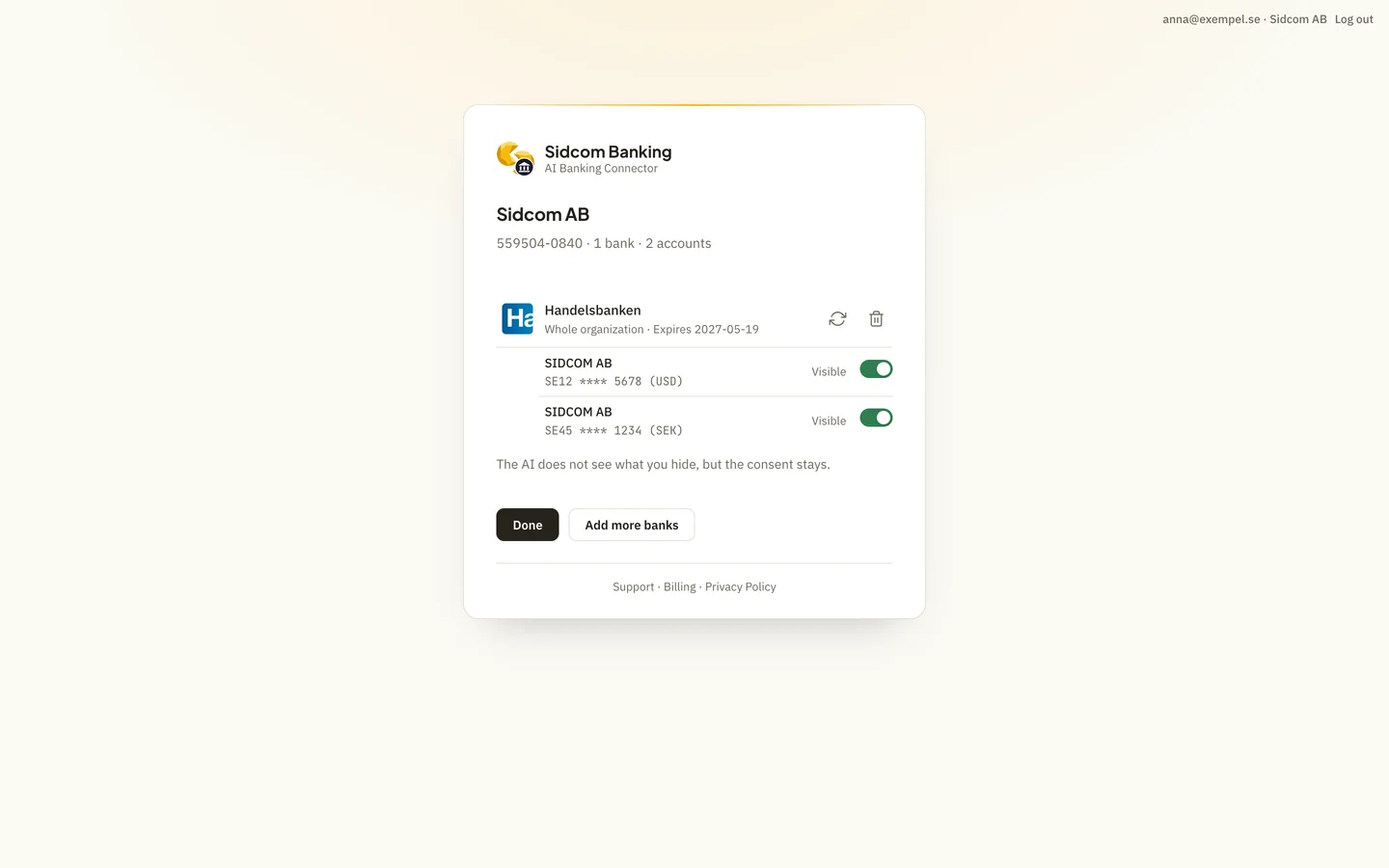
Step 15 of 20
Choose which accounts the AI may read
Back at Sidcom, the company's accounts at the bank are listed. All are visible to begin with. Switch off any account the AI should not see.
A hidden account is never read. The approval at the bank lasts up to 180 days, depending on the bank.
Stuck on this step?
Contact support about this step →Looks different on your screen?
Still stuck? Tell us which step and we will help you through it.
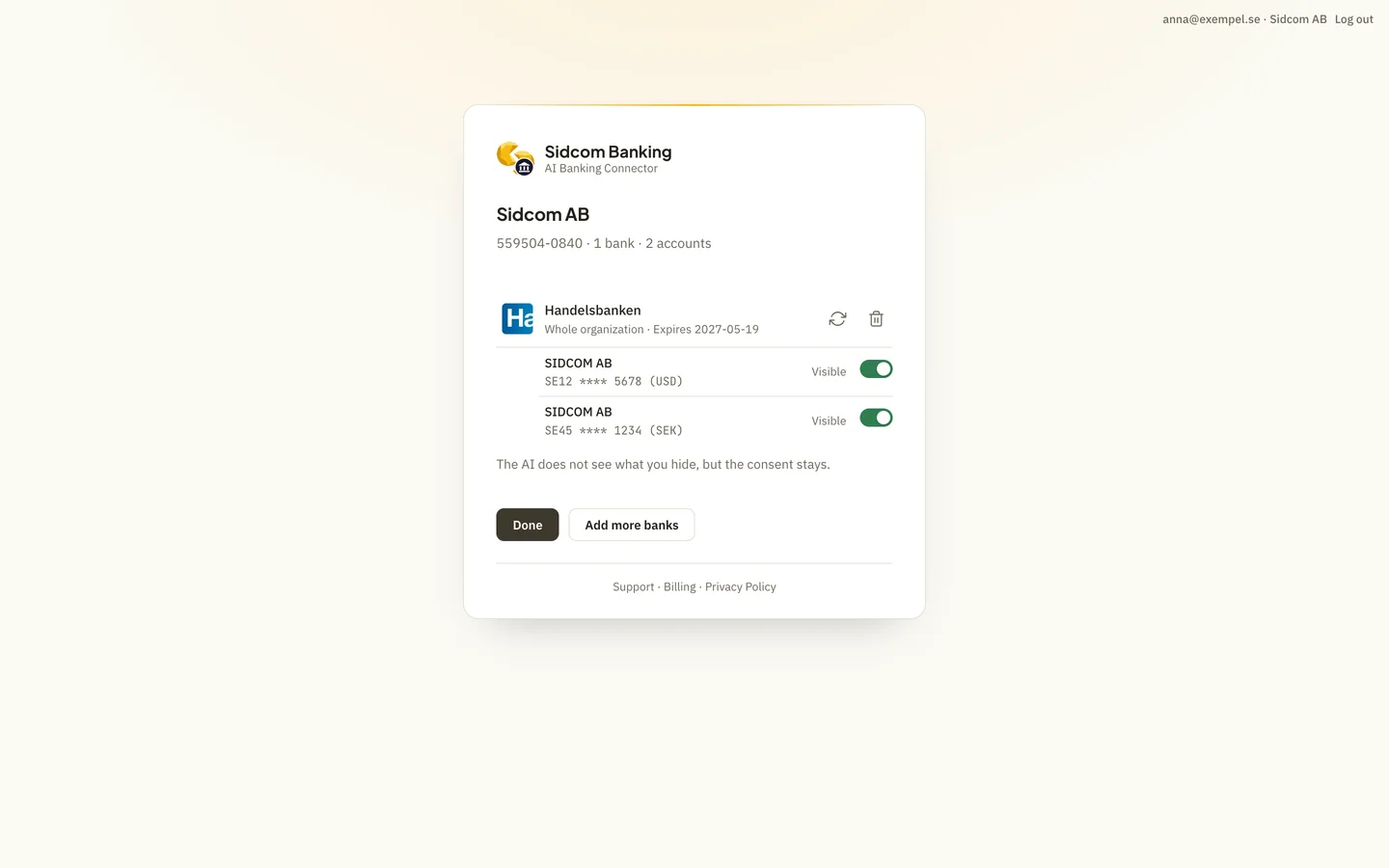
Step 16 of 20
Click Done
To connect another bank for the same company, choose Add more banks first.
ClickDone
Stuck on this step?
Contact support about this step →Looks different on your screen?
Still stuck? Tell us which step and we will help you through it.
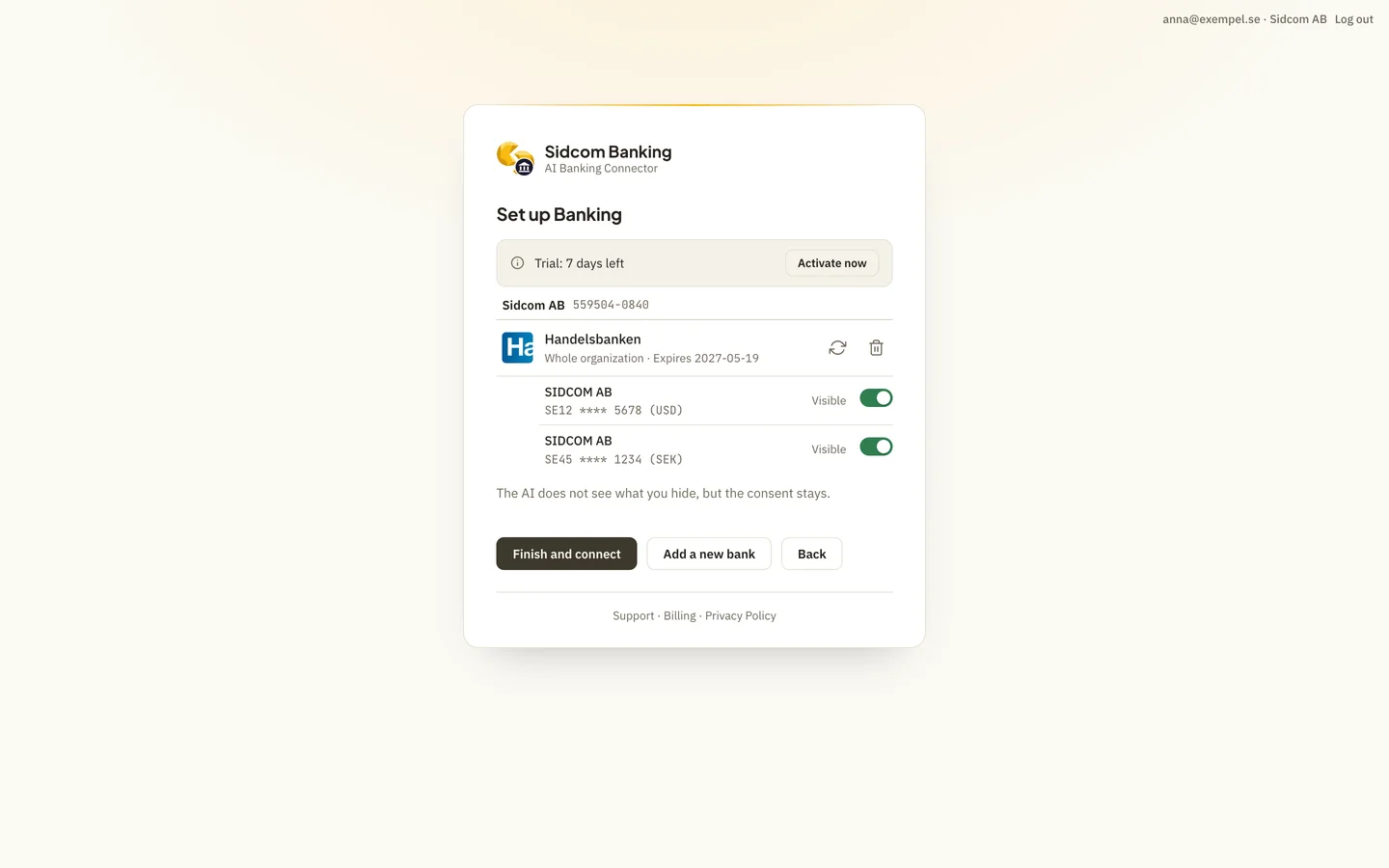
Step 17 of 20
Click Finish and connect
You see what is connected for each company. Finish to return to ChatGPT.
ClickFinish and connect
Stuck on this step?
Contact support about this step →Looks different on your screen?
Still stuck? Tell us which step and we will help you through it.
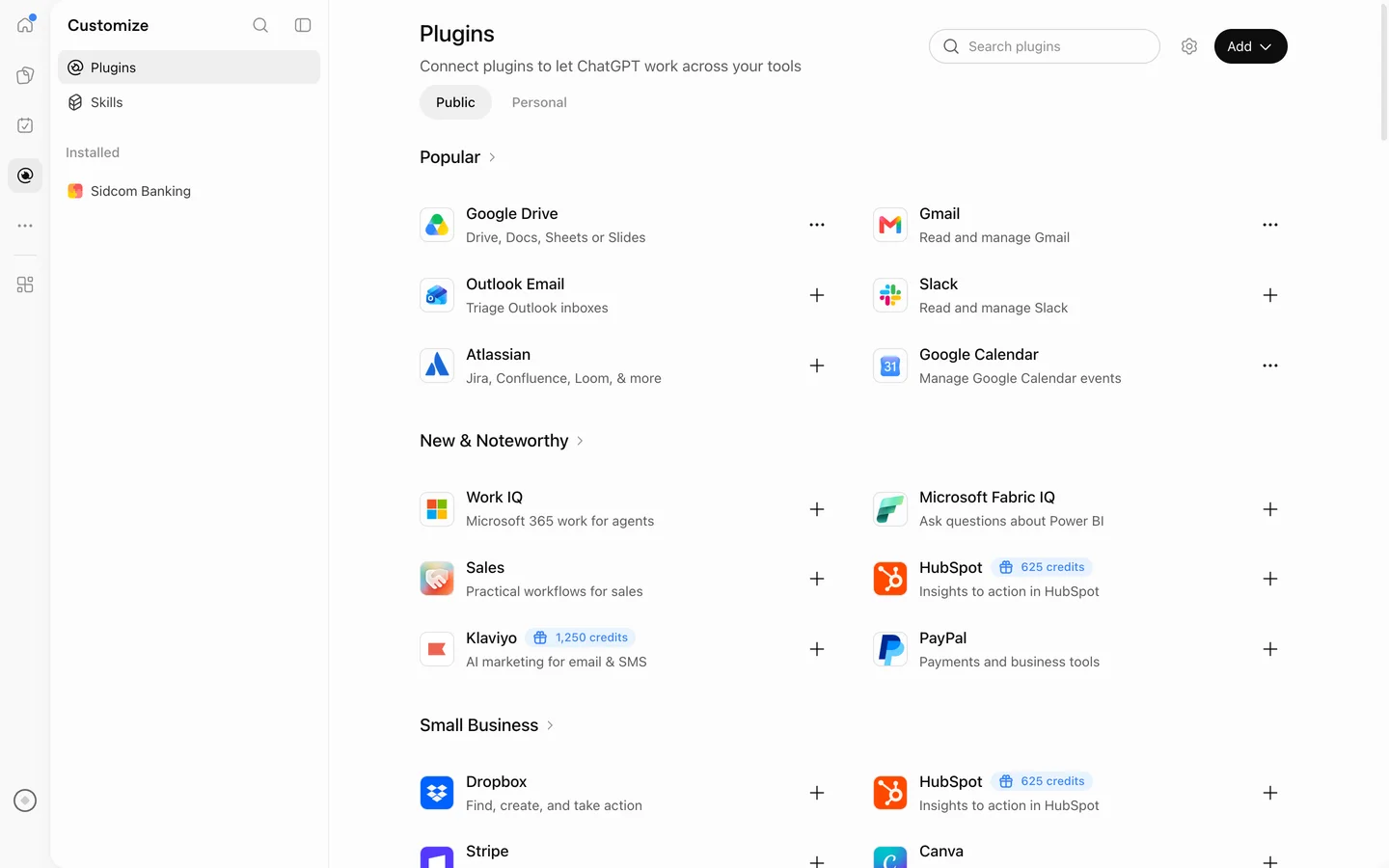
Step 18 of 20
Open Sidcom Banking in the list
You are back on the Plugins page in ChatGPT. Sidcom Banking is now under Installed on the left.
ClickSidcom Banking
Stuck on this step?
Contact support about this step →Looks different on your screen?
Still stuck? Tell us which step and we will help you through it.
Step 19 of 20
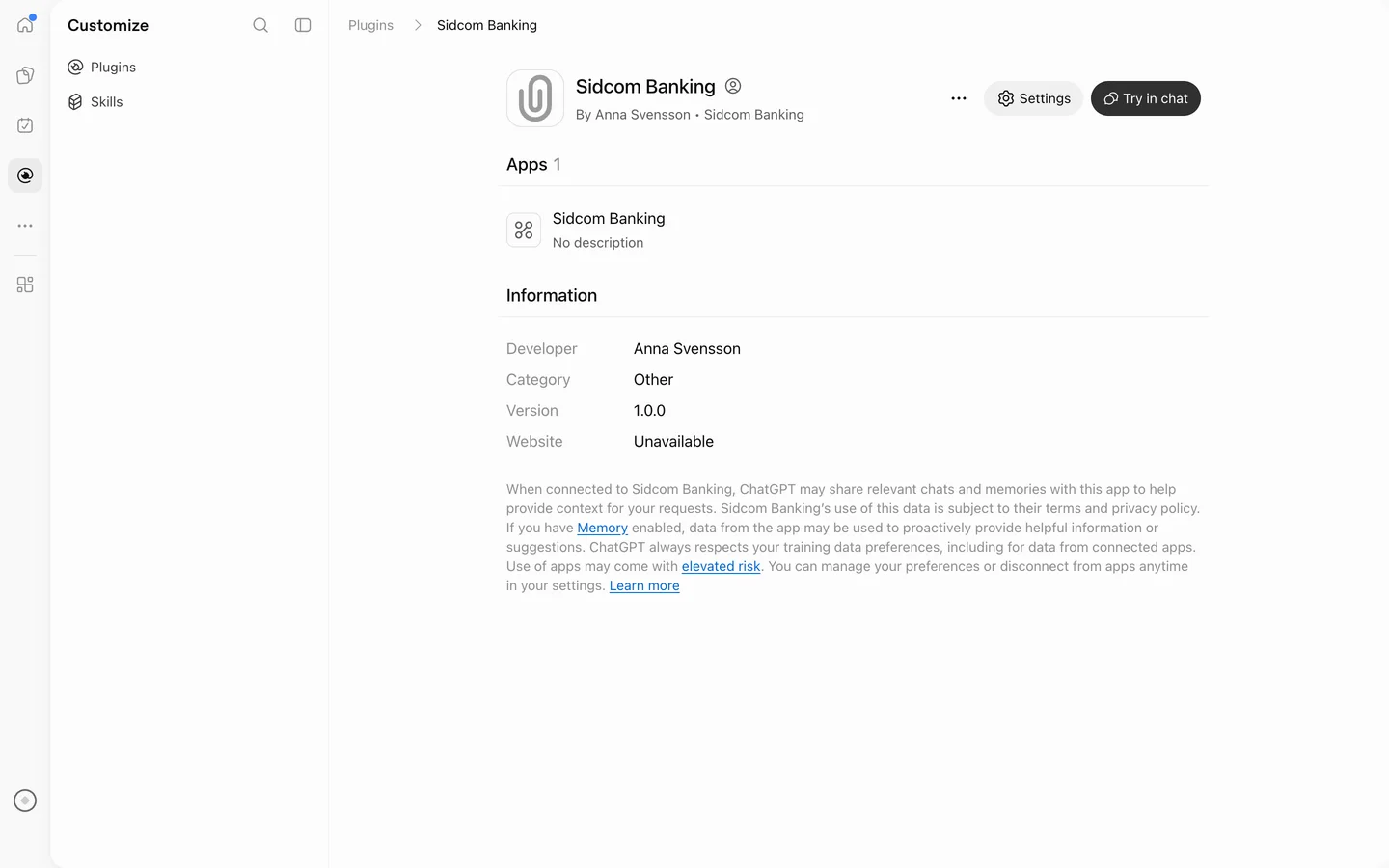
You are connected
The plugin's page shows that it is installed. Click Try in chat to start using it.
ClickTry in chat
Stuck on this step?
Contact support about this step →Looks different on your screen?
Still stuck? Tell us which step and we will help you through it.
Step 20 of 20
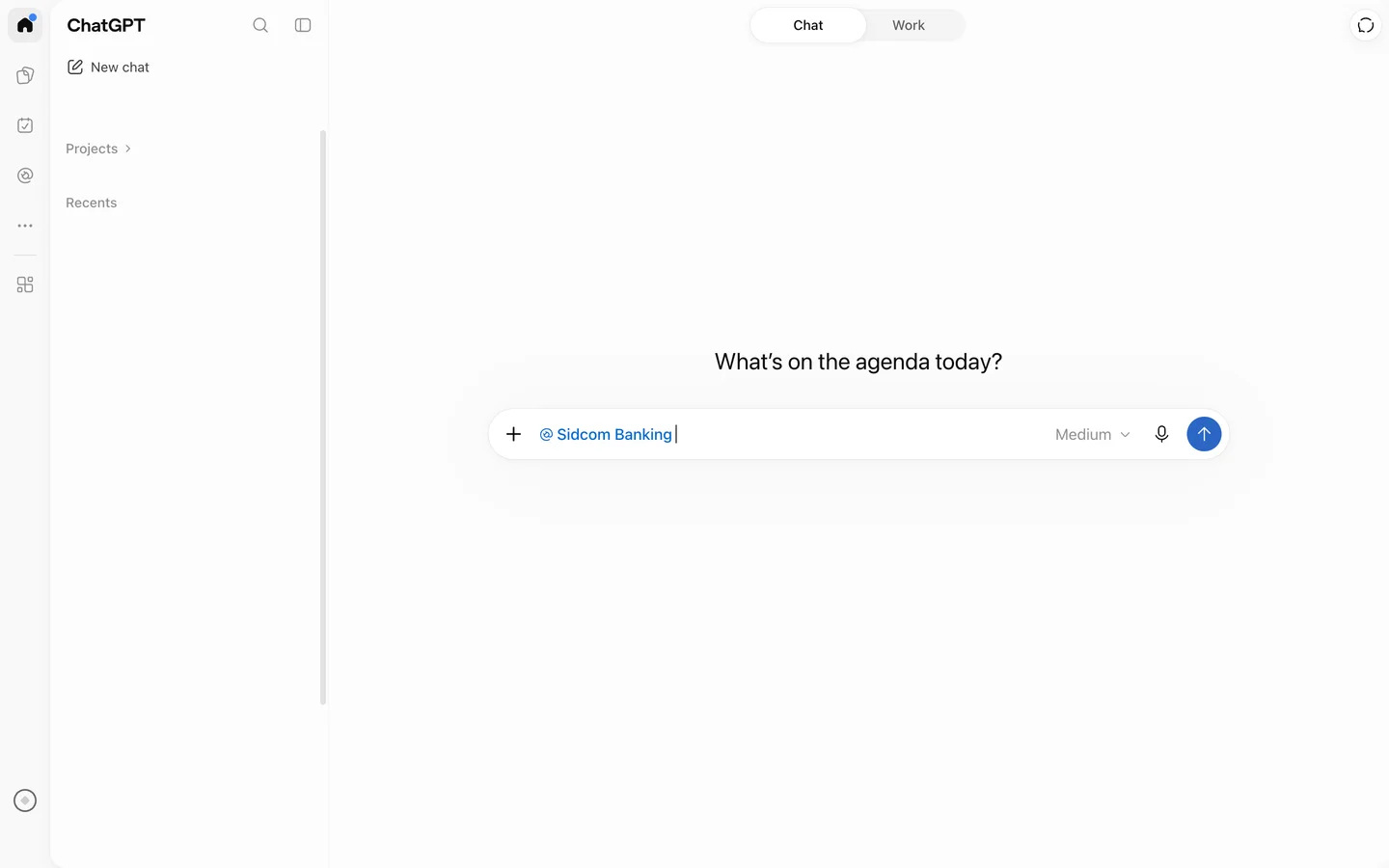
Ask about the bank
Sidcom Banking is selected in the chat. Ask something like Which payments came in this week?
With one of Sidcom's Fortnox connectors in the same chat, ChatGPT can reconcile the bank against the books.
Stuck on this step?
Contact support about this step →Looks different on your screen?
Still stuck? Tell us which step and we will help you through it.
ChatGPT updates its interface often. Screens last checked 20 Nov 2026.
Then reconcile against Fortnox.
The AI needs the books as well as the bank.
- Add a Fortnox connector
- In the same AI: the Claude Connector, the ChatGPT Connector or Fortnox AI Connector: Unlimited.
- Turn both on in the same chat
- In Claude, turn both connectors on in the chat's connector menu. In ChatGPT, select both apps.
- Ask for the reconciliation
- Reconcile the business account against Fortnox for October. The AI reads both sides, explains the difference and asks before it changes anything in Fortnox.